

Learning how to select, copy, and paste text on iPhone sounds like the kind of skill everyone should magically know by now. Yet the moment you need to copy a tracking number, move a sentence in Notes, or paste a password into an app before the login screen gives up on you, your finger suddenly behaves like it has never met glass before.
The good news: iPhone text editing is easier than it looks once you understand the three main methods. You can use the classic tap-and-hold menu, the keyboard trackpad for precise cursor control, and smarter tools like Live Text and Universal Clipboard when you want to copy text from images or move content between Apple devices.
This guide explains how to select text on iPhone, copy text on iPhone, paste text into another app, fix common copy-and-paste problems, and use the small iOS gestures that make editing feel less like finger gymnastics.
Why Copy and Paste on iPhone Can Feel Tricky
On a computer, selecting text is simple: click, drag, copy, paste, done. On an iPhone, you are working with a smaller screen, touch gestures, app-specific menus, and sometimes text that is not directly editable. That is why copying a paragraph from Safari may feel different from copying a line in Messages, Notes, Mail, Google Docs, or a PDF viewer.
The iPhone uses selection handles, also called grab points, to help you adjust exactly what you want to copy. After text is selected, iOS displays a floating menu with options such as Cut, Copy, Paste, Select All, Replace, Format, Look Up, Share, or Translate, depending on the app and the content.
Once you understand where that menu appears and how to adjust your selection, the whole process becomes fast. Not “I just hacked the Pentagon” fast, but definitely “I can copy this address before my coffee gets cold” fast.
Easy Way 1: Use Tap, Hold, and the Copy Menu
The most common way to select, copy, and paste text on iPhone is by using your finger directly on the text. This method works in apps like Notes, Messages, Mail, Safari, Reminders, and many third-party apps.
How to Select a Word on iPhone
To select one word, double-tap the word with one finger. The iPhone highlights it and shows grab points at both ends. You can drag those handles left or right to include more or less text.
For example, if you want to copy only the phrase “delivery window” from a message, double-tap one word, then drag the selection handle until both words are highlighted. Tap Copy, open the app where you want to use the phrase, tap the blank space, and choose Paste.
How to Select a Paragraph on iPhone
To select an entire paragraph, triple-tap inside the paragraph. This is useful when copying a block of text from Notes, an email draft, or a message you typed but want to move somewhere else.
After the paragraph is selected, tap Copy if you want to duplicate it. Tap Cut if you want to remove it from the original location and move it elsewhere. Then tap the destination area and select Paste.
How to Select a Larger Block of Text
To select a custom block of text, double-tap and hold near the first word, then drag across the text. You can also select a smaller piece first and adjust the grab points until the highlighted area is correct.
This is ideal when you need to copy only part of a long message, a quote from a webpage, a recipe ingredient list, or one section of a document. The trick is to move slowly. If you drag too quickly, iOS may select more than you want, and suddenly your one-sentence quote becomes half the internet.
How to Paste Text on iPhone
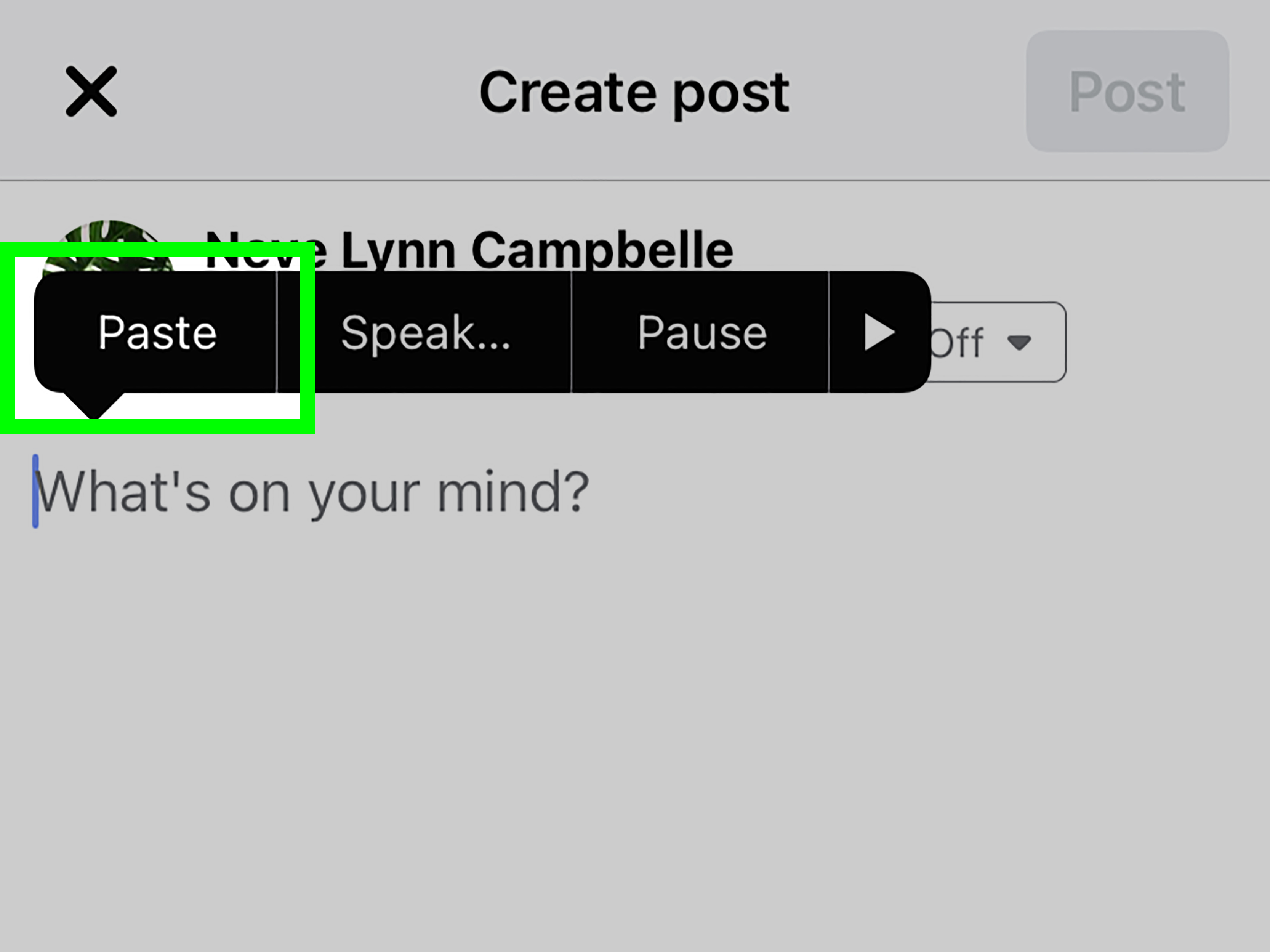
Once text is copied, go to the place where you want to insert it. Tap inside the text field, note, message box, email body, search bar, or form. When the menu appears, tap Paste.
If you are pasting into an app that supports formatting, the pasted text may keep its original style, such as bold text, links, or line breaks. If the app only accepts plain text, it may paste without formatting. This is normal and depends on the app.
Easy Way 2: Use the iPhone Keyboard Trackpad and Editing Gestures
The second easy way is perfect when you need precision. Instead of tapping repeatedly and hoping the cursor lands between the right letters, you can turn the iPhone keyboard into a trackpad.
How to Turn the iPhone Keyboard into a Trackpad
Open any app where the keyboard appears, such as Notes or Messages. Touch and hold the space bar until the keyboard turns blank or gray. Without lifting your finger, slide around the keyboard area to move the cursor through the text.
This is especially helpful when fixing a typo in the middle of a sentence. Instead of tapping the same tiny spot seven times while questioning your life choices, hold the space bar, slide the cursor exactly where you want it, and edit like a calm professional.
How to Select Text with the Keyboard Trackpad
After activating the trackpad, you can use a second finger to begin selecting text, then move the first finger to adjust the selection. This takes a little practice, but it gives you more control when editing longer text.
For example, if you are writing a long caption in Instagram, editing a note for school, or cleaning up a work email, the keyboard trackpad helps you place the cursor and select phrases without accidentally opening menus or moving the screen.
Three-Finger Copy and Paste Gestures
iPhone also supports editing gestures that can feel almost secret. After selecting text, pinch closed with three fingers to copy. Pinch closed with three fingers twice to cut. Pinch open with three fingers to paste.
These gestures are not required, but they are useful once you get used to them. They are also a fun way to look like you know hidden iPhone wizardry. Just do not practice them for the first time while editing an important email to your boss. That is how “Thanks for your help” becomes “Thaaaaanks for your h.”
Easy Way 3: Use Live Text and Universal Clipboard
The third method is for situations where the text is not sitting neatly inside a normal text field. Maybe it is printed on a flyer, captured in a screenshot, displayed in a photo, or copied from another Apple device. This is where iPhone tools like Live Text and Universal Clipboard become extremely useful.
How to Copy Text from a Photo on iPhone with Live Text
Live Text lets supported iPhones recognize text inside photos, screenshots, videos, and some images online. Open a photo or pause a video that contains text. Tap or touch and hold the text, then move the grab points to adjust the selection. Tap Copy, then paste the text into Notes, Messages, Mail, Safari, or another app.
This is great for copying a Wi-Fi password from a router label, pulling a phone number from a poster, saving an address from a screenshot, or grabbing ingredients from a recipe photo. It is not perfect, especially with messy handwriting or blurry images, so always proofread before sending or saving the copied text.
How to Copy and Paste Between iPhone, iPad, and Mac
Universal Clipboard lets you copy text on one Apple device and paste it on another nearby Apple device. For example, you can copy a sentence on your iPhone and paste it into a document on your Mac, or copy a link from your iPad and paste it into a message on your iPhone.
For this to work, your devices should be signed in with the same Apple Account, have Wi-Fi and Bluetooth turned on, and have Handoff enabled. The copied item stays available only briefly, so paste it soon after copying. Universal Clipboard is best for small pieces of text, links, images, and quick transfersnot for moving your entire digital life in one dramatic clipboard moment.
Common Places Where Copy and Paste Works on iPhone
Messages
In Messages, you can copy part of a message, copy a full message bubble, or paste text into the typing field. Touch and hold a message bubble to see available options. For text you are composing, use the usual double-tap, drag, copy, and paste steps.
Safari
In Safari, you can copy text from webpages, copy URLs from the address bar, and paste links into messages or notes. Some websites may limit text selection, but most standard article pages allow you to select and copy normal text.
Notes
Notes is one of the easiest places to practice iPhone text editing. You can select words, paragraphs, lists, and links. You can also drag selected text to move it within the same note.
In Mail, copying and pasting is useful for editing replies, moving paragraphs, saving addresses, and reusing common responses. Watch formatting when pasting from websites because email apps may preserve links, fonts, or spacing.
Google Docs, Sheets, and Slides
In Google’s iPhone and iPad apps, you usually need to open the file, tap the edit button if necessary, select the content, tap Copy, tap the destination, and choose Paste. Some document apps have their own editing toolbar, so the menu may look slightly different from Apple apps.
Troubleshooting: Why Copy and Paste May Not Work
The Copy Menu Does Not Appear
If the copy menu does not appear, try tapping once, then tapping again. In some apps, you may need to touch and hold the text. If you are on a webpage or inside a PDF, the app may handle selection differently.
You Copied Text, but Paste Is Missing
If Paste does not appear, tap inside a valid text field first. Some areas of an app accept taps but do not accept typed content. Also, remember that the clipboard can be replaced when you copy something else.
The Wrong Text Keeps Getting Selected
Zoom in if possible, rotate the iPhone to landscape mode, or use the keyboard trackpad for better cursor control. Drag selection handles slowly and release only when the highlighted text is correct.
Pasted Text Looks Weird
Text copied from websites may include extra spacing, hidden formatting, line breaks, or links. Paste it into Notes first if you want to clean it up before placing it into an email, form, or document.
Universal Clipboard Is Not Working
Check that Wi-Fi, Bluetooth, and Handoff are turned on. Make sure both devices are signed in to the same Apple Account and are close to each other. Restarting the devices can also help when Continuity features behave stubbornly.
Smart Tips for Faster Copying and Pasting
Use Select All when you need the entire note, message draft, or document field. This is faster than dragging handles through a long page of text.
Use the space bar trackpad whenever you need to fix one word inside a sentence. It is more accurate than tapping directly between letters.
Copy sensitive information only when necessary. Your iPhone clipboard is temporary, but apps may request clipboard access, and iOS may show a notification when an app pastes from another app.
Proofread text copied with Live Text. Printed text usually works well, but handwriting, shadows, glare, and unusual fonts can cause mistakes.
When pasting into forms, check for extra spaces at the beginning or end. This matters for coupon codes, usernames, tracking numbers, and verification codes.
Real-Life Experience: What Copying and Pasting on iPhone Actually Feels Like
In real use, copying and pasting on iPhone is less about memorizing gestures and more about knowing which method fits the moment. For short text, the basic double-tap method is still the fastest. When someone sends a confirmation code, a restaurant name, or a single sentence, double-tap, copy, paste, and move on. It feels simple because the task is simple.
The trouble usually starts with longer text. Anyone who has tried to copy three sentences from the middle of a webpage knows the pain. You drag the handle a little too far, the page scrolls, and suddenly you have selected the headline, two ads, and possibly a comment from a stranger named Gary. This is where patience helps. Start with a smaller selection, then expand it slowly. If the page keeps jumping, copy the text in smaller chunks instead of fighting the screen like it owes you money.
The keyboard trackpad is one of those features that feels unnecessary until you use it correctly once. Editing a typo in the middle of a long note becomes much easier. Instead of stabbing the screen and landing one character too far left every time, you hold the space bar and glide the cursor into position. For students, writers, social media managers, and anyone who writes long messages on an iPhone, this small feature saves a surprising amount of frustration.
Live Text is the most “future is here” method. It is especially useful when you receive a screenshot instead of actual text. Maybe a friend sends a photo of a schedule, a teacher shares a printed handout, or you take a picture of a sign. Being able to copy the words from that image feels almost magical. Still, it is not a replacement for proofreading. A blurry photo can turn “Room 108” into “Room lO8,” and that tiny mistake can send you wandering through a building like a confused detective.
Universal Clipboard is best for people who use more than one Apple device. Copying a link on iPhone and pasting it on Mac is smooth when everything is set up correctly. It is perfect for moving a quote into a document, sending a phone number from iPhone to iPad, or continuing research across devices. The only habit to build is pasting quickly, because clipboard content does not stay available forever.
After using these features daily, the best advice is simple: use the basic tap menu for quick copying, the space bar trackpad for accurate editing, and Live Text or Universal Clipboard when the text lives somewhere inconvenient. Once those three methods become natural, the iPhone stops feeling tiny and fussy and starts feeling like a proper writing and editing tool that just happens to fit in your pocket.
Conclusion
Knowing how to select, copy, and paste text on iPhone makes everyday tasks much faster. You can copy a single word with a double tap, grab a paragraph with a triple tap, fine-tune your cursor with the keyboard trackpad, use three-finger gestures for faster editing, extract text from photos with Live Text, and move copied content between Apple devices with Universal Clipboard.
The best method depends on what you are doing. For quick messages, use the regular copy menu. For precise editing, use the space bar trackpad. For screenshots, photos, and cross-device work, use Live Text and Universal Clipboard. Master those three easy ways, and your iPhone becomes much more than a scrolling machine with notifications. It becomes a pocket-sized productivity assistantminus the tiny office chair.