

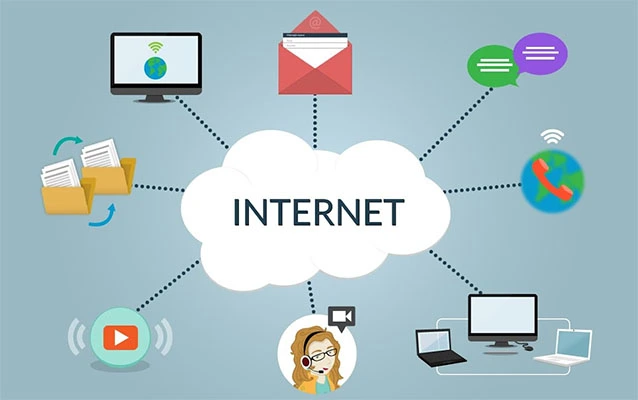
Ethernet may sound like something invented by a wizard with a soldering iron, but it is simply the technology that lets computers, printers, servers, game consoles, cameras, and other devices communicate over a wired network. It is fast, dependable, widely supported, and usually less dramatic than Wi-Fiwhich is exactly what you want from network infrastructure.
This guide explains Ethernet LAN basics without burying you under a mountain of acronyms. You will learn how Ethernet works, what switches and routers actually do, how to choose network cables, why MAC and IP addresses are different, and how to troubleshoot common wired-network problems.
What Is an Ethernet LAN?
A local area network, or LAN, connects devices within a limited physical area, such as a home, office, school, workshop, or commercial building. Ethernet is the most common wired technology used to build that network.
An Ethernet LAN typically includes several basic components:
- Computers, printers, cameras, servers, and other endpoint devices
- Ethernet cables or fiber-optic connections
- Network interface cards, commonly called NICs
- One or more Ethernet switches
- A router when the LAN needs to reach other networks or the internet
When two devices communicate on the same Ethernet network, their information is divided into units called frames. These frames travel through cables and switches until they reach the correct destination.
Think of the LAN as an office building. Ethernet cables are the hallways, switches are the reception desks directing visitors, and network addresses are the room numbers. The router is the front entrance connecting the building to the outside world.
Ethernet, Wi-Fi, and the Internet Are Not the Same Thing
Ethernet is sometimes used as a synonym for “the internet,” but the two are different. Ethernet describes a method of connecting devices on a local wired network. The internet is a global network made up of countless smaller networks.
Wi-Fi also creates local network connections, but it uses radio waves instead of physical cables. A typical home router combines several functions in one box: routing, Ethernet switching, Wi-Fi access, DHCP service, firewall protection, and sometimes modem functionality.
A device can therefore be connected to your LAN without having internet access. For example, a computer may still reach a local printer or file server even when the internet service provider is experiencing an outage.
Why Use Ethernet Instead of Wi-Fi?
Wi-Fi is convenient, but Ethernet generally offers more consistent performance. A wired connection is less affected by walls, neighboring wireless networks, household appliances, and the mysterious person who keeps standing between your laptop and the access point.
Ethernet is especially useful for:
- Desktop computers and workstations
- Network-attached storage devices
- Servers and backup systems
- Security cameras
- Online gaming systems
- Video-editing workstations
- Wireless access points
- Voice over IP phones
Ethernet does not automatically make an internet connection faster than the speed purchased from an internet provider. It does, however, help devices use that available connection more reliably.
How an Ethernet Connection Works
Every Ethernet-capable device has a network interface. It may be built into the motherboard, installed as an expansion card, or connected through a USB adapter. The interface converts data generated by the device into signals that can travel across the network medium.
Modern copper Ethernet commonly uses twisted-pair cable terminated with an eight-position modular connector often called an RJ45 connector. When the cable is connected, the devices at both ends normally use auto-negotiation to choose a compatible speed and duplex mode.
Understanding Link Speed
Common Ethernet link speeds include:
- 10 Mbps: Legacy Ethernet, rarely used for current general-purpose networks
- 100 Mbps: Fast Ethernet, still found in older equipment and some low-bandwidth devices
- 1 Gbps: Gigabit Ethernet, the standard choice for many homes and offices
- 2.5 Gbps and 5 Gbps: Multi-gigabit Ethernet for faster workstations, access points, and storage systems
- 10 Gbps: Common in servers, high-performance workstations, network backbones, and demanding business environments
The effective speed of a connection is limited by the slowest important component in the path. A computer with a 2.5-gigabit adapter will not establish a 2.5-gigabit link through a switch port that supports only one gigabit.
Full Duplex Versus Half Duplex
Full-duplex Ethernet allows a device to transmit and receive data at the same time. This is the normal operating mode on modern switched Ethernet networks.
Half-duplex operation allows communication in only one direction at a time. It was more relevant when devices shared network hubs and collisions were possible. Modern switches give each connected device a dedicated link, so full-duplex communication has largely sent half duplex to the technology retirement village.
What Does an Ethernet Switch Do?
An Ethernet switch connects multiple wired devices within the same LAN. It receives frames, examines their destination information, and forwards them through the appropriate port.
A switch learns which devices are connected to its ports by reading the source MAC addresses of incoming frames. It stores this information in a MAC address table. When the switch knows where the destination device is located, it forwards the frame only to the relevant port.
If the destination is unknown, the switch may initially flood the frame through other ports in the same broadcast domain. Once the destination responds, the switch learns its location and can handle future traffic more efficiently.
Unmanaged and Managed Switches
An unmanaged switch is designed for simple, plug-and-play networking. Connect the power, attach the cables, and it begins forwarding traffic without requiring configuration.
A managed switch offers additional control and visibility. Depending on the model, it may support:
- Virtual LANs, or VLANs
- Traffic monitoring
- Quality of service settings
- Link aggregation
- Access-control rules
- Loop-prevention protocols
- Port security
- Remote administration
For a small home network, an unmanaged gigabit switch is often sufficient. A managed switch becomes useful when you need to separate departments, isolate smart devices, prioritize voice traffic, or investigate performance problems.
How a Router Differs From a Switch
A switch primarily moves traffic between devices on the same local network. A router moves traffic between different networks.
For example, when a laptop sends data to a printer on the same subnet, the switch can deliver the frames locally. When the laptop visits a website, the traffic must leave the LAN. It is sent to the default gateway, which is usually the router.
The router then forwards the traffic toward the internet. In many home and small-business environments, the router also performs network address translation, firewall filtering, DHCP address assignment, and DNS forwarding.
Adding a switch increases the number of Ethernet ports available on a LAN. It does not normally replace the router or create a second internet subscription. The switch is the traffic coordinator; the router is the border guard with paperwork.
MAC Addresses, IP Addresses, DHCP, and DNS
MAC Addresses
A media access control address identifies a network interface at the data-link layer. Traditional Ethernet MAC addresses are 48 bits long and are commonly written as six hexadecimal groups, such as 3C:52:82:A1:B4:09.
Ethernet switches use MAC addresses when forwarding frames within a local network. A device may also use randomized or software-assigned MAC addresses in certain situations, so a MAC address should not be treated as an unchangeable personal fingerprint.
IP Addresses
An IP address identifies a device logically so traffic can be routed between networks. A private IPv4 address on a home network might look like 192.168.1.25. IPv6 uses a longer hexadecimal addressing format and provides a vastly larger address space.
The MAC address helps deliver Ethernet frames across the local link, while the IP address helps deliver packets across interconnected networks. Address Resolution Protocol, or ARP, helps IPv4 devices associate local IP addresses with Ethernet MAC addresses.
DHCP
Dynamic Host Configuration Protocol automatically supplies network settings to connected devices. A DHCP server typically provides an IP address, subnet mask, default gateway, DNS servers, and a lease duration.
Without DHCP, users would have to configure those settings manually. That is possible, but manually assigning addresses to every phone, computer, printer, and smart toaster is not most people’s idea of a relaxing weekend.
DNS
The Domain Name System translates human-friendly names into IP addresses. It allows you to enter a website name instead of memorizing a numerical address.
A computer may have a perfectly healthy Ethernet link and still fail to open websites when DNS is misconfigured. This is why testing both an IP address and a domain name can be useful during troubleshooting.
Choosing the Right Ethernet Cable
Ethernet cable categories describe performance characteristics such as supported frequency, crosstalk control, and suitability for particular link speeds. A higher category number does not magically improve every network, but the cable must meet the requirements of the intended connection.
Cat5e
Category 5e cable remains common in existing homes and offices. Properly installed Cat5e normally supports Gigabit Ethernet over a standard channel length of up to 100 meters. It may also support 2.5-gigabit or 5-gigabit operation in suitable installations, although cable quality and environmental conditions matter.
Cat6
Category 6 provides improved crosstalk performance compared with Cat5e. It is a strong choice for gigabit networks and may support 10 Gigabit Ethernet over shorter distances, depending on the installation and applicable specifications.
Cat6A
Category 6A is designed to support 10GBASE-T over a full 100-meter channel. It operates at higher frequencies and provides improved control of interference between neighboring cables. Cat6A is often selected for new commercial installations, high-performance workstations, modern wireless access points, and networks expected to remain in service for many years.
Solid and Stranded Conductors
Solid-conductor cable is commonly used for permanent runs inside walls, ceilings, and structured-cabling systems. Stranded cable is more flexible and is typically used for patch cords connecting wall jacks to devices or patch panels to switches.
Avoid extremely thin, poorly labeled, or suspiciously cheap cables. Some noncompliant products use inferior conductors or omit copper entirely in favor of copper-clad aluminum. Such shortcuts can reduce performance and create problems with Power over Ethernet.
What Is Power over Ethernet?
Power over Ethernet, or PoE, allows compatible equipment to receive electrical power and network data through the same cable. This simplifies installation because a device may not need a separate power outlet near its mounting location.
PoE is frequently used for:
- Wireless access points
- IP security cameras
- VoIP telephones
- Door-access systems
- Intercoms
- Sensors and building controls
A PoE installation must account for both the power required by each device and the total power budget of the switch or injector. A switch with eight PoE-capable ports may not necessarily provide the maximum supported wattage to all eight ports simultaneously.
Quality cable, correct termination, appropriate conductor size, and proper testing become increasingly important as power levels rise. Data may be made of bits, but overheated cable bundles are unfortunately made of physics.
What Are VLANs?
A virtual LAN divides a physical switched network into separate logical networks. Devices connected to the same switch do not necessarily have to belong to the same broadcast domain.
A small business might create separate VLANs for employees, guests, security cameras, voice phones, and building-management devices. This organization can improve security, reduce unnecessary broadcast traffic, and make network policies easier to manage.
Traffic moving between VLANs requires routing through a router, firewall, or Layer 3 switch. Creating VLANs without configuring routing, access rules, and switch ports correctly can produce a beautifully segmented network in which nothing communicatesincluding the devices that were supposed to.
A Simple Ethernet LAN Example
Consider a small creative studio with five desktop computers, a network printer, a backup server, two wireless access points, and an internet connection.
The router connects to the internet service. One router LAN port connects to a managed Ethernet switch. The computers, printer, server, and access points connect to that switch. The access points receive power through PoE, eliminating separate adapters.
The router’s DHCP service assigns addresses to employee computers. The server and printer receive reserved addresses so their locations remain predictable. A staff VLAN handles business devices, while a guest VLAN allows visitors to reach the internet without accessing internal files.
Gigabit Ethernet may be sufficient for ordinary office traffic. A 10-gigabit connection between the switch and backup server could reduce the time required for large nightly backups. This is an example of upgrading the busy part of a network instead of replacing everything because one person discovered a very persuasive equipment catalog.
Common Ethernet Problems and How to Fix Them
No Link Light
If the port indicators remain dark, check that both devices are powered on and that the cable is fully seated. Try another cable and another switch port. Inspect the connector for broken locking tabs, bent contacts, or visible damage.
The Link Is Limited to 100 Mbps
A gigabit-capable connection that negotiates at 100 Mbps often points to a cable or termination problem. Gigabit Ethernet over twisted-pair copper normally uses all four wire pairs, while older 100 Mbps connections can operate with fewer pairs.
Replace the patch cable, inspect wall-jack terminations, and verify that every device in the path supports gigabit speeds. Check the network adapter’s reported link rate rather than relying only on an internet speed test.
The Cable Is Connected but There Is No Internet
First determine whether the problem affects the Ethernet link, local network, router, DNS service, or internet provider. Check the assigned IP address, subnet mask, gateway, and DNS settings.
Try reaching the local router. If that works, test an external IP address. If an IP address responds but website names do not, DNS may be the problem. If local communication works but nothing outside the LAN responds, inspect the router’s internet connection.
Intermittent Disconnections
Intermittent faults may be caused by damaged cables, loose connectors, failing switch ports, outdated network drivers, power-management settings, electrical interference, or excessive cable length. Switch port error counters and a qualified cable tester can reveal problems that are invisible during a casual inspection.
Slow File Transfers
Network speed is only one part of transfer performance. Storage speed, processor load, protocol overhead, antivirus scanning, server configuration, and small-file workloads can all affect results.
A one-gigabit Ethernet link does not deliver a full 1,000 megabits per second of application data. Protocol overhead reduces usable throughput, and megabits must be divided by eight to estimate megabytes per second. A well-performing gigabit file transfer is therefore usually far below 1,000 megabytes per secondwhich is good, because that number would require mathematics to file a formal complaint.
Ethernet LAN Setup Checklist
- List the devices that need wired connections.
- Choose a router and switch with enough ports and suitable speeds.
- Add extra switch capacity for future devices.
- Select compliant Cat5e, Cat6, or Cat6A cabling for the intended application.
- Use Cat6A for full-distance 10GBASE-T installations.
- Check PoE requirements and the switch’s total power budget.
- Label both ends of permanent cable runs.
- Keep network cabling away from likely sources of electrical interference.
- Use DHCP reservations or carefully planned static addresses for infrastructure devices.
- Change default administrator credentials and install current firmware.
- Use VLANs and firewall rules when groups of devices require separation.
- Test important cable runs instead of assuming every crimp is a tiny masterpiece.
- Document switch ports, addresses, equipment, and configuration changes.
Real-World Experiences With Ethernet LANs
The Famous 100 Mbps Mystery
One of the most common real-world Ethernet experiences begins with a sentence such as, “I pay for gigabit internet, but this computer gets only 94 Mbps.” The immediate suspect is usually the internet provider. Sometimes that suspicion is correct, but a remarkably common cause is a damaged cable or incorrectly terminated wall jack.
In one typical setup, a desktop computer, router, and switch all supported Gigabit Ethernet. The operating system nevertheless reported a 100 Mbps link. Replacing the short patch cable changed the negotiated speed to one gigabit immediately. One conductor had failed inside the original cable, leaving enough working pairs for Fast Ethernet but not enough for gigabit operation.
The lesson is simple: check the negotiated link speed before launching a full investigation. A speed test measures the result of many systems working together. The link-status page tells you what the Ethernet connection itself has negotiated.
When a Bigger Switch Solves the Wrong Problem
Another common experience occurs when a small office keeps adding inexpensive switches wherever an extra port is needed. A switch appears under one desk, another behind a printer, and a third is balanced on a filing cabinet like a tiny networking gargoyle.
This may function for light traffic, but long chains of switches can create bottlenecks and make troubleshooting difficult. Every device on a downstream switch may share a single uplink. If several computers simultaneously access a server through that link, performance can suffer even though each local port reports a gigabit connection.
A better solution is often a centrally located switch with enough ports, adequate uplink capacity, clear labels, and a documented cabling layout. The network becomes easier to understand, easier to maintain, and much less likely to involve crawling under desks with a flashlight.
The Upgrade That Did Not Increase Internet Speed
Multi-gigabit Ethernet upgrades can dramatically accelerate local transfers, but they do not automatically improve every activity. A user may install a 2.5-gigabit adapter and switch, then discover that ordinary web browsing feels almost unchanged.
That result is normal when the internet connection is slower than the LAN. The upgrade becomes valuable when moving large files to network storage, backing up multiple systems, editing media stored on a server, or serving a high-performance wireless access point.
This experience illustrates an important planning rule: upgrade according to actual traffic paths. A faster workstation adapter provides little benefit when the server, switch uplink, or storage device remains limited to one gigabit.
PoE Makes Installations Cleaner, but Budgets Matter
PoE frequently turns an awkward installation into a tidy one. A ceiling-mounted access point can receive both data and power through a single cable, and a security camera can be installed without hiring an electrician to add a nearby outlet.
However, users sometimes count PoE ports without checking the switch’s total power capacity. A switch may have enough physical ports for several cameras and access points but insufficient power budget to operate all of them at full demand.
A practical deployment starts by listing each powered device, its expected power requirement, the relevant PoE type, and a reasonable margin for startup demand or future expansion. This small calculation is less exciting than unboxing equipment, but it is more exciting than having access points turn off during a conference call.
Documentation Saves More Time Than It Consumes
Network documentation often seems optional when a LAN contains only a handful of devices. Six months later, nobody remembers which switch port leads to the conference room, why a printer has a manually configured address, or whether the unlabeled cable disappearing into the ceiling is essential.
Simple documentation can include a basic diagram, switch-port list, IP-address plan, equipment inventory, VLAN table, and record of important configuration changes. Labels should identify both ends of permanent runs using a consistent naming system.
The greatest benefit appears during an outage. Instead of unplugging random cables and hoping the office becomes more connected rather than less connected, the troubleshooter can isolate the affected path systematically.
Start With the Physical Layer
Experienced network technicians frequently begin troubleshooting with the simplest possibilities: power, ports, connectors, and cables. This is not because advanced configuration problems never occur. It is because loose and damaged physical components occur surprisingly often.
A sensible troubleshooting sequence moves upward through the system. Confirm power and link status, verify the negotiated speed, inspect the IP configuration, test local connectivity, test the gateway, test an external IP address, and finally test name resolution. Each step narrows the problem instead of replacing settings at random.
Ethernet becomes much easier when treated as a series of understandable layers. The cable provides the path, the switch forwards local frames, the router connects networks, DHCP supplies settings, and DNS translates names. Once those roles are clear, a wired LAN stops looking like a box of blinking mysteries and starts behaving like a system you can confidently build and repair.
Conclusion
Ethernet remains the dependable foundation of home, office, and enterprise networking. A basic LAN requires only a few components, but understanding how those components interact makes planning and troubleshooting far easier.
Choose cable according to the required distance and speed, use a suitable switch, understand the difference between switching and routing, and verify the physical connection before changing complicated settings. Gigabit Ethernet is sufficient for many users, while 2.5, 5, and 10 Gigabit Ethernet can improve demanding local workflows.
Most importantly, do not let the terminology intimidate you. Ethernet is not magic. It is an organized system for moving data from one address to anotherplus a collection of blinking lights that somehow become fascinating the moment something stops working.
Note: Network performance and compatibility depend on cable quality, installation conditions, device capabilities, configuration, and applicable technical standards. Verify equipment specifications before planning high-speed or Power over Ethernet deployments.