

If you love Roblox but do not love surprise invites, random “join meeee” messages, or that one friend who somehow senses your presence like a raccoon sniffing out pizza, this guide is for you. The good news is that Roblox now gives players better privacy and visibility controls than the old “just log in and hope nobody notices” strategy. The even better news? You can set things up on PC, mobile, and Xbox without needing a weird workaround, a browser extension, or a prayer circle.
In this guide, you’ll learn how to appear offline in Roblox, how to hide the game you’re currently playing, what settings matter most, and why Xbox users need one extra step if they want true “leave me alone, I’m farming coins in peace” energy. We’ll also cover common issues, privacy tips, and real-life play experiences so your invisible mode actually works the way you want it to.
Can You Really Appear Offline in Roblox?
Yes, sort ofand now more officially than before. Roblox gives you an Online Status visibility setting that lets people outside your chosen preference see you as offline. There is also a separate setting for Show current experience, which controls whether other people can see the game you’re actively playing.
That distinction matters. A lot of players think “appear offline” is one magic button. In reality, Roblox privacy settings work more like a stealth outfit with several pieces. If you only change one setting and leave the others wide open, you may still show clues that you’re online. So, if your goal is full ninja mode, you need to adjust more than one thing.
The short version is this: to look offline in Roblox, you should hide your online status, hide your current experience, turn off activity-sharing when possible, and tighten who can join or interact with you. On Xbox, you should also consider changing your Xbox presence to Appear offline. Think of it as double-locking the front door instead of just closing it and hoping nobody jiggles the handle.
How to Appear Offline in Roblox on PC
If you play Roblox on a desktop or laptop, this is the easiest place to set everything up. The PC version gives you the clearest view of your account controls, and once they’re updated, your privacy choices follow your Roblox account.
Steps for PC
- Open Roblox and sign in to your account.
- Click the gear icon in the top-right corner.
- Open Settings.
- Go to Privacy & content restrictions.
- Open Visibility & private servers.
- Go to Visibility.
- Under Online Status, choose the most private option available for your account.
- Under Show current experience, choose the most private option available.
- Turn off Share activity updates if that option appears on your account.
That handles the main “I would like to exist in peace” settings. But do not stop there. If you really want to reduce visibility, also review who can message you, who can invite you to private servers, who can follow you into experiences, and who can interact with you through party features. Roblox privacy is a layered system, and layers are your friends.
Best PC Setup for Maximum Privacy
If your goal is to appear as offline as possible, use this approach:
- Set Online Status to the most private setting.
- Set Show current experience to the most private setting.
- Turn off activity-sharing.
- Restrict who can add you to private servers.
- Limit messages, party access, and follow/join permissions.
After that, refresh Roblox or sign out and back in if the change does not seem to update right away. Privacy settings usually stick, but sometimes apps act like they need a tiny dramatic intermission.
How to Appear Offline in Roblox on Mobile
If you mostly play on iPhone or Android, the process is very similar. The main difference is where the settings menu lives. On mobile, you’ll head to the More menu rather than the gear in the browser header.
Steps for Mobile
- Open the Roblox app and sign in.
- Tap More in the bottom-right corner.
- Tap the Settings gear icon.
- Open Privacy & content restrictions.
- Tap Visibility & private servers.
- Open Visibility.
- Adjust Online Status to the most private option.
- Adjust Show current experience to the most private option.
- Turn off activity-sharing if available.
Mobile players should also check the Notifications tab. This will not make you appear offline, but it does stop your phone from tattling on you every five minutes. Roblox also offers a Do Not Disturb window for push notifications, which is useful if your idea of self-care is playing solo without your lock screen becoming a social alarm system.
Important Mobile Reminder
Turning on Do Not Disturb does not hide your Roblox status. It only silences notifications. So if you want privacy, use visibility settings first and notification controls second. One hides you. The other just makes your phone less nosy.
How to Appear Offline in Roblox on XBox
Xbox is where things get a little more interesting. Roblox privacy settings are easiest to manage through the Roblox website or mobile app, so many Xbox players use PC or mobile to update their Roblox visibility first. Then, because Xbox has its own presence system, they also change their Xbox profile to Appear offline.
That two-step setup is the smartest move. It helps reduce the chance that friends see you through Xbox even if your Roblox settings are already private.
Step 1: Update Your Roblox Privacy Settings
Use the PC or mobile instructions above on the same Roblox account you use on Xbox. Focus on:
- Online Status
- Show current experience
- Activity-sharing
- Private server access
- Party and communication controls
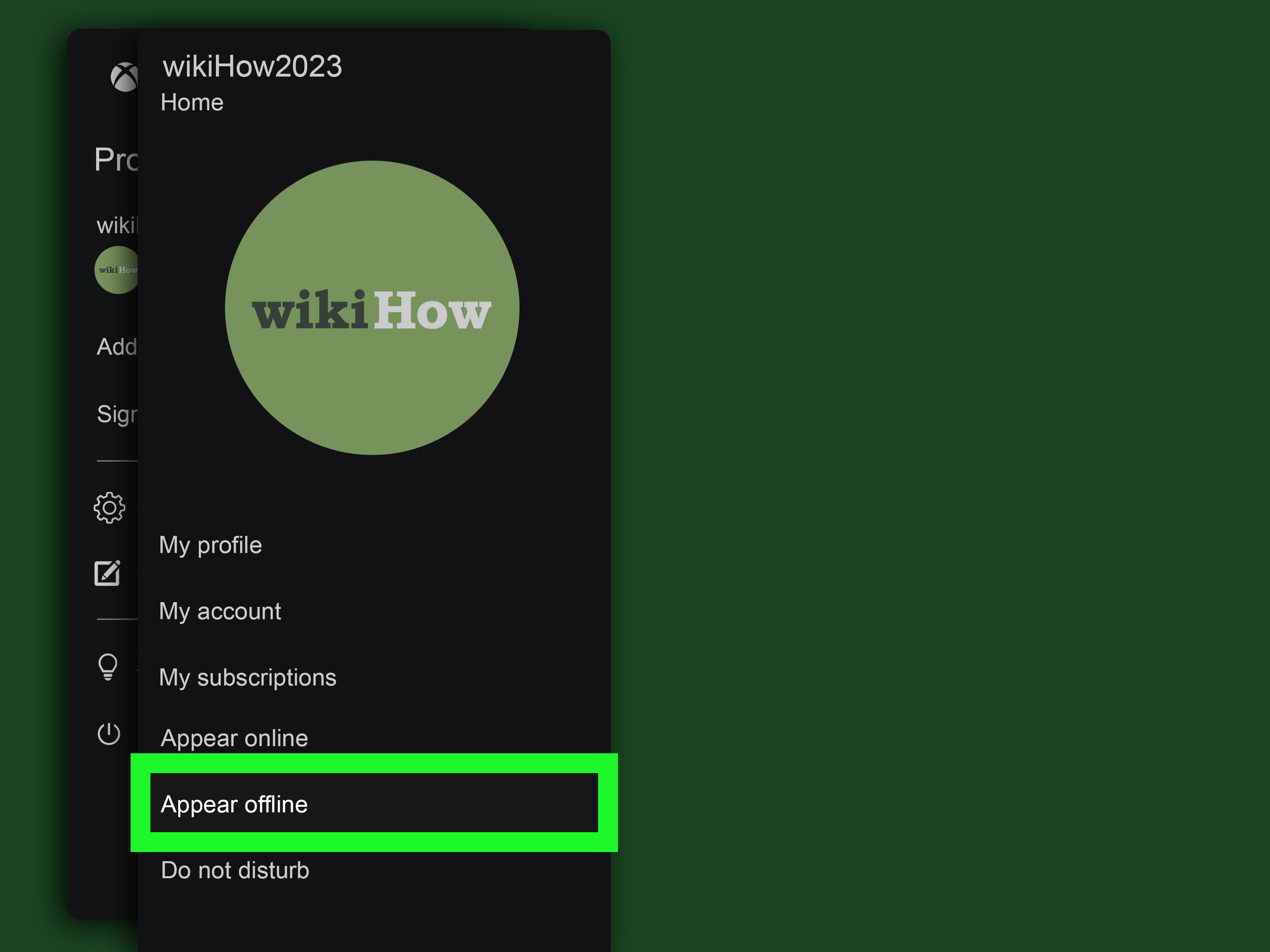
Step 2: Set Your Xbox Status to Appear Offline
- Press the Xbox button on your controller.
- Go to Profile & system.
- Select your profile picture.
- Open My profile.
- Select your current status, usually shown as Appear online.
- Change it to Appear offline.
This affects your Xbox presence, which means people on your friends list are less likely to notice that you’re online. However, if you join a friend directly, appear in a party, or show up inside the same Roblox experience, you are not wearing the Cloak of Total Invisibility. You are just harder to spot.
For Child or Family Accounts on Xbox
If the Xbox account is part of a family setup, privacy controls may be managed by the adult account. In those cases, the parent or guardian may need to adjust online safety and privacy settings in Xbox Family controls and, if the Roblox account belongs to a child, Roblox parental controls may also limit what can be changed.
What Settings Matter Most if You Want to Stay Hidden?
If you want the best Roblox offline mode experience, focus on these settings in order:
1. Online Status
This is the core setting. It controls who sees you as online on your Roblox profile or in their Connections list. If you skip this one, the rest are just decorative privacy parsley.
2. Show Current Experience
This setting controls whether people can see the specific experience you are playing. Even if your profile visibility is tighter, showing your current experience can still give away your location faster than a sibling who was definitely not supposed to know you took the last cookie.
3. Share Activity Updates
If your account has this option, turn it off. You do not need your connections getting a casual feed update about your digital whereabouts while you are trying to play in peace.
4. Private Server Permissions
Review who can add you to private servers and whose servers you can join. If these settings are too open, friends may still have paths to reach you or invite you into places you were trying to avoid.
5. Party and Chat Controls
Messages, parties, and experience chat do not directly control your online badge, but they definitely affect how “available” you appear. If you keep getting pulled into chats and party invites, tighten those controls too.
6. Xbox Presence
For console users, this is huge. Even with Roblox privacy tightened, Xbox can still make your account look active unless you set your status to Appear offline.
Why You Might Still Look Online
If you changed your settings and still seem visible, one of these usual suspects is probably involved:
Your Current Experience Is Still Visible
A lot of players update Online Status but forget the separate setting for showing the experience they are currently playing.
Your Xbox Status Is Still Public
Xbox users often lock down Roblox but stay visibly online through their Microsoft gaming profile.
You’re in a Party or Shared Server
If someone is already with you in a party or sees you directly inside a game, appearing offline will not erase you from reality. This is stealth mode, not teleportation.
Your Account Is Managed by a Parent
For younger players, some privacy, communication, or maturity settings may be controlled through linked parental controls. If an option looks missing or locked, that is usually the reason.
You Changed the Wrong Account
It happens more than people admit. Make sure you are editing the same Roblox account you actually use across PC, mobile, or Xbox. Privacy settings do not help much if they are protecting your alt account while your main is out there waving at everyone.
Troubleshooting Roblox Offline Settings
I changed my settings, but friends still say I look online
Log out and log back in. Then recheck both Online Status and Show current experience. These are separate controls, and you need both for stronger privacy.
I can’t change the setting
Your account may be under child safety controls, linked parent management, or age-related limits. If your birthday is wrong on the account, fixing your age can also affect what controls you can use.
People can still join me
Review private server permissions, follow/join visibility, and party settings. Being “offline” is not the same as blocking all access routes.
I want privacy, but I still want messages from close friends
That is where selective privacy comes in. Instead of shutting everything down, focus on hiding your online status and current experience while leaving certain communication options open. It is less “ghost mode” and more “front porch light off, but text me first.”
Best Privacy Tips for Roblox Players
- Review privacy settings every few months because menus and labels can change.
- Use the strongest visibility settings when you want solo play time.
- Turn off activity-sharing if you do not want your connections getting updates.
- Check private server and party settings, especially for younger accounts.
- On Xbox, always pair Roblox privacy settings with Xbox’s Appear offline option.
- Do not confuse notification controls with invisibility controls.
- If you want even more privacy, review profile details like inventory visibility as well.
Final Thoughts
If you have been wondering how to appear offline in Roblox on PC, mobile, or Xbox, the answer is finally more straightforward than the old internet myths suggest. Roblox now gives you official visibility tools, but they work best when you combine them. Hide your online status, hide your current experience, reduce activity-sharing, tighten who can join or contact you, and, on Xbox, change your console presence too.
The result is not total invisibility in every possible scenario, but it is close enough for most players who simply want to build, grind, explore, or relax without turning every session into a social event. And honestly, that is the dream: all the fun of Roblox, with far fewer “bro why didn’t you invite me?” messages.
Real-World Experiences: What It’s Like to Play Roblox While Appearing Offline
Once you set everything up, the difference is immediate. A lot of players do not realize how much mental clutter comes from being visibly online until it stops. The first thing most people notice is the quiet. Fewer invites. Fewer “join me” messages. Fewer moments where you open Roblox for ten peaceful minutes and somehow end up babysitting a friend group in a chaotic server for an hour and a half.
On PC, appearing offline feels especially useful when you want to test a new experience, adjust controls, or explore a game without commentary from the peanut gallery. Maybe you want to practice in a fighting game, figure out a tycoon’s upgrade path, or just wander around a roleplay map without someone instantly teleporting into your business. With the right settings, you can do exactly that. It feels less like hiding and more like setting boundaries with a giant neon sign that says, “I’m busy pretending to be a blocky billionaire right now.”
Mobile is a little different. People often open Roblox on their phones in short burstsduring downtime, while traveling, or when they just want to knock out a few tasks in a favorite experience. In those moments, appearing offline is incredibly handy. You can check daily rewards, finish a quick challenge, or browse an event without your phone becoming a social siren. Mobile players also tend to benefit from turning on notification controls, because nothing ruins a quick low-key session like a screen full of alerts asking where you are and why you are ignoring everyone. The answer, of course, is “because I am peacefully collecting items and would like that to continue.”
Xbox users usually feel the biggest improvement after adding the console’s Appear offline setting. Before that, even with Roblox privacy tightened, your Xbox profile can still make you seem active. Once both sides are adjusted, the experience feels much more consistent. You can sign in, launch Roblox, and enjoy your session without advertising it to the universe. That is especially useful for solo builders, completionists, and players who use Roblox as a way to unwind after a long day.
There is also a social upside that sounds weird at first: appearing offline can actually make your time with friends better. Instead of always being “available by default,” you choose when to join up. That means when you do say yes to a party or hop into a shared server, it feels intentional instead of accidental. You are not dodging people out of spite. You are just making space for the kind of session you want. Some nights are for group chaos. Some nights are for quiet grinding, decorating, practicing, or exploring at your own pace.
In other words, learning how to appear offline in Roblox is not just a privacy trick. It is a quality-of-life upgrade. It helps you control your time, reduce interruptions, and enjoy the platform on your own terms. And in a game ecosystem built around connection, that little bit of control feels surprisingly powerful.