

Ever clicked the Wi-Fi icon and felt personally attacked by a list of networks named things like
FBI_Surveillance_Van or PrettyFlyForAWiFi? Or maybe your laptop keeps trying to “help” by auto-joining
a sketchy open hotspot the second you walk into a coffee shop. The good news: you can stop a specific Wi-Fi network
from being used on both Windows PCs and Macseither by removing it from saved networks, turning off auto-join,
or (on Windows) blocking the SSID so it won’t even show up.
One quick reality check before we start: “blocking a Wi-Fi network” on your computer does not block the
signal itself. Your device is simply refusing to connect (or hiding it from your available list). The router will keep
broadcasting, and other devices can still see it.
What “Block” Can Mean (Pick Your Level of Nope)
-
Level 1: Stop auto-joining. Your computer can still see the network, but it won’t connect unless you
explicitly choose it. -
Level 2: Forget/remove saved credentials. Great if you previously joined it and don’t want your device
to remember it (and definitely don’t want it rejoining at 2 a.m. “just because”). -
Level 3 (Windows specialty): Block/hide the SSID via a filter. The network can be removed from the
visible list and blocked from connection attempts using built-in commands. -
Level 3 (macOS, stricter): Enforce with a configuration profile (MDM). This is the “managed device”
approach used in schools and businesses.
Before You Start
- Write down the exact network name (SSID). Spelling matters. If the Wi-Fi name is “Cafe_WiFi_5G,” don’t type “cafe wifi.”
- Know your goal. Do you want it to stop auto-joining, stop being remembered, or disappear from the list?
- Admin access helps. Blocking with filters on Windows requires running commands as Administrator.
How to Block a WiFi Network on Windows PC or Mac: 14 Steps
-
Step 1: Confirm the network’s exact SSID (Windows or Mac)
Open your Wi-Fi list and find the network you want to block. If there are duplicates with similar names (e.g.,
“CoffeeShopWiFi” and “CoffeeShopWiFi_EXT”), pick the correct one. Take a screenshot or jot it down. -
Step 2: Decide if you’re blocking a saved network or a nearby network you never joined
If you joined it before, you’ll want to forget/remove it so your device doesn’t keep credentials.
If you never joined it but you’re tired of seeing it, Windows can block/hide it from the available list. -
Step 3 (Windows): Forget the network in Settings (stops auto-connect)
On Windows 10/11, go to Wi-Fi settings and remove/forget the network from “known” networks if it’s saved there.
This prevents automatic reconnection and clears stored credentials (helpful if the password changed or the network is no longer trusted).Tip: If your goal is “don’t auto-join,” forgetting is often enoughunless you want to hide it entirely.
-
Step 4 (Windows): Open Command Prompt or Windows Terminal as Administrator
To truly “block” a Wi-Fi SSID on Windows, you’ll use
netsh. Search for Windows Terminal or
Command Prompt, right-click, and choose Run as administrator. -
Step 5 (Windows): Block the Wi-Fi SSID with a filter
Run this command, replacing
NetworkNamewith the exact SSID:This adds the SSID to the blocked list so Windows won’t connect to it, and it can also hide it from your available networks list.
Example:
-
Step 6 (Windows): Confirm the block worked
Type:
Look for your SSID under the blocked list. If it’s there, Windows got the message.
-
Step 7 (Windows): Optional “strict mode” allow-list your Wi-Fi networks
If you want your PC to connect only to networks you approve (great for shared family PCs), Windows supports
a “deny all” approach with exceptions you allow. This is more advanced and can be annoying if you travel a lot.Conceptually: set “deny all,” then add allowed SSIDs. (Use carefullythis can lock you out until you allow the right network.)
-
Step 8 (Mac): Find the Wi-Fi settings screen
On macOS, open System Settings (or System Preferences on older versions), then go to
Wi-Fi. This is where you’ll manage known networks and auto-join behavior. -
Step 9 (Mac): Turn off Auto-Join for that network (if you still want it saved)
If the network is in range, click the network’s details (often via an info button or “…” menu) and disable
Auto-Join. This keeps the network saved but stops the Mac from jumping onto it like it’s a lifeboat. -
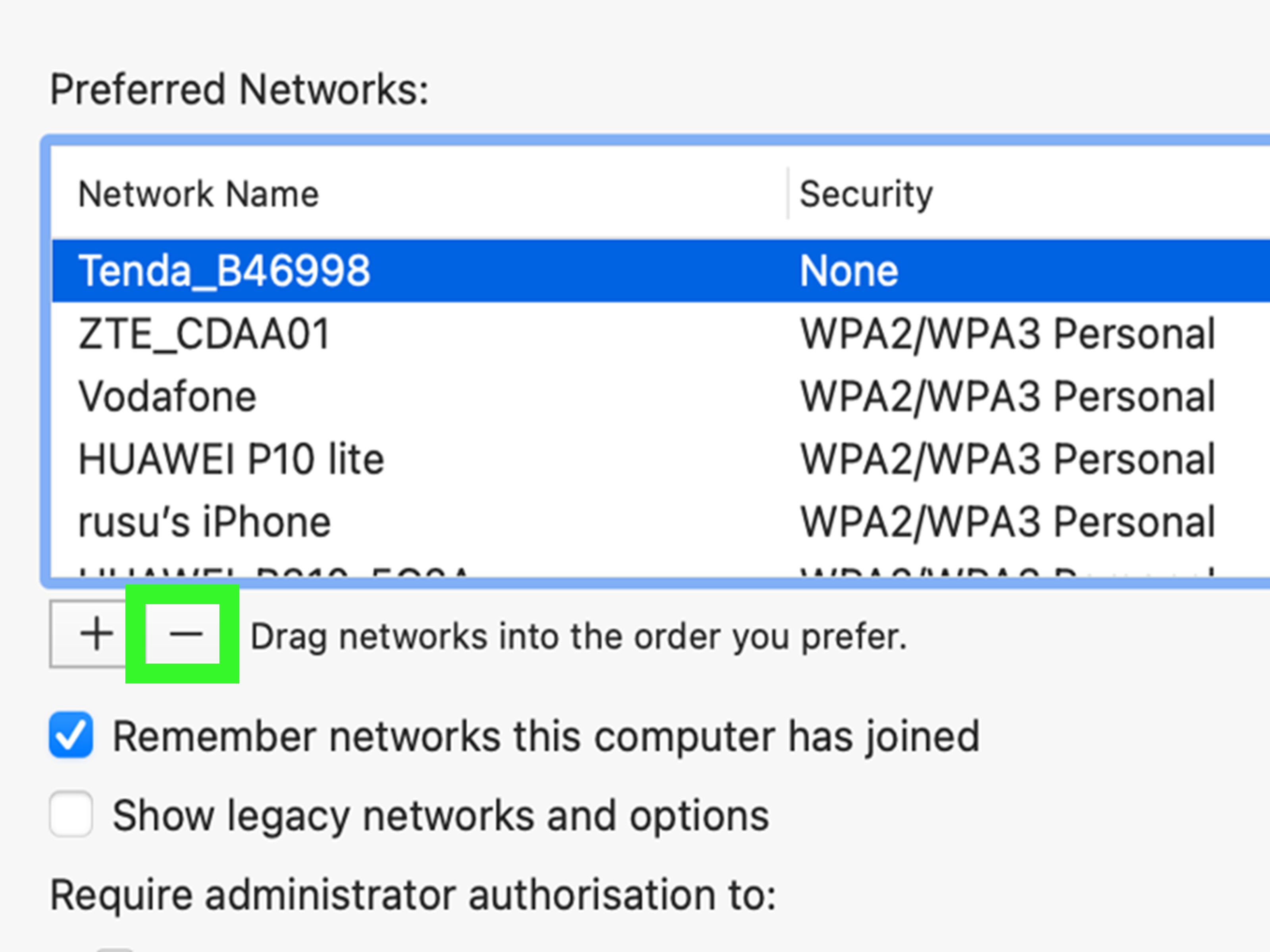
Step 10 (Mac): Remove the network from your Known Networks list (forget it)
In System Settings → Wi-Fi → Advanced, find the network under “Known Networks,” then choose
Remove From List and confirm Forget. This removes saved credentials so your Mac won’t
auto-connect or remember it later. -
Step 11 (Mac): Watch for iCloud Keychain prompts
If you use iCloud Keychain, macOS may warn that forgetting a network can affect other Apple devices that share
Wi-Fi credentials. Read the prompt carefully so you don’t accidentally “forget” your home Wi-Fi everywhere right before movie night. -
Step 12 (Mac): Reduce random Wi-Fi joining
In macOS Wi-Fi settings, adjust “Ask to join networks” (or similar wording) so your Mac doesn’t silently connect to
open hotspots. Think of it as teaching your laptop not to accept rides from strangers. -
Step 13 (Mac, advanced): Enforce Wi-Fi restrictions with a configuration profile (MDM)
If you need a Mac to be unable to join certain networks (common in schools/businesses), the usual solution is
a device management configuration profile that controls Wi-Fi behavior. Apple documents managed Wi-Fi payloads for macOS in its deployment guidance.This is typically done through an MDM service (or tools used by administrators). For personal Macs, the practical equivalent is: remove saved networks,
disable auto-join, and keep your account privileges sensible. -
Step 14: Test, troubleshoot, and (if needed) undo the block
Test: Put your device to sleep, wake it, and check if it tries to connect to the blocked network.
If the network still appears on Windows: Make sure the SSID matches exactly and that you ran the command as Administrator.
Then re-check withnetsh wlan show filters.Undo on Windows:
Undo on Mac: Re-join the Wi-Fi network from the menu (and re-enter the password) or remove any management profile that enforced restrictions.
Common Questions (Because Wi-Fi Loves Drama)
Will blocking a Wi-Fi network stop it from broadcasting?
Nope. Your computer isn’t a Wi-Fi bouncer for the whole neighborhoodit’s just refusing to connect (and on Windows, optionally hiding it from your list).
What if the Wi-Fi name changes slightly?
Blocking is usually based on the SSID text. If “CoffeeShop_FreeWiFi” becomes “CoffeeShop_FreeWiFi_2,” you’ll need to block the new name too.
What if I actually need to block a device from using Wi-Fi entirely?
That’s a different goal. You’d look at parental controls, router rules, or managed-device policies. The steps above focus on blocking specific networks
from a PC or Mac.
Real-World Experiences and Lessons People Commonly Run Into (Extra)
Blocking a Wi-Fi network sounds like a tiny taskuntil you’re in a real setting where Wi-Fi behaves like a cat: technically domesticated, but emotionally
committed to chaos. Here are a few “been there” situations people commonly report (and what usually works).
Apartment buildings with 40 networks: In dense buildings, your Wi-Fi list can look like a phone book. Many people start by blocking the loudest,
most distracting SSIDs on Windows so the list becomes usable againespecially when they’re trying to connect to their own network quickly.
The filter method is popular here because it’s immediate and reversible. If you later move or change routers, you can remove the filter and start fresh.
Dorms and campuses with “Guest” and “Secure” networks: A common complaint is that laptops keep latching onto the wrong onelike joining the guest
network when the secure one is available, or auto-joining an open hotspot near the student union. On Macs, forgetting the guest network and disabling auto-join
often solves it. In managed school environments, admins usually enforce Wi-Fi rules with profiles so devices can’t “accidentally” join the wrong SSID.
Coffee shops and airports: People often want to block a “FreeWiFi” network because it’s either unreliable or suspiciously enthusiastic about
capturing attention. The safest habit in these places is to disable auto-join, forget networks you don’t trust, and keep “Ask to join networks” enabled so your
laptop doesn’t connect without you noticing. The goal is to remove “silent connections,” because the ones you don’t notice are the ones you don’t evaluate.
Workplaces with multiple SSIDs: Some offices broadcast “Corp,” “Corp-5G,” “Guest,” and “ConferenceRoomTestPleaseIgnore.” Users will sometimes connect
to the wrong SSID and then blame the internet, the moon phase, or a nearby microwave. In these setups, an allow-list on Windows can be surprisingly effective
on shared PCs: it limits networks to the ones the organization actually wants used. (It’s also a great way to cut down on “Why is my laptop on the printer Wi-Fi?”
tickets.)
The “it still shows up!” moment: On Windows, if a network still appears after blocking, it’s usually one of three things: the SSID was typed
differently than the broadcast name, the command wasn’t run as Administrator, or the network you’re seeing is a similarly named variant. Checking
netsh wlan show filters and re-confirming the SSID spelling fixes most cases.
The “I forgot it, but it came back” moment (Mac): This can happen when iCloud Keychain is syncing Wi-Fi credentials across devices or the Mac is
managed by an organization that re-applies settings. In personal setups, carefully reading the “forget everywhere?” prompts can prevent surprise re-joins across
devices. In managed setups, profiles winbecause they’re designed to keep settings consistent, even when users (understandably) click things.
Bottom line: most people don’t need a heavy-handed “never connect to anything ever again” approach. The best experience usually comes from combining two simple
moves: forget what you don’t trust and disable auto-join where it causes trouble. Windows users who want a cleaner Wi-Fi list can
add SSID filters for extra peace and quiet. And when the stakes are higherlike schools, workplaces, or family devicesmanagement profiles and allow-lists
provide consistency that manual settings can’t always guarantee.
Conclusion
Blocking a Wi-Fi network is really about control: control over what your device remembers, what it tries to join, and (on Windows) what it even shows you.
If you just want to stop accidental connections, “forget” + “disable auto-join” is often enough. If you want that network to disappear from your Windows list,
SSID filters are the built-in power move. And if you need strict enforcement on Macs, configuration profiles are the professional-grade solution.