

Printers have a special talent for causing drama at the worst possible time. You need to print one shipping label, and suddenly the printer is “busy” because someone else in the house sent a 42-page school project, three test pages, and what appears to be a blurry photo of a cat. In an office, the problem can be even more annoying: unauthorized print jobs waste paper, expose private documents, clog the queue, and make your printer feel less like a useful tool and more like a community bulletin board with toner.
The good news is that you can block other computers from accessing your printer without becoming a full-time network engineer. The right method depends on how your printer is connected. A USB printer shared through a Windows or Mac computer is controlled mostly from that computer’s sharing settings. A Wi-Fi or Ethernet printer connected directly to the router needs protection through the printer’s own admin panel, Wi-Fi settings, router controls, or business-grade access rules.
This guide explains the practical ways to stop unwanted computers from printing to your device, including Windows printer sharing permissions, macOS Printer Sharing settings, Wi-Fi Direct controls, firewall settings, router guest networks, IP filtering, and simple security habits that prevent “mystery print jobs” from coming back like a bad sequel.
First, Know How Other Computers Are Accessing Your Printer
Before changing settings, identify how the printer is available on your network. Blocking access is much easier when you know the door people are using.
1. The printer is shared from your computer
This happens when a printer is connected to one computer, often by USB, and that computer shares it with others on the local network. In this setup, Windows or macOS is acting like a small print server. If you turn off printer sharing or limit who can use the shared printer, other computers lose access.
2. The printer is connected directly to Wi-Fi or Ethernet
Many modern printers connect straight to the router. That means every computer, phone, or tablet on the same network may be able to discover it through standard printing services. In this case, changing sharing settings on your laptop will not block access, because your laptop is not the gatekeeper. The printer and router are.
3. The printer has Wi-Fi Direct enabled
Wi-Fi Direct lets a phone or computer connect directly to the printer without joining your main Wi-Fi network. It is convenient, but if the password is weak, unchanged, or casually shared, people nearby may be able to print without being on your normal network. Think of Wi-Fi Direct as a side door. Useful? Yes. Something you should leave unlocked? Absolutely not.
How to Block Printer Access on Windows
If you use Windows 10 or Windows 11 and your printer is shared from your PC, the fastest fix is to turn off printer sharing. This prevents other computers from accessing printers shared by your machine.
Turn off File and Printer Sharing
Open Settings, go to Network & internet, then open Advanced network settings. Choose Advanced sharing settings. Under your current network profile, turn off File and printer sharing. If you are on a public or school network, also make sure Network discovery is off.
This is the digital equivalent of taking down the “free printing for everyone” sign. Other devices should no longer be able to browse your computer and use the printer you were sharing.
Check the printer’s Sharing tab
Go to Settings > Bluetooth & devices > Printers & scanners. Select your printer, open Printer properties, and look for the Sharing tab. If Share this printer is checked, uncheck it. Click Apply, then OK.
If you want to allow only certain people to print, keep sharing enabled but use the Security tab. Remove broad groups such as “Everyone” if they have printing permissions, then add only the users or groups that should be allowed. For a home user, this might be your own Windows account. For a small office, it might be a specific employee group.
Use Windows Firewall to block printer sharing
Windows Defender Firewall controls which network traffic can reach your computer. If printer sharing keeps reappearing or a network profile is misconfigured, check the firewall. Open Windows Security, choose Firewall & network protection, then select the active network profile. Keep the firewall turned on.
Next, go to Allow an app through firewall. Look for File and Printer Sharing. If you do not want other computers to reach shared printers on this PC, remove permission for private and public networks. Be especially careful with public networks. A printer shared on your home network is one thing; a printer shared at a café is a tiny paper-based horror movie.
How to Block Printer Access on a Mac
On macOS, printer sharing is controlled from System Settings. If your Mac is sharing a printer with the network, you can turn that sharing off or restrict who can use it.
Turn off Printer Sharing
Open the Apple menu, choose System Settings, then go to General > Sharing. Find Printer Sharing. If it is turned on, click the information button and review which printers are shared. To block other computers completely, turn Printer Sharing off.
If you still want one or two users to print, keep Printer Sharing on but adjust the allowed users list. Select the printer, then choose who can use it. Avoid leaving access open to everyone unless you truly want everyone on the network to print. “Everyone” sounds friendly until someone prints a full-color presentation right before you replace the ink cartridge.
How to Block Access to a Network Printer
A network printer is different from a shared printer. It connects directly to your router by Wi-Fi or Ethernet. Because it is available independently, every device on the same network may detect it through AirPrint, Mopria, Bonjour, IPP, WSD, or the printer manufacturer’s software.
To block other computers from accessing a network printer, you need to secure the printer itself and control which devices can reach it through the network.
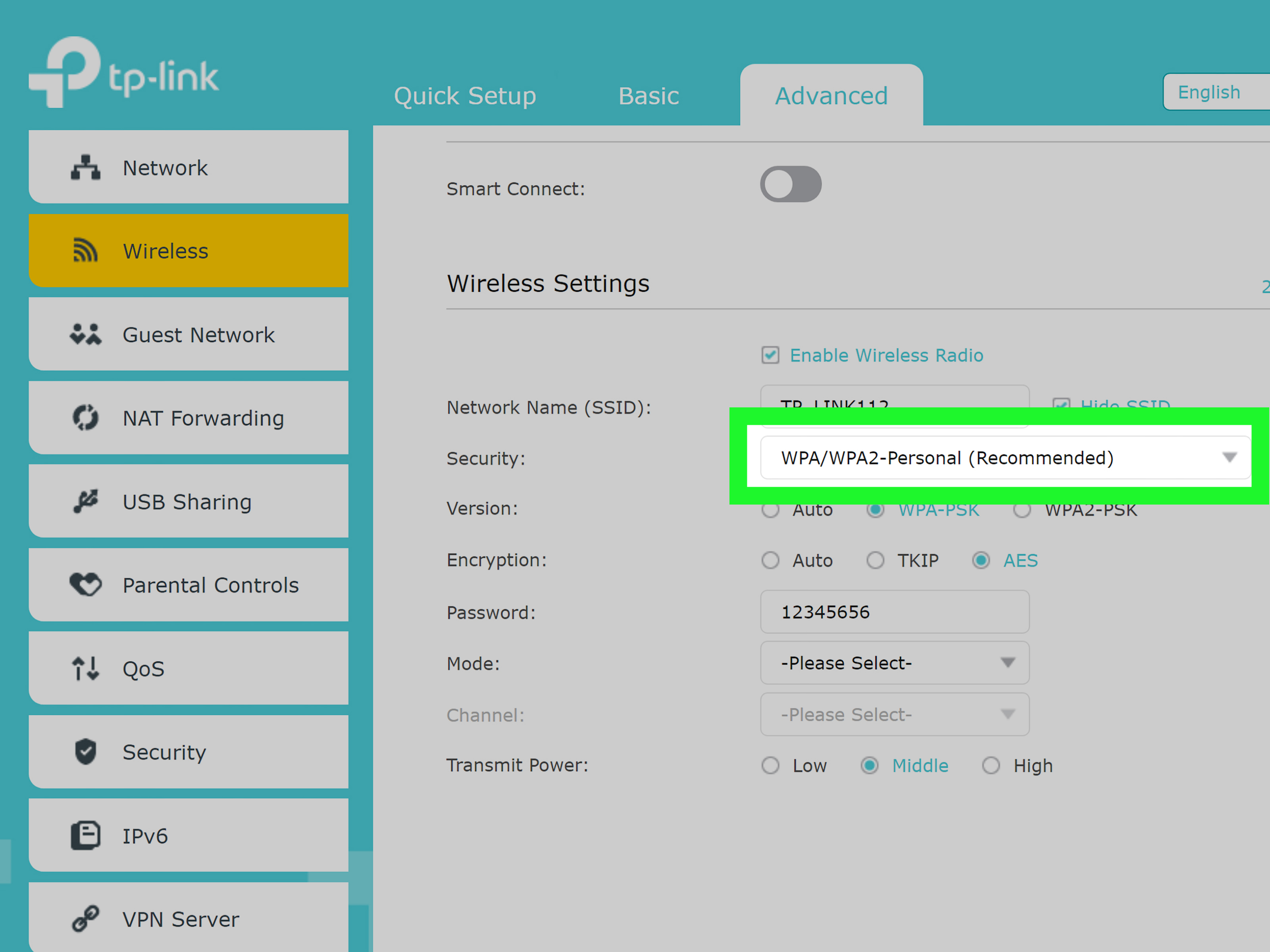
Log in to the printer’s admin panel
Most network printers have an embedded web server or remote management page. To access it, print a network configuration page from the printer menu or check your router’s connected device list to find the printer’s IP address. Type that IP address into a web browser on a device connected to the same network.
Once inside the printer’s admin panel, look for security, network, administrator, Wi-Fi Direct, access control, or user management settings. The exact names vary by brand, but the mission is the same: stop random devices from treating your printer like an all-you-can-print buffet.
Change the printer administrator password
This step is non-negotiable. Many printers ship with a default administrator password, or the password may be printed on a label, included in a configuration report, or set to a common factory value. If you never change it, anyone who reaches the printer’s admin page may be able to change settings, enable services, or undo your restrictions.
Create a strong administrator password and store it somewhere safe. Use something unique, not your Wi-Fi password, not “printer123,” and definitely not “password” unless your goal is to make the printer laugh at you in monochrome.
Disable Wi-Fi Direct if you do not use it
Wi-Fi Direct is helpful when guests need to print without joining your main network, but it can also create an extra access path. If you do not need it, turn it off from the printer’s control panel or web admin page. Many Epson, HP, Brother, and Canon models include Wi-Fi Direct or direct connection settings under network menus.
If you must keep Wi-Fi Direct enabled, change its password and avoid sharing it widely. Treat it like a guest key to your printer, not a party favor.
Enable access control, user authentication, or PIN printing
Business printers and some higher-end home office printers offer access control features. These may include user authentication, department IDs, PIN printing, allowed user lists, or print release settings. When enabled, a computer may be able to see the printer but still cannot print unless the user enters approved credentials.
This is especially useful in small offices, clinics, schools, studios, and shared workspaces. It prevents unauthorized print jobs and helps protect documents from sitting in the output tray where anyone can grab them.
Use IP filtering or allowed device lists
Some printers let you allow or block devices by IP address. If available, assign your trusted computers static IP addresses or DHCP reservations in the router, then allow only those addresses to reach the printer. For example, you might allow your desktop at 192.168.1.25 and your laptop at 192.168.1.26, while blocking other devices.
This method is powerful but requires careful setup. If your computer’s IP address changes, you may accidentally block yourself. That is not a security breach; that is you locking your keys in the car while the engine is running.
Use Your Router to Control Printer Access
Your router is often the best place to block unwanted printer access because it controls the network. If every device is on the same Wi-Fi network, they can often discover each other. Separating devices into different networks can stop that.
Create a guest network for visitors
Most modern routers support a guest Wi-Fi network. Put visitors, temporary users, smart devices, or untrusted devices on the guest network. Keep your printer and trusted computers on the main network. In many routers, guest devices can access the internet but cannot see local devices such as printers, file shares, or network drives.
This is one of the simplest ways to block other computers from accessing your printer. Instead of fighting every laptop individually, you separate the network into “trusted devices” and “everybody else.” Your printer stays in the VIP room.
Turn on client isolation
Some routers and access points include a setting called client isolation, AP isolation, or wireless isolation. When enabled, wireless devices cannot communicate directly with each other. This can prevent one computer from reaching a printer on the same Wi-Fi network.
Use this carefully. Client isolation can also block legitimate printing, casting, file sharing, and smart home control. It is excellent for guest networks, dorm-style networks, waiting rooms, and public Wi-Fi, but it may be too restrictive for your main home network.
Use VLANs for stronger separation
For advanced home users and small businesses, VLANs offer cleaner control. You can place printers on one VLAN, employee computers on another, and guest devices on a third. Firewall rules decide who can print. For example, employee computers may print to the office printer, but guest Wi-Fi users cannot reach it at all.
VLANs are more advanced than a basic guest network, but they are worth considering if you manage multiple printers, sensitive documents, or a growing office network.
Remove the Printer from Other Computers
Blocking access at the source is best, but you should also remove old printer connections from computers that should no longer print. On Windows, go to Printers & scanners, select the printer, and choose Remove. On macOS, go to Printers & Scanners, select the printer, and remove it from the list.
This does not replace proper security, because a user may be able to add the printer again if it is still discoverable. However, it reduces accidental printing and cleans up old connections. It is the printer version of taking someone off the group chat.
Disable Unnecessary Printer Services
Many printers support several network protocols at once. Some are useful. Others may be enabled by default even if you never use them. In the printer’s admin page, review services such as FTP printing, legacy protocols, remote management, cloud printing, WSD, LPD, raw port printing, SNMP, or web services.
Do not randomly disable everything unless you are comfortable troubleshooting. Instead, turn off features you clearly do not need. For a typical home user, Wi-Fi printing and AirPrint may be enough. For a business, you may need secure IPP, directory authentication, or managed print services. The goal is not to make the printer unusable. The goal is to stop it from waving at every device on the network like an overly friendly office intern.
Update Printer Firmware
Printer firmware updates can fix security issues, improve network behavior, and patch bugs. Visit the printer manufacturer’s official support software or use the printer’s built-in update feature. Do this periodically, especially for printers connected to Wi-Fi or used in an office.
Firmware updates are not glamorous, but neither is explaining why someone printed confidential documents from a device that should never have had access. A few minutes of maintenance can prevent many headaches.
Common Mistakes That Let Other Computers Keep Printing
Mistake 1: Turning off sharing on one computer only
If the printer is connected directly to the router, turning off sharing on your laptop will not block access. The printer is still visible on the network. You must secure the printer, router, or both.
Mistake 2: Leaving Wi-Fi Direct enabled
People often secure the main Wi-Fi network but forget Wi-Fi Direct. If someone has the Wi-Fi Direct password, they may print without joining your main network.
Mistake 3: Using the same Wi-Fi for guests and trusted devices
If guests join the same Wi-Fi network as your printer, they may be able to discover it automatically. Use a guest network with local access disabled.
Mistake 4: Forgetting default admin passwords
A printer admin panel with a default password is a security weak spot. Change it before adjusting anything else.
Mistake 5: Blocking discovery but not printing
Turning off discovery may hide the printer from automatic searches, but it may not stop someone who already knows the printer’s IP address. For stronger control, use authentication, firewall rules, IP filtering, VLANs, or router-level restrictions.
Best Setup Recommendations
For most home users, the best setup is simple: connect the printer to the main private Wi-Fi network, turn off printer sharing on personal computers unless needed, disable Wi-Fi Direct if unused, change the printer admin password, and place visitors on a guest network that cannot access local devices.
For small offices, add stronger controls: use user authentication, secure print release, admin passwords, firmware updates, VLANs, and router or firewall rules. Assign printers static IP addresses so access rules do not break when the router restarts. Keep a short document listing the printer IP address, admin login location, allowed users, and update schedule.
For shared spaces, such as coworking rooms or classrooms, avoid open network printing whenever possible. Use a print server, user codes, or managed printing software. Otherwise, your printer may become the local entertainment system, and nobody needs 37 copies of a meme during a meeting.
Real-World Experience: What Actually Works Best
In real life, the best way to block other computers from accessing your printer is usually not one single setting. It is a layered setup. The first layer is visibility: stop the printer from being casually discovered by every device on the network. The second layer is permission: require approved users, passwords, PINs, or allowed IP addresses. The third layer is separation: keep guests and unknown devices away from the printer’s network path entirely.
A common home scenario looks like this: a family printer sits in the living room, connected to Wi-Fi. At some point, guests receive the Wi-Fi password. Later, someone’s laptop automatically detects the printer. No one means to cause trouble, but the next time they print, the job goes to your printer instead of theirs. The result is surprise paper usage, wasted ink, and a household investigation that feels more dramatic than it should. The easiest fix is to create a guest Wi-Fi network and stop sharing the main Wi-Fi password. The printer remains on the main network, while guest devices get internet only.
Another common situation happens in small offices. A printer is installed on every computer because it was convenient during setup. Months later, contractors, former employees, interns, or temporary devices still have access. In this case, removing the printer from old computers helps, but the better answer is centralized control. Use a print server or the printer’s user authentication features. Give access only to current employees. Change the admin password whenever staff with admin knowledge leave the organization. This is not paranoia; it is basic office hygiene, like locking the door after closing.
For home offices, the most reliable experience is to give the printer a reserved IP address in the router. Then, if your router supports access rules, allow only your work computer and personal laptop to reach the printer. This reduces random access while keeping printing stable. It also makes troubleshooting easier because the printer always lives at the same address. When something breaks, you are not chasing a printer that moved from 192.168.1.44 to 192.168.1.103 like it is hiding from rent.
Wi-Fi Direct deserves special attention. Many people enable it during setup and forget about it forever. Later, they wonder why a device can still print even after they changed Wi-Fi settings. The reason may be that the device is connecting directly to the printer. If you do not use Wi-Fi Direct, disable it. If you do use it, change the password and share it only when necessary. For occasional guest printing, it is often safer to print the document for the guest yourself or use a temporary guest method rather than leaving direct access open all year.
One practical lesson is that “hidden” is not the same as “blocked.” Turning off discovery can reduce clutter and stop casual users from seeing the printer automatically, but it may not prevent access from someone who already installed the printer or knows the IP address. Stronger blocking requires permissions, authentication, firewall rules, guest isolation, or network segmentation.
Finally, document your setup. Write down the printer model, IP address, admin page location, admin username, where the password is stored, whether Wi-Fi Direct is enabled, and which devices should have access. This may sound boring, but future you will be grateful. Future you is usually standing beside a blinking printer five minutes before an appointment, wondering why technology has chosen violence.
Conclusion
Blocking other computers from accessing your printer is mostly about understanding where access comes from. If the printer is shared through Windows or macOS, turn off sharing or restrict permissions. If the printer is connected directly to the network, secure the printer’s admin panel, disable unused features like Wi-Fi Direct, change default passwords, and use router controls to separate trusted devices from guests.
For the strongest protection, combine several methods: keep the printer on a private network, use a guest network for visitors, enable printer authentication where available, update firmware, and avoid leaving broad “Everyone can print” permissions in place. Your printer should serve the people you choose, not every laptop, phone, and mysterious device that wanders onto the network.