

Sometimes an email lands in your Outlook inbox with a subject line so vague it could belong to anything: “Question,” “Update,” “Need this,” or the always-mysterious “FYI.” Three weeks later, you know the message mattered, but searching for it feels like looking for one specific sock in a dryer full of identical socks. That is where learning how to edit received emails in Outlook can be surprisingly useful.
Before we open the toolbox, here is the big rule: editing a received email in Outlook changes your local copy of the message, not the sender’s original email and not anyone else’s mailbox. Think of it as writing a label on your own file folder. The original document did not magically change in the sender’s office. This distinction matters for professional, legal, compliance, and recordkeeping reasons.
The second important detail is version-related. Classic Outlook for Windows gives users the most flexibility. You can edit the subject line of a received email, and in many classic Outlook builds, you can also use the Edit Message command to modify the body of a received message for your own reference. New Outlook for Windows, Outlook on the web, Outlook.com, and many Mac versions are more limited. In those versions, you may need to use categories, folders, flags, rules, OneNote, or notes as safer alternatives.
This guide walks you through 14 practical steps, explains what works in each Outlook version, and shares real-world tips for organizing messages without turning your inbox into a digital junk drawer wearing a necktie.
Can You Really Edit a Received Email in Outlook?
Yes, but with conditions. In classic Outlook for Windows, you can edit the subject line of a received message by opening the message in its own window, clicking in the subject field, typing your new subject, saving, and closing the message. This is one of the cleanest ways to rename vague emails for easier search and organization.
You may also be able to edit the body of a received message in classic Outlook by opening the message, choosing Move, selecting Actions or More Move Actions, and then selecting Edit Message. After that, the message body becomes editable. You can add notes, clarify a project name, remove clutter, or insert a reminder at the top.
However, new Outlook is different. Microsoft has been moving users toward the new Outlook experience, but classic Outlook remains important because it still has features many power users rely on. If you switched to new Outlook and cannot find the edit options, you are probably not missing a hidden button. The feature simply may not be available in that version.
Why Edit Received Emails in Outlook?
Editing a received email is not about rewriting history. It is about making your inbox easier to search, sort, and understand. Used responsibly, it can save time and reduce confusion.
Common reasons people edit received emails
You might edit a received Outlook email to rename a confusing subject line, add project codes, insert client names, correct a typo in your own local copy, remove large or unnecessary attachments, add internal notes, or make a message easier to find later. For example, changing “Re: Update” to “Re: Johnson Kitchen Remodel Invoice Approval” is not glamorous, but neither is spending 18 minutes searching for an email while muttering at your screen.
Editing can be especially helpful for project managers, real estate agents, accountants, legal assistants, customer service teams, and anyone who lives inside Outlook for half the workday. A clearer inbox usually means fewer missed tasks, fewer duplicate follow-ups, and fewer “Sorry, I just saw this” moments.
Important Warning Before You Edit
Do not edit received emails that must remain unchanged for legal, HR, compliance, tax, audit, or dispute purposes. If the message is evidence, a contract trail, a client approval, a payment instruction, or a sensitive company record, preserve the original. Use categories, flags, folders, or a separate note instead.
If your organization uses retention policies, litigation holds, eDiscovery, email journaling, or compliance archiving, ask your IT or compliance team before editing stored messages. Your mailbox may not be the official archive, but altering your visible copy can still create confusion. When in doubt, do not edit the email itself. Add context somewhere else.
How to Edit Received Emails in Outlook: 14 Steps
Step 1: Confirm You Are Using Classic Outlook for Windows
Start by checking which Outlook you are using. If your app has a toggle for New Outlook near the top-right corner, you may be in new Outlook or able to switch between versions. Classic Outlook for Windows is the version most likely to support editing received message subjects and using the Edit Message command.
If you are using Outlook on the web, Outlook.com, or new Outlook for Windows, you may not be able to directly edit the received email body or subject. In that case, jump to the alternatives section later in this article.
Step 2: Open the Email in Its Own Window
Do not try to edit from the Reading Pane. Double-click the received email so it opens in a separate message window. Outlook usually restricts editing features when a message is only previewed in the Reading Pane.
This tiny step is the one many people miss. They click around the preview pane, find nothing, assume Outlook is broken, and briefly consider moving to a cabin with no Wi-Fi. Open the message fully first.
Step 3: Edit the Subject Line
In the open message window, click directly inside the subject line. It may not look editable at first, but in classic Outlook it often is. Once your cursor appears, select the old subject and type a clearer one.
For example, replace:
Original: “Quick thing”
Edited: “Vendor Contract Renewal – March 2026 Pricing”
That one change can make future search results dramatically more useful.
Step 4: Save the Subject Change
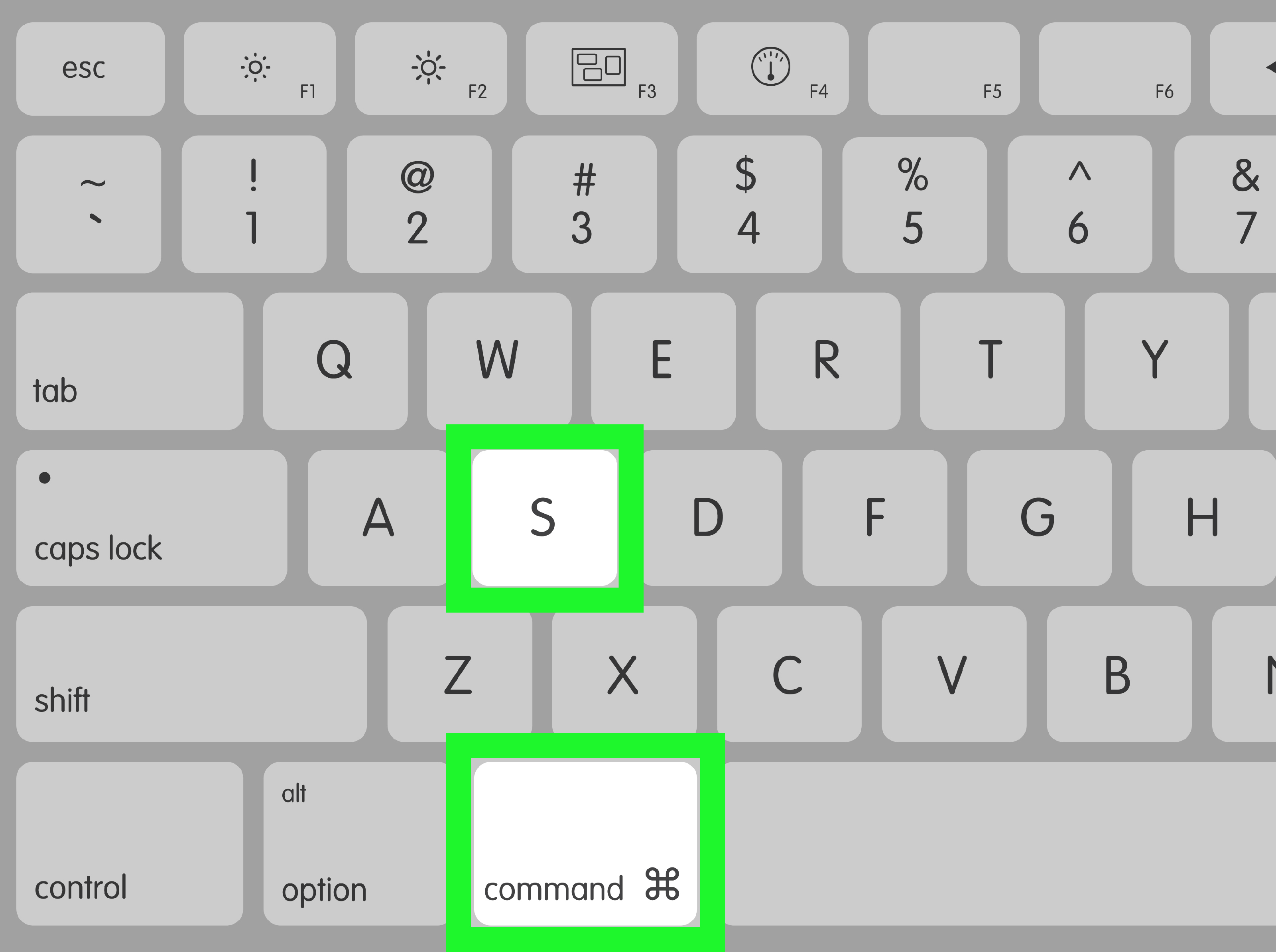
After editing the subject, click the Save icon in the upper-left corner of the message window, or press Ctrl + S. Then close the message. If Outlook asks whether you want to save changes, choose Yes.
Return to your message list and confirm that the updated subject appears. If it does not update immediately, click another folder and come back, or restart Outlook.
Step 5: Turn On Edit Message for the Body
To edit the body of a received email in classic Outlook, open the message in its own window. On the ribbon, go to the Message tab. In the Move group, look for Actions or More Move Actions. Choose Edit Message.
The exact label can vary depending on your Outlook version and ribbon layout. In some versions, it appears under Actions; in others, it is nested under More Move Actions. Yes, it is oddly placed. No, you are not the first person to wonder why an editing command lives in the Move section.
Step 6: Add Your Notes at the Top
Once the message body is editable, place your cursor at the top and add a short note. Keep it clear and dated.
Example:
Internal note added May 3, 2026: Client approved Option B by phone. Waiting for revised invoice from vendor.
Adding notes at the top is better than burying them in the middle of the original message. It keeps your context visible and reduces the chance that you confuse your own note with the sender’s words.
Step 7: Do Not Change the Sender’s Meaning
Editing a received email should help you organize your work, not rewrite what someone said. Avoid changing quoted approvals, prices, dates, instructions, or commitments. If you need to clarify something, label your addition as your own note.
A good rule is simple: future you should be able to tell what was original and what you added. Future you is busy, slightly tired, and probably holding coffee. Be kind to future you.
Step 8: Remove Unneeded Attachments Carefully
In classic Outlook, Edit Message can also help remove attachments from a received email. Open the message, enable Edit Message, select the attachment, and press Delete. Save and close the message.
This is useful when a message contains a huge file you already saved elsewhere. However, be careful. If the attachment is important, save it to a secure folder, OneDrive, SharePoint, or your document management system before removing it from the email.
Step 9: Save the Edited Message
After editing the body or removing an attachment, press Ctrl + S or click Save. Close the message and confirm the save prompt if it appears.
If Outlook does not save your changes, your account type, mailbox permissions, message format, add-ins, security settings, or Outlook version may be limiting the feature.
Step 10: Test Search After Editing
Search for a keyword you added to the subject or body. If Outlook indexes the updated content, the message should become easier to find. This is one of the main benefits of editing received messages: better searchability.
For instance, adding “Q2 budget approval” to a vague email can help Outlook surface it when you search later. It is not magic. It is just good labeling, which is basically magic for office workers.
Step 11: Use Categories When Editing Is Not Available
If you are using new Outlook, Outlook on the web, or Outlook.com, categories are often the best replacement. Right-click a message, choose Categorize, and select or create a category. You might use categories like Invoices, Client Approval, Waiting on Reply, Urgent, or Research.
Categories are safer than editing because they do not alter the message content. They also work well for visual scanning. A color-coded inbox may not solve every problem, but it can make Monday morning slightly less dramatic.
Step 12: Use Folders and Rules for Repeat Messages
If certain emails always need the same treatment, use Outlook rules. Rules can automatically move incoming messages to folders, apply categories, flag messages, or perform other actions based on sender, subject, keywords, or recipients.
For example, you can create a rule that moves all emails with “invoice” in the subject to an Invoices folder. You can also create project folders and route client messages automatically. This is better than manually editing dozens of emails every week.
Step 13: Use Flags, Pins, or OneNote for Follow-Up Notes
When your main goal is to remember what to do next, editing the email body may not be the best tool. Use follow-up flags, reminders, pins, or OneNote instead. A flag can remind you to respond tomorrow. A OneNote page can hold detailed meeting notes, call summaries, and action items connected to an email.
This approach keeps the original message clean while still giving you a place to think, plan, and write the kind of notes that would make your inbox too crowded.
Step 14: Preserve the Original When It Matters
If the email is important, make a copy before editing. You can save the message as a file, print it to PDF, move a copy to an archive folder, or forward it to a secure recordkeeping system if your organization allows that. For sensitive work, ask your IT team about the approved method.
Editing received emails is convenient, but preservation is smarter when money, contracts, HR issues, legal matters, or client approvals are involved.
Editing Received Emails in New Outlook, Outlook Web, and Mac
New Outlook for Windows and Outlook on the web focus more on a consistent cloud-based experience. That comes with benefits, but it also means some classic desktop features are missing or different. Directly editing received message bodies and subject lines may not be supported in new Outlook the same way it is in classic Outlook.
Outlook for Mac also differs from Outlook for Windows. Some features, such as message recall, have expanded on Mac in recent builds, but that does not mean all classic Windows editing features are available. If your Mac version does not let you edit received messages, use categories, folders, flags, or OneNote-style notes instead.
Editing a Received Email vs. Recalling a Sent Email
Do not confuse editing a received email with recalling a sent email. Editing a received email changes the copy in your mailbox. Recalling a message attempts to remove or replace a message you sent, usually under specific Microsoft Exchange or Microsoft 365 conditions. Recall may fail if the recipient is outside your organization, already opened the message, uses a different mail system, or has rules that process the message.
In plain English: editing received mail is about organizing your inbox. Recalling sent mail is about trying to fix an email you already launched into the world. One is filing. The other is chasing a paper airplane after it left the balcony.
Best Practices for Editing Received Outlook Emails
Keep your edits obvious
If you add a note, label it clearly. Use wording such as “Internal note,” “My follow-up,” or “Added for tracking.” This prevents confusion later.
Use a consistent subject format
A consistent format makes searching easier. Try patterns like:
Client Name – Topic – Action Needed
Project Code – Vendor – Date
Invoice – Company Name – Month
For example, “Smith Project – Electrical Quote – Approval Needed” is much better than “Fwd: Fwd: Hey.”
Do not edit emotional or disputed messages
If a message involves conflict, complaints, accusations, money disputes, or workplace issues, avoid editing it. Add your notes separately. The cleaner the record, the better.
Use categories for team mailboxes
In shared mailboxes, categories are usually better than editing message content. A team can agree on category names like Assigned to Mia, Waiting for Customer, or Ready to Close. This keeps collaboration organized without altering the email body.
Troubleshooting: Why Can’t I Edit a Received Email?
If you cannot edit a received email in Outlook, check these common causes:
You may be using new Outlook instead of classic Outlook. The message may be open only in the Reading Pane. Your organization may restrict editing through policy. The message may be protected, encrypted, digitally signed, or controlled by sensitivity settings. Your mailbox permissions may be limited, especially in shared mailboxes. An Outlook add-in may be interfering. Your ribbon may be simplified, hiding the command under a smaller menu.
Try opening the message in a separate window, expanding the ribbon, switching to classic Outlook if available, and checking the Move group for Actions or More Move Actions. If none of that works, use categories, folders, rules, flags, and notes instead.
Real-World Experiences: Lessons from Editing Received Emails in Outlook
The most useful experience I can share about editing received emails in Outlook is this: the feature is powerful when used as a labeling tool, but risky when used as a rewriting tool. People who get the most value from it usually edit lightly. They rename vague subjects, add a short internal note, remove unnecessary clutter, and move on. They do not perform surgery on the message like an inbox doctor with a dramatic soundtrack.
One practical example is project management. Suppose a contractor emails you with the subject “Update.” Inside the message, they mention that tile delivery is delayed, the plumber is rescheduled, and the client approved a substitute material. If you leave the subject as “Update,” the email becomes almost invisible later. But if you edit the subject to “Kitchen Remodel – Tile Delay and Material Approval,” you have turned a foggy message into a searchable record. That is a smart edit.
Another common experience happens in sales and client service. A customer may reply to an old thread with a completely new request. The subject might still say “Re: January Estimate,” even though the new message is about a warranty question in April. Editing the subject in your local copy can help you find it later. Even better, you can add a category like “Warranty” or “Follow Up.” This keeps your workflow clean without changing what the customer actually wrote.
For administrative work, editing received emails can be a lifesaver when messages arrive from scanners, web forms, or automated systems with generic subjects. A scanned document might arrive as “Scan from MFP-203.” That subject is technically accurate but practically useless. Renaming it to “Signed Lease – Unit 4B – Thompson” can save time every time you search for the file. The trick is to make the subject descriptive without inserting unverified information.
The downside appears when people over-edit. If you change too much, you may forget what was original. This can become a problem when someone asks, “Did the client actually approve this, or did we add that note later?” To avoid that awkward little thundercloud, use a consistent note format. Write “Internal note added by me” and include the date. Keep original approvals, numbers, deadlines, and promises untouched.
In shared mailboxes, my strongest recommendation is to avoid body edits unless your team has a clear policy. Shared mailboxes already have enough chaos: multiple people reading, flagging, replying, categorizing, and occasionally wondering who moved the email into a folder called “Stuff.” Categories and folders are usually safer for teams because everyone can understand the workflow without wondering whether the message itself was altered.
For people using new Outlook, the experience can feel frustrating because classic Outlook users often remember editing features that are no longer visible. Instead of fighting the app, build a modern workflow: rename where possible, categorize aggressively, create rules for repeat senders, pin urgent items, and use OneNote or a task manager for longer notes. It is not identical, but it is often cleaner.
Finally, the best habit is to decide whether an email is a record or a workspace. If it is a record, preserve it. If it is a workspace, light editing can make it more useful. That simple decision prevents most problems. Outlook is not just a mailbox; for many people, it is a filing cabinet, reminder system, customer history, and personal archaeology site. Edit carefully, label clearly, and your future searches will thank you.
Conclusion
Learning how to edit received emails in Outlook can make your inbox more organized, searchable, and useful. In classic Outlook for Windows, you can often edit the subject line and, with the Edit Message command, modify the body of a received message for your own reference. That is helpful for clarifying vague subjects, adding internal notes, removing unnecessary attachments, and improving search results.
Still, editing should be done carefully. Your changes affect your local copy, not the sender’s original message. Avoid editing emails that matter for legal, compliance, HR, financial, or audit reasons. For modern Outlook versions where direct editing is limited, use categories, rules, folders, flags, pins, reminders, and OneNote as practical alternatives.
The goal is not to rewrite history. The goal is to make your inbox less mysterious, less messy, and less likely to make you whisper “Where did that email go?” at 4:57 p.m. on a Friday.