

Note: Menu names can vary slightly by operating system version, device maker, and file manager app, but the core methods below match the standard behavior used across Windows, macOS, Android, iPhone, and iPad.
Selecting multiple files sounds like one of those “easy computer things” everyone is supposed to magically know. Then suddenly you are staring at 247 vacation photos, 18 PDF invoices, or a folder full of mysteriously named screenshots like IMG_4839_final_FINAL2.png, and your confidence leaves the room wearing a fake mustache.
The good news: learning how to select multiple files is simple once you know the right shortcut or gesture for your device. Whether you use a Windows PC, Mac, Android phone, iPhone, or iPad, there are fast ways to select a few files, a continuous group of files, or everything in a folder. This guide walks through the exact methods, explains when to use each one, and adds practical examples so you can copy, move, share, delete, upload, or organize files without clicking yourself into early retirement.
Why Selecting Multiple Files Matters
File selection is the first step before almost every bulk action. You might select multiple documents to email them, choose a batch of photos to upload, move downloads into folders, delete duplicate files, or compress several items into one ZIP file. Instead of repeating the same action one file at a time, multiple selection lets you perform one action on a group.
The trick is knowing the difference between three types of selection:
1. Select Specific Files
This is useful when files are scattered around a folder. For example, you want to select report.pdf, budget.xlsx, and presentation.pptx, but not the files between them.
2. Select a Range of Files
This is best when files are next to each other. For example, you want every image from Photo 001 through Photo 050. Instead of tapping or clicking 50 times, you select the first file, select the last file with a shortcut, and let the computer do the boring part.
3. Select All Files
This is the “everything must go” option. Use it when you want every item in a folder, search result, or file list. It is great for moving a full folder, but dangerous if you are deleting files. The computer will obey you with the emotional range of a toaster.
How to Select Multiple Files on a Windows PC
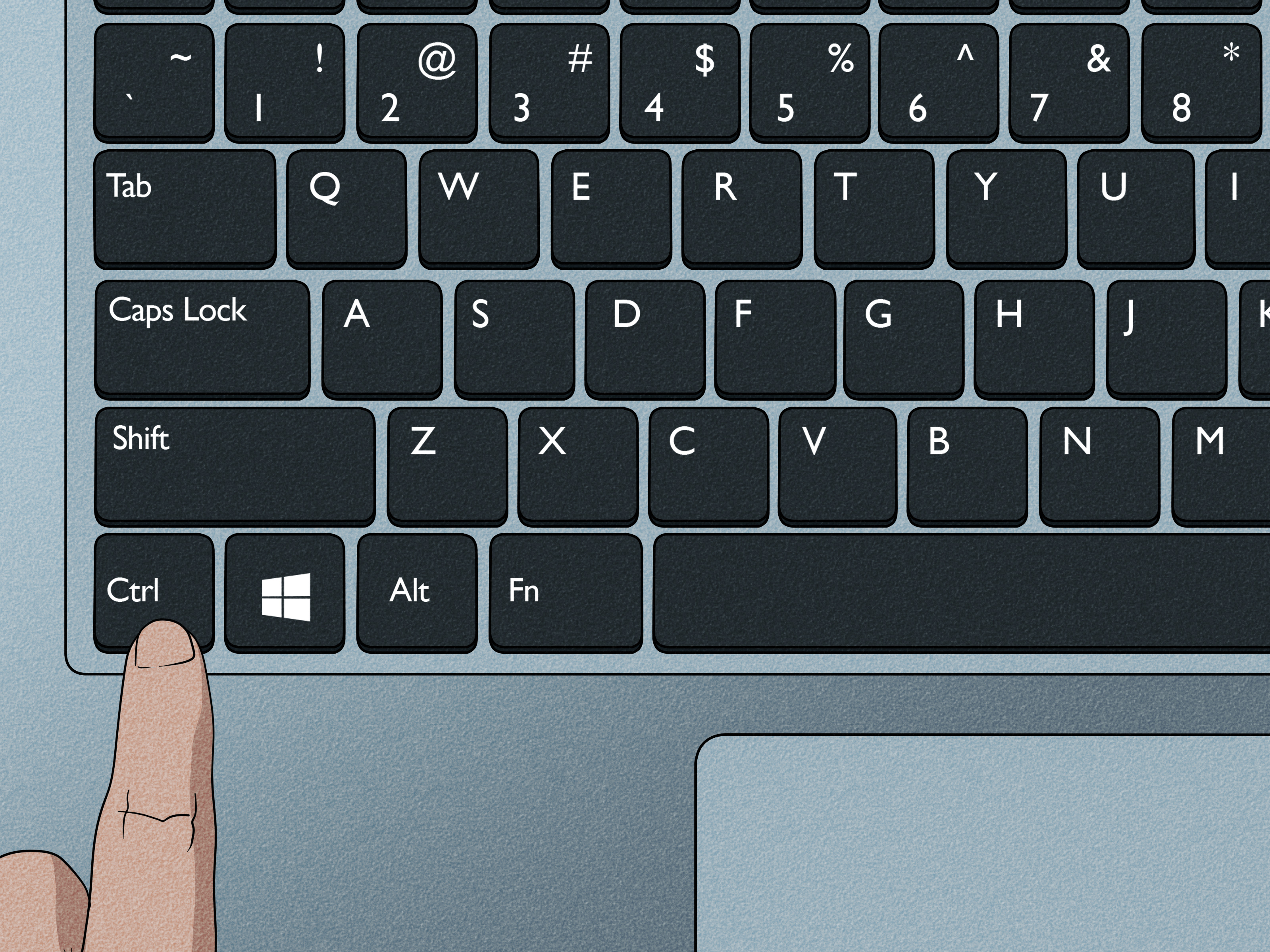
On a Windows PC, most file selection happens inside File Explorer. The main shortcuts are Ctrl, Shift, and Ctrl + A. Once you learn these three, you can move around Windows like a file-management wizard with sensible shoes.
Select Non-Adjacent Files with Ctrl + Click
Use this method when the files you want are not next to each other.
- Open File Explorer.
- Go to the folder containing your files.
- Click the first file you want.
- Hold down the Ctrl key.
- Keep holding Ctrl and click each additional file.
- Release Ctrl when you are done.
Example: If you want to select only three invoices from a folder of 30 documents, hold Ctrl and click just those three files. After they are selected, you can right-click and choose Copy, Delete, Rename, or another action.
Select a Range with Shift + Click
Use Shift + Click when the files are listed together.
- Click the first file in the group.
- Hold down Shift.
- Click the last file in the group.
- Windows selects the first file, the last file, and everything between them.
This is perfect for photo batches, numbered documents, exported reports, or downloads arranged by date. If your view is messy, sort files by Name, Date modified, or Type first so the range is easier to select.
Select All Files with Ctrl + A
To select every file in the current folder, press Ctrl + A. This shortcut works in File Explorer and many cloud file managers, browser upload windows, and desktop apps.
Use Ctrl + A when you want to copy an entire folder’s contents, move all files to another location, or delete everything in a folder after confirming you truly mean everything. And yes, “everything” includes that file you forgot was important, so take a breath before pressing Delete.
Use Item Check Boxes in File Explorer
Windows also offers item check boxes, which are helpful if you prefer using a mouse or touchscreen. In File Explorer, go to View, choose Show, and enable Item check boxes. Small check boxes appear next to files and folders, letting you select multiple items without holding keyboard keys.
This is especially useful on touchscreen laptops, tablets, or shared computers where keyboard shortcuts are inconvenient.
How to Select Multiple Files on a Mac
On a Mac, most file selection happens in Finder. The main keys are Command, Shift, and Command + A. If you recently switched from Windows, remember this simple translation: Command on Mac often does what Ctrl does on Windows.
Select Non-Adjacent Files with Command + Click
To select files that are not next to each other:
- Open Finder.
- Go to the folder you want.
- Click the first file.
- Hold down Command.
- Click each additional file you want to include.
This method is ideal when choosing scattered files: one PDF, two images, a spreadsheet, and that one document named Untitled 7 because we have all made choices.
Select a Continuous Group with Shift + Click
To select adjacent files on a Mac:
- Click the first file in the group.
- Hold Shift.
- Click the last file in the group.
Finder selects the files between the first and last item. This works especially well in list-style views where files are clearly ordered. If the folder is in icon view and the range feels confusing, switch to List view for better control.
Drag to Select Files in Finder
You can also click near a group of files, hold the mouse or trackpad, and drag a selection box around them. This is one of the fastest ways to select a visible cluster of files in icon view. Think of it like lassoing digital cattle, except the cattle are PDFs and none of them respect your naming system.
Select All Files with Command + A
Press Command + A to select everything in the current Finder window. After that, you can drag the files, copy them, move them to a folder, delete them, compress them, or share them.
How to Select Multiple Files on Android
Android file selection depends on the app and phone brand, but the general method is consistent: touch and hold one file to enter selection mode, then tap more files. This works in many Android file managers, including Files by Google and Samsung My Files, though exact buttons may differ.
Select Multiple Files in Files by Google
Files by Google is a common Android file manager used for browsing downloads, images, videos, documents, and storage categories. To select multiple files:
- Open the Files app.
- Browse to a category or folder, such as Downloads, Images, or Documents.
- Touch and hold the first file until it becomes selected.
- Tap additional files to add them to the selection.
- Use the toolbar or three-dot menu to share, move, copy, delete, or back up the selected files.
Android does not always offer a desktop-style Shift + Click range selection because there is no mouse-and-keyboard assumption on most phones. For large batches, look for a Select all option in the menu. If you only need certain files, sorting by date, size, or name can make tapping them less painful.
Select Multiple Files on Samsung Galaxy
Samsung Galaxy phones and tablets usually include the My Files app. The workflow is similar:
- Open My Files.
- Go to Internal storage, Downloads, Images, Documents, an SD card, or a USB drive.
- Touch and hold the first file.
- Tap more files to select them individually.
- Tap All if you want every item in the current location.
- Choose an action such as Move, Copy, Delete, or Share.
Samsung’s file manager is especially useful for managing SD cards and USB storage. If you regularly move many files between your phone and external storage, My Files can save you from connecting to a computer every time.
How to Select Multiple Files on iPhone
On iPhone, file management usually happens in Apple’s Files app. The Files app lets you browse locations such as On My iPhone, iCloud Drive, and supported third-party storage providers.
Select Multiple Files in the iPhone Files App
- Open the Files app.
- Tap Browse.
- Choose a location, such as iCloud Drive, On My iPhone, or another connected storage service.
- Open the folder containing your files.
- Tap the More button if needed, then tap Select.
- Tap each file or folder you want to include.
- Choose an action such as Share, Move, Delete, Duplicate, or Compress.
This method is straightforward, but it works best when you organize files before selecting them. For example, if you need to move several receipts, search for “receipt,” sort by date, or keep receipts in a dedicated folder. Future-you will be grateful. Future-you may even stop naming files “scan123.”
Select Multiple Photos on iPhone
If you are working with photos instead of documents, open the Photos app, tap Select, then tap the photos you want. In many photo views, you can also drag your finger across rows of images after tapping Select, which is faster than tapping each image one by one.
Files and Photos are different apps, so do not worry if the selection gestures are not identical. Apple enjoys consistency, but apparently not enough to make every tap feel like the same tap.
How to Select Multiple Files on iPad
The iPad works much like the iPhone, but the larger screen makes file selection easier. In the Files app, you can tap Select, choose several files, then move, share, duplicate, delete, compress, or tag them. The iPad is especially good for organizing files because Split View and drag-and-drop make it feel closer to a laptop.
Select Files in the iPad Files App
- Open Files.
- Go to the folder or storage location you want.
- Tap Select.
- Tap the files or folders you want.
- Use the options at the top or bottom of the screen to perform an action.
On iPad, you can also use drag-and-drop in supported situations. For example, select files, then drag them into another folder, email draft, note, or compatible app. If you use a trackpad or keyboard with your iPad, some familiar desktop behaviors may appear in certain apps, but the Select button remains the most reliable method in Files.
How to Select Multiple Files in Cloud Storage Apps
Many people manage files through cloud services instead of local folders. Google Drive, OneDrive, Dropbox, iCloud Drive, and other storage tools usually support multiple selection, but their controls vary by web browser, desktop app, and mobile app.
Google Drive
On Google Drive for the web, you can select all visible items with Ctrl + A on Windows or Command + A on Mac. You can also use standard selection behavior such as clicking one file and using keyboard shortcuts for bulk operations. After selecting multiple files, you can move them, download them, share them, delete them, or use copy and paste shortcuts in supported browsers.
OneDrive
OneDrive on the web often shows circular selection controls beside files. You can select multiple files manually, select all files in a folder, or use Ctrl + A when the file grid is active. OneDrive is especially useful when you need to download several files or folders from a browser.
Dropbox
On Dropbox.com, you can hover over files and click checkmarks to select multiple items. For consecutive files, Dropbox also supports range-style selection with the Shift key in its web interface. In the desktop Dropbox folder, file selection works like normal Windows File Explorer or macOS Finder because the files appear inside your operating system’s file manager.
Common Problems and Easy Fixes
Problem: Ctrl or Command Click Opens the File
Make sure you are single-clicking, not double-clicking. In some apps, clicking the file name opens the file, while clicking the icon, row, checkbox, or blank space beside it selects it.
Problem: Shift + Click Selects the Wrong Files
Check your sorting order. If a folder is sorted by date instead of name, the range may include unexpected files. Sort the folder first, then try again.
Problem: Mobile Selection Is Too Slow
On Android, iPhone, and iPad, look for Select all, filters, search, or sorting tools. Mobile devices are great for quick actions, but if you need to organize hundreds of files, a computer may be faster.
Problem: Some Options Are Missing
Certain files, folders, cloud locations, app libraries, or shared items may have limited actions. For example, you may be able to copy a file but not delete it, depending on permissions or storage location.
Best Practices for Selecting and Managing Files
Before selecting a large batch, rename or sort files so they are easier to identify. Use clear folder names such as Tax Documents 2026, Client Photos, or Website Backups. If you are deleting files, review the selection twice. If you are moving files, confirm the destination folder. If you are sharing files, make sure you did not accidentally include personal documents, private photos, or that one meme folder from 2017.
For professional work, create a simple file organization system. Keep active files in one folder, archived files in another, and temporary downloads in a folder you clean weekly. Multiple file selection becomes much easier when your folders are not digital junk drawers with Wi-Fi.
Real-World Experiences: What Actually Works Best
After helping many users organize files across PCs, Macs, Android phones, iPhones, and iPads, one pattern becomes obvious: the fastest method depends less on the device and more on the situation. On a Windows PC, Ctrl + Click is unbeatable when choosing a few scattered files, while Shift + Click is the hero when selecting a neat range. But when the folder has hundreds of items, sorting is the real secret weapon. Sort by date, type, or name before selecting, and the job becomes dramatically easier.
On Mac, Command + Click feels natural once you remember that Command is the Mac’s version of Ctrl for many file actions. The biggest beginner mistake is trying to use Ctrl like on Windows. Ctrl-click on a Mac often opens a context menu, which is useful, but not what you want for selecting random files. Once users switch to Command, the confusion disappears almost instantly.
For Android, patience and app choice matter. Many Android phones include a file manager, but the experience can differ across Pixel, Samsung, Motorola, OnePlus, and other brands. The most reliable habit is to touch and hold one file first, wait for selection mode, then tap the rest. If you are handling a large number of files, Samsung My Files and Files by Google are usually easier than digging through a random app’s attachment picker.
On iPhone, the Files app is clean but not always obvious. Users often search for a document, open it, and then wonder why they cannot batch-select from inside the preview. The better route is to stay in the folder view, tap Select, then choose files before opening anything. For photos, the Photos app is faster than Files because the swipe-to-select gesture can cover many images quickly.
The iPad offers the best mobile experience for selecting multiple files because the larger screen makes folders, sidebars, previews, and action buttons easier to see. When paired with a keyboard or trackpad, it can feel close to desktop file management. However, the simplest method is still the built-in Select button. It is predictable, visible, and hard to mess up.
A final practical lesson: never rush bulk actions. Selecting multiple files is powerful because one click can affect dozens or hundreds of items. That power is wonderful when you are moving vacation photos into an album. It is less wonderful when you accidentally delete an entire folder because you thought “Select All” meant “select all the files I emotionally intended.” Before moving, sharing, or deleting, glance at the highlighted items and confirm the count. Your future self will thank you, probably with fewer recovery-drive nightmares.
Conclusion
Learning how to select multiple files is a small skill that saves a surprising amount of time. On PC, use Ctrl + Click, Shift + Click, and Ctrl + A. On Mac, use Command + Click, Shift + Click, and Command + A. On Android, touch and hold to enter selection mode, then tap additional files. On iPhone and iPad, open the Files app, tap Select, choose your files, and apply the action you need.
Once these habits become automatic, organizing files feels less like a chore and more like basic digital hygiene. Not exciting, perhaps, but deeply satisfyinglike finally clearing your downloads folder and realizing your computer was not slow, just buried under 900 screenshots of things you “might need later.”