

Typing is not always the fastest way to communicate. When you are walking, cooking, carrying groceries, or trying to tell a story that would require seventeen text bubbles, an audio message can save time while preserving your tone, humor, and emotion.
Your iPhone has two easy built-in options: record a quick voice note directly in Messages, or create a saved audio file in Voice Memos and share it through Messages, Mail, AirDrop, or another app. This guide explains both methods, their differences, and the fixes for common problems.
Quick Answer: Two Ways to Send an Audio Message
- Messages: Best for a fast, informal voice note that plays inside a conversation.
- Voice Memos: Best for longer, important, reusable, or cross-platform recordings.
Audio Message vs. Voice Memo vs. Dictation
An audio message is a voice clip sent inside Messages. A Voice Memo is a saved audio file created in Apple’s Voice Memos app. Dictation turns speech into typed words, while voicemail is what a caller leaves when you do not answer.
The microphone on the iPhone keyboard is normally for dictation. To send your actual voice, choose Audio in Messages or record in Voice Memos. Otherwise, your heartfelt speech may become a paragraph featuring autocorrect’s creative interpretation of your name.
Way 1: Send an Audio Message in Messages
This is the fastest method for casual conversations. The recording appears in the chat, and the recipient can tap Play without opening another app.
Step-by-Step Instructions
- Open the Messages app.
- Open a conversation or start a new one.
- Tap the plus sign (+) beside the text field.
- Tap Audio. If it is hidden, scroll or tap More.
- Speak after recording begins.
- Tap Stop when finished.
- Tap Play to review, continue recording if needed, or close the recording to discard it.
- Tap the Send arrow.
After sending one audio message, current iOS versions may show a recording control near the text field so you can create a follow-up more quickly. The exact position can vary by iOS version.
Do Messages Audio Clips Disappear?
By default, an audio message may be removed from your side of the conversation two minutes after you send or listen to it. Tap Keep beneath an individual recording to preserve it.
To keep all audio messages, go to Settings > Apps > Messages > Expire > Never. On older iOS versions, use Settings > Messages > Expire > Never.
How to Save or Reply to a Received Audio Message
When someone sends you an audio message, tap the Play button to listen. You can drag across the recording to move backward or forward, and current iOS versions may let you adjust playback speed by touching and holding the playback control. Tap Keep when the recording matters and you do not want it removed from your conversation.
For a more permanent copy, touch and hold the audio message and look for Save to Voice Memos. This is useful for directions, family stories, spoken reminders, and any recording you may want outside the chat thread. Once it is in Voice Memos, you can rename it and share it like any other recording.
If Raise to Listen is enabled, lifting the iPhone to your ear can play a received message privately through the earpiece. Lower the phone, raise it again, and speak after the tone to prepare an audio reply. This gesture is convenient when it behaves, although users who trigger it accidentally may prefer the manual controls.
What About Android Recipients?
The inline Audio tool works most smoothly in iMessage conversations between Apple devices. Cross-platform results can vary with iOS, RCS support, carriers, and the recipient’s messaging app. When Audio is unavailable or delivery is unreliable, record the message in Voice Memos and share it as a standard audio file.
Way 2: Record and Share with Voice Memos
Voice Memos gives you more control because the recording remains saved, can be renamed, and can be shared through several apps. It is a better choice for detailed instructions, interviews, family stories, project updates, or anything you might want to keep.
How to Record the Message
- Open Voice Memos, usually found in the Utilities folder.
- Tap the red Record button.
- Speak clearly while keeping the microphones unobstructed.
- Tap Stop when finished.
- Tap Play to review the recording.
- Tap its name to rename it, if desired.
A descriptive title such as “Garage door instructions” is much more useful than “New Recording 47,” which sounds like evidence from a low-budget mystery.
How to Share the Voice Memo
- Tap the recording.
- Tap the More button, usually shown as three dots.
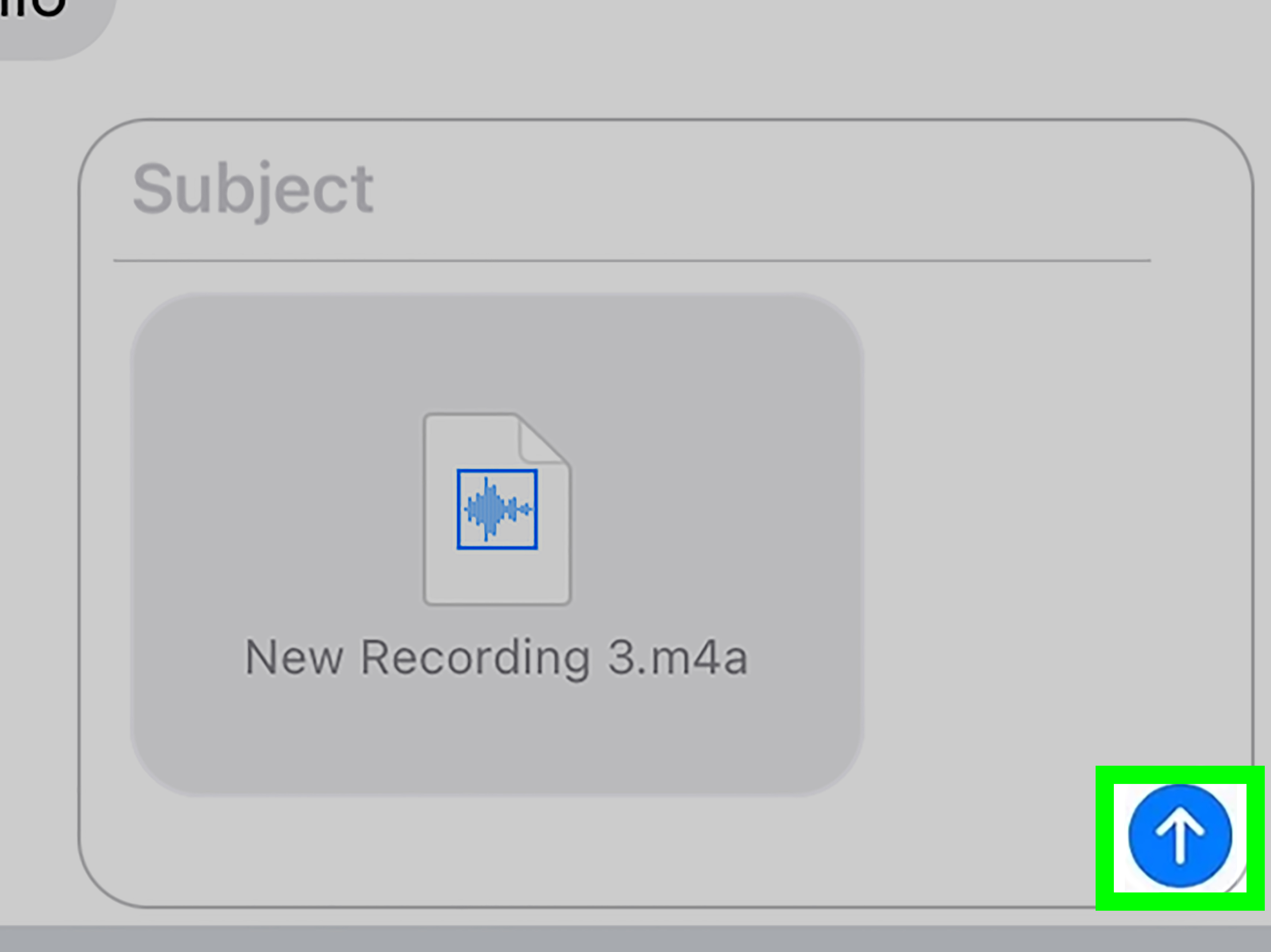
- Tap Share.
- Choose Messages, Mail, AirDrop, or another compatible app.
- Select the recipient and send the file.
Voice Memos is especially useful for non-iMessage recipients because it creates a regular audio file and leaves a copy on your iPhone. On supported models, current iOS versions may also offer recording modes or microphone processing such as Voice Isolation.
Messages vs. Voice Memos: Which Is Better?
| Situation | Best Method | Reason |
|---|---|---|
| Quick reply to a friend | Messages | Fast and plays inside the chat |
| Long explanation | Voice Memos | Easier to review and resend |
| Important family recording | Voice Memos | Creates a saved file |
| Recipient uses another platform | Voice Memos | More flexible sharing |
| Casual iMessage chat | Messages | Requires the fewest steps |
How to Make Your Audio Message Sound Better
Reduce Background Noise
Move away from traffic, televisions, fans, and running water. Even turning away from a noisy source can improve clarity.
Keep the Microphone Clear
Do not cover the lower edge of the iPhone with your hand, case flap, blanket, or snack bag. Hold the phone close enough for clear speech, but there is no need to perform directly into the microphone like it is the final chorus of a power ballad.
Lead with the Main Point
State the purpose first, add the essential details, and end with the action you want. “The appointment moved to Thursday at 3:00 p.m. Meet me at the front entrance” is easier to follow than four minutes of conversational archaeology.
Common Problems and Fixes
The Audio Option Is Missing
Tap the plus sign and check the full menu, including More. Confirm that iMessage is enabled under Settings > Apps > Messages. Some non-iMessage conversations may not show the inline Audio tool, so use Voice Memos instead.
The iPhone Will Not Record
Close and reopen the app, restart the iPhone, and check Settings > Privacy & Security > Microphone. Make sure the relevant app has access if it appears in the list.
The Recording Is Too Quiet
Remove anything blocking the microphones, move closer, and test a short clip in Voice Memos. If all recordings remain unusually quiet, inspect the microphone openings for debris without inserting sharp objects.
The Recipient Cannot Hear It
Ask the recipient to raise media volume and disconnect unintended Bluetooth devices. If playback still fails, resend the audio as a Voice Memos attachment.
You Keep Recording by Accident
Raise to Listen can play or prepare audio replies when you lift the phone to your ear. Disable it under Settings > Apps > Messages > Raise to Listen. Manual recording will still work.
Privacy and Voice-Message Etiquette
Audio can capture background conversations, names, addresses, workplace details, and private moments. Review sensitive recordings before sending, and avoid recording people without their permission.
Remember that the recipient may be in a meeting, classroom, or shared office. For urgent information, include a short text summary. Keep routine voice notes brief; a twelve-minute update may be appropriate for a close friend, but it should probably arrive with snacks.
Frequently Asked Questions
Can I listen before sending?
Yes. Tap Play after recording in Messages or Voice Memos, then send only when it sounds right.
Can I save an audio message someone sent me?
Yes. Tap Keep. On current iOS versions, you may also be able to touch and hold the message and save it to Voice Memos.
Can I send a long voice message?
Yes, although Voice Memos is better for long audio because the file remains saved. Large recordings may take longer to upload or exceed an app’s attachment limit.
Does an audio message use cellular data?
It can. iMessage and RCS use Wi-Fi or cellular data, while carrier charges or limits may apply if delivery falls back to MMS.
Can I Turn Speech into Text Instead?
Yes. Tap the keyboard microphone to use Dictation. The recipient receives editable text rather than your recorded voice.
Conclusion
To send an audio message from an iPhone, use Messages for a quick voice note or Voice Memos for a longer, saved, and more shareable recording. Messages is faster; Voice Memos offers permanence and flexibility. Preview important clips, keep the microphone clear, and remember that every background sound may join the conversation without being invited.
Real-World Experience: What Makes iPhone Audio Messages Actually Useful
In everyday use, audio messages are most valuable when they replace typing without creating extra work for the listener. A thirty-second explanation can be faster to record than a long paragraph, especially when the message includes emotion, pronunciation, directions, or a story whose humor depends on timing. Voice notes also feel more personal than text because the recipient hears emphasis, pauses, laughter, and hesitation instead of trying to decode whether a period means “sentence finished” or “friendship terminated.”
The Messages method works best for quick exchanges. Imagine leaving a grocery store with both hands occupied. Opening a conversation, tapping the plus sign, choosing Audio, and speaking a short update is far easier than balancing bags while typing. The recipient can listen inside the same chat and respond immediately. This method also works well for pronunciation help, quick check-ins, and informal reactions that would lose their personality in text.
However, quick recording encourages one common mistake: sending before reviewing. A voice note may begin with several seconds of fumbling, include an incorrect date, or capture a private comment from someone nearby. The practical habit that solves most problems is simpletap Play before Send whenever the message contains instructions, work information, money details, travel plans, or anything emotionally sensitive. Casual messages can be spontaneous; important messages deserve a ten-second quality check.
Voice Memos becomes noticeably better when the recording has lasting value. A detailed set of instructions, a child telling a funny story, a family member describing a memory, or a spoken project update should not depend on a temporary chat setting. Recording in Voice Memos creates a file that can be named, replayed, copied, and shared again. Giving it a descriptive name immediately also prevents the Voice Memos list from becoming an archaeological dig through dozens of identical “New Recording” entries.
Another real-world lesson is that shorter messages receive faster responses. A useful voice note often follows a simple structure: state the purpose, explain the essential details, and finish with the requested action. “I am running ten minutes late. Please order without me, and get the chicken sandwich” is excellent. A four-minute history of the traffic pattern, the parking garage, and the emotional betrayal of a malfunctioning elevator is entertaining only if the recipient specifically enjoys serialized audio drama.
Cross-platform sharing is where Voice Memos earns its place. When the recipient uses Android, email, a workplace chat app, or a service that does not handle Apple’s inline audio feature consistently, sharing a standard recording file is usually more dependable. It also gives the sender confidence that the original remains available if the first delivery attempt fails.
Finally, audio messages work best when paired with consideration. The recipient may be somewhere they cannot listen, so a short text summary can be helpful. For urgent information, put the deadline or key instruction in writing as well. Voice adds warmth and detail; text adds scanability. Used together, they turn the iPhone from a tiny keyboard into a much more natural communication tool.