

Once upon a time, typing emojis on a computer felt like trying to make a sandwich with boxing gloves on. You knew the perfect little face existed somewhere, but finding it meant opening your phone, copying the emoji, emailing it to yourself, questioning your life choices, and finally pasting it into a message that now looked slightly less boring.
Good news: those days are over. If you use a Windows PC, you already have a built-in emoji keyboard hiding in plain sight. No extra app, no secret tech wizard badge, no ritual sacrifice to the keyboard gods. With one simple shortcut, you can type emojis on PC in emails, documents, social media posts, chats, spreadsheets, browser search bars, and almost anywhere else you can type text.
This guide explains the easiest keyboard shortcuts for emojis on Windows, how to search and insert emojis fast, how to use symbols and kaomoji, what to do when the emoji panel will not open, and how to use emojis without making your work messages look like they escaped from a glitter cannon.
The Fastest Way to Type Emojis on PC
The main Windows emoji shortcut is:
Windows key + . (period)
Place your cursor where you want the emoji to appear, press the Windows key and the period key at the same time, and the emoji panel will pop up. From there, click an emoji or start typing a word like “smile,” “heart,” “fire,” “check,” “cat,” or “party” to search.
You can also use this shortcut:
Windows key + ; (semicolon)
Both shortcuts open the same emoji panel on most Windows PCs. If your fingers naturally land on the semicolon key, use that. If period feels easier, use period. Windows is being unusually generous here, so enjoy the rare moment of keyboard diplomacy.
How to Insert an Emoji Step by Step
Here is the simple version for Windows 10 and Windows 11 users:
- Click inside a text field, document, email, chat box, or browser search bar.
- Press Windows key + . or Windows key + ;.
- Type a keyword, such as laugh, star, thumbs up, or coffee.
- Select the emoji you want.
- The emoji appears wherever your cursor is placed.
That is it. No installation required. The emoji keyboard is built into Windows, and it works in many popular apps, including Microsoft Word, Outlook, Notepad, Google Chrome, Microsoft Edge, Slack, Discord, Gmail, Google Docs, and social media websites.
How to Search for Emojis on Windows
The search feature is the real time-saver. Instead of scrolling through hundreds of tiny faces like an emoji archaeologist, just open the panel and type what you want.
Try these examples:
- Type laugh to find 😂, 😆, or 🤣.
- Type heart to find ❤️, 💙, 💜, or 💔.
- Type check to find ✅ or ✔️.
- Type fire to find 🔥.
- Type money to find 💰, 🤑, or 💵.
- Type cat to find 🐱, 😺, or 🐈.
For everyday typing, searching is usually faster than browsing. It also helps when you know the idea but not the exact emoji name. Windows may not always read your mind, but it does a decent job if you give it a simple keyword.
How to Use the Emoji Panel Without a Mouse
If you like keyboard shortcuts because the mouse feels like a tiny desk pet you would rather not disturb, you can navigate the emoji panel from the keyboard.
Open the panel with Windows key + ., then use:
- Tab to move between areas of the panel.
- Arrow keys to move through emoji choices.
- Enter to insert the selected emoji.
- Esc to close the panel.
This is especially useful when you are writing quickly in a document, responding to messages, or adding a quick reaction without lifting your hands from the keyboard.
What Else Is Inside the Windows Emoji Panel?
The Windows emoji keyboard is more than a smiley-face vending machine. On Windows 11 especially, the panel can include emojis, GIFs, kaomoji, symbols, and clipboard-related tools, depending on your version and settings.
Emojis
This is the main attraction. You can browse faces, animals, food, objects, flags, symbols, travel icons, hand gestures, and more. Recently used emojis usually appear first, which is handy if you repeatedly use the same few favorites. We all have an emoji personality. Some people are 😂 people. Some are ✅ people. Some are mysteriously always using 🦆. No judgment.
Kaomoji
Kaomoji are text-based expressions such as (╯°□°)╯︵ ┻━┻, ¯\_(ツ)_/¯, and (づ。◕‿‿◕。)づ. They are charming, dramatic, and perfect when a regular emoji simply does not contain enough theatrical energy.
Symbols
The emoji panel also lets you insert useful symbols like currency marks, punctuation, arrows, math symbols, accented characters, and special marks. This is great when you need something like ©, ™, €, £, →, ★, or and do not want to dig through menus.
GIFs
Some Windows 11 builds include GIF search inside the same panel. This can be useful for casual chats, but be careful in professional spaces. A thumbs-up emoji in a team message is usually fine. A dancing raccoon GIF in a quarterly budget report may need legal review.
How to Type Emojis in Google Docs on PC
Google Docs works well with the Windows emoji shortcut, so you can usually press Windows key + . and insert an emoji directly into your document.
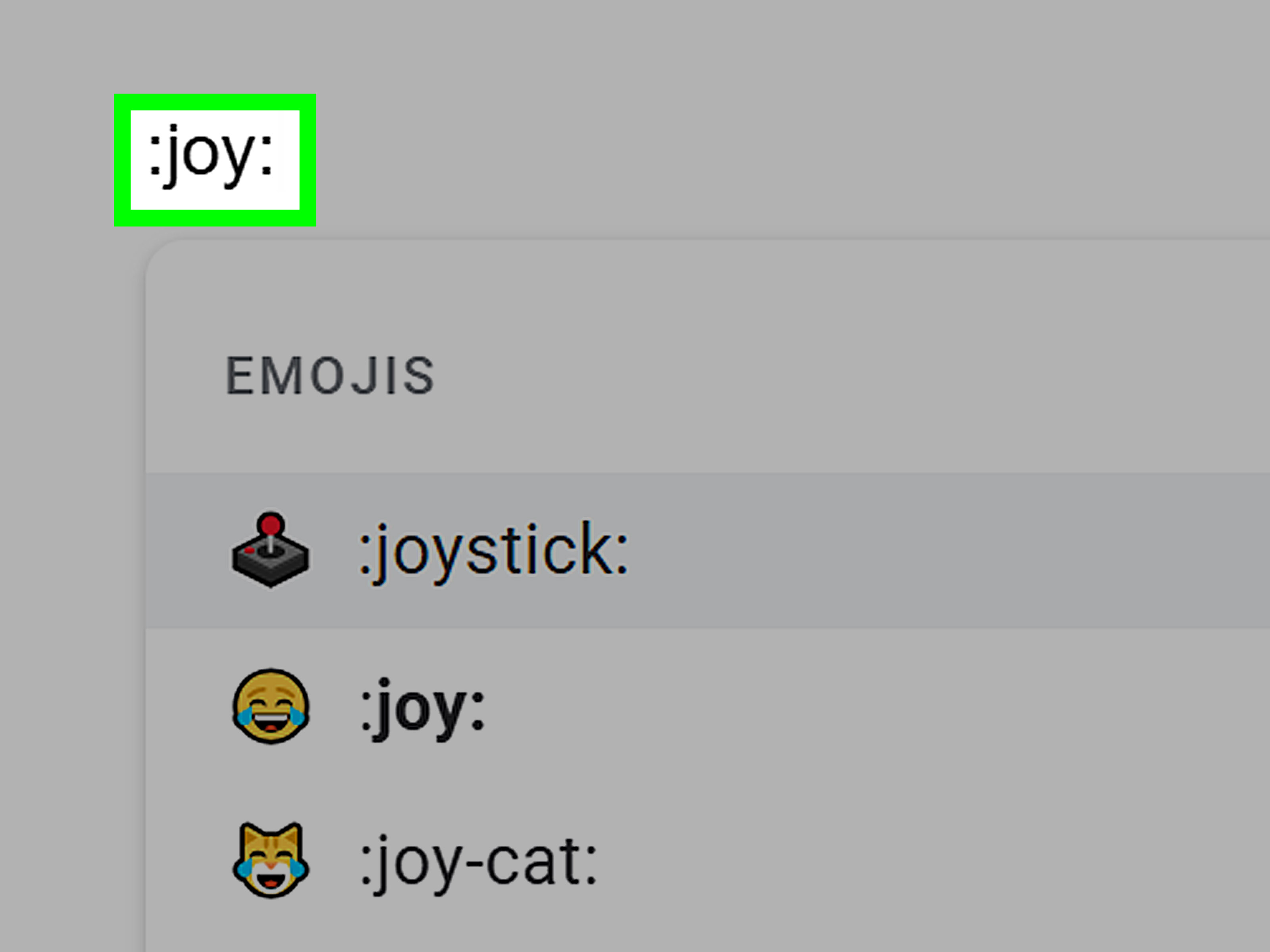
Google Docs also has its own emoji tools. You can type @emoji and press Enter, or type a colon followed by a keyword, such as :cat, to search for emoji suggestions. This is helpful when you are working inside Google Docs and want app-specific options without opening the Windows panel.
How to Type Emojis in Gmail, Outlook, Slack, and Social Media
In most email and messaging apps, the Windows emoji shortcut works the same way. Click where you want the emoji, press Windows key + ., search, and insert.
In Gmail, Outlook, Slack, Discord, Facebook, Instagram web comments, LinkedIn posts, and X posts, emojis can help your tone feel clearer. A plain “Thanks” is polite. “Thanks 😊” feels warmer. “Thanks 🔥🚀💯” may suggest you have had too much coffee, but sometimes the moment calls for it.
Slack and other chat tools also have their own emoji menus and reaction buttons. For quick reactions, using the app’s built-in reaction feature is often cleaner than typing an emoji into the message itself. For regular message writing, the Windows emoji keyboard is fast and flexible.
How to Type Emojis on a Laptop Keyboard
Typing emojis on a laptop is the same as typing them on a desktop PC: use Windows key + . or Windows key + ;. The Windows key is usually near the lower-left corner of the keyboard, between Ctrl and Alt.
Some laptop brands and models also include special function-key shortcuts for opening the emoji menu. For example, certain Dell keyboards list Fn + Space bar as an emoji menu shortcut. Some HP keyboards include a dedicated emoji key. Lenovo guides commonly list Windows-key combinations for opening the emoji panel. Because laptop layouts vary, the universal shortcut is still the best one to remember: Windows key + period.
How to Type Emoji Symbols Like Hearts, Check Marks, and Stars
Some people search for “emoji keyboard” when they really need symbols such as check marks, arrows, stars, hearts, copyright signs, or trademark marks. The Windows emoji panel handles many of these too.
Open the panel with Windows key + ., then choose the symbols section or search by keyword. For example:
- check: ✅ ✔️ ☑
- heart: ❤️ ♥ ♡
- star: ⭐ ★ ☆
- arrow: → ← ↑ ↓
- copyright: ©
- trademark: ™
For many users, this replaces the old habit of searching Google for “copy paste check mark,” then accidentally opening seven websites and losing track of the original task. We have all been there. It is how a three-second symbol becomes a twelve-minute internet side quest.
Using Alt Codes for Symbols on Windows
Alt codes are another way to type special characters on a Windows PC. They are not the easiest method for modern emojis, but they can be useful for symbols.
For example, with Num Lock turned on, you can hold Alt, type a numeric code on the numeric keypad, and release Alt to insert a character. A classic example is Alt + 0169 for ©.
There is one important catch: Alt codes usually require a numeric keypad. The number row at the top of the keyboard often will not work. If you use a compact laptop without a number pad, the emoji panel or Character Map is usually easier.
Using Character Map for Special Characters
Windows also includes a tool called Character Map. It lets you browse characters available in different fonts, copy them, and paste them into documents or messages. It is not as fast as the emoji panel, but it can be useful when you need a specific accented letter, symbol, or font-based character.
To open it, click Start, search for Character Map, and choose the app. Select a character, click Select, click Copy, and paste it where you need it.
Why Emojis Look Different on Different Devices
Here is a tiny but important detail: emojis are standardized as characters, but their appearance can vary by platform. A smiling face may look slightly different on Windows, Apple devices, Android phones, and social media apps. The meaning is usually the same, but the artwork is not identical.
That means the emoji you type on your PC might look a little different when someone reads it on an iPhone. Usually this is harmless. Occasionally, it creates tiny emotional chaos. A face that looks cheerful on one device can look mildly haunted on another. When tone matters, pair emojis with clear words.
Best Emoji Shortcuts to Remember
If you only memorize a few things from this guide, make them these:
- Windows key + .: Open the emoji panel.
- Windows key + ;: Open the emoji panel another way.
- Tab: Move through sections.
- Arrow keys: Browse options.
- Enter: Insert the selected emoji.
- Esc: Close the panel.
- Windows key + V: Open clipboard history, if enabled.
The first shortcut is the superstar. The rest are helpful supporting characters, like a reliable sitcom neighbor who always appears with a ladder at exactly the right time.
When the Emoji Keyboard Shortcut Does Not Work
If Windows key + . does nothing, try these fixes:
1. Make sure your cursor is in a text field
The emoji panel usually appears when Windows knows you are typing somewhere. Click inside a document, message box, email, or search field, then try again.
2. Try the other shortcut
If Windows key + . does not work, try Windows key + ;. One may work better depending on your keyboard layout or app behavior.
3. Restart the app
Sometimes the problem is not Windows; it is the app pretending everything is fine while quietly falling apart. Close and reopen the program.
4. Check your keyboard
Make sure the Windows key is not disabled. Some gaming keyboards include a “game mode” that disables the Windows key to prevent accidental interruptions.
5. Update Windows
Emoji support can improve through Windows updates. Keeping Windows current helps with emoji display, panel behavior, fonts, and compatibility.
6. Use copy and paste as a backup
If the panel still refuses to cooperate, use a trusted emoji copy-and-paste website or an app’s built-in emoji menu. It is not as elegant, but it gets the job done.
Are Emojis Professional on a PC?
Yes, when used wisely. Emojis can make digital communication warmer, clearer, and more human. They are especially useful in short messages where tone is easy to misread.
For work, keep emojis simple and intentional:
- Use ✅ to show completion.
- Use 👍 to acknowledge a message.
- Use 😊 to soften a friendly note.
- Use 🎉 to celebrate wins.
- Use ⚠️ to highlight a warning.
Avoid using too many emojis in serious emails, client proposals, legal documents, medical communication, or anything involving invoices. Nobody wants to see “Payment overdue 😬💸” unless your brand voice is unusually brave.
Common Emoji Mistakes to Avoid
Using too many emojis
One emoji can add tone. Ten emojis can make your message look like a parade crashed into a spreadsheet.
Using unclear emojis
Some emojis have different meanings depending on age, culture, context, or internet subculture. If you are not sure how an emoji will be received, choose a clearer one.
Replacing words with emojis
Emojis support communication; they should not turn your message into a puzzle. “Meeting moved to 3 PM ✅” is clear. “📅➡️3️⃣✅” is a cry for help.
Forgetting accessibility
Screen readers may read emoji names aloud. A message packed with emojis can become frustrating for people using assistive technology. Use emojis thoughtfully, especially in public or professional content.
Practical Examples: How to Use Emojis on PC
Here are a few real-world examples of tasteful emoji use:
In a work chat
“I reviewed the draft and added comments ✅”
In a friendly email
“Thanks for sending this over looks great 😊”
In a social media post
“New guide is live! Here is how to speed up your Windows workflow 🚀”
In a checklist
“✅ Updated images
✅ Checked links
✅ Published article”
In a warning note
“⚠️ Reminder: Save your work before restarting your PC.”
These examples add visual cues without overwhelming the reader. That is the sweet spot.
My Experience Using Emojis on PC
The first time many people discover the Windows emoji shortcut, the reaction is usually the same: “Wait, this was here the whole time?” It feels like finding a secret drawer in a desk you have owned for five years. Once you know the shortcut, it becomes part of your typing muscle memory almost immediately.
In day-to-day writing, the biggest benefit is speed. Before learning the shortcut, adding a check mark, heart, or smiley face often meant opening a browser tab, searching for the symbol, copying it, pasting it, and hoping the formatting did not come along for the ride like an unwanted houseguest. With Windows key + ., the process takes seconds. You stay in the document, keep your focus, and avoid the dangerous distraction zone known as “just one quick search.”
For content writing, emojis can also improve scannability. A check mark in a checklist, a warning symbol before an important note, or a small celebratory emoji in a conclusion can help guide the reader’s eye. The trick is restraint. Emojis should work like seasoning, not like the entire soup. A little adds flavor. Too much makes everyone nervous.
In professional communication, I have found that the safest emojis are the functional ones: ✅, 👍, ⚠️, 📌, and 🎉. They communicate status, approval, caution, importance, and celebration without feeling too casual. A single thumbs-up in a team chat can replace a full “Got it, thank you, I confirm that I have seen this message” sentence. That saves time and reduces clutter.
However, context matters. In a quick internal chat, emojis feel natural. In a formal proposal, they can look out of place. In a customer support message, one friendly emoji may soften the tone, but five can make the response feel less serious. The best rule is simple: match the room. If the conversation is formal, use emojis rarely. If it is friendly or social, use them more freely.
The search feature is especially useful for recurring symbols. Typing “check” to insert ✅, “warning” to insert ⚠️, or “star” to insert ⭐ is faster than browsing. It also makes emojis practical for productivity, not just personality. You can mark completed tasks, label sections, highlight important reminders, or add visual rhythm to notes.
One small frustration is that emojis do not always look identical everywhere. A symbol that looks polished in one app may appear slightly different in another. Sometimes a newer emoji may not display correctly on an older system or in a specific browser. That is why it is smart to avoid relying on emojis alone for meaning. Write the message clearly first, then let the emoji add tone or emphasis.
Overall, learning how to type emojis on PC is one of those tiny computer skills that pays off constantly. It makes writing faster, messages friendlier, checklists cleaner, and digital communication a little more human. And unlike many productivity tricks, it does not require a new app, subscription, or 40-minute tutorial from a person with dramatic background music. Just press Windows key + period, choose your emoji, and carry on like the efficient keyboard wizard you are.
Conclusion
Typing emojis on a PC is easy once you know the shortcut. Press Windows key + . or Windows key + ;, search for the emoji you need, and insert it directly into your text. The Windows emoji panel also gives you access to kaomoji, symbols, special characters, and, on some systems, GIFs.
Whether you are writing an email, updating a document, replying in a chat, creating social media content, or organizing a checklist, emojis can make your message clearer and more expressive. Use them with purpose, keep your audience in mind, and remember: one well-placed emoji is charming; twenty-seven is a confetti emergency.
Note: Keyboard behavior can vary slightly by Windows version, app, laptop model, and keyboard layout. For most Windows PCs, Windows key + . remains the easiest and most reliable shortcut for typing emojis.