

Typing the Apple logo looks easy until you actually try to do it. One minute you are happily writing about your MacBook, iPhone, Apple Watch, or favorite Apple shortcut, and the next minute you are staring at your keyboard like it owes you money. Where is the Apple logo key? Why is there no shiny little button sitting beside Command? And why does Windows act as if the symbol has entered witness protection?
The good news: you can type the Apple logo on a Mac very quickly. The slightly mischievous news: typing the Apple logo on Windows is possible, but it takes a little more effort because the symbol is not a standard public Unicode character in the same way as ©, ™, or €. The Apple logo character is usually associated with the private-use Unicode code point U+F8FF, which means its appearance depends on the device, font, app, and operating system displaying it.
This guide explains how to type the Apple logo on Mac and Windows, why it may not appear correctly everywhere, how to create shortcuts for faster use, and when you should avoid using it in public-facing or commercial materials. By the end, you will know how to summon the tiny fruit-shaped celebrity without needing a magic wand, a secret Apple Store handshake, or a dramatic thunderstorm over Cupertino.
What Is the Apple Logo Symbol?
The Apple logo symbol is the familiar bitten-apple mark used by Apple Inc. In typed text, it often appears as . On many Apple devices, this character is linked to the private-use code point U+F8FF. Because it sits in the Unicode Private Use Area, the code point is not universally assigned to the Apple logo across every platform.
That detail matters. A standard Unicode character, such as the copyright symbol ©, is broadly recognized across operating systems and fonts. The Apple logo character is different. Apple fonts may display U+F8FF as the Apple logo, while a Windows font may display an empty box, a strange symbol, or nothing at all. In other words, the symbol is a bit like a celebrity with an exclusive club membership: it shows up beautifully in the right room and mysteriously disappears in the wrong one.
How to Type the Apple Logo on Mac
On a Mac, the fastest way to type the Apple logo is with a simple keyboard shortcut.
Use the Mac Keyboard Shortcut
Place your cursor where you want the Apple logo to appear, then press:
Option + Shift + K
This should insert the Apple logo:
For most users with a standard U.S. English Mac keyboard layout, this is the cleanest and quickest method. It works in many common places where you can type text, including Notes, Pages, Messages, Mail, some browsers, and many text editors.
What to Do If Option + Shift + K Does Not Work
If the shortcut does not produce the Apple logo, do not immediately blame your keyboard, your Mac, or the ghost of Steve Jobs. A few things may be happening:
- Your keyboard layout may not support the same shortcut.
- The app you are using may handle Option-key shortcuts differently.
- The selected font may not include the Apple logo glyph.
- You may be using a remote desktop, virtual machine, or terminal app that interprets the shortcut another way.
First, test the shortcut in a simple Apple app such as Notes or TextEdit. If it works there but not in another app, the problem is probably app-specific. If it does not work anywhere, check your keyboard input source under your Mac keyboard settings.
Use Character Viewer on Mac
Another option is to use the Mac Character Viewer. This tool lets you insert emoji, symbols, accented letters, and other special characters.
- Click where you want the Apple logo to appear.
- Press Fn/Globe + E on newer Macs, or choose Edit > Emoji & Symbols in many apps.
- Search for the character if it appears in your available symbols, or paste the Apple logo once and save it as a favorite.
- Double-click the symbol to insert it.
The Character Viewer is especially useful if you work with lots of symbols and do not want to memorize keyboard shortcuts like you are training for a typography spelling bee.
How to Type the Apple Logo on Windows
Typing the Apple logo on Windows is trickier because Windows does not include a universal Apple logo shortcut. The symbol may also fail to display unless the chosen font includes the Apple logo glyph. Still, there are several practical methods.
Method 1: Copy and Paste the Apple Logo
The simplest Windows method is copy and paste. Copy this symbol:
Then paste it wherever you need it.
This method is fast, easy, and requires no technical setup. However, it comes with one important warning: the symbol may look correct on your screen but appear as a blank square or missing character for someone else. That is because the receiving device, browser, app, or font must know how to display the private-use character.
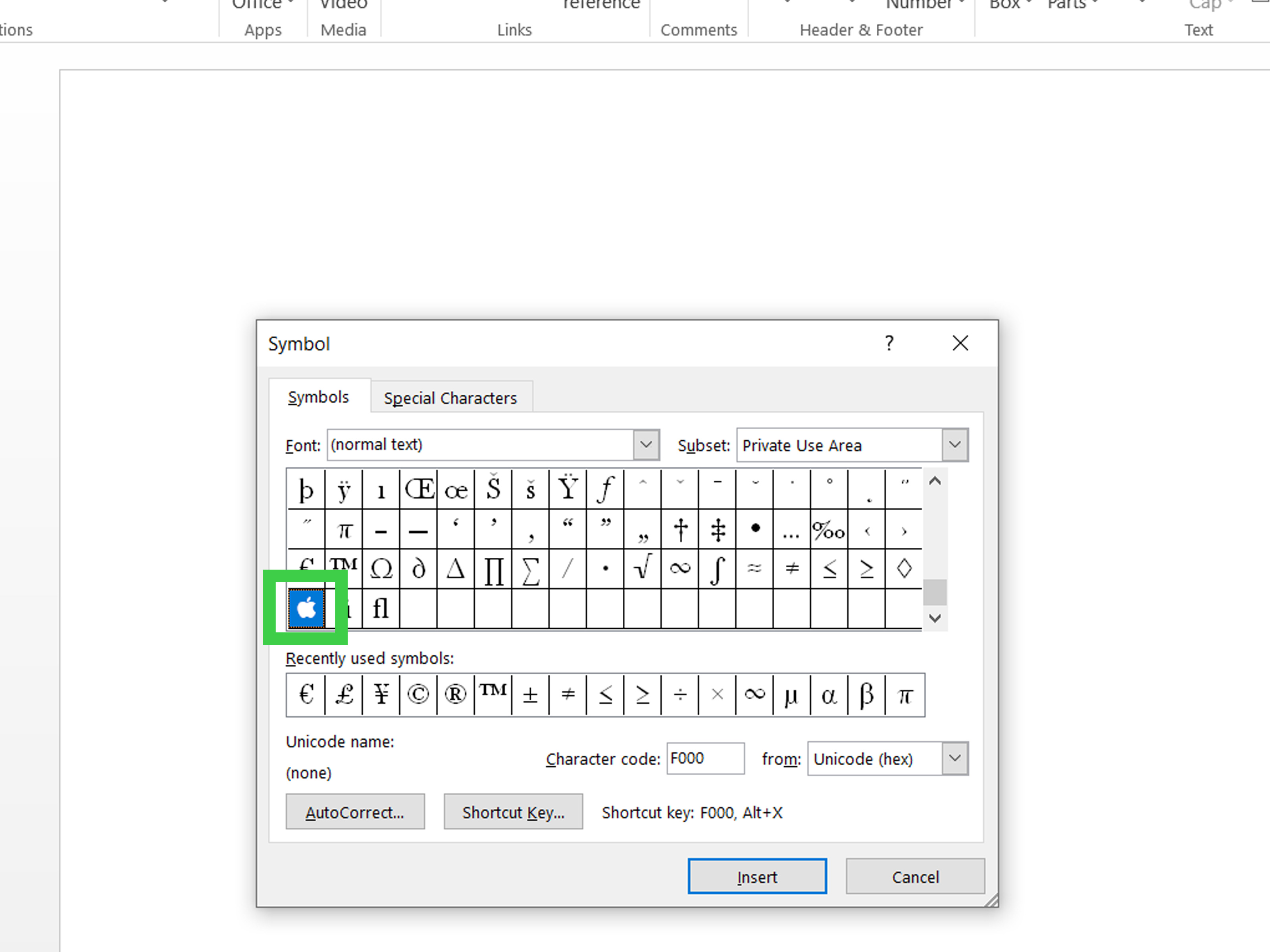
Method 2: Use Microsoft Word and the Unicode Code
In some Microsoft Office apps, you can try entering the Unicode code and converting it into a character:
- Open Microsoft Word.
- Type F8FF.
- Press Alt + X.
If the font supports the Apple logo at that code point, Word may convert it into . If it does not work, try changing the font or use copy and paste instead.
This method is useful for people who work in Word and want to test whether the character can be inserted through a Unicode-style workflow. But remember: U+F8FF is in the Private Use Area, so results are not guaranteed across fonts or systems.
Method 3: Use Windows Character Map
Windows includes a built-in tool called Character Map that allows users to browse characters available in a selected font.
- Open the Start menu.
- Search for Character Map.
- Open the app.
- Select a font and look for the Apple logo character if that font includes it.
- Click Select, then Copy.
- Paste the symbol into your document, email, or design file.
Character Map is helpful because it shows what a font actually contains. If you cannot find the Apple logo in a font, Windows is not hiding it from you out of spite. The font probably does not include the glyph.
Method 4: Create a Text Shortcut on Windows
If you frequently type the Apple logo on Windows, create your own shortcut using a text expansion tool, clipboard manager, or app-specific AutoCorrect setting. For example, in Microsoft Word, you can create an AutoCorrect entry that replaces a custom phrase like:
:applelogo:
with:
This is one of the most practical solutions for writers, bloggers, designers, and tech reviewers who mention Apple products often. Instead of hunting for the character every time, you can type your custom trigger and let the software do the tiny logo dance for you.
How to Type the Apple Logo on iPhone and iPad
Although this article focuses on Mac and Windows, many users also want the Apple logo on iPhone or iPad. There is no dedicated Apple logo key on the iOS or iPadOS keyboard, but you can use text replacement.
- Copy the Apple logo symbol:
- Open Settings.
- Go to General > Keyboard > Text Replacement.
- Tap the plus button.
- Paste into the phrase field.
- Enter a shortcut such as applelogo or aapl.
- Save it.
Now, when you type your shortcut, your iPhone or iPad can replace it with the Apple logo. This is a neat little trick, especially if you enjoy making your messages look like they were lightly polished by a marketing department.
Why the Apple Logo May Not Display Correctly
The Apple logo symbol is not as universally reliable as common characters. If you publish it online, send it in email, or use it in a document, some readers may see a missing-character box instead of the logo.
Font Compatibility
The biggest issue is font support. A font must include a glyph at U+F8FF for the Apple logo to appear. Apple system fonts commonly handle it well. Many Windows fonts do not. Web fonts may or may not support it, depending on how they are built.
Device Compatibility
Mac, iPhone, and iPad users are more likely to see the Apple logo correctly. Windows, Android, Linux, and some web browsers may not render it properly. This is especially important for websites, newsletters, ecommerce pages, app interfaces, and documents shared with a broad audience.
App Compatibility
Even if your device can display the Apple logo, the app you are using might not. Some apps sanitize private-use characters, substitute fonts, or strip unusual symbols when exporting to PDF, HTML, plain text, or social media formats.
Can You Use the Apple Logo Anywhere?
Technically, you can type or paste the Apple logo in many places. Legally and professionally, you should be more careful. The Apple logo is a trademark. Apple’s own trademark guidelines warn that using the keyboard Apple Logo for commercial purposes without permission may create trademark concerns.
For personal notes, private messages, or informal writing, the symbol is usually harmless. For public websites, ads, product packaging, app names, merchandise, affiliate pages, or business branding, be cautious. If you are writing about Apple products, it is usually safer to use the word Apple instead of the logo unless you have permission or are following official brand guidelines.
In short: typing the logo is easy; using it wisely is the grown-up part. Typography, meet responsibility.
Best Practices for Using the Apple Logo in Web Content
If you are publishing an article, review, tutorial, or comparison page, keep readability and compatibility in mind.
Use the Word “Apple” for SEO
Search engines understand the word Apple more reliably than the logo character. If your article is about Apple products, Apple shortcuts, Mac tips, or iPhone tutorials, spell out the brand name in headings, titles, meta descriptions, image alt text, and body content. The logo may look stylish, but it is not a replacement for clear SEO language.
Avoid Using the Logo in Meta Titles
Do not rely on the Apple logo in your meta title or meta description. Some search result pages, browsers, and social previews may not display it correctly. A clean title like How to Type the Apple Logo on Mac and Windows is better than a clever but fragile symbol-based title.
Test Before Publishing
Before publishing, test your page on multiple devices and browsers. View it on a Mac, Windows PC, iPhone, Android device, Chrome, Safari, Edge, and Firefox if possible. If the logo breaks, replace it with the word Apple or use an approved image asset when appropriate.
Quick Reference: Apple Logo Typing Methods
| Device or Platform | Best Method | Notes |
|---|---|---|
| Mac | Option + Shift + K | Fastest method on many U.S. English keyboard layouts. |
| Mac | Character Viewer | Useful when shortcuts do not work or when saving symbols as favorites. |
| Windows | Copy and paste | Simplest method, but display depends on font support. |
| Windows | F8FF + Alt + X in Word | May work in supported Office apps and fonts. |
| Windows | Character Map | Helps locate symbols available in a selected font. |
| iPhone or iPad | Text Replacement | Great for repeated personal use. |
Common Problems and Fixes
The Apple Logo Shows as a Box
This usually means the font or device does not support the character. Try changing fonts, viewing the text on an Apple device, or replacing the logo with the word Apple.
The Shortcut Types Something Else on Mac
Your keyboard layout may be different, or the app may intercept the shortcut. Switch to a U.S. English layout temporarily or test the shortcut in Notes or TextEdit.
The Logo Disappears After Exporting
Some export formats may remove or replace private-use characters. Test your exported PDF, HTML file, email, or social post before sending it to others.
The Logo Looks Different in Another App
That is normal. Different apps use different fonts and rendering systems. The symbol may look crisp in one app and vanish dramatically in another, like a magician with a tiny fruit costume.
Real-World Experience: What It Is Like to Use the Apple Logo Across Mac and Windows
In everyday writing, the Apple logo feels like one of those delightful shortcuts that Mac users discover and immediately want to show someone else. The first time you press Option + Shift + K and see appear, it feels oddly satisfying. It is not life-changing, of course, but it does give your document a little sparkle. It is the keyboard equivalent of finding an extra fry at the bottom of the bag.
On a Mac, the experience is usually smooth. You can type the symbol in Notes, Messages, Pages, and many text fields without thinking too much about it. If you write tutorials, product notes, personal reminders, or little labels for your own files, the shortcut is convenient. For example, you might label a note “Care questions,” write “Watch setup,” or add it to a personal checklist about Mac settings. In that private context, the logo is fun, fast, and harmless.
The experience changes when you move to Windows. Copying and pasting the Apple logo may work in one place and fail in another. You might paste it into Word and see it correctly, then paste it into a browser field and see a box. You might send it to a friend using a Mac and everything looks perfect, then send the same message to someone on Android and the symbol disappears like it heard rent was due. This is where many users learn the important lesson: special characters are only as reliable as the fonts and systems that support them.
For bloggers and content creators, the best practical approach is to use the logo sparingly. It can be a nice visual touch inside an article about Mac shortcuts or Apple history, but it should not carry essential meaning. If the sentence still makes sense when the logo is replaced by the word Apple, you are safe. If the symbol is required for the reader to understand the content, you may be creating an accessibility and compatibility problem.
Designers often run into another issue: brand usage. The Apple logo is not just a cute character; it is a protected brand mark. That means using it in a personal note is very different from placing it in a commercial banner, product listing, ad graphic, or app icon. A clean written reference such as “Apple,” “Mac,” or “iPhone” is often better for professional content. It is clearer, easier to index, and less likely to create legal or brand-guideline headaches.
From an SEO perspective, the written word also wins. Search engines, screen readers, translation tools, and social media previews understand “Apple logo” better than a private-use character. A title like “How to Type the Apple Logo on Mac and Windows” is direct, searchable, and friendly to both users and crawlers. A title stuffed with symbols may look clever, but clever does not help much if readers cannot find the page.
The best workflow is simple: use Option + Shift + K on Mac when you need the symbol quickly, copy and paste it on Windows when compatibility is not critical, and create text replacement shortcuts if you use it often. For web publishing, test before you publish. For commercial materials, read the relevant brand guidelines and choose caution over decoration. The Apple logo may be small, but it carries a lot of technical and branding baggage in its tiny backpack.
In short, typing the Apple logo is easy once you know the trick. Making sure it appears correctly everywhere is the real challenge. Treat it as a stylish accent, not a universal character, and you will avoid most problems.
Conclusion
Typing the Apple logo on Mac is wonderfully simple: press Option + Shift + K. On Windows, the process is less direct, but you can still use copy and paste, Microsoft Word’s F8FF + Alt + X method, Character Map, or a custom text shortcut. The biggest thing to remember is that the Apple logo character is tied to a private-use Unicode code point, so it may not display correctly on every device, app, browser, or font.
For personal use, the Apple logo is a fun little shortcut. For websites, SEO content, commercial materials, and public branding, use it carefully. When in doubt, spell out Apple. It is clearer, safer, more searchable, and much less likely to turn into a mysterious square box at the worst possible moment.
Note: This article is based on verified information from official Apple, Microsoft, Unicode-related, and reputable technical resources. No source links or citation markers are embedded so the content remains clean for web publishing.