

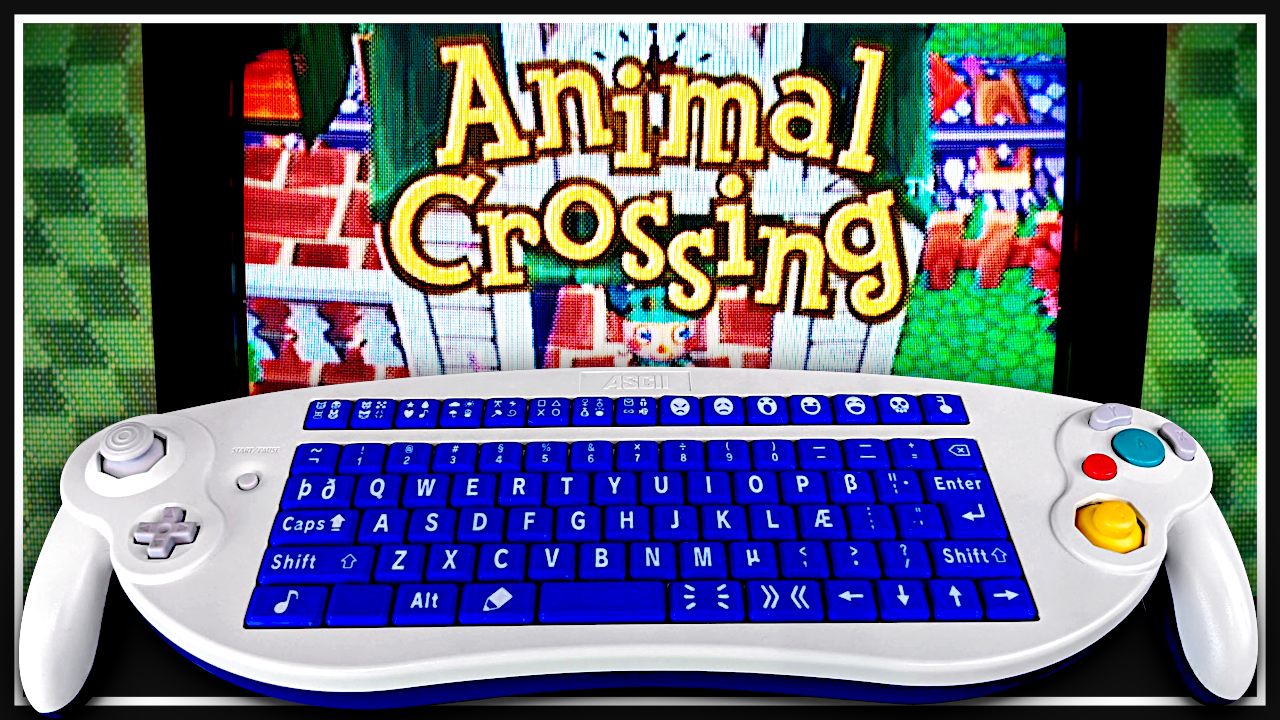
There are few gaming problems more charmingly specific than this one: you own, want, or are curious about the enormous GameCube keyboard controller, and you want to use it with Animal Crossing. On paper, the idea sounds perfect. Animal Crossing on the Nintendo GameCube is packed with typing moments: naming your town, writing letters to villagers, entering passwords, creating patterns, and generally expressing yourself one tiny on-screen character at a time. A real keyboard should make that easier, right?
Well, yes, emotionally. Technically? Not without some creative problem-solving.
The GameCube ASCII Keyboard Controller is one of the most unforgettable accessories from Nintendo’s purple lunchbox era. It looks like somebody stretched a standard GameCube controller like warm mozzarella and inserted a compact QWERTY keyboard in the middle. It was designed mainly for Phantasy Star Online, where typing messages to other players actually mattered. But Animal Crossing was not built to understand the keyboard portion of that controller directly. That means plugging it in and expecting your letters to fly into the game is like handing a typewriter to a raccoon and asking for tech support.
Still, the dream is not dead. Making a GameCube keyboard controller work with Animal Crossing is possible, but the best route depends on what you mean by “work.” Are you playing on original hardware? Are you using Dolphin Emulator? Do you want real keyboard input, faster letter writing, or simply a comfortable control layout? This guide breaks down the practical options, the limitations, and the wonderfully nerdy ways players have turned a non-compatible accessory into an Animal Crossing typing machine.
Why the GameCube Keyboard Controller Seems Perfect for Animal Crossing
The original Animal Crossing for GameCube has a slow, deliberate, cozy pace. You fish. You decorate. You dig up fossils. You get emotionally judged by animals wearing sweaters. Then, sooner or later, the game asks you to type.
Typing in Animal Crossing usually happens through an on-screen keyboard. You move a cursor around with the controller, select letters with the A button, delete with B, switch layouts, add spaces, and finish the text when you are done. It works, but it is not exactly speedy. Writing a thoughtful letter to a villager can feel like carving the message into a tree using a spoon.
That is why the ASCII Keyboard Controller feels like such an obvious fit. It includes normal GameCube controller inputs, plus a keyboard with Latin and Japanese characters. For a game with letters, names, passwords, patterns, and town tune editing, the accessory appears tailor-made. Unfortunately, game compatibility is decided by software support. Animal Crossing expects standard controller button input for typing, not raw keyboard input from the ASCII controller.
The Big Compatibility Problem
The Controller Works, but the Keyboard Does Not
The most important thing to understand is that the ASCII Keyboard Controller is not simply a USB keyboard wearing a GameCube costume. It uses GameCube controller connections and communicates in a way that supported games must recognize. The controller side can function like a standard controller in many situations, but the keyboard section needs game-level support.
Animal Crossing does not include that support. The game was designed around its own virtual keyboard. Instead of waiting for physical keypresses, it waits for standard inputs such as moving the cursor, pressing A to select a character, pressing B to delete, or pressing Start to finish.
That is why a stock keyboard controller will not magically let you type letters into Animal Crossing. The keyboard half is effectively invisible to the game unless another device or software layer translates those keypresses into the controller inputs that Animal Crossing already understands.
Think of It Like a Translator
The easiest way to picture the solution is translation. The keyboard says, “The player pressed H.” Animal Crossing does not understand that message. It only understands something like, “Move cursor right three times, move down once, press A.” A working setup needs to convert keyboard letters into the exact sequence of controller actions required to choose that character on the game’s on-screen keyboard.
That is the entire trick. You are not really forcing Animal Crossing to support a keyboard. You are building or configuring a system that presses the virtual keyboard for you, extremely quickly and accurately.
Option 1: Use the Keyboard Controller as a Normal GameCube Controller
The simplest option is also the least exciting: use the ASCII Keyboard Controller only as a controller. The handles, buttons, sticks, D-pad, triggers, and face buttons can be used for normal gameplay. You can walk around town, talk to villagers, open menus, and play the game as usual.
However, when the typing screen appears, you will still need to use Animal Crossing’s built-in on-screen keyboard. The physical keys will not directly enter letters. If your goal is to own a hilarious, rare, table-sized GameCube controller and play Animal Crossing with it, this works. If your goal is fast typing, this option will disappoint you faster than Tom Nook handing you another bill.
Option 2: Use Dolphin Emulator and Map Your Computer Keyboard
If you are playing through Dolphin Emulator, life becomes easier. Dolphin lets you map computer keyboard keys to GameCube controller inputs. This does not make Animal Crossing understand typed letters directly, but it can make controlling the on-screen keyboard more comfortable.
For example, you can map your arrow keys or WASD keys to the GameCube control stick or D-pad, map Enter to A, Backspace to B, Shift to L, Spacebar to R, and another convenient key to Start. This gives you a keyboard-driven control setup that feels more natural than using a controller for every typing action.
A Practical Dolphin Keyboard Layout
A comfortable Dolphin layout for Animal Crossing might look like this:
- WASD or arrow keys: move the cursor across the on-screen keyboard
- Enter: select a letter with A
- Backspace: delete a letter with B
- Spacebar: insert a space with R
- Shift: switch capitalization or layout with L
- Tab or Q: switch symbols or alternate keyboard pages
- Esc or End: finish typing with Start
This is not true direct typing, but it reduces awkward controller movement. It is especially useful for players who do not have a GameCube controller, prefer playing on a laptop, or want easier access to repeated typing actions.
What Dolphin Cannot Do by Default
Dolphin can map keys to controller buttons, but it does not automatically convert typed words into rapid cursor paths inside Animal Crossing. Pressing the letter “K” on your computer keyboard will not necessarily type “K” into the game. Unless you use scripts, custom profiles, or external tools, Dolphin is still emulating a GameCube controller, not rewriting the game’s text system.
That distinction matters. Basic keyboard mapping improves comfort. Automation improves speed. Hardware mods improve authenticity. They are related, but they are not the same thing.
Option 3: Build a Hardware Adapter for Original GameCube Hardware
The most impressive route is the real-hardware mod approach. This is where the project becomes less “controller setup” and more “tiny engineering adventure starring a 2000s console accessory.”
Modern hobbyists have shown that a microcontroller, such as a Raspberry Pi Pico or Pico W, can sit between the ASCII Keyboard Controller and the GameCube. The idea is to listen for keypresses from the keyboard controller, interpret them, and then send the GameCube simulated standard controller inputs. In other words, the microcontroller becomes the translator.
When you press a key, the adapter calculates how to reach that character on Animal Crossing’s on-screen keyboard. Then it rapidly sends the necessary controller commands: move cursor, select, switch page, insert space, or finish. To the GameCube, it looks like a very fast and precise player is operating a normal controller. To you, it feels closer to typing.
Why This Works
This approach works because it respects the game’s original rules. It does not require modifying the Animal Crossing disc or changing the game code. Instead, it automates the input path the game already supports. That makes it especially appealing for retro hardware fans who want the experience to happen on an actual GameCube with authentic software.
Some community projects have gone far beyond basic letter entry. Once a microcontroller can generate precise controller input, it can also automate town tunes, pattern creation, item password entry, and other repetitive text-based tasks. That is how a “make typing less painful” idea can turn into a full-blown retro automation playground.
Important Safety and Skill Notes
A hardware adapter usually requires electronics knowledge, careful cable handling, firmware flashing, and possibly soldering. This is not the same as plugging in a controller extension cable and calling it a day. If you are not comfortable with electronics, get help from someone experienced. A mistake can damage accessories, the console, or the adapter board.
The safest mindset is simple: research thoroughly, verify every pinout, avoid guessing wire colors, and test carefully. Retro hardware is old, collectible, and sometimes expensive. Treat it like a tiny museum artifact that also lets you mail fruit to cartoon animals.
How Animal Crossing Typing Actually Works
To understand why translation is necessary, it helps to know how the game’s typing system behaves. Animal Crossing displays a virtual keyboard whenever you need to enter text. The player moves through the available characters and chooses them one by one. Different buttons handle different typing functions.
In regular gameplay, the A button selects a letter, B deletes, R inserts a space, L can change capitalization or keyboard mode, and Start confirms the finished text. Other buttons may switch character sets, accents, symbols, or layouts depending on the typing screen. The game is not asking, “Which keyboard key was pressed?” It is asking, “Which controller button was pressed?”
This design made sense for a console game in the early 2000s. Most players had a standard controller, not a keyboard. The on-screen keyboard ensured everyone could type names, letters, and passwords with the hardware packed in the box.
Best Use Cases for a Working Keyboard Setup
Writing Letters to Villagers
Letter writing is one of the most charming parts of the original Animal Crossing. You can send villagers notes, attach gifts, and pretend your town has a functioning postal culture instead of a pelican-powered gossip network. A working keyboard setup makes this much less tedious.
Instead of crawling through the on-screen keyboard for every sentence, translated input can make letters feel more natural. This is especially useful if you enjoy writing funny messages, role-playing your character, or sending personalized notes rather than the classic “hi take pear bye” masterpiece.
Entering Passwords and Codes
The GameCube version of Animal Crossing includes password-style systems for certain items and exchanges. Manually entering long strings can be annoying because one wrong character means backtracking. A faster input system reduces mistakes and speeds up the process.
Some advanced projects even automate code entry. That means the keyboard or software tool can send a long series of inputs accurately. For collectors and completionists, this is where the setup becomes more than a novelty.
Creating Patterns and Images
Pattern creation is another area where input automation shines. The original game’s pattern editor is fun but slow. If a system can translate data into precise controller movement, it can help recreate designs more efficiently. Some hobbyist projects have even converted low-resolution images into Animal Crossing patterns by automating the input process.
That does not turn the GameCube into Photoshop, but it does turn a very slow design tool into something surprisingly flexible. It is the kind of retro mod that feels unnecessary until you see it working, and then suddenly it seems completely essential.
Troubleshooting Common Problems
The Keyboard Controller Is Plugged In, but Typing Does Nothing
This is normal. Animal Crossing does not directly support the keyboard portion of the ASCII Keyboard Controller. The controller buttons may work, but the physical keys will not enter text unless you use an adapter, emulator mapping, or automation layer.
Dolphin Recognizes My Keyboard, but Letters Do Not Type Directly
Also normal. Dolphin maps your keyboard to GameCube controller inputs. It does not automatically convert PC keyboard letters into Animal Crossing text. For direct-style typing, you need a more advanced script or input translation setup.
My Cursor Moves Too Fast or Too Slowly
When using keyboard mapping or automation, cursor speed matters. If inputs are sent too quickly, the game may miss them or overshoot the intended character. If inputs are too slow, typing feels clunky. Adjusting input timing, dead zones, and repeat behavior can make a huge difference.
The Hardware Adapter Is Unstable
Instability can come from wiring errors, weak connections, incorrect assumptions about cable pinouts, firmware issues, or timing problems in the controller protocol. Do not keep testing blindly if something behaves strangely. Stop, inspect, and verify the setup before continuing.
Is It Worth Doing?
For casual players, probably not. If you only write a few letters or name your town once, the standard controller is fine. It is slow, but it works. You do not need rare hardware, custom firmware, or a workbench full of cables to tell Bob the cat that he is cool.
For retro enthusiasts, collectors, modders, and Animal Crossing fans who love absurdly specific projects, it is absolutely worth exploring. The keyboard controller is already one of the strangest GameCube accessories ever made. Pairing it with Animal Crossing gives it a new purpose beyond its original online RPG role.
The appeal is not just speed. It is the joy of making two pieces of gaming history talk to each other in a way they were never designed to. That is the magic of retro modding: sometimes the best projects are not practical. They are delightful.
Recommended Setup Based on Your Goal
If You Want the Easiest Setup
Use Dolphin Emulator and map keyboard keys to GameCube controller inputs. This is the best low-risk option. It is simple, reversible, and does not require rare accessories. You can make typing screens more comfortable without touching real hardware.
If You Want Authentic Hardware
Use a standard GameCube controller unless you are ready for a hardware adapter project. The ASCII Keyboard Controller alone will not provide direct typing in Animal Crossing. For true keyboard-style input on original hardware, you need a translation device between the keyboard controller and the console.
If You Want the Coolest Project
Explore microcontroller-based input translation. This is the route that lets the keyboard controller send automated controller commands to the GameCube. It is the most complex option, but also the most impressive. It can turn slow typing into fast, accurate input while preserving the original console experience.
Extra Experience: What It Feels Like to Make This Work
The first experience most people have with this idea is optimism. You see the GameCube keyboard controller, remember how much text Animal Crossing makes you enter, and assume the solution is obvious. Plug it in, type away, live your best village life. Then reality arrives wearing Nook Inc. branding and explains that compatibility is not based on vibes.
The first surprise is how normal the controller side feels and how useless the keyboard side feels in Animal Crossing. You can walk around town, shake trees, talk to villagers, and open menus. Then the typing screen appears, and the keyboard just sits there like decorative furniture. It is funny, but also slightly painful because the accessory looks so perfect for the job.
Using Dolphin is the first practical improvement. Mapping keyboard keys to controller inputs makes the game more comfortable almost immediately. The typing screen still behaves like a virtual keyboard, but using Enter, Backspace, Spacebar, and arrow keys feels more natural than pushing a stick around for every letter. It is not glamorous, but it works well enough for normal play.
The hardware adapter experience is completely different. That path feels less like configuring a game and more like building a tiny interpreter for a language only old consoles speak. There is a wonderful moment when a physical keypress becomes a sequence of controller movements, and the letter appears on screen. It feels like teaching a GameCube a new trick without actually changing the game.
The best part is watching repetitive tasks become smooth. Writing a villager letter no longer feels like dragging a cursor through alphabet soup. Entering longer text becomes less frustrating. Pattern work becomes more approachable. Even if the setup is not perfect, the difference is obvious. Suddenly, the game’s slowest interface becomes something you can play with instead of endure.
There is also a collector’s thrill to using the ASCII Keyboard Controller for something beyond its original purpose. The accessory is bulky, weird, and charmingly overdesigned. It is not comfortable in the way modern controllers are comfortable. It is comfortable in the way a ridiculous vintage gadget is comfortable: you forgive its flaws because it has personality. Lots of personality. Possibly too much personality.
The process also teaches an important lesson about retro gaming hardware: physical compatibility does not always mean software compatibility. Just because something plugs into a console does not mean every game knows what to do with it. Animal Crossing is a controller-first game, and any keyboard solution has to respect that. Once you understand this, the whole project becomes clearer.
For most players, the sweet spot is Dolphin keyboard mapping. It is easy and practical. For hobbyists, the microcontroller route is the fun mountain to climb. For collectors, simply owning and testing the keyboard controller may be satisfying enough. All three approaches are valid, depending on whether you want comfort, authenticity, or a story that begins with “So I made a GameCube typing adapter…”
In the end, making a GameCube keyboard controller work with Animal Crossing is less about convenience and more about curiosity. The original game never asked for this. The controller was never meant for this. Yet the combination makes perfect emotional sense. That is why the project keeps attracting attention: it solves a tiny problem in the most wonderfully excessive way possible.
Conclusion
Making a GameCube Keyboard Controller work with Animal Crossing is possible, but not in the simple plug-and-play way many players expect. The ASCII Keyboard Controller was built for games with keyboard support, especially online communication titles, while Animal Crossing relies on a controller-driven on-screen keyboard. That mismatch is the heart of the problem.
The good news is that there are workable solutions. Dolphin users can create a more comfortable keyboard-based control layout. Original hardware enthusiasts can explore microcontroller adapters that translate physical keypresses into standard GameCube controller input. Casual players can simply use the keyboard controller as a quirky oversized gamepad and enjoy the novelty.
The best solution depends on your goal. For convenience, use emulator mapping. For authenticity, prepare for hardware translation. For maximum retro bragging rights, build or study a Pico-based adapter that turns a rare keyboard controller into an Animal Crossing typing assistant. It is niche, funny, technically fascinating, and somehow exactly the kind of thing the GameCube era deserves.