

YouTube Music is great at two things: helping you find a song you forgot existed, and making you immediately forget what you played five minutes ago. One minute you’re listening to your usual workout mix, and the next you’re deep into a rabbit hole of acoustic covers, anime intros, and a suspicious amount of early-2000s breakup music. It happens. No judgment.
That’s exactly why knowing how to check your YouTube Music history on Android is so useful. Whether you want to replay a song, clean up recommendations, find a search you made at 1:13 a.m., or prove to yourself that yes, you really did listen to the same track twelve times in one afternoon, your history can help.
The good news is that you don’t need to tap around your phone like you’re solving an escape room. There are three simple ways to see your YouTube Music history on Android, and each one works a little differently. One shows your recent listening activity in the app, one helps you review past searches, and one gives you the full Google-level view through My Activity.
Below, you’ll learn exactly where to look, what each method shows, and what to do if your history seems incomplete or mysteriously empty.
Why YouTube Music History Matters More Than You Think
Before jumping into the steps, it helps to know what “history” means inside YouTube Music. In most cases, it includes the tracks, videos, or music content tied to your account activity, plus your search activity if that setting is enabled. This information affects more than your memory. It also influences recommendations, mixes, radio stations, Recap results, and how easy it is to find something you played before.
In other words, your YouTube Music history is part diary, part filing cabinet, and part algorithm fuel. If you know where it lives, you can use it to re-listen smarter, organize better, and stop losing songs you meant to save to a playlist but absolutely did not.
Method 1: Check Your Watch History Inside the YouTube Music App
This is the easiest and most direct option. If you just want to see what you’ve been listening to recently on Android, start inside the YouTube Music app itself.
How to find it
- Open YouTube Music on your Android phone.
- Tap your profile picture in the upper-right corner.
- Go to Settings.
- Open Privacy & location or Privacy & data depending on your app version.
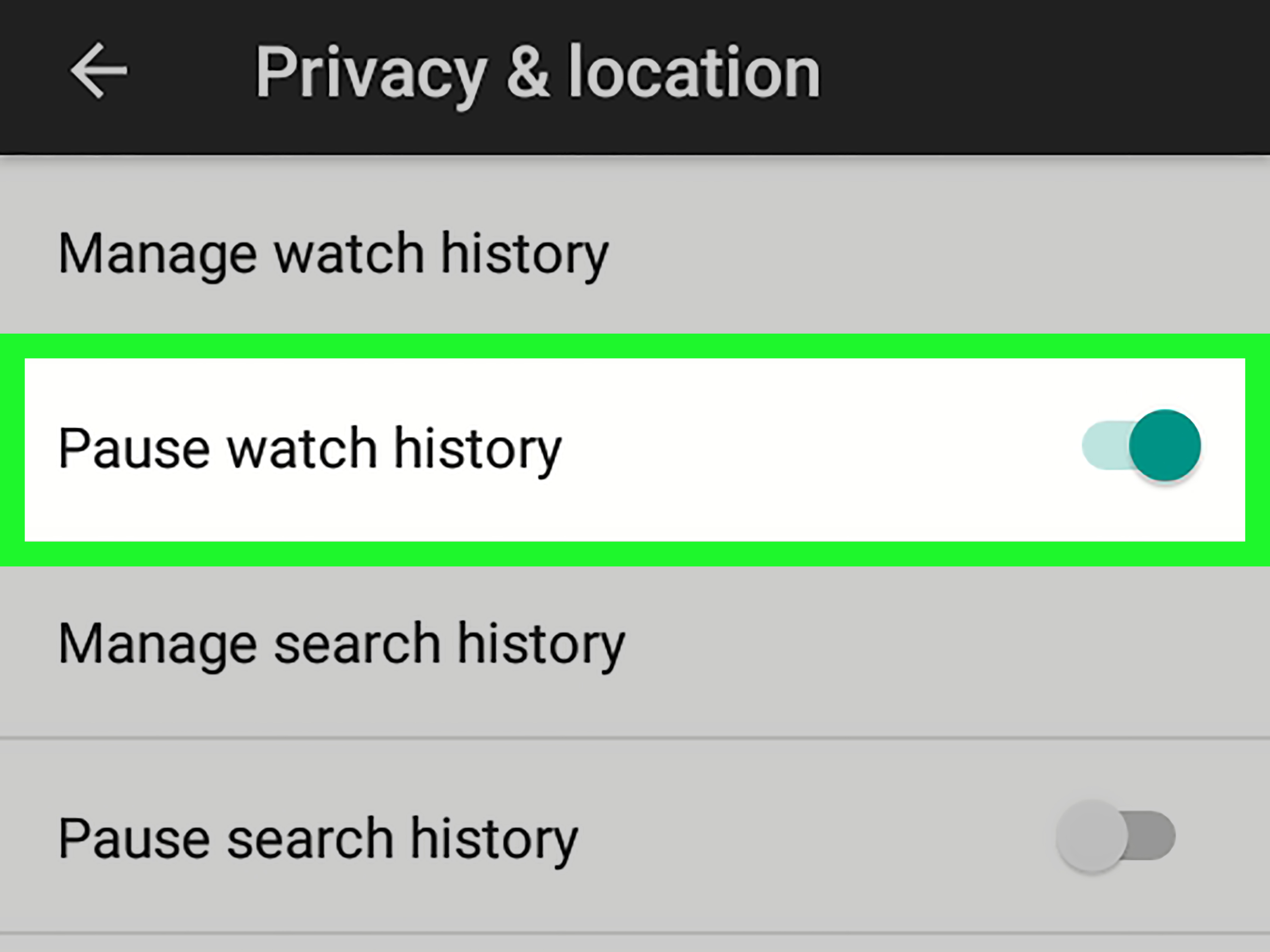
- Tap Manage watch history.
Once you’re in, you should see a list of your past listening activity associated with your account. This is the fastest way to check what you recently played, especially if you’re trying to recover a song title you forgot before your brain replaced it with random trivia and sandwich thoughts.
What this view is best for
- Finding a song, album, or music video you played recently
- Removing individual items from history
- Checking whether your listening activity is being saved at all
- Understanding why your recommendations suddenly got weird
A practical example
Let’s say you heard an amazing live performance while making dinner, but your hands were covered in garlic butter and your phone was across the kitchen. Two hours later, all you remember is that the singer had a raspy voice and the thumbnail looked “kind of blue.” Your watch history is where you go to solve that mystery without reenacting the whole evening.
One thing to keep in mind
Some users assume YouTube Music will show a big, obvious “History” tab right on the main screen. Sometimes the app experience feels more subtle than that. So if you don’t immediately see a history list on the home screen, don’t panic. The setting-based route is often the most reliable place to view it.
Method 2: Review Your Search History in the App
If your goal is not “What did I listen to?” but “What on earth did I search for?”, this method is your friend.
Search history is especially helpful when you remember typing something odd but useful, like “sad indie song with trumpet,” “TikTok violin meme,” or “that one country song about trucks and regret.” Search history won’t always tell you what you actually played, but it can absolutely tell you what you were trying to find.
How to check it
- Open YouTube Music on Android.
- Tap your profile picture.
- Choose Settings.
- Open Privacy & location or Privacy & data.
- Tap Manage search history.
This section helps you review past search activity tied to your account. It’s useful when you searched for multiple versions of a song, forgot the exact wording, or want to delete a few chaotic searches that do not deserve to become part of your algorithmic legacy.
Why this matters
YouTube Music recommendations are shaped by more than just what you play. Searches matter too. If you searched for holiday music once in November and never again, that is probably harmless. If you spent a weekend looking up novelty sea shanties and now your recommendations think you live on a fishing boat, search history may explain a lot.
Best use cases for search history
- Finding partial song searches you want to retry
- Cleaning up one-time searches that are skewing recommendations
- Remembering artist names you looked up but forgot to save
- Checking whether your account is saving search activity properly
Method 3: Use Google My Activity for the Full Account-Level View
If the app view feels too limited, incomplete, or annoyingly vague, Google My Activity is the power move. Think of it as the bigger, more detailed control center behind your YouTube and YouTube Music activity.
How to access it on Android
- Open your mobile browser on Android.
- Go to your Google My Activity page while signed in to the same Google account you use for YouTube Music.
- Open YouTube History.
- Tap Manage history.
From there, you can browse activity, search through it, delete individual items, delete by date range, and in some cases adjust auto-delete settings. This method is especially useful when the in-app history does not show enough detail or when you want a wider account-level view.
Why My Activity is often the best option
Google My Activity gives you more control. You can search within your YouTube history, narrow things down more precisely, and figure out whether missing history is the result of paused tracking, auto-delete settings, or account confusion.
It is also the best method if you use more than one device. If you listened on your Android phone, searched on a tablet, and later opened YouTube on your laptop, My Activity can help connect those dots. It’s less “What did my app show me today?” and more “What has my account actually been doing?”
When to use this method first
- Your app history looks incomplete
- You want to search for a specific track or term
- You suspect auto-delete removed older activity
- You use several devices with the same account
- You want more control over deletion and tracking settings
A Quick Bonus: Use Recap for a Listening Overview
This one is not a line-by-line history log, so it does not replace the three main methods above. Still, it is worth mentioning because many Android users want a quick way to see their broader listening patterns.
If your YouTube Music Recap is available, it can show top songs, artists, and other listening highlights. It is less “here is the exact track you played at 9:42 p.m. last Tuesday” and more “wow, apparently you were emotionally sponsored by one artist this entire season.”
Recap is great for patterns, not precision. Use it when you want the big picture.
Why Your YouTube Music History Might Be Missing on Android
If you open one of these sections and find very little or nothing at all, there is usually a simple explanation.
1. Your history is paused
If watch history or search history is turned off, YouTube Music may stop saving new activity. That means future songs and searches may not appear the way you expect.
2. Auto-delete removed older activity
Google lets users automatically delete YouTube history after a selected period. Handy for privacy. Less handy when you’re trying to find a song from six months ago and your account has already sent it into the digital afterlife.
3. You are signed into the wrong account
This happens more often than people think. If you have multiple Google accounts or YouTube channels under one account, you may be checking the wrong profile. Always confirm you are in the account that actually does the listening.
4. You used Incognito or private viewing habits
If you listened while using privacy-focused settings, that activity may not be added to your normal history.
5. You expected search history, but only checked watch history
These are related but separate. If you want the full story, check both.
Tips for Managing Your History Without Wrecking Your Recommendations
- Delete individual items instead of clearing everything if you only want to remove a few oddball plays.
- Pause history temporarily before handing your phone to someone else.
- Save songs to playlists quickly so you do not rely on history alone.
- Check both watch and search history when trying to recover something you forgot.
- Use My Activity for deeper cleanup if the app view feels too limited.
The goal is balance. You want enough saved activity to make YouTube Music helpful, but not so much random noise that your recommendations start acting like they were raised by chaos.
Common Experiences Android Users Have When Checking YouTube Music History
For a lot of Android users, checking YouTube Music history starts with a tiny moment of panic. You hear a song you love, assume you will remember it forever, and then your memory immediately folds like a cheap lawn chair. Later, you open the app and begin the familiar ritual: tap around, squint at menus, and wonder why the track you just heard feels like a ghost. That experience is incredibly common, which is why knowing the right path matters so much.
Another very typical experience is recommendation confusion. Someone listens to lullabies for a niece, white noise for sleep, Christmas jazz in July, or one suspiciously intense pirate playlist for a themed party. Suddenly, their Home tab looks like it belongs to a completely different human. When they finally check their watch history, everything makes sense. The app was not being dramatic for no reason. It was simply responding to what the account had been fed.
There is also the “I know I searched for it, but I never saved it” problem. This one gets almost everybody. You search for a remix, a live version, or a song from a movie soundtrack, mean to add it to a playlist, get distracted by life, and then lose it. Search history becomes the rescue boat. It may not feel glamorous, but it is often the difference between finding the right song in thirty seconds and spending forty minutes typing half-remembered lyrics into your phone like a detective in emotional distress.
Many Android users also discover that account mix-ups are the real villain. They may have a personal Google account, a work account, an old channel, or a second profile, and they do not realize they are checking the wrong one. The result is empty history, missing searches, and confusion that feels way bigger than it should. Once the correct account is selected, the missing activity often reappears like it was waiting backstage the whole time.
Then there is the privacy-minded user experience. Some people intentionally pause history, use Incognito, or enable auto-delete because they want more control over what gets stored. That choice makes total sense, but it can also create a strange moment later when they go looking for a track and discover there is no trail to follow. It is not a bug. It is simply the cost of privacy doing exactly what it promised to do.
Finally, there is the satisfying experience: finding the song. You open history, scroll a bit, spot the album art, tap play, and there it is. Instant relief. It is the tiny digital equivalent of finding your keys in the pocket you already checked twice. Not life-changing, maybe, but deeply satisfying. And honestly, that little win is what makes learning these three methods worth it.
Final Thoughts
If you want to see your YouTube Music history on Android, the easiest approach is to start in the app and check Manage watch history. If you also want to trace what you searched for, check Manage search history. And if you want the most complete, flexible view, use Google My Activity for full account-level control.
That combination covers just about every situation, whether you are trying to recover one lost song, understand your recommendations, or tidy up your account activity before your algorithm starts making wild assumptions about your personality.
In short: the music is not lost, your phone is not haunted, and the answer is usually only a few taps away.