

PowerPoint macros can feel a little mysterious at first. One minute you are opening a presentation for a class, sales report, training deck, quiz, dashboard, or interactive game. The next minute PowerPoint is waving a yellow or red security warning at you like a tiny office security guard with a whistle. Annoying? Yes. Useful? Also yes.
This guide explains exactly how to enable macros in PowerPoint on Windows and Mac, how to fix the common “Microsoft has blocked macros from running” message, how to use Trusted Locations, and how to run a macro from the Developer tab. It also shows where screenshots should be placed so your published tutorial is clear, visual, and beginner-friendly.
Before we start clicking buttons with the confidence of someone who has already had coffee, here is the golden rule: only enable macros in PowerPoint files you trust. Macros are useful because they can automate tasks, create interactive buttons, update slide content, run quizzes, trigger custom animations, or connect a deck with other Office workflows. But because macros contain code, they can also be used maliciously. PowerPoint is not being dramatic when it blocks them. It is trying to keep your computer from becoming the plot twist in a cybersecurity training video.
What Are Macros in PowerPoint?
A macro in PowerPoint is a set of commands written with Visual Basic for Applications, commonly called VBA. Instead of repeating the same manual steps again and again, a macro can do the boring work for you. Think of it as a tiny assistant inside your presentation. It does not bring snacks, sadly, but it can automate slide actions, run custom scripts, create interactive classroom activities, or help manage complex presentation tasks.
PowerPoint files that contain VBA macros must be saved in a macro-enabled format. The most common one is .pptm, which stands for PowerPoint Macro-Enabled Presentation. You may also see .ppsm for a macro-enabled slide show, or .potm for a macro-enabled template. A regular .pptx file cannot run VBA macros. If someone tells you, “The macro is in the PPTX,” that is usually your cue to check the file type before blaming PowerPoint, your laptop, or Mercury retrograde.
Before You Enable Macros: Safety Checklist
Enabling macros is not difficult, but it should never be automatic. Use this quick checklist before you click anything:
- Do you know the sender? A macro-enabled file from your teacher, company, client, or internal team is different from a mysterious attachment named “final_final_REAL_invoice.pptm.”
- Were you expecting the file? Unexpected macro-enabled presentations should be treated carefully.
- Is the file format correct? Macros usually require .pptm, .ppsm, or .potm.
- Is your computer managed by work or school? Your IT administrator may block macros by policy, even if you try to enable them yourself.
- Do you actually need macros? You can usually view and edit slides without enabling macros. Enable them only if you need the interactive or automated features.
The best security setting for most people is not “Enable all macros.” That setting is like leaving every door in the house open because one trusted friend is coming over. A better approach is to keep macros disabled by default and allow them only for files you trust.
How to Enable Macros in PowerPoint on Windows
The steps below work for PowerPoint for Microsoft 365, PowerPoint 2024, PowerPoint 2021, PowerPoint 2019, and PowerPoint 2016. Your screen may look slightly different depending on your version, but the path is generally the same.
Step 1: Open the Macro-Enabled PowerPoint File
First, open the presentation in the desktop version of PowerPoint. This matters because PowerPoint for the web does not run VBA macros the same way the desktop app does. If the file is stored in OneDrive or SharePoint, choose the option to open it in the desktop PowerPoint app.

Step 2: Look for the Security Warning Bar
If PowerPoint detects macros and your settings allow notifications, you may see a yellow message bar near the top of the window. It usually says something like Security Warning: Macros have been disabled. If you trust the file and need the macro features, click Enable Content.

Once you click Enable Content, PowerPoint may mark the presentation as trusted. That means you may not see the same warning the next time you open that exact file from the same location. Convenient? Absolutely. A reason to trust random downloads? Absolutely not.
Step 3: Change Macro Settings in the Trust Center
If you do not see a warning bar, or if macros are disabled silently, check your Trust Center settings. In PowerPoint, click File, then choose Options.

In the PowerPoint Options window, select Trust Center on the left. Then click Trust Center Settings.

Next, select Macro Settings. You will usually see several options:
- Disable all macros without notification: Macros are blocked, and PowerPoint does not show a warning. This is strict, but confusing if you are trying to run a trusted macro.
- Disable all macros with notification: Macros are blocked by default, but PowerPoint shows a warning so you can enable trusted files case by case. This is the best choice for many users.
- Disable all macros except digitally signed macros: Unsigned macros are blocked, while macros signed by a trusted publisher can run.
- Enable all macros: All macros run automatically. This is not recommended because potentially dangerous code can run without warning.

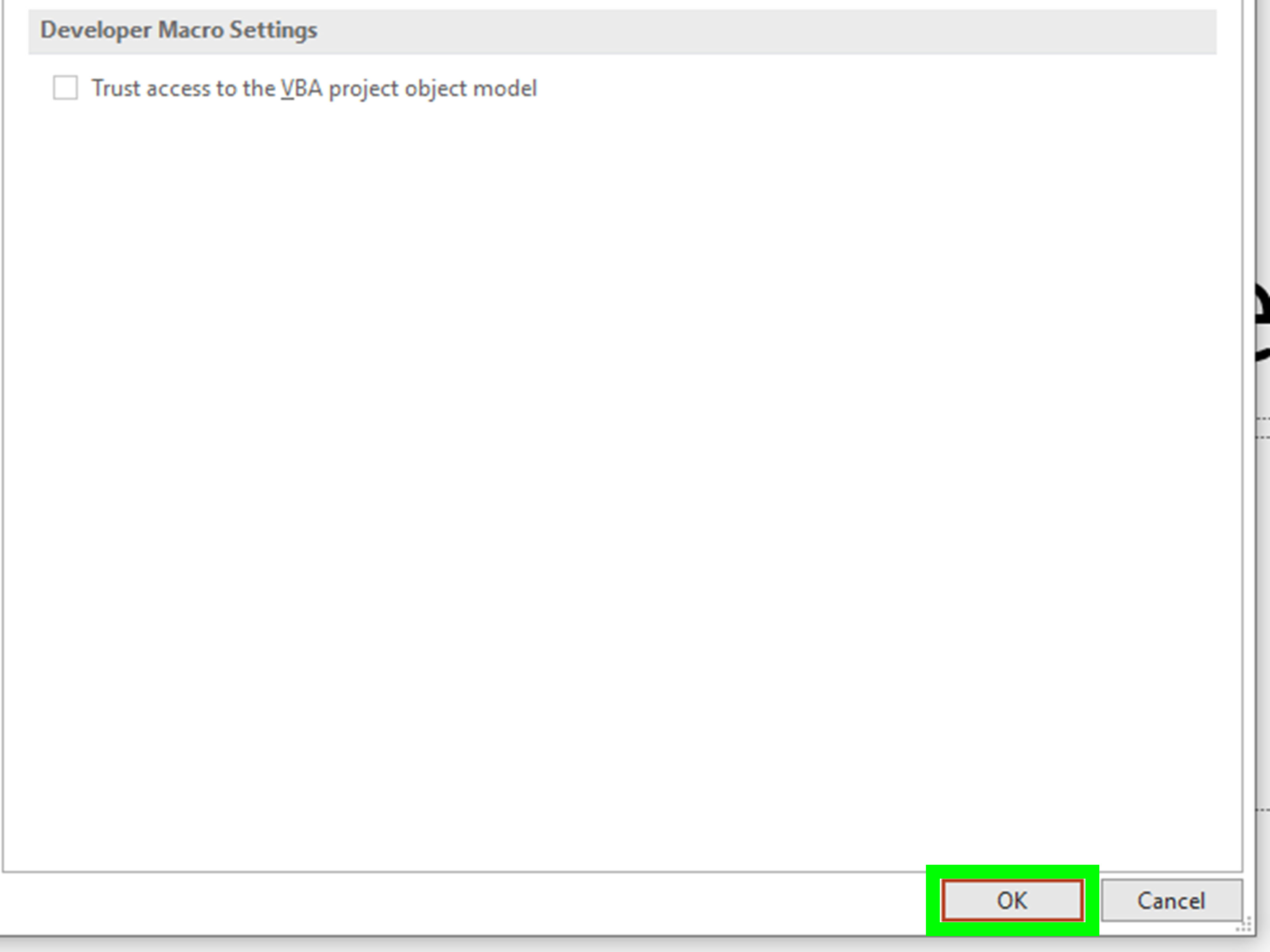
For most personal and small-business use, choose Disable all macros with notification. This keeps PowerPoint cautious while still giving you the option to enable macros in files you trust. Click OK, then click OK again to close the settings windows.
How to Unblock a Downloaded PowerPoint Macro File
Modern versions of Microsoft Office often block macros in files downloaded from the internet. This includes email attachments, browser downloads, and files from some cloud or messaging platforms. The reason is simple: internet macros have been widely abused by attackers. PowerPoint is not trying to ruin your day; it is trying to avoid becoming the getaway car.
If you see a red or stronger warning such as Microsoft has blocked macros from running because the source of this file is untrusted, the normal Enable Content button may not be available. In that case, try this only if the file is safe and expected.
Step 1: Close PowerPoint
Close the presentation and exit PowerPoint completely. Do not leave the file open while changing its properties.
Step 2: Right-Click the File in File Explorer
Find the downloaded .pptm, .ppsm, or .potm file in File Explorer. Right-click it and choose Properties.

Step 3: Select Unblock
On the General tab, look near the bottom for a security message and an Unblock checkbox. Select Unblock, then click Apply and OK.

Step 4: Reopen the Presentation
Open the file again in PowerPoint. If your macro settings allow notifications, you may now see the yellow Enable Content bar. Click it only if you trust the presentation and need the macro features.
How to Enable Macros Using a Trusted Location
A Trusted Location is a folder that PowerPoint treats as safe. Files stored in that folder can run active content, including macros, without showing the same warning prompts. This is useful for recurring internal files, classroom game decks, approved business dashboards, or presentation tools you use every week.
However, do not make your Downloads folder a Trusted Location. That would be like labeling a public parking lot “VIP family entrance.” Use a specific folder for approved macro-enabled presentations.
Step-by-Step: Add a Trusted Location in PowerPoint
- Open PowerPoint.
- Click File.
- Choose Options.
- Select Trust Center.
- Click Trust Center Settings.
- Select Trusted Locations.
- Click Add new location.
- Click Browse and choose the folder where you store trusted macro files.
- Click OK until all settings windows are closed.

If your file is stored on a network drive, your organization may block trusted network locations. Some versions of Office show an option called Allow Trusted Locations on my network, but it is not recommended unless your IT team approves it. For company devices, ask your administrator before changing this setting.
How to Enable Macros in PowerPoint on Mac
PowerPoint for Mac also includes macro security settings, although the menu path is different from Windows. To change macro settings on Mac, open PowerPoint and use the application menu at the top of the screen.
Step-by-Step: PowerPoint Macro Settings on Mac
- Open PowerPoint for Mac.
- Click PowerPoint in the top menu bar.
- Select Preferences.
- Choose Security.
- Select the macro option you want.

The safest practical setting is usually the one that disables macros but notifies you when macros are present. Avoid enabling all macros unless you are testing a file in a controlled environment and fully understand the risk. If your Mac is managed by a company or school, some settings may be locked.
How to Show the Developer Tab in PowerPoint
The Developer tab is where you can run macros, open the Visual Basic Editor, manage add-ins, and access developer tools. In PowerPoint for Windows, the Developer tab is hidden by default, which is very Microsoft: the feature exists, but it is wearing camouflage.
Show the Developer Tab on Windows
- Open PowerPoint.
- Click File.
- Select Options.
- Choose Customize Ribbon.
- Under Main Tabs, check Developer.
- Click OK.

Run a Macro from the Developer Tab
Once the Developer tab is visible, click Developer, then choose Macros. Select the macro name from the list and click Run. If the macro does not appear, confirm that the file is saved as .pptm, .ppsm, or .potm and that macros are not blocked by security settings.

Common Problems When Enabling Macros in PowerPoint
Problem 1: The Enable Content Button Does Not Appear
If you do not see an Enable Content button, your Trust Center may be set to disable macros without notification. Go to File > Options > Trust Center > Trust Center Settings > Macro Settings and choose Disable all macros with notification. If the option is grayed out, your work or school administrator may control it.
Problem 2: The File Is .pptx Instead of .pptm
A .pptx file cannot run VBA macros. If a presentation contains macros, save it as a PowerPoint Macro-Enabled Presentation (*.pptm). Go to File > Save As, choose the macro-enabled file type, and save a new copy.
Problem 3: PowerPoint Says Macros Are Blocked from the Internet
This usually means Windows marked the file as coming from the internet. If the file is trusted, close PowerPoint, right-click the file, choose Properties, select Unblock, then reopen it. Another safer long-term option is to store approved files in a Trusted Location.
Problem 4: The Macro Settings Are Grayed Out
If macro settings are grayed out, the computer is likely managed by an organization. This is common on work laptops, school computers, and virtual desktops. Contact IT and explain why you need the specific PowerPoint macro. Do not try random registry edits from a forum unless you enjoy turning one problem into seven.
Problem 5: Macros Work on One Computer but Not Another
Different computers may have different Office versions, Trust Center settings, antivirus rules, group policies, or file-blocking behavior. Check the file extension, macro settings, blocked-file status, and whether the file is stored in a trusted folder.
Best Practices for PowerPoint Macro Security
PowerPoint macros are powerful, and powerful tools deserve thoughtful handling. Use these best practices to stay productive without turning your presentation into a security gamble:
- Keep macros disabled by default. Enable them only when needed.
- Use Trusted Locations carefully. Create one folder for approved macro-enabled presentations.
- Avoid enabling all macros globally. It is convenient, but risky.
- Check the sender and source. Be extra careful with email attachments and internet downloads.
- Ask for signed macros in business environments. Digitally signed macros are easier to verify and manage.
- Keep Microsoft 365 updated. Security behavior changes over time, and updates help protect against newer threats.
- Use the desktop app. VBA macros need desktop PowerPoint for full functionality.
When Should You Enable Macros in PowerPoint?
You should enable macros when the presentation comes from a trusted source and the macro-powered features are necessary. Examples include interactive classroom games, training simulations, internal reporting decks, custom navigation systems, approved company templates, and presentation tools built by your team.
You should not enable macros just because a file tells you to. Any document can say, “Please enable macros to view content.” That sentence has appeared in plenty of malicious files over the years. A legitimate PowerPoint deck should still show its slides without requiring macros. If the file refuses to show anything unless macros are enabled, pause and verify the source.
Frequently Asked Questions
Can PowerPoint macros run in a .pptx file?
No. A standard .pptx file does not run VBA macros. Use .pptm for a macro-enabled presentation, .ppsm for a macro-enabled slide show, or .potm for a macro-enabled template.
Is it safe to enable macros in PowerPoint?
It is safe only when the file comes from a trusted source and you understand why macros are needed. Never enable macros in unexpected files, suspicious attachments, or downloads from unknown websites.
Why are macros blocked even after I click Enable Content?
If the file came from the internet, Microsoft 365 may block macros more strictly. You may need to unblock the file in Windows Properties or move an approved file to a Trusted Location. On managed devices, IT policy may still prevent macros from running.
Where is Macro Security in PowerPoint?
On Windows, go to File > Options > Trust Center > Trust Center Settings > Macro Settings. If the Developer tab is visible, you can also use Developer > Macro Security.
Can I enable macros in PowerPoint for the web?
For full VBA macro support, use the desktop PowerPoint app. PowerPoint for the web is useful for viewing and editing many presentations, but VBA macro execution is a desktop-app feature.
Real-World Experience: What Enabling PowerPoint Macros Feels Like in Practice
The first time many people run into PowerPoint macros, it is not during a calm, scheduled “macro learning session.” It is usually five minutes before a class, meeting, webinar, sales demo, or training event. Someone says, “Just open the deck and click the button on slide three.” You open it, click the button, and nothing happens. Then PowerPoint shows a warning. Then you stare at the warning. Then the room stares at you. Suddenly, a tiny checkbox has become the main character.
In practical use, enabling macros in PowerPoint is less about memorizing settings and more about understanding the workflow. For example, teachers often use macro-enabled PowerPoint files for classroom games, spinning wheels, scoreboards, random name pickers, or interactive quizzes. These tools are fun because they make a slide deck behave more like an app. But if the file was downloaded from a teaching resource website, Windows may mark it as an internet file. That means the teacher might need to unblock it first, then enable content. Knowing that sequence can save a lot of pre-class panic.
Business users see a different version of the same issue. A sales operations team may build a PowerPoint deck that pulls in updated numbers, changes slide content, or runs a custom navigation menu. The file may work perfectly on the creator’s computer because it lives in a trusted folder. Then the deck gets emailed to a colleague, and suddenly the macro is blocked. The file itself is not necessarily broken. The new computer simply does not trust it yet. In that situation, the better fix is usually to store approved macro files in a shared, trusted company location rather than asking everyone to enable all macros globally.
Another common lesson: screenshots matter. A written instruction like “Go to Trust Center” is technically correct, but not always helpful to someone who is already stressed. A screenshot showing the exact File menu, Options button, Trust Center panel, and Macro Settings screen makes the process feel manageable. Screenshots reduce guesswork, especially because PowerPoint settings are tucked a few layers deep. Without images, users may end up wandering through the ribbon like they are looking for a lost suitcase at the airport.
The best experience comes from balancing convenience with caution. If you use the same trusted macro deck every week, create a dedicated Trusted Location. If you only need a macro once, enable it for that file and then move on. If the file came from a stranger, do not enable macros just to “see what happens.” That is not troubleshooting; that is digital skydiving without checking the parachute.
PowerPoint macros can be genuinely useful when handled correctly. They can turn a static deck into an interactive teaching tool, automate repetitive presentation tasks, and support advanced workflows that ordinary slides cannot manage. The trick is to respect what macros are: code. Treat trusted macros like helpful automation, treat unknown macros like suspicious luggage, and PowerPoint will be much less dramatic.
Conclusion
Learning how to enable macros in PowerPoint is mostly about knowing where Microsoft hides the switches and when it is safe to flip them. For most users, the smartest setup is Disable all macros with notification, because it blocks macros by default while still letting you approve trusted presentations one at a time. If a downloaded file is blocked, use the Windows Unblock option or place approved files in a carefully chosen Trusted Location.
Macros can make PowerPoint more interactive, automated, and powerful, but they should never be enabled blindly. Check the file source, confirm the format, use the desktop app, and keep your macro settings cautious. Your slides will work, your computer will stay safer, and you can return to the real challenge: making sure nobody used twelve bullet points on one slide.