

Your YouTube profile picture may be tiny, but it does a surprisingly large amount of work. It appears beside your videos, comments, channe. In other words, this little circle is your channel’s digital nametagand nobody wants a nametag that is blurry, awkwardly cropped, or still showing a photo from three hairstyles ago.
Fortunately, learning how to edit your YouTube profile picture is simple once you know where YouTube has placed the controls. You can update the image from a desktop browser, the regular YouTube mobile app, or the YouTube Studio app. This guide explains each method, recommends the right image dimensions, and covers common problems that may prevent your new channel icon from appearing.
What Is a YouTube Profile Picture?
A YouTube profile picture is the image that visually represents your channel. It is also commonly called a YouTube channel icon, channel avatar, or YouTube PFP. For an individual creator, it might be a professional headshot, an illustrated character, or a recognizable close-up photo. For a company, podcast, publication, or gaming team, it is usually a simplified logo.
YouTube displays the image as a circle in most locations, even though you generally upload a square file. That circular crop matters. A logo placed too close to a corner can lose a letter, while a face positioned near one edge may look like it is attempting to escape the frame.
Your channel picture can be managed separately from your main Google Account picture. Changing the image through YouTube Studio normally updates your YouTube channel without forcing you to use the same picture in Gmail or other Google services.
Recommended YouTube Profile Picture Size and Format
YouTube indicates that a channel picture renders at approximately 98 by 98 pixels in key locations. However, uploading an image at that exact size is rarely the best idea because it may look soft on larger or high-density screens.
For a sharp, flexible result, create a square image measuring 800 by 800 pixels. This provides enough resolution for YouTube to resize the image cleanly while keeping the file easy to upload.
Technical guidelines to follow
- Recommended dimensions: 800 by 800 pixels
- Aspect ratio: 1:1 square
- Display shape: Usually circular
- Accepted formats: JPG, PNG, BMP, or non-animated GIF
- Maximum file size: 15 MB under YouTube’s published channel-branding guidance
- Best format for photos: JPG
- Best format for logos and illustrations: PNG
Although YouTube accepts GIF files, animated profile pictures are not supported. Uploading a dancing logo will not turn your comment section into a tiny disco. YouTube will treat the image as static.
How to Edit Your YouTube Profile Picture on Desktop
The most reliable desktop method uses YouTube Studio. It gives you direct access to your channel branding and makes it easier to confirm that you are editing the correct channel.
Step 1: Sign in to YouTube Studio
Open YouTube Studio in your preferred desktop browser and sign in with the Google Account connected to your channel. If you manage multiple channels, check the current channel name and profile icon before changing anything.
Step 2: Open the channel customization controls
In the left sidebar, select Customization. Depending on the current YouTube Studio layout, you may then see a section or tab labeled Profile or Branding.
This area may also contain controls for your channel banner, name, description, handle, links, and video watermark. Make sure you choose the profile picture rather than the banner image. They are neighbors, but they have very different jobs.
Step 3: Select Change
Find your current profile picture and click Change. YouTube may allow you to upload an image from your computer or choose a preset illustration.
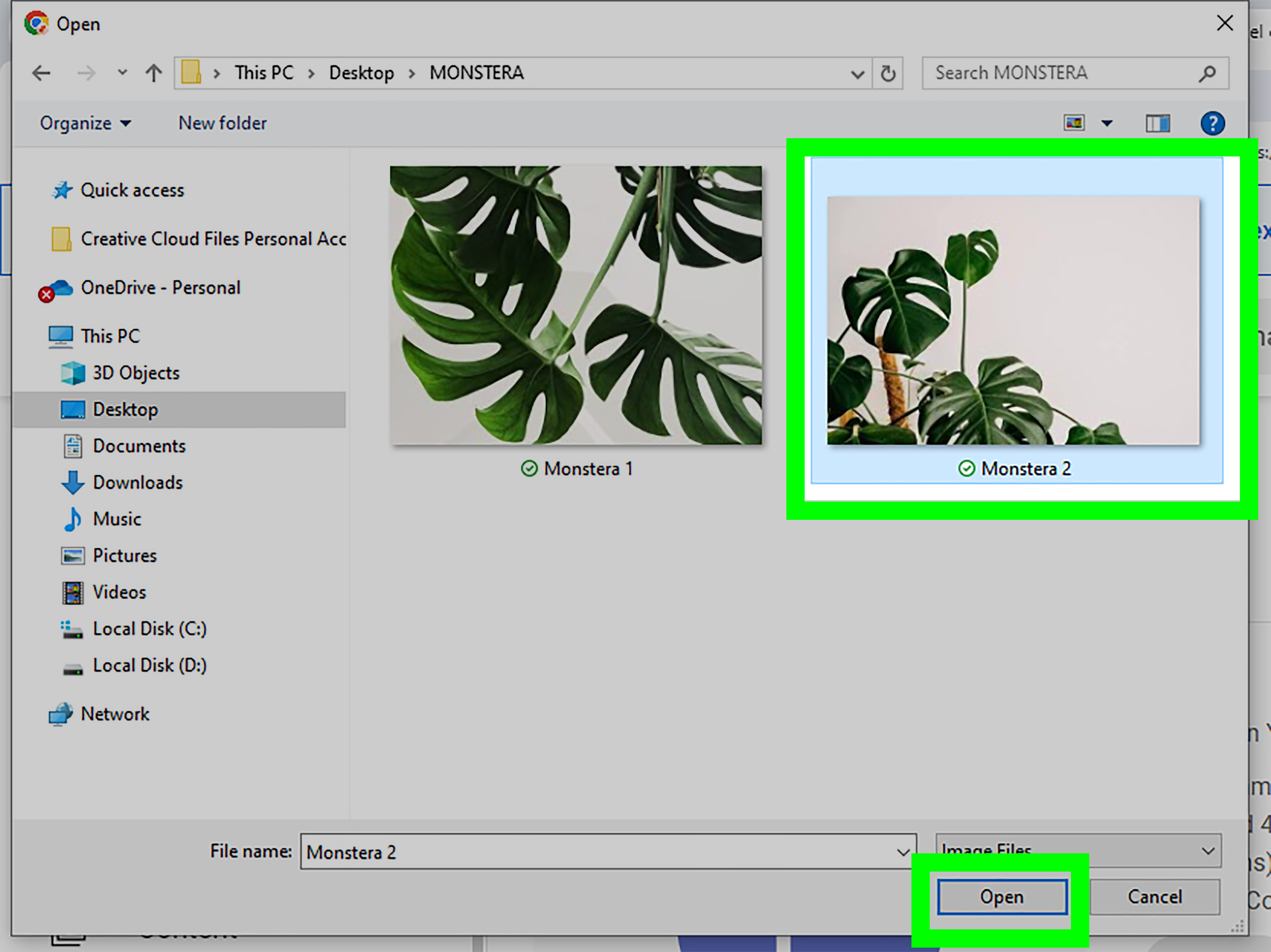
Select the image file you prepared. For best results, use a clean square version rather than asking YouTube to rescue an extremely wide group photograph.
Step 4: Adjust the crop
Use the preview tool to resize or reposition the image. Keep the main subject in the center of the circular preview. Important text, facial features, and logo details should remain comfortably inside the circle.
When the preview looks right, click Done.
Step 5: Publish the change
Click Publish or Save, depending on the interface shown in your account. Closing the page before publishing is a classic way to spend five minutes editing an image and zero minutes actually changing it.
Your new YouTube profile picture may appear immediately in Studio but take several minutes to update across channel pages, comments, search results, and other parts of YouTube.
How to Change Your YouTube Profile Picture in the Mobile App
The regular YouTube app provides the quickest method when your new image is already stored on your phone. The general process is similar on Android, iPhone, and iPad, although button positions can vary slightly.
Step 1: Open the correct YouTube channel
Launch the YouTube app and tap your profile picture. Depending on your app version, the account icon may appear in the upper-right corner or in the lower navigation area.
If you use more than one channel, switch to the channel you want to update before continuing. This check takes a few seconds and can prevent the unpleasant discovery that you have placed your cooking logo on your technology channel.
Step 2: Tap View channel
Select View channel or Your channel. This opens the public-facing channel page while keeping the editing controls available to you.
Step 3: Open Edit profile
Tap the pencil-shaped Edit button or choose Edit profile. Then tap your current profile picture or the small camera icon displayed on it.
Step 4: Choose the new image
You may be offered several choices:
- Take a new photo with your device camera
- Select an existing image from your photo library
- Choose a YouTube illustration, when available
Grant photo or camera access if your phone requests permission. Select the image and position it carefully inside the crop preview.
Step 5: Save the profile picture
Tap Save. Return to your channel page and refresh it after a few minutes if the old picture remains visible.
How to Edit the Picture in the YouTube Studio App
Creators who already use the YouTube Studio mobile app may find this method more convenient because it keeps channel management tools in one place.
- Open the YouTube Studio app.
- Tap your profile picture.
- Select Edit profile.
- Tap the current profile picture.
- Take a new photo or choose an image from your device.
- Adjust the crop and tap Save.
After saving, check both the YouTube Studio app and the regular YouTube app. Temporary differences between the two usually disappear after YouTube finishes processing and distributing the update.
How to Create a Profile Picture That Looks Good
Uploading an image is the technical part. Choosing an image that remains recognizable at comment-icon size is the strategic part.
Keep the subject in the center
YouTube’s circular display removes the corners of your square file. Keep faces, symbols, initials, and other essential elements within the central portion of the design. Leave a little breathing room around the subject rather than filling every pixel.
Avoid small text
Long business names and detailed slogans rarely survive when reduced to a tiny circle. A short monogram, bold symbol, or recognizable face is usually more effective. Save the full company name and elaborate tagline for your channel banner.
Use strong contrast
A dark logo on a slightly darker background may look sophisticated in your editing software and completely invisible beside a YouTube comment. Use enough contrast to make the main subject clear on both light and dark interfaces.
Match your broader branding
Use colors, typography, or imagery that connects with your thumbnails, banner, website, and other social profiles. Consistency helps returning viewers recognize your content before they have even finished reading the title.
Test the image at a small size
Before uploading, shrink the design until it is roughly the size of a profile picture beside a comment. If you cannot understand it without leaning toward the screen like a detective studying evidence, simplify it.
Should You Use a Face or a Logo?
A face often works well for channels built around an individual personality, such as educators, reviewers, coaches, vloggers, and entertainers. Viewers can connect the image directly with the person speaking in the videos.
A logo may be better for businesses, publications, organizations, product channels, or teams with multiple presenters. Choose a simplified logo variation rather than squeezing an entire corporate identity system into one small circle.
Some creators combine both approaches by using a headshot with a branded background or border. This can work, but avoid adding so many decorative elements that the face becomes smaller than a thumbnail inside a thumbnail.
Why Is My YouTube Profile Picture Not Updating?
If the upload appears successful but the old picture remains visible, the cause is usually temporary or account-related rather than catastrophic.
YouTube is still processing the update
Profile picture changes may require several minutes to appear throughout YouTube. The new image might show on your channel page before it appears beside older comments, in search results, or on another device.
You edited the wrong channel
Google Accounts can control multiple personal or brand channels. Open the account switcher and verify the active channel name. If only one location shows the new image, you may have updated a different identity.
You forgot to publish
On desktop, selecting and cropping the image may not complete the process. Return to YouTube Studio and check whether a Publish or Save button is still active.
Your app or browser is showing cached data
Refresh the page, close and reopen the app, or sign out and sign back in. You can also check the channel in a private browser window to see whether the public image has changed.
The file is unsupported or too large
Export the image as JPG or PNG and confirm that it remains under the applicable upload limit. If the file came from a professional editing tool, flatten unnecessary layers and export a standard web image.
The mobile app lacks photo permission
Open your phone’s settings and confirm that YouTube or YouTube Studio can access your photos. Without permission, the app may display an empty library or fail when you attempt to select an image.
The image violates platform rules
Channel images must follow YouTube’s Community Guidelines. Avoid graphic, hateful, deceptive, sexually explicit, or impersonating imagery. A profile picture should identify your channel, not begin an unexpected meeting with the moderation team.
Common YouTube Profile Picture Mistakes
- Uploading a low-resolution screenshot instead of the original image
- Placing text or logo details in the corners
- Using an image that looks good large but becomes unclear when reduced
- Choosing a background with too little contrast
- Using different branding on every platform without a clear reason
- Changing the image too frequently for viewers to recognize it
- Editing the main Google Account photo when only the YouTube channel should change
Practical Experience: What Creators Learn After Updating Channel Pictures
The most common lesson is that the image that looks best in an editor is not always the image that works best on YouTube. Creators often begin with an attractive photograph containing a detailed background, small lettering, and carefully placed decorations. At full size, it looks excellent. Once YouTube reduces it to a comment icon, however, the background becomes visual oatmeal and the lettering turns into decorative dust.
A better workflow is to design for the smallest display first. Start with a square canvas, add one clear focal point, and preview it at several sizes. For a personal channel, that may mean cropping closer to the face and removing distracting objects behind it. For a business channel, it may mean using only the logo symbol instead of the full company name. The goal is immediate recognition, not fitting your entire autobiography into 800 square pixels.
Another practical issue is the circular crop. A creator may position a logo perfectly in the square file but place a key letter near the top corner. When YouTube applies the circle, the letter disappears and the brand suddenly has a new, accidental spelling. Keeping a generous central safe area prevents this. A temporary circular guide in an image editor can make the design process much easier.
Creators managing multiple channels also learn to inspect the account switcher before saving. Personal channels, business channels, archived projects, and test accounts may all sit under one login. Because their icons can initially look similar, it is easy to update the wrong one. Confirming the channel name and handle before making changes is a small habit that prevents a surprisingly confusing cleanup.
Update delays can create unnecessary panic. A newly uploaded picture may appear in YouTube Studio while an old image remains beside comments or search listings. Repeatedly uploading the same file usually does not speed up the process. It can make troubleshooting harder because the creator no longer knows which version YouTube is processing. Saving once, waiting a reasonable period, and checking in a private browser window is more useful.
It is also worth keeping the original design file. A channel may grow from a hobby into a recognizable brand, and future updates become easier when the editable version is available. Save a high-resolution master file, a transparent PNG logo, and the final 800-by-800 export in an organized folder. Naming the files clearlysuch as channel-profile-blue-2026.pngis far more helpful than maintaining a collection called final.png, final2.png, and the legendary final-really-final-use-this-one.png.
Finally, creators often discover that profile-picture changes are most effective when they support a broader visual update. If the new icon introduces different colors or a redesigned logo, consider updating the channel banner, thumbnail templates, website, and social profiles at roughly the same time. The picture does not need to be identical everywhere, but viewers should feel that they are encountering the same creator or brand.
Final Thoughts
To edit your YouTube profile picture on desktop, open YouTube Studio, navigate to the channel customization area, choose the profile or branding controls, upload the image, adjust the crop, and publish the change. On mobile, open your channel in the YouTube or YouTube Studio app, select the editing controls, tap the current picture, choose a new image, and save it.
For the strongest result, upload an 800-by-800-pixel square image with the main subject centered. Use a simple design, strong contrast, minimal text, and enough space to accommodate YouTube’s circular crop. Then give the platform a few minutes to update the image everywhere before declaring war on your browser cache.