

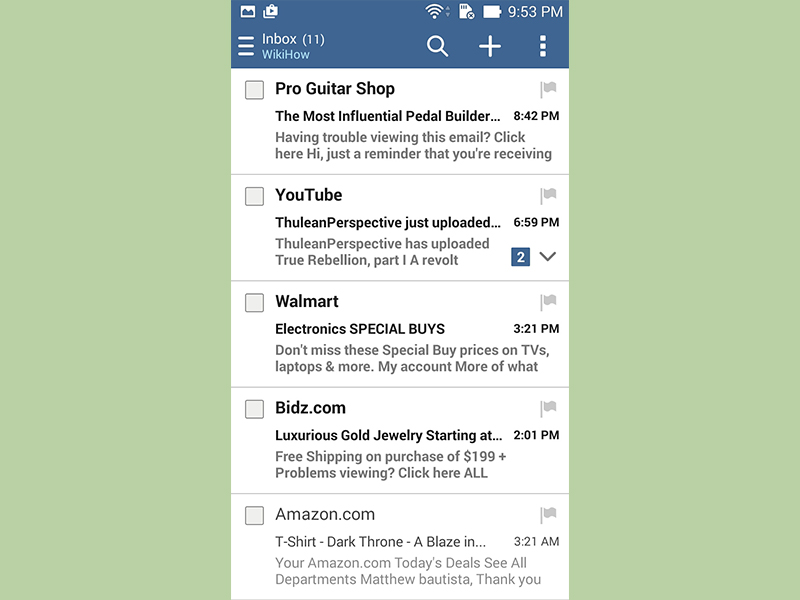
If you just got a new Android phone and want your email working before your coffee gets cold, good news: setting up an email account on Android is usually quick. The less-good news? “Usually quick” can turn into “Why is this phone judging me?” when passwords, server settings, or work accounts get involved.
This guide breaks the process into five simple steps so you can add Gmail, Outlook, Yahoo, AOL, a work email, or a custom domain account without turning your morning into a support-ticket memoir. Whether you use the Gmail app, Samsung Email, Outlook, or your provider’s own app, the overall setup process follows the same basic logic. Once you know that logic, Android email setup becomes much less mysterious and a lot less annoying.
Let’s make your inbox behave.
Before You Start: What You’ll Need
Before you tap anything, gather the basics. This saves time and dramatically lowers the odds of yelling “But that is my password!” at an innocent screen.
- Your full email address
- Your password, or an app password if your provider requires one
- A stable Wi-Fi or mobile data connection
- Your provider’s incoming and outgoing server settings if you’re using manual setup
- A rough idea of whether your account is Gmail, Outlook, Yahoo, AOL, Exchange, IMAP, or POP
For most people, Android can detect the settings automatically. But if you’re adding a custom domain email, an older account, or a work address, you may need to enter IMAP, POP, or Exchange details manually. That is normal. It does not mean your phone has entered its rebellious phase.
Step 1: Choose the Email App You Want to Use
Your first decision is surprisingly important: which app will handle your email?
On many Android devices, the default choice is the Gmail app. It works with much more than just Gmail. You can also add Outlook, Yahoo, AOL, and many custom IMAP accounts to it. If you have a Samsung device, you may also have the Samsung Email app available. If you use Microsoft 365 or a work email, the Outlook app is often the smoothest option.
Best app choices by account type
- Gmail account: Gmail app
- Outlook, Hotmail, or Live account: Outlook app or Gmail app
- Microsoft 365 work account: Outlook app
- Yahoo or AOL: Provider app, Gmail app, or Samsung Email
- Custom domain email: Gmail app, Samsung Email, or Outlook with manual IMAP setup
- Privacy-focused services like Proton Mail: The provider’s own app is often best
If you want the easiest setup, use the official app for your provider. If you want one place for everything, the Gmail app is a strong all-purpose choice. Either way, the rest of the setup is pretty similar.
Step 2: Add a New Email Account on Android
Now it’s time to add the account.
Open your chosen email app and look for an option such as Add account, Add another account, or Manage accounts. On the Gmail app, this is usually under your profile picture. On Samsung Email or Outlook, it may be under Settings.
Once you tap the add-account option, Android or the app will ask what type of email account you’re adding. You might see choices like:
- Outlook, Hotmail, and Live
- Yahoo
- Exchange and Office 365
- Other
If your provider appears on the list, choose it. That usually gives you the fastest setup because the app already knows the correct sign-in path. If your provider isn’t listed, choose Other and prepare for manual setup. That sounds scarier than it is. Mostly it just means typing carefully like the grown-up you swore you’d become.
Step 3: Pick the Right Account Type
This is the step that trips up a lot of people. If Android asks whether you want IMAP, POP3, or Exchange, here’s the simple version:
IMAP
IMAP is the best choice for most users. It keeps your email synced across devices, so what you read, delete, or move on your phone also updates on your laptop or tablet. If you use your email in more than one place, IMAP is usually the right answer.
POP3
POP3 is older and more limited. It downloads email to one device and may not keep everything in sync the way modern users expect. It still exists, but it’s more “vintage office equipment” than “best practice.” Use it only if your provider or company specifically tells you to.
Exchange
Exchange or Microsoft 365 is common for work and school accounts. It may sync not just email, but also calendars and contacts. If your organization gave you a company email and vague instructions like “Just put it on your phone,” this is probably the option they meant.
As a rule of thumb:
- Choose IMAP for personal and custom-domain email accounts
- Choose Exchange for work or school email accounts
- Choose POP3 only when specifically required
Step 4: Enter Your Login Details and Server Settings
Here comes the part where accuracy matters more than confidence.
Start by entering your full email address and password. If the setup is automatic, Android may do the rest for you. If it asks for advanced settings, you’ll need to provide details such as:
- Incoming mail server
- Incoming port
- Security type, usually SSL/TLS
- Outgoing SMTP server
- Outgoing port
- Username, often your full email address
Many providers use secure IMAP on port 993 and secure SMTP on port 465 or 587, but this can vary. That is why it’s important to use the settings from your specific email provider rather than guessing. Guessing works great for trivia night and terribly for mail servers.
Watch for app password requirements
This is a big one. Some providers, especially when two-factor authentication is enabled, may require an app password instead of your usual account password. If your normal password keeps failing even though you know it’s correct, this is one of the first things to check.
This can happen with Gmail, Yahoo, AOL, and other providers that use stronger sign-in security. In plain English: your account is protecting itself, which is good, but it does make setup a little pickier.
Work and school accounts may redirect you
If you’re adding a corporate or school email, you may be redirected to a Microsoft or Google sign-in page, or asked to approve device management settings. That is common for managed accounts. Read the prompts carefully before tapping through them at superhero speed.
Step 5: Finish Setup and Adjust Sync Settings
Once the app accepts your login, you’re in the home stretch.
Most Android email apps will ask you to confirm a few account preferences, such as:
- How often the app checks for new mail
- Whether notifications are enabled
- How many days of email to sync
- Whether to sync contacts and calendar
- What display name appears on outgoing messages
If this is your main account, turn on notifications. If it’s a rarely used side account you created in 2017 for one coupon and one deeply regrettable webinar, you may want to leave notifications off.
You should also send yourself a quick test email. This confirms that both incoming and outgoing mail are working. If you can receive mail but not send it, the outgoing SMTP settings are often the culprit. If nothing works, the issue is usually one of three things: wrong password, wrong server settings, or a provider security rule blocking the sign-in.
Common Problems When Setting Up Email on Android
“Cannot connect to server”
This usually points to incorrect server settings, an internet issue, or a provider-side problem. Double-check the incoming and outgoing servers, ports, and encryption type. Also make sure your phone is actually online. It sounds obvious, but so does “don’t put metal in the microwave,” and yet here we are.
“Sign-in failed”
If your password is definitely correct, try these fixes:
- Generate an app password if your provider requires one
- Update the email app
- Remove and re-add the account
- Check whether your provider blocked the sign-in attempt
Email sync is too limited
Sometimes setup works, but you only see recent messages. In that case, increase the email sync period in your app settings. Some apps default to a short sync window, which can make your inbox look suspiciously tidy.
Calendar and contacts are missing
If you used POP or IMAP, this may be expected. Those setups often sync email only. If you need email, contacts, and calendar together, an Exchange or Microsoft 365 setup is usually the better choice.
Examples of Email Accounts You Can Add on Android
Android is flexible, which is tech-speak for “it can handle a lot, but sometimes wants specifics.” Here are common scenarios:
Gmail
Usually the easiest. Tap Google, sign in, approve security prompts, and you’re done.
Outlook or Hotmail
These often work smoothly in either the Outlook app or the Gmail app. If it’s a business Microsoft 365 account, Outlook is usually the cleaner choice.
Yahoo Mail
You can add it through Android’s mail apps, but if sign-in gets fussy, check whether Yahoo wants you to use a third-party app password.
AOL Mail
Still around, still functional, still quietly minding its business. Like Yahoo, it may require an app password for third-party apps.
Custom domain email
This is where manual IMAP setup is most common. You’ll need the server names, ports, and security settings from your host or email provider.
Work email
Choose Exchange or Microsoft 365 if available. Expect possible device-policy prompts, security approvals, or sign-in verification.
Security Tips After Setup
Once your email account is working on Android, spend two extra minutes making it safer. Future you will appreciate this.
- Turn on two-factor authentication for your email account
- Use your provider’s official app when possible
- Keep your Android device and email apps updated
- Use a screen lock on your phone
- Remove old accounts you no longer use
- Review notification previews if privacy matters on your lock screen
Email contains receipts, password resets, work details, personal conversations, and the occasional coupon you absolutely did not need but clicked anyway. It deserves real protection.
Hands-On Experiences: What Setting Up Email on Android Is Like in Real Life
In real-world use, setting up an email account on an Android device is rarely difficult for long. It is usually difficult for about three minutes, and those three minutes are weirdly dramatic. The first account often goes smoothly. You open the Gmail or Outlook app, type your email, approve a login prompt, and suddenly your inbox appears like magic. That experience makes Android feel smart, helpful, and almost suspiciously cooperative.
The second kind of experience is more common with custom domain accounts, older Yahoo or AOL addresses, and work email. Everything looks normal until the app asks for server information you have not thought about since the dinosaurs had desktop clients. At that point, people start searching for phrases like “incoming mail server” and “why does my password hate me.” Usually the fix is simple: use IMAP instead of POP, enter the full email address as the username, and double-check SSL or TLS settings. One tiny typo can cause the whole process to fail, which is humbling in a way that builds character and mild resentment.
Many Android users also discover that email setup success depends on the provider, not just the phone. Gmail accounts are typically the least dramatic. Microsoft accounts are also fairly smooth, especially in Outlook. But custom business email can feel like a puzzle box if the hosting company uses unusual settings. In those cases, the best experience comes from gathering the correct information first rather than trying random combinations and hoping the phone eventually takes pity on you.
Another very real experience is the “everything worked except sending email” problem. Receiving messages gives you false confidence, then the first outgoing test email fails and your phone suddenly acts like you never met. This usually points to SMTP settings, an authentication issue, or a provider requiring an app-specific password. It feels personal, but it is usually just one setting buried behind a tiny arrow labeled “advanced.” Android did not betray you. It just hid the important part behind an extra tap, which is almost the same thing.
There is also a noticeable difference between setting up personal and work accounts. Personal accounts tend to be about convenience. Work accounts are about policies, verification, mobile management, and permissions that sound slightly ominous. You may be asked to approve your device, accept security rules, or allow the app to manage certain settings. It can feel like you are applying for citizenship in your own inbox. Once it is done, though, syncing email, calendar, and contacts in one place is genuinely useful.
Overall, the best Android email setup experiences have one thing in common: the user knows which app to use, which account type to choose, and whether the provider needs an app password. Once those three details are clear, the process becomes far less annoying. In other words, email setup on Android is not hard so much as picky. And like a picky restaurant order, it goes smoothly once you know exactly what to ask for.
Final Thoughts
If you’re wondering how to set up an email account on an Android device, the process really comes down to five steps: choose your app, add the account, select the right account type, enter your login details, and finish your sync settings. That’s it. The details can vary by provider, but the structure stays the same.
For most users, IMAP is the best choice, the Gmail or Outlook app is the easiest place to start, and app passwords are the sneaky fix when regular login details fail. Once your account is connected, Android does a solid job of keeping your inbox close, searchable, and ready for whatever arrives next, from important work messages to promotional emails that somehow know you looked at one pair of shoes one time.
Set it up once, test it properly, and enjoy the rare modern miracle of technology actually doing what it promised.