

VLC is the friend who shows up to every party, plays every format, never asks you to “create an account,” and doesn’t track you around the internet like a lost puppy. It’s free, open-source, cross-platform, and famously low on nonsense (no ads, no spyware, no tracking).
But when people hear “media library,” they often expect a Spotify-meets-iTunes command center with album art, recommendations, and a magical librarian who alphabetizes your chaos while you nap. VLC’s media library is more like a smart clipboard: it can index what you point it to, help you browse and play quickly, and support playlistswithout trying to become your entire lifestyle. That’s a feature, not a bug… unless you really wanted the nap part.
What “Media Library” Means in VLC (and What It Doesn’t)
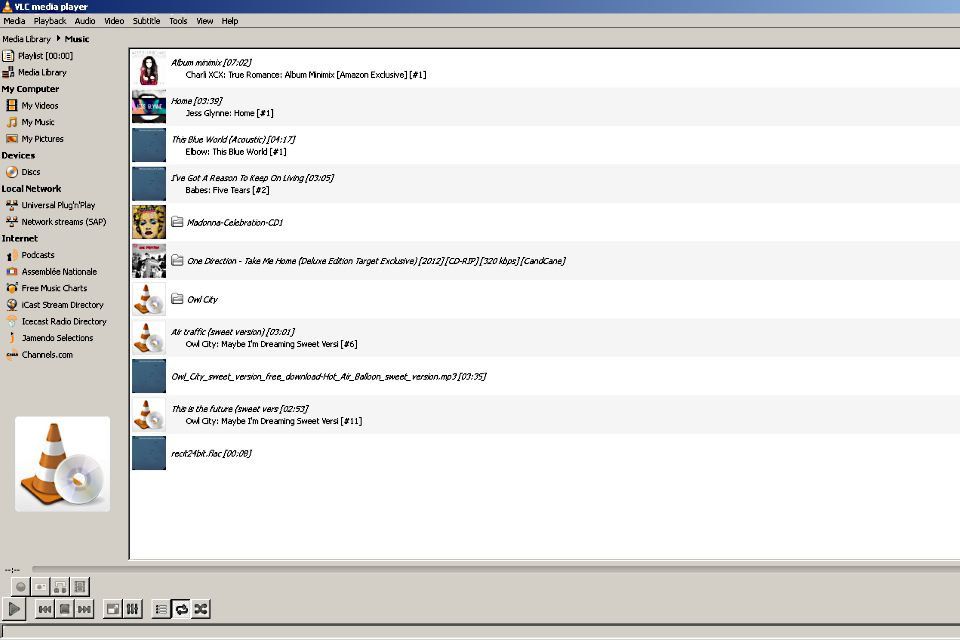
In VLC (especially on desktop), the “Media Library” is a database-style view tied closely to the Playlist interface. You can add folders, browse media, and build playlists for quick access. However, VLC generally doesn’t “scrape” rich metadata and cover art like a dedicated music manager or a Plex-style library app.
Translation: if your files are messy, VLC won’t judge youbut it also won’t clean your room. The good news is that with a little setup, VLC can behave like a practical media library for both music and videos.
Prep Work: Organize Files So VLC Behaves Like a Pro
Before you touch a setting, do one quick favor for Future You: give your files a clean structure. VLC will happily play anything, but your browsing experience improves dramatically when your folders and filenames make sense.
A simple folder structure that works
- Music:
Music/Artist/Album/01 - Track Title.ext - Movies:
Movies/Movie Title (Year)/Movie Title (Year).ext - TV:
TV/Show Name/Season 01/Show Name - S01E01 - Episode Title.ext
Why this matters
- Sorting becomes predictable (especially for multi-part albums and TV seasons).
- Searching by title actually finds what you meant (instead of 47 files named final_final_v2_reallyfinal.mp4).
- Playlists stay stable longer because you’re less likely to move files randomly.
Bonus: if you keep subtitles as separate “sidecar” files, name them the same as the video and keep them in the same folder. VLC can automatically detect them when the names match (for example: Movie Title (2024).mp4 and Movie Title (2024).srt). This small habit makes your library feel way more “complete,” especially for foreign films and accessibility.
Enable the Media Library on Desktop VLC (Windows, Mac, Linux)
On desktop VLC, the media library is typically accessed through the Playlist view, and you may need to enable it in Preferences. The path is similar across Windows, macOS, and Linux.
Step 1: Turn on “Use Media Library”
- Open Preferences:
- Windows/Linux:
Tools > Preferences - Mac:
VLC > Preferences
- Windows/Linux:
- Switch settings to advanced:
- Look for Show settings and choose All (or “Show All”).
- In the left sidebar, select Playlist. Check Use Media Library, then click Save.
Step 2: Open the Playlist/Library panel
VLC’s library lives inside the Playlist view. If you don’t see it, open it manually:
- Menu:
View > Playlist - Windows:
Ctrl + L - Mac:
Command + Option + P
You should now see a left sidebar (often including items like Playlist and Media Library). If VLC still looks stubbornly “single-file-only,” don’t panicsome interfaces collapse panels until you open the Playlist view.
Add Folders and Build Your VLC Media Library
This is the moment where VLC stops being “that app you use to play one random file” and starts acting like a real media hub.
Add an entire music or video folder
- Open the Playlist view.
- Click Media Library in the left sidebar.
- Right-click the main area and choose Add Folder.
- Select your folder (like
MusicorMovies), then confirm. - Repeat for any additional folders you want indexed.
Drag-and-drop works too (and it’s weirdly satisfying)
You can also drag files or folders from File Explorer/Finder directly into VLC’s playlist area to add them quickly. If you’re building a library from scratch, “drag the big folders first, tidy later” is a totally valid strategy.
Browse Like You Mean It: Search, Sort, Queue, Repeat
Once your folders are in, the best “library” features in VLC come from learning how to navigate and queue media efficiently. Think less “Netflix UI,” more “powerful list that obeys you.”
Use search the fast way
- When you’re inside the Playlist/Media Library view, use the search box (or start typing) to filter titles quickly.
- Search works best when filenames and metadata are clean (Artist, Album, Title fields for music).
Sort columns for sanity
VLC’s detailed list views can be sorted by columns like Title, Duration, Artist, and sometimes track numberhelpful when you want albums to play in order without manually dragging everything around. If album tracks are out of order, the fix is usually in your filenames or track-number tags, not in VLC’s attitude.
Queue without destroying what’s playing
- Play replaces what’s currently playing.
- Enqueue adds to the current queue (great for “play this next” moments).
For extra clarity (especially on Mac), you can inspect what VLC thinks a file contains via Media Information/Codec details. This is useful when something “looks like an MP4” but is secretly chaos inside.
Make Playlists That Feel Like a Real Library
VLC’s playlists are the secret sauce for turning a basic media library into something you’ll actually use every day: gym mixes, language lessons, “sleepy time jazz,” or “movies I swear I’ll watch soon.”
Create a playlist (the practical method)
- Open Playlist view.
- Browse in Media Library (or open folders).
- Select items and add them to the playlist/queue.
- Reorder items by dragging them into the sequence you want.
Save a playlist so it doesn’t vanish into the void
VLC playlists are most useful when you save them to a file:
- Create your playlist (add items and arrange them).
- Go to
Media > Save Playlist to File. - Save itcommonly as an XSPF playlist file.
When you double-click that saved playlist file later, it can open in VLC and play the same sequence again. This is perfect for:
- Workout mixes
- Kids’ “repeat forever” cartoon sets
- Study videos you revisit weekly
- Rotating background music for work
Playlist reality check (so you don’t get surprised later)
Saved playlists usually reference files by name and location. If you move or rename the media files, VLC may not find them anymore and will throw errors or skip items. The fix is simple: keep your library folders stable, or be ready to rebuild/update playlists after major reorganizing.
Album Art and Metadata: Getting VLC to Look Nicer
If you want your library to feel polished, metadata is the difference between “organized collection” and “mystery meat.” That said, VLC is not primarily a library manager, and it typically won’t fetch artwork and metadata the way a dedicated library app does.
What VLC can do well
- Read embedded tags (like ID3 for MP3) and show Artist/Album/Title when they exist.
- Display embedded cover art if your files already include it.
- Play nicely with sidecar subtitles when named consistently.
What you may need to do outside VLC
- Tag music files properly (Artist, Album, Track #, Year).
- Embed cover art in your music files if you care about visuals.
- Keep albums in one folder and ensure track numbers are correct for proper sequencing.
Once your tags are clean, VLC’s sorting and searching get dramatically betterlike it suddenly started drinking water and getting eight hours of sleep.
Mobile Media Libraries: Android and iPhone/iPad
VLC on mobile behaves more like what people expect from a “media library” app, especially on Android. It scans your device and groups content, and it also lets you control what gets indexed.
Android: Choose exactly which folders VLC scans
On VLC for Android, you can control the library scope via settings:
- Open VLC and go to Settings.
- Tap Media library folders.
- Select only the directories you want included (and leave private/unwanted folders unchecked).
- Optionally toggle Auto rescan depending on whether you want VLC to re-scan each time.
Practical tip: if VLC is scanning too much (or too often), narrowing the library folders can reduce indexing time and clutter. Some users have also reported odd “auto rescan” behavior even when disabled, so if your phone feels like it’s constantly “discovering storage,” you’re not imagining it.
iPhone/iPad: Add media intentionally
On iOS/iPadOS, VLC is excellent for playing local files, but your “library” depends on how you import or access media (file sharing, cloud storage, network shares). The big win is that VLC stays simple: you control what goes in, and it plays it.
Troubleshooting: When VLC’s Library Isn’t Cooperating
Media libraries are basically digital closets. Sometimes you open the door and everything falls out. Here are the most common issues and fixes that don’t require a séance.
Problem: “I enabled the library, but I don’t see it anywhere.”
- Make sure you’re in Playlist view (try
View > Playlist). - Confirm Use Media Library is checked in advanced Preferences under Playlist.
- Restart VLC after changing preferences (some setups behave better after a restart).
Problem: “My folder is added, but files are missing or out of order.”
- Check your filenames and track numbers (especially for albums and TV episodes).
- Verify metadata tags exist (Artist/Album/Title/Track #).
- Try adding the folder again if it was moved or changed substantially.
Problem: “My playlist doesn’t work anymore.”
- If you moved/renamed files, the playlist file may point to old paths.
- Keep media in stable folders, especially if you rely on saved playlists long-term.
- Consider using one “Library” drive/folder that doesn’t change location.
Problem: “Android VLC keeps scanning forever.”
- Limit Media library folders to only your actual media directories.
- Toggle Auto rescan to reduce repeated scanning on startup.
- If behavior seems inconsistent, know this has been a topic in VideoLAN’s Android issue tracking.
Bonus: Real-World Experiences (The Part You’ll Actually Relate To)
Once you start using VLC as a real media library, patterns emergelike how you’ll swear you’ll keep things organized, and then one weekend you download “just a few files” and suddenly your Movies folder looks like it was designed by raccoons.
One common “aha” moment is realizing that VLC rewards consistency more than complexity. People often start by adding one huge root folder (like the entire drive) because it feels efficient. It works… until VLC starts indexing things you never intended to see: random podcast downloads, app cache videos, old screen recordings, and that one file named untitled(12).mp4 that you’re afraid to open. The smoother experience usually comes from choosing a few intentional library foldersMusic, Movies, and TVand leaving everything else out. On Android, this is even more noticeable: selecting only the folders you want in “Media library folders” keeps the library clean and makes browsing feel fast instead of endless.
Another real-world lesson: playlists are powerful, but they’re fragile if your files move. Many people build the perfect playlist (workout mix, bedtime videos for kids, a study rotation), save it, and feel victoriousuntil they reorganize their folders. Since saved playlists typically rely on file locations, a “cleanup” can turn your playlist into a sad list of missing items. The practical fix is to pick a “forever home” folder structure early and treat it like a library shelf: you can add new books, but you don’t rearrange the building every week. If you do need to reorganize, do it in one big pass and be prepared to refresh playlists afterward.
People who watch a lot of international films or educational content often discover that subtitles are part of “library organization,” not a separate chore. When you store subtitles as sidecar files and name them exactly like the video, VLC can detect them automaticallymeaning your library becomes “press play and relax,” not “press play and then hunt for the SRT.” Over time, building the habit of keeping video + subtitles together feels like upgrading your collection from a pile of files into something curated.
Music collections bring their own quirks. A lot of users notice that VLC is happiest when album tracks have track numbers in the metadata (or at least in filenames). Without that, the “Media Library” view can feel random, and albums play out of order. Once track numbers are correct, VLC’s sorting becomes predictable, and suddenly “play album” means what it’s supposed to mean. This is also where expectations matter: VLC can display what’s already inside your files, but it usually won’t go online and fetch perfect artwork and trivia the way a dedicated library app might. If you want a prettier library, the best results come from cleaning tags outside VLCthen letting VLC do what it does best: play everything reliably.
Finally, a surprisingly common “experience” is using VLC as a media library across devices in a lightweight way: your desktop library contains the master folders and saved playlists, while your phone library is trimmed down to only what you need offline. This approach keeps VLC simple, fast, and consistentwithout turning media management into a second job. If that sounds boring, congratulations: you’ve reached peak digital adulthood.
Conclusion
Creating a media library in VLC Player is less about flipping a single magical switch and more about setting up a sensible workflow: enable the media library, add the right folders, keep your filenames and tags consistent, and save playlists you actually use. VLC won’t try to “be” a full media managerand that’s exactly why it stays fast, flexible, and dependable.
If you want your library to feel effortless, do these three things: (1) pick stable folders and don’t move them constantly, (2) use playlists as your “quick access” layer, and (3) keep subtitles and metadata tidy for the media you care about most. Your future self will be impressedand possibly a little suspicious.