

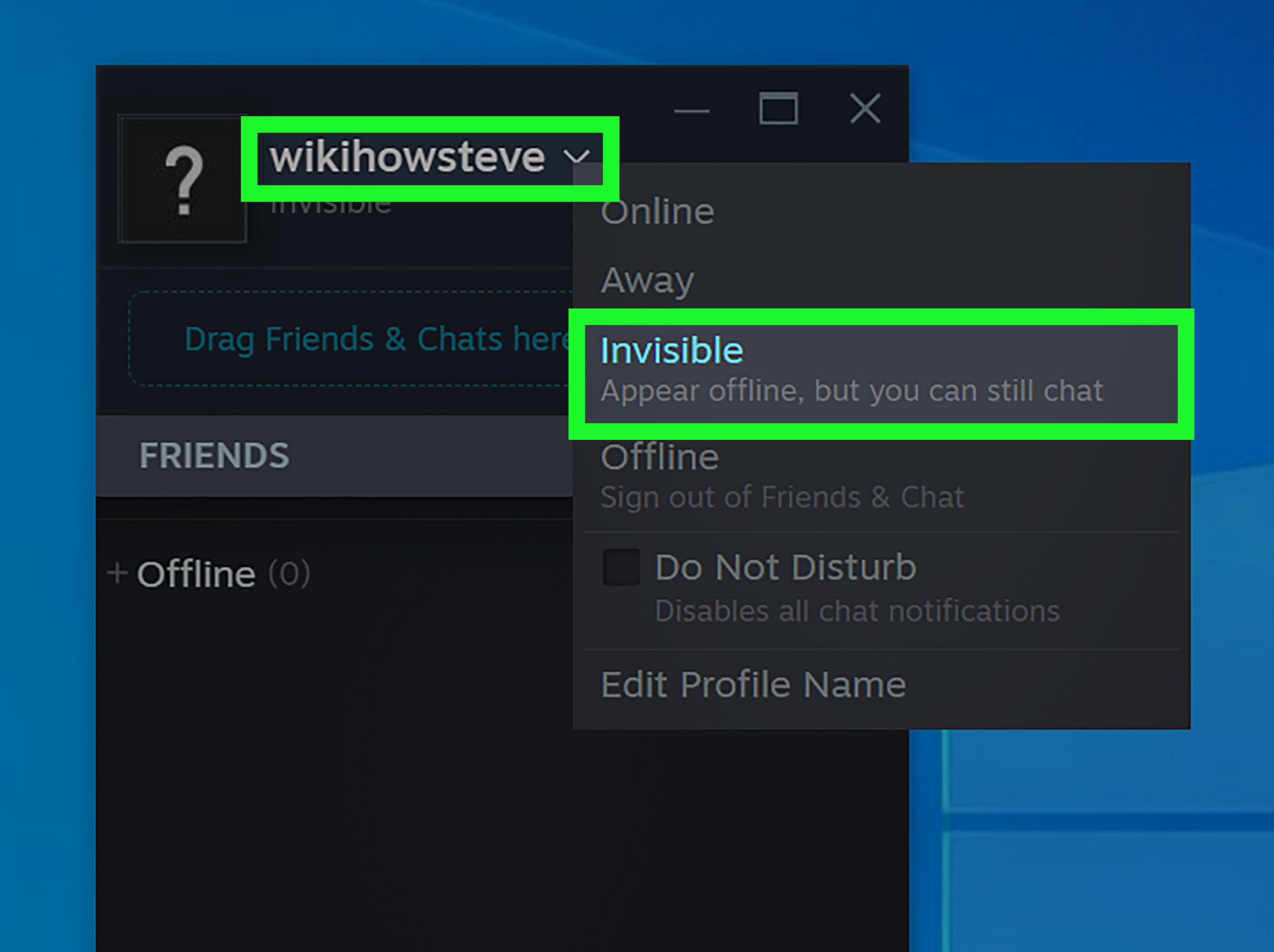
Note: Steam menus can shift slightly after client updates, but the core method remains the same: open your Friends & Chat status menu, choose Invisible or Offline, and adjust privacy settings if you want deeper control over what others can see.
Sometimes you want to play games without announcing your grand return to the digital village square. Maybe you are sneaking in one quiet round before homework, work, dinner, or that “five-minute break” that mysteriously becomes two hours. Maybe your friends are wonderful people, but you do not have the emotional bandwidth for “join Discord?” the second you launch Steam. Good news: Steam gives you a simple way to appear offline while still using the platform.
In this guide, you will learn how to appear offline on Steam in four clear steps, what the difference is between Invisible and Offline, how to hide your game activity more completely, and what to do on desktop, mobile, and Steam Deck. We will keep it practical, friendly, and mildly less dramatic than pretending your Wi-Fi died.
What Does “Appear Offline” on Steam Actually Mean?
Before clicking buttons like a stealthy raccoon, it helps to understand what Steam means by status. Steam has several presence options, including Online, Away, Invisible, and Offline. The two that matter most for privacy are Invisible and Offline.
Invisible vs. Offline: The Important Difference
Invisible makes you appear offline to other users, but you remain connected to Steam Friends & Chat. That means you can still see your friends list, receive messages, send chats, and use many online Steam features while looking unavailable. It is the “I am here, but emotionally in a blanket fort” option.
Offline, on the other hand, signs you out of Steam Community features. It is more restrictive. You appear offline, but you also lose access to real-time chat and social functions until you go back online. If you want maximum quiet from Steam friends, Offline is useful. If you want privacy while still being able to message someone, Invisible is usually the better choice.
How to Appear Offline on Steam: 4 Steps to Be Invisible
The fastest way to appear offline on Steam is through the Friends & Chat menu. These instructions work for the Steam desktop client on Windows and Mac, with small differences in where the menu appears.
Step 1: Open Steam and Sign In
Launch the Steam client and make sure you are signed in. You do not need to start a game. In fact, it is often better to change your status before opening a game, especially if you are trying to avoid the instant “I see you online” squad alert.
Once Steam loads, look for the Friends & Chat button. On most desktop layouts, it appears in the bottom-right corner of the Steam window. You may also find status controls from the top menu by selecting Friends.
Step 2: Open Friends & Chat
Click Friends & Chat. A small window will open showing your Steam username, current status, and friends list. This is the control room for your social visibility. No lasers, unfortunately, but the privacy button is still satisfying.
If the Friends & Chat window is already open, look near the top of that window. Your profile name or avatar should appear with a small arrow or dropdown option next to it.
Step 3: Click the Status Dropdown
Click the dropdown arrow next to your Steam username. Steam will show a list of status options. These usually include Online, Away, Invisible, and Offline.
This is where many users get slightly confused. If your goal is to look offline but still use Steam normally, choose Invisible. If your goal is to fully disconnect from Friends & Chat, choose Offline.
Step 4: Select Invisible or Offline
Choose Invisible to appear offline while keeping access to chat and your friends list. Choose Offline if you want to sign out of Steam Community features and avoid Steam social activity altogether.
After selecting Invisible, your friends should see you as offline, even though you can still browse Steam, play games, and use chat. If you later want to become visible again, return to the same dropdown menu and select Online.
How to Appear Offline on Steam Mobile
The Steam mobile app may look different depending on your phone and app version, but the idea is similar. Open the Steam app, go to the friends or chat area, tap your profile or status menu, and choose Invisible or Offline if those options are available in your version.
If you do not see the option immediately, check the app menu, your profile icon, or the chat section. Steam’s mobile layout can change, but status controls are generally connected to your Friends & Chat presence.
How to Appear Offline on Steam Deck
Steam Deck users can also control their visibility. On Steam Deck, open the Steam interface, go to your profile or friends area, and look for your status dropdown. Select Invisible if you want to keep using online features while appearing offline, or select Offline if you want a more disconnected experience.
This is especially helpful if you use Steam Deck as a cozy gaming device and do not want every late-night session to become a group event. Sometimes the whole point of handheld gaming is curling up with a backlog and ignoring civilization politely.
Does Invisible Mode Hide What Game You Are Playing?
Invisible mode is mainly a friends-list visibility setting. It makes you appear offline, but it is not the same thing as making your entire Steam profile private. If you want stronger privacy, you should also review your Steam profile privacy settings.
Go to your Steam profile, select Edit Profile, then open Privacy Settings. From there, you can control who can see your profile, game details, friends list, inventory, comments, screenshots, and other public-facing information.
Use Game Details Privacy for Extra Control
The Game Details setting is especially important. This controls whether others can see the list of games you own, games you have wishlisted, achievements, playtime, and whether you are currently shown as in-game. If you do not want people knowing what you are playing, set Game Details to Private.
You can also make individual games private. This is useful when you want to hide ownership, activity, playtime, and in-game status for one specific title without turning your entire profile into a locked vault.
Why People Use Invisible Mode on Steam
Appearing offline is not always about being secretive. Most of the time, it is about boundaries. Gaming is entertainment, but it can become surprisingly social. The moment your status turns green, someone may send an invite, start a chat, or ask why you are not joining their lobby. Invisible mode gives you breathing room.
Here are a few normal reasons people use it:
- Solo gaming: You want to enjoy a single-player game without interruption.
- Focus time: You are playing a short session and do not want conversations.
- Avoiding awkward invites: You like your friends, but not every night is multiplayer night.
- Privacy: You prefer not to broadcast every login or game launch.
- Testing games: You are adjusting settings, installing mods, or troubleshooting without an audience.
Invisible mode is the digital equivalent of putting on headphones in public. It does not mean you dislike anyone. It simply says, “I am doing my own thing right now.”
Can You Appear Offline to Only One Friend on Steam?
Steam does not currently offer a built-in “appear offline to this one specific person” option. Your status applies broadly. If you choose Invisible, you appear offline to your Steam friends generally. If you need more specific control, you can adjust your friends list, block communication, remove someone as a friend, or change profile privacy settings.
If one person constantly interrupts your gaming time, the best long-term solution may not be stealth mode. It may be setting expectations. A simple “I am playing solo tonight” works better than building an entire spy career around avoiding one invite.
Troubleshooting: Why Do I Still Look Online?
If you selected Invisible or Offline but someone says they can still see you, do not panic. Try these fixes:
Restart Steam
Close Steam completely and reopen it. Make sure it is not still running in the system tray. After restarting, set your status again.
Check the Correct Account
If you use more than one Steam account, confirm you changed the status on the right one. It sounds obvious, but so does “save before quitting,” and gamers still learn that lesson the hard way.
Review Profile Privacy
If your status is invisible but your profile information is public, some activity may still be visible depending on your settings. Check Edit Profile > Privacy Settings and adjust Game Details or overall profile visibility.
Consider Third-Party Game Friends Lists
Some games have their own friend systems, launchers, or social overlays. Steam Invisible mode may hide you on Steam, but it may not hide you inside every game’s separate social menu. If a game has its own online status, check that game’s privacy or social settings too.
Best Privacy Setup for Quiet Gaming
If you want the smoothest invisible gaming setup, use this combination:
- Set Steam status to Invisible before launching your game.
- Set Game Details to Private if you do not want others seeing what you play.
- Mark specific games as private when needed.
- Check in-game social settings for titles with separate friend lists.
- Go Offline instead of Invisible when you want no Steam chat access at all.
This setup gives you more control without making Steam annoying to use. You can still enjoy your library, browse the store, install updates, and play games while keeping your social visibility low.
Common Questions About Appearing Offline on Steam
Will friends know I changed my status to Invisible?
Steam does not send a big dramatic announcement saying, “This user has entered mysterious goblin mode.” Friends should simply see you as offline.
Can I still receive messages while Invisible?
Yes. Invisible mode keeps you connected to Friends & Chat, so you can still receive and send messages. Offline mode is more restrictive and signs you out of Steam Community features.
Can I play multiplayer games while Invisible?
In most cases, yes. Invisible mode does not stop you from using online games. However, individual games may have their own social systems that show your status separately.
Does Offline mode let me play games?
Steam Offline mode and Steam Friends status are related but not identical ideas. Some games can be played without an internet connection, while others require online access. If a game needs servers, multiplayer, cloud checks, or third-party login, you may still need to be online to play it.
Experience Notes: What It Is Really Like to Use Invisible Mode on Steam
Using Invisible mode on Steam feels small at first, almost too simple to matter. You click a dropdown, choose Invisible, and suddenly the social noise fades into the background. But after using it regularly, the value becomes obvious. It changes Steam from a place where every login feels like walking into a busy room into a quieter library where you can browse, play, and relax on your own terms.
The best time to switch to Invisible is before launching a game. This prevents the familiar chain reaction: you open Steam, a friend sees you online, a message arrives, then an invite follows, and now your peaceful solo session has turned into a diplomatic meeting. Setting your status first avoids that little burst of attention. It is not rude. It is simply practical.
Invisible mode is especially useful for single-player games. Story-heavy games, strategy games, cozy farming games, and RPGs all benefit from uninterrupted attention. Nobody wants to pause during a dramatic cutscene because someone typed, “quick match?” There is nothing quick about a quick match. It is a trap with a scoreboard.
Another helpful habit is combining Invisible mode with private Game Details. Invisible status handles your live presence, while Game Details controls more of what your profile reveals. If you only use Invisible, your friends may not see you online in the friends list, but your broader profile settings may still show information you would rather keep quiet. Privacy works better in layers.
On Steam Deck, Invisible mode feels even more natural. The device encourages relaxed, personal gaming. You might be on the couch, in bed, traveling, or taking a short break. Appearing offline keeps the handheld experience casual instead of turning it into a social broadcast. It lets Steam Deck feel like a console, not a doorbell.
There is also an emotional benefit. Many players feel pressure to respond when they are visibly online. Even if no one is demanding anything, the green status dot can create expectations. Invisible mode removes that pressure. You can answer messages when you are ready, not because your status accidentally told everyone you were available.
That said, Invisible mode is not magic. Some games use separate friend systems, and those systems may still show your activity. Competitive games, MMOs, and cross-platform titles often have their own presence tools. If you want true quiet, check both Steam and the game itself. Think of Steam Invisible as closing the front curtains; if the game has a giant neon sign on the roof, you still need to turn that off too.
The most practical approach is to treat Invisible mode as a normal setting, not a sneaky one. Use it when you want focus, privacy, or a break from social energy. Go back Online when you want to be available. Steam gives you the option because different gaming sessions have different moods. Some nights are for squads. Some nights are for silence, snacks, and pretending your backlog is under control.
Conclusion
Learning how to appear offline on Steam takes less than a minute, but it can make your gaming time much more peaceful. Open Friends & Chat, click your status dropdown, choose Invisible, and you can keep using Steam while appearing offline to others. Choose Offline when you want to disconnect from Steam Community features more completely.
For stronger privacy, do not stop at status settings. Review your Steam Profile Privacy options, set Game Details to Private if needed, and remember that some games have their own friend lists. With the right setup, you can play quietly, avoid unnecessary invites, and enjoy your library without feeling like you just lit a beacon over your username.