

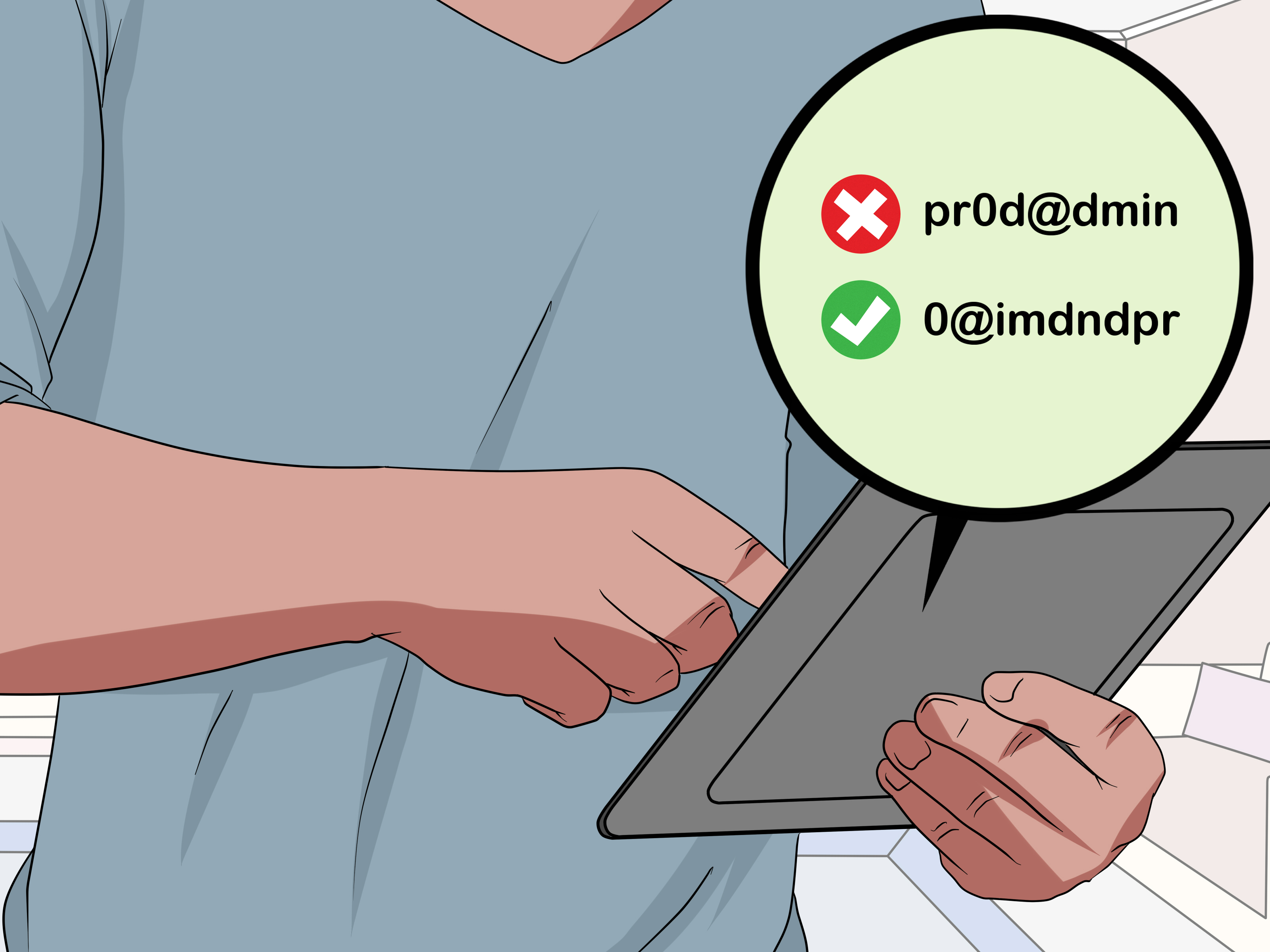
Creating a secure password sounds about as exciting as sorting socks by shade of grayuntil one weak password turns your email, banking app, shopping account, and social media into an all-you-can-steal buffet. The good news? Password security is not magic, and you do not need to speak fluent hacker to protect yourself.
A secure password is long, unique, hard to guess, and stored safely. That is the simple version. The slightly funnier version is this: your password should look like it was invented by a raccoon walking across a keyboard with a poetry degree. It should not be your dog’s name, your birthday, your favorite sports team, or “Password123,” which is less of a password and more of a welcome mat.
This guide explains how to create a secure password with practical examples, easy rules, and real-world habits that make your online accounts much harder to break into. Whether you are protecting email, banking, work tools, cloud storage, gaming accounts, or a small business login, the same principles apply.
What Makes a Password Secure?
A secure password has four major qualities: length, randomness, uniqueness, and secrecy. Length matters because every extra character increases the number of possible combinations. Randomness matters because attackers use lists of common words, leaked passwords, keyboard patterns, names, dates, and predictable substitutions. Uniqueness matters because one breached account should not unlock the rest of your digital life. Secrecy matters because even the strongest password becomes useless if you paste it into a fake login page or share it in a group chat named “totally secure stuff.”
Secure Password Formula
A strong password should usually be at least 14 to 16 characters long. Longer is better, especially for important accounts. It should not include obvious personal information, such as your name, birthday, school, pet, phone number, address, or favorite celebrity. It should also be different for every account.
For most people, the best secure password is not one you invent by hand. It is one generated and saved by a password manager. Password managers can create long, random passwords that humans would never choose on purpose, which is exactly the point.
Why Weak Passwords Are Still a Big Problem
Most people know that “123456” is a bad password. Unfortunately, many people replace it with something only slightly better, like “Summer2026!” or “CoffeeLover99.” These look stronger because they contain uppercase letters, numbers, and symbols, but they are still predictable. Attackers know people love seasons, years, sports teams, keyboard paths, and “clever” swaps like replacing “a” with “@” or “o” with “0.”
A password does not become secure just because it has a symbol wearing a little party hat at the end. “Password!” is still terrible. “P@ssw0rd!” is also terrible, but now it has accessories.
Another common problem is password reuse. If you use the same password for your email, streaming service, shopping account, and banking app, a breach at one company could put all your accounts at risk. Attackers often try leaked username-and-password combinations on other sites. This is called credential stuffing, and it works because humans are busy, tired, and allergic to remembering 80 different passwords.
How to Create a Secure Password Step by Step
Step 1: Make It Long
Length is one of the strongest password defenses. A short password with lots of symbols can still be weaker than a longer password made of random words or characters. For everyday accounts, aim for at least 14 characters. For important accounts like email, banking, password managers, cloud storage, and business tools, go longer when possible.
Weak example: Blue7!
Better example: BlueCoffeeRiverChair29!
Best generated example: vT9!qL72#rPz4WmX
The first password is short and easy to guess. The second is much longer, but still somewhat memorable. The third is random and best stored in a password manager.
Step 2: Make It Random
Randomness means avoiding patterns. Humans are not great at being random. We think “DragonPizza2026!” is wild and unpredictable, but attackers have seen dragons, pizza, and years before. A truly random password should not follow a theme that someone could guess after scrolling your social media for twelve seconds.
Weak example: Michael2009!
Better example: Lantern-Forest-Cactus-71
Best generated example: R8$kQm2!zVb74@Lp
If you need to remember the password, a random passphrase can help. A passphrase uses several unrelated words. The words should not form a famous quote, song lyric, movie title, or personal story. “ILoveNewYorkPizza” is not random. “MarbleTurtleOrbitMaple” is much better.
Step 3: Make It Unique for Every Account
Never reuse your passwords. This is one of the most important password security rules. Your email password should not be the same as your online shopping password. Your banking password should not be the same as your gaming account password. Your school, work, or business login should not share a password with random websites you barely remember joining.
Think of each password as a key. If one key opens your house, car, locker, office, diary, and snack drawer, losing that key is a disaster. Unique passwords keep one breach from becoming a full digital domino collapse.
Step 4: Avoid Personal Information
Do not use your birthday, graduation year, child’s name, pet’s name, hometown, favorite band, favorite athlete, phone number, nickname, or anything someone could find online. Attackers do not need to know you personally to guess personal-looking passwords. Social media provides plenty of clues.
Bad examples:
- Emma2010!
- BuddyDog123
- LakersFan2026
- JohnSmith@Home
- Hanoi2024!
Better examples:
- Orbit-Candle-River-Spoon-48
- VelvetCloud!73MangoTrain
- qL9#vN2$zT8@pW6
Step 5: Use a Password Manager
A password manager stores your passwords in an encrypted vault and helps you generate strong, unique passwords for each account. Instead of remembering dozens of passwords, you remember one strong master password. Many password managers also warn you about weak, reused, or exposed passwords.
This is the practical solution for modern life. Without a password manager, people usually do one of three things: reuse passwords, write them in unsafe places, or invent passwords that look complicated but are easy to guess. A password manager lets you stop playing memory Olympics against the entire internet.
Step 6: Turn On Multi-Factor Authentication
Multi-factor authentication, often called MFA or two-factor authentication, adds another layer of protection. After entering your password, you may need to confirm your identity with an authenticator app, security key, passkey, fingerprint, face scan, or code.
MFA is especially important for email, banking, cloud storage, social media, business dashboards, payment accounts, and password managers. When possible, use an authenticator app, hardware security key, or passkey instead of SMS text messages. Text-message codes are better than nothing, but they can be vulnerable to SIM-swap scams and phishing.
Secure Password Examples You Can Learn From
Below are examples for educational purposes. Do not copy these exact passwords. Once a password is published online, it should be treated like a sandwich left on a public bus: technically real, but not something you should use.
Example 1: Random Character Password
Example: F7$qM2!vL9@xR4#z
This type of password is excellent for a password manager. It is long, random, and difficult to guess. The downside is obvious: remembering it is about as relaxing as memorizing a license plate during a thunderstorm. Let the password manager handle it.
Example 2: Random Passphrase
Example: Velvet-Rocket-Piano-Lizard-82
This password is easier to type and remember than a random string. It uses unrelated words, separators, and a number. It is much stronger than a short password based on personal information. A passphrase is useful when you need to remember a password manually, such as the master password for your password manager.
Example 3: Sentence-Based Password
Memory sentence: My purple cactus dances at 7 before breakfast.
Password idea: MpCda7bB!
This method turns a sentence into initials, numbers, and symbols. It can work, but be careful: short versions may not be long enough. A better approach is to keep the phrase longer or use a full passphrase.
Example 4: Password Manager Master Password
Example style: Copper-Jacket-Moonlight-Window-39
Your password manager master password should be long, memorable, and not reused anywhere else. Do not use a password manager master password that includes your name, your company, your birthday, or a phrase you have posted online. This password protects the vault, so give it the VIP treatment.
Password Mistakes to Avoid
Using Common Passwords
Common passwords are the first guesses attackers try. Avoid anything like “password,” “qwerty,” “admin,” “welcome,” “letmein,” “iloveyou,” “abc123,” or “123456789.” These passwords are not just weak; they are practically wearing a neon sign that says, “Please enter.”
Adding a Year and Calling It Secure
Many people update old passwords by changing the year: Summer2024 becomes Summer2025, then Summer2026. This is predictable. Attackers know this habit. If your password update strategy is basically changing the calendar, it is time for a better plan.
Reusing Passwords With Tiny Changes
Using “NetflixTiger1,” “AmazonTiger2,” and “BankTiger3” is not truly unique. It creates a pattern. If one password leaks, the others become easier to guess. Unique means genuinely different, not the same password wearing different shoes.
Saving Passwords in Notes or Screenshots
Do not store passwords in plain text in your notes app, photo gallery, email drafts, spreadsheets, or chat messages. If someone gets access to that device or account, your passwords are exposed. A reputable password manager is a safer option.
Sharing Passwords Casually
Never share important passwords through text messages, email, social media, or messaging apps. For shared family or business accounts, use secure sharing features inside a password manager. Also, avoid sharing passwords with people who do not truly need access. Trust is wonderful; account recovery forms are less wonderful.
How to Create a Secure Password You Can Actually Remember
The best password strategy is simple: use a password manager for almost everything, then create one excellent master password that you can remember. A strong master password should be long, unusual, and personal only in the sense that you can remember itnot in the sense that it contains personal facts.
Try choosing four or five unrelated words and adding separators or numbers. For example, imagine four random objects in a silly scene: a violin, a cactus, a spaceship, and a pancake. A possible passphrase style might be “Violin-Cactus-Spaceship-Pancake-47.” Again, do not use this exact example. Create your own random combination.
To make it memorable, picture the scene vividly. A cactus playing violin inside a spaceship while a pancake gives directions is ridiculous. Ridiculous is good. Your brain remembers weird images better than boring ones. Cybersecurity finally rewards your imagination.
When Should You Change Your Password?
You do not need to change every password constantly just for tradition. Forced frequent password changes can lead people to choose weaker passwords or predictable variations. Instead, change a password immediately when there is a reason.
Change your password if a company reports a data breach, your password manager flags it as exposed, you reused it on another account, you shared it with someone who no longer needs access, your device was compromised, or you notice suspicious activity. Also change default passwords on routers, cameras, smart home devices, and admin dashboards as soon as you set them up.
What About Passkeys?
Passkeys are a newer sign-in method that can replace passwords on supported websites and apps. Instead of typing a password, you confirm your identity using your device lock, such as a fingerprint, face scan, PIN, or security key. Passkeys are designed to resist phishing because there is no traditional password for you to accidentally type into a fake website.
When a trusted service offers passkeys, consider using them. They are especially helpful for major accounts like email, cloud storage, payment platforms, and device ecosystems. However, passwords are not disappearing overnight. Many websites still require them, so learning how to create a secure password remains essential.
Secure Password Checklist
- Use at least 14 to 16 characters when possible.
- Create a different password for every account.
- Use a password manager to generate and store passwords.
- Avoid names, birthdays, pets, addresses, and favorite teams.
- Avoid common words, famous quotes, and keyboard patterns.
- Use MFA on important accounts.
- Use passkeys when available from trusted services.
- Change passwords after breaches or suspicious activity.
- Never share passwords casually or store them in plain text.
Best Password Strategy for Different Accounts
Email Accounts
Your email is one of your most important accounts because it often controls password resets for everything else. Use a long, unique password and turn on MFA. If your email is compromised, attackers may be able to reset passwords for banking, shopping, social media, and business services.
Banking and Payment Accounts
Use a password manager-generated password and MFA. Never reuse your banking password anywhere. Watch for phishing emails that imitate banks and payment services. Always type the website address yourself or use a saved bookmark instead of clicking suspicious links.
Social Media Accounts
Social media accounts are valuable because attackers can use them to scam your friends, impersonate you, or access private messages. Use unique passwords, MFA, and recovery options that are up to date.
Work and Business Accounts
Business passwords protect more than personal privacy. They may protect customer data, financial tools, internal documents, advertising accounts, website admin panels, and cloud systems. Use strong unique passwords, MFA, role-based access, and secure password sharing through approved tools.
Extra Experience: Real-Life Lessons About Creating Secure Passwords
After years of watching people deal with account problems, one pattern becomes very clear: most password disasters do not start with a genius hacker in a dark room. They start with normal habits. Someone reuses a password because it is convenient. Someone saves a password in a note because they are in a hurry. Someone clicks a fake login page because the email looks urgent. Security problems often begin with ordinary Tuesday behavior.
One of the biggest lessons is that convenience matters. If your password system is too annoying, you will eventually work around it. That is why password managers are so useful. They make the secure choice easier than the lazy choice. When a password manager creates and fills a 20-character password, you do not have to invent one, remember it, or type it while squinting at your phone like it owes you money.
Another real-world lesson is that people underestimate email security. Many users create strong passwords for banking apps but leave their email account protected by an old password from 2018. That is risky because email is often the recovery center for everything else. If someone controls your email, they may be able to request password resets, intercept alerts, and take over other accounts. Your email password should be one of the strongest passwords you own.
Small businesses also make a common mistake: sharing one password among several team members. At first, it feels practical. Everyone can log in, work gets done, and nobody has to ask the owner for access. But later, when an employee leaves or a contractor finishes a project, nobody knows who still has the password. A better system is to give each person their own account whenever possible. If shared access is unavoidable, use a password manager with secure sharing and remove access when it is no longer needed.
Another experience-based tip: do not wait for a breach to organize your passwords. Cleaning up passwords after an account takeover is stressful. You may need to change dozens of logins, check recovery emails, review active sessions, contact support, and warn friends or customers. Doing the work before an incident is calmer. Make a simple weekend project out of it: install a password manager, update your email password, turn on MFA, then replace reused passwords starting with financial and work accounts.
It also helps to treat suspicious login messages seriously but calmly. If you receive an unexpected login alert, do not click links inside the message right away. Open the app or website directly, check account activity, and change the password if needed. Panic-clicking is exactly what phishing scams want. Take a breath. The internet can smell fear, and sometimes it sends fake invoices.
Finally, remember that password security is not about perfection. It is about reducing risk. You do not need to become a cybersecurity expert overnight. Start with the accounts that matter most: email, banking, password manager, cloud storage, social media, and work tools. Give each one a unique password and MFA. Then keep improving over time. A secure password habit is like brushing your teeth: not glamorous, but extremely helpful, and people notice when you ignore it for too long.
Conclusion
Learning how to create a secure password is one of the simplest ways to protect your digital life. The best passwords are long, random, unique, and stored safely. Avoid personal details, common words, predictable patterns, and password reuse. Use a password manager for most accounts, create a strong master password, turn on multi-factor authentication, and consider passkeys whenever trusted services offer them.
A strong password will not solve every cybersecurity problem, but it closes one of the biggest doors attackers like to use. Think of it as locking your digital front door, adding a deadbolt, and not leaving the key under a doormat labeled “definitely not the key.”
Note: This article is based on widely accepted password security guidance from reputable U.S. cybersecurity, consumer protection, technology, and digital safety organizations. Source links are intentionally not included to keep the article clean for web publishing.