

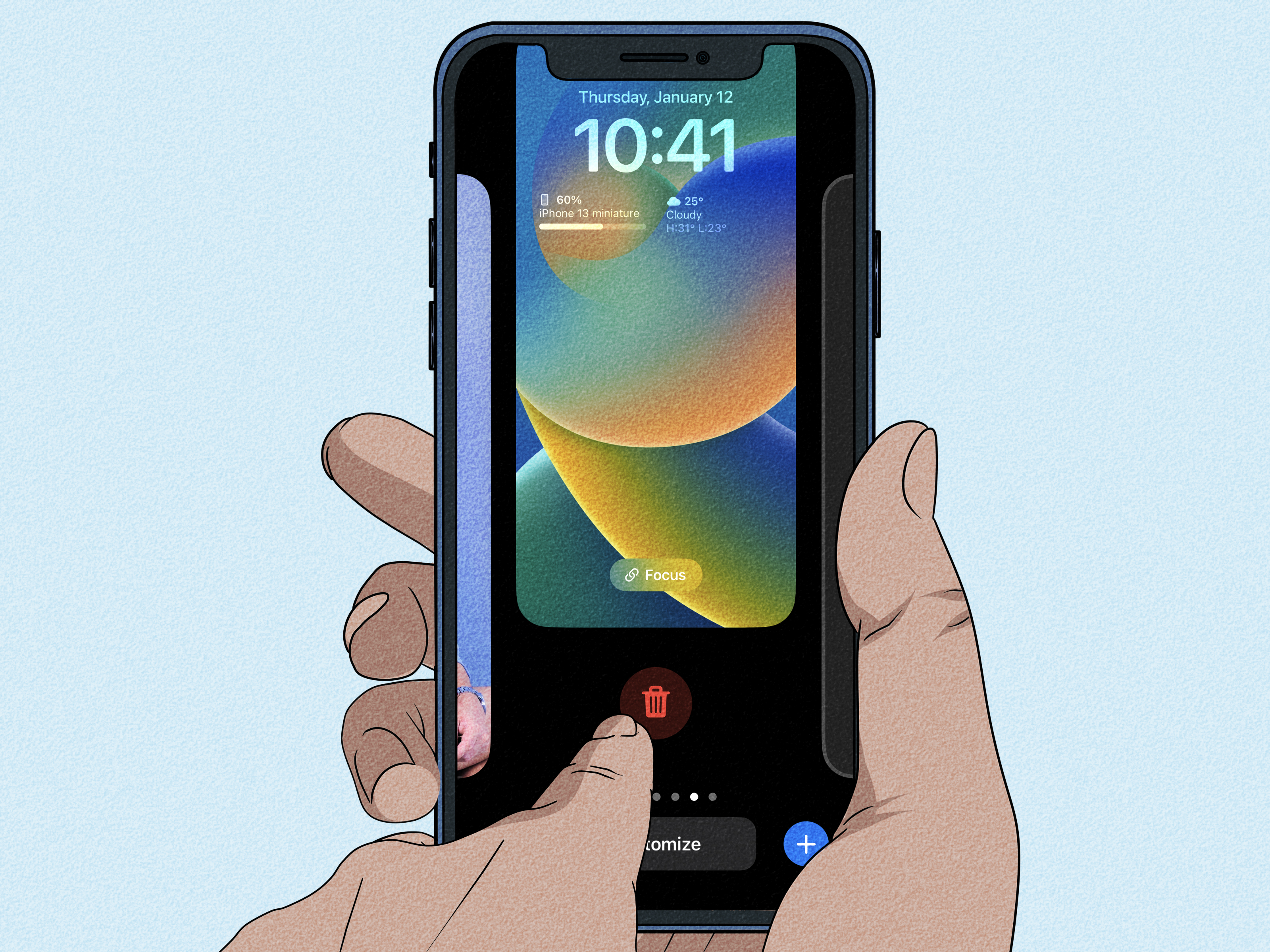
If your iPhone Lock Screen looks like it has been through a wallpaper shopping spree, you are not alone. iOS 16 made the Lock Screen more customizable than ever, which is great until you realize you now have five nearly identical wallpapers, three accidental emoji backgrounds, and one dramatic photo of your cat that seemed like a good idea at 1:00 a.m. The good news is simple: deleting a Lock Screen wallpaper on iOS 16 is quick once you know where Apple hid the magic button.
The slightly confusing part is that you do not delete Lock Screen wallpapers from the usual Settings > Wallpaper page. In iOS 16 and later, Apple manages saved Lock Screens through the Lock Screen wallpaper gallery. That is where you swipe through your saved designs, customize them, link them to Focus modes, and delete the ones you no longer want. Think of it like cleaning out a digital closet, except instead of old hoodies, you are throwing away wallpaper combinations.
This guide walks you through exactly how to delete Lock Screen wallpaper on iOS 16 in four easy steps. You will also learn what happens after deleting a wallpaper, why the trash icon may not appear, how this differs from deleting a photo in the Photos app, and what to do if your iPhone seems determined to keep a wallpaper you clearly want gone.
What Changed With Lock Screen Wallpapers in iOS 16?
Before iOS 16, changing wallpaper on an iPhone was mostly a one-wallpaper-at-a-time situation. You picked a Lock Screen image, maybe matched it with your Home Screen, and moved on with your life. iOS 16 changed that by introducing a more flexible Lock Screen experience. Users can create multiple Lock Screen setups, each with its own wallpaper, clock style, widgets, filters, and even Focus mode connection.
That flexibility is helpful. You can have a clean work Lock Screen, a colorful weekend Lock Screen, a fitness layout with activity widgets, or a family photo setup that appears when a personal Focus is active. But with more options comes more clutter. After a few experiments, the wallpaper gallery can become a tiny museum of decisions you no longer support.
Deleting unused wallpapers keeps the gallery easier to manage. It also prevents you from swiping through old designs every time you want to switch to a different Lock Screen. The process is not difficult, but it is easy to miss because the delete option only appears after you open the Lock Screen gallery and swipe up on a saved wallpaper.
How to Delete Lock Screen Wallpaper on iOS 16: 4 Easy Steps
Follow these steps on any iPhone running iOS 16 or later. The process works for wallpapers made from photos, colors, emoji patterns, Weather, Astronomy, Photo Shuffle, and other saved Lock Screen styles.
Step 1: Go to Your Lock Screen
Press the Side button on your iPhone to wake the screen and show the Lock Screen. You do not need to open the Settings app. In fact, for deleting a saved Lock Screen wallpaper, Settings is not the main place to be. Apple keeps the delete option inside the Lock Screen gallery.
Make sure you are actually on the Lock Screen, not the Home Screen. If your iPhone is already unlocked and you are looking at your apps, swipe down from the top center of the screen to return to the Lock Screen view. This is the starting point for opening the wallpaper gallery.
Step 2: Touch and Hold the Lock Screen
Touch and hold an empty area of the Lock Screen. Try pressing somewhere that is not directly on a notification, widget, or button. After a moment, your iPhone should zoom out and show the wallpaper gallery.
Depending on your security settings, your iPhone may ask you to authenticate with Face ID, Touch ID, or your passcode. This is normal. Apple does not want random pocket activity deleting your wallpapers, which is reasonable because pockets already cause enough chaos.
Step 3: Find the Wallpaper You Want to Delete
Once the wallpaper gallery opens, swipe left or right to browse through your saved Lock Screen wallpapers. Each card represents a saved Lock Screen setup. Look carefully before deleting because each wallpaper may include more than just a background image. It may also include widgets, clock styling, filters, and a linked Focus mode.
When you find the Lock Screen wallpaper you want to remove, stop on that card. Do not tap Customize unless you want to edit it. For deletion, you need a different gesture: swipe up on the wallpaper card.
Step 4: Swipe Up, Tap the Trash Icon, and Confirm
Swipe up on the wallpaper card you want to delete. A trash icon should appear. Tap the trash icon, then tap Delete This Wallpaper to confirm.
That is it. The saved Lock Screen wallpaper is removed from your wallpaper gallery. Your iPhone will return to another available Lock Screen, usually the one next to it in your gallery. If you deleted the wrong one, there is no instant “undo” button, so take one extra second before confirming. Your future self will appreciate the restraint.
Does Deleting a Lock Screen Wallpaper Delete the Original Photo?
In most cases, deleting a Lock Screen wallpaper does not delete the original photo from your Photos app. It removes the saved wallpaper setup from the Lock Screen gallery. If you used a picture of your dog, your vacation, your lunch, or your mysteriously photogenic coffee, that original image should still remain in Photos unless you delete it separately.
This distinction matters. A Lock Screen wallpaper is a design setup. A photo is an image file. The wallpaper can use the photo, crop it, apply a filter, add depth effects, and pair it with widgets. Deleting the wallpaper removes that design setup, not necessarily the source photo.
If your real goal is to remove the image entirely from your iPhone, open the Photos app, find the image, tap the trash icon, and delete it there. After that, you may also need to clear it from Recently Deleted if you want it removed more permanently. But if you only want to clean up the Lock Screen gallery, deleting the wallpaper is enough.
Why You Might Want to Delete Old Lock Screen Wallpapers
There are plenty of good reasons to remove saved wallpapers on iOS 16. The most obvious one is clutter. If you tested several wallpapers when iOS 16 first arrived, your gallery may now include half-finished experiments. A clean wallpaper gallery makes it easier to switch between the Lock Screens you actually use.
Another reason is privacy. Your Lock Screen is visible before your phone is fully opened. If a wallpaper shows a personal photo, location, family member, school, workplace, travel memory, or other private detail, you may decide you no longer want it appearing on the front of your device. Deleting that Lock Screen setup is a quick way to tidy both your phone and your privacy.
You may also want to remove wallpapers connected to old Focus modes. For example, maybe you created a “Study” Lock Screen with calendar widgets and a serious-looking background, but now it feels less “productive student” and more “motivational poster in a dentist’s waiting room.” Delete it, make a better one, and move on.
What to Do If the Trash Icon Does Not Appear
If you swipe up and do not see the trash icon, first make sure you are in the Lock Screen wallpaper gallery. You should see your wallpaper as a card, with options like Customize or a plus button nearby. If you are simply swiping on the normal Lock Screen, you will not see the delete option.
Next, check that your iPhone is unlocked or authenticated. The Lock Screen gallery usually requires Face ID, Touch ID, or a passcode before you can make changes. If authentication fails, lock the phone, wake it again, and try opening the gallery once more.
Also make sure you are swiping up on the wallpaper card itself, not on a notification or widget area. The gesture is small but specific. Touch the wallpaper preview card, swipe upward, and wait for the trash icon to appear.
If the problem continues, restart your iPhone. A simple restart can fix temporary interface glitches. If you are on an early iOS 16 version, updating to a newer iOS release may also help because Apple has refined the wallpaper system over time.
Can You Delete Lock Screen Wallpaper From Settings?
This is where many iPhone users get mildly betrayed by their instincts. The Settings app lets you add, change, and customize wallpapers, but the delete workflow for saved Lock Screen wallpapers is centered on the Lock Screen gallery. In plain English: if you are looking for a big “Delete Wallpaper” button inside Settings > Wallpaper, you may end up staring at your screen like it owes you money.
For iOS 16 and later, the fastest route is still: go to the Lock Screen, touch and hold, authenticate, find the wallpaper, swipe up, tap the trash icon, and confirm. Once you memorize that flow, deleting wallpapers takes only a few seconds.
How Deleting a Wallpaper Affects Focus Modes
iOS 16 allows users to link specific Lock Screens to Focus modes such as Work, Personal, Sleep, or Do Not Disturb. If you delete a Lock Screen wallpaper connected to a Focus mode, that visual setup is removed from your gallery. The Focus mode itself is not deleted. Your Work Focus, Sleep Focus, or Personal Focus will still exist in Settings.
However, the deleted Lock Screen will no longer be available as the visual face of that Focus. If you still want that Focus to have a custom Lock Screen, create a new wallpaper and link it again. This is useful when your schedule changes, your style changes, or you finally admit that the neon-green “Work Mode” wallpaper was a bit intense for 8:00 a.m.
How to Create a Cleaner Wallpaper Setup After Deleting
After removing old wallpapers, consider keeping only a few useful Lock Screens. For most people, three to five well-planned setups are easier to manage than twelve random experiments. A simple setup might include one everyday wallpaper, one work or study wallpaper, one sleep-friendly wallpaper, and one fun personal wallpaper.
Use widgets carefully. Lock Screen widgets are helpful, but too many can make the screen feel crowded. A weather widget, calendar widget, or battery widget may be useful. A giant collection of widgets can turn your Lock Screen into a tiny dashboard that demands attention every time you check the time.
Choose photos that work well with the clock and notification layout. Portrait-style photos often look great because the subject can stand out, while busy images may make the time harder to read. If readability matters, a simple color background or softly blurred photo can be better than a high-detail image.
Common Mistakes When Deleting iOS 16 Wallpapers
Mistake 1: Looking Only in the Settings App
Settings is useful for changing wallpaper, but it is not the easiest place to delete saved Lock Screen designs. Use the Lock Screen gallery instead.
Mistake 2: Tapping Customize Instead of Swiping Up
The Customize button edits a wallpaper. It does not delete it. To delete, swipe up on the wallpaper card and tap the trash icon.
Mistake 3: Forgetting That a Wallpaper May Be Linked to Focus
If a wallpaper is attached to a Focus mode, deleting it removes that Lock Screen setup. The Focus mode remains, but the visual connection may need to be recreated.
Mistake 4: Assuming the Original Photo Is Gone
Deleting the wallpaper usually removes only the Lock Screen setup. If you want to delete the original image, remove it from the Photos app separately.
Quick Troubleshooting Checklist
- Make sure your iPhone is running iOS 16 or later.
- Open the wallpaper gallery from the Lock Screen, not only from Settings.
- Authenticate with Face ID, Touch ID, or passcode when prompted.
- Swipe left or right to find the correct wallpaper card.
- Swipe up on the card to reveal the trash icon.
- Tap Delete This Wallpaper to confirm.
- Restart your iPhone if the gallery does not respond normally.
Experience Notes: What It Feels Like to Delete Lock Screen Wallpaper on iOS 16
The first time many users try to delete a Lock Screen wallpaper on iOS 16, the experience feels oddly hidden. You know the wallpaper exists. You can see it. You can customize it. You can switch to it. But the delete button is not waving hello from a familiar menu. Instead, it waits behind a swipe-up gesture, which is very Apple: elegant once you know it, invisible until you do.
In daily use, the process becomes much easier after one or two tries. The best trick is to think of each Lock Screen like an Apple Watch face. You open the gallery, swipe through your saved designs, and remove the ones you no longer need. Once that mental model clicks, the feature makes sense. The Lock Screen is no longer just a single background; it is a collection of mini setups.
One practical experience is that deleting old wallpapers can make your iPhone feel more organized immediately. Even though wallpapers do not usually take over your storage in a dramatic way, they do affect how cluttered the phone feels. When you long-press the Lock Screen and see only the designs you actually use, the whole system feels calmer. It is the digital equivalent of clearing old screenshots from your camera roll, except with less guilt about why you took 47 pictures of a restaurant menu.
Another useful habit is reviewing wallpapers after big life or schedule changes. If you created a Lock Screen for a trip, school term, job, fitness goal, or special event, it may not need to stay forever. Deleting it does not erase the memory; it just removes the daily reminder from your phone. Your Lock Screen should fit your current life, not act as a museum exhibit titled “Things I Was Doing Six Months Ago.”
The Focus mode connection is also worth checking. Some users delete a wallpaper and later wonder why a Focus no longer shows the expected background. That is because the wallpaper setup was part of the Focus experience. If you rely on visual cues, such as a dark wallpaper for Sleep Focus or a clean layout for Work Focus, recreate the connection after deleting an old design.
For people who enjoy customization, the biggest lesson is to experiment freely but clean up regularly. iOS 16 makes it easy to create wallpapers from photos, emoji, colors, Weather, Astronomy, and Photo Shuffle. That creative freedom is fun, but not every experiment deserves permanent residency. Try new designs, keep the useful ones, and delete the rest before your wallpaper gallery starts looking like a digital junk drawer.
Finally, remember that deleting a Lock Screen wallpaper is not a dangerous move as long as you know what it affects. It removes the saved wallpaper setup, including its style and widgets, but it usually does not delete the original photo. That makes it safe to clean up your gallery without worrying that your favorite picture has vanished into the tech void. The tech void has enough already.
Final Thoughts
Learning how to delete Lock Screen wallpaper on iOS 16 is mostly about knowing where to look. The delete option lives in the Lock Screen wallpaper gallery, not in a giant obvious button inside Settings. Once you open the gallery, the steps are simple: touch and hold the Lock Screen, authenticate, find the wallpaper, swipe up, tap the trash icon, and confirm.
With a cleaner wallpaper gallery, your iPhone becomes easier to personalize and less annoying to navigate. Keep the Lock Screens that serve a purpose, delete the ones that no longer fit, and let your phone look like it belongs to your current self instead of your experimental wallpaper era.
Note: This article is based on verified iOS 16 and later wallpaper behavior from Apple guidance and reputable technology explainers. Interface labels may vary slightly by iOS version, region, or device model, but the core deletion flow remains the same for iOS 16 and later.