

If you came here hoping for a giant red button labeled Delete That Weird Messenger Contact Forever, I have news: Messenger likes to keep things interesting. On an iPhone or iPad, “Messenger contacts” can mean a few different things. Sometimes it means people from your phone’s address book that were uploaded to Meta. Sometimes it means a chat thread. Sometimes it means a Facebook friend. And sometimes it means a contact card living quietly in your iPhone, waiting to reappear like a movie villain in the sequel.
The good news? You can clean things up. You just need to use the right method for the type of contact you’re dealing with. In this guide, I’ll walk you through exactly how to delete Messenger contacts on an iPhone or iPad, how to stop contact syncing, how to remove stubborn entries that keep coming back, and what to do if you really just want someone to vanish from your screen like a magician with good boundaries.
Note: Messenger menus can vary slightly by app version. If you don’t see the exact wording below, look for similar options such as People, Phone Contacts, Upload Contacts, Manage Contacts, or Privacy.
Why Deleting Messenger Contacts Is More Confusing Than It Should Be
Before you start tapping wildly, it helps to know what you’re removing. In Messenger, there are usually four different things people call a “contact”:
- An uploaded phone contact that you synced from your iPhone or iPad.
- A conversation thread in Messenger.
- A Facebook friend or Messenger profile you can still message.
- An actual contact card saved in the Apple Contacts app.
That distinction matters because deleting one does not always delete the others. You can remove a chat without removing the person. You can delete a phone contact and still see an old Messenger thread. You can block someone in Messenger and still have their number saved in Contacts. In other words, this is not one problem. It is a small family of problems wearing the same sweater.
Method 1: Delete Uploaded Contacts from Messenger
If Messenger pulled in people from your phone’s address book, this is usually the method you want. It removes the synced contact data that Meta uploaded from your device.
How to turn off contact syncing first
- Open Messenger on your iPhone or iPad.
- Tap your profile picture or the Menu tab.
- Look for Phone Contacts, People, or Upload Contacts.
- Turn off Upload Contacts or Continuous Contacts Upload.
This step matters. If you skip it, the contacts you delete may sync right back later like they own the place.
How to remove the uploaded contacts
- In Messenger, go back to the same contact-sync area.
- Tap Manage Contacts.
- Choose Delete All Contacts, if that option appears.
- Confirm the deletion.
On some versions, Messenger may push you toward the Facebook app or Meta’s broader settings. If that happens, try this route instead:
- Open the Facebook app.
- Tap Menu.
- Go to Settings & Privacy > Settings.
- Open Accounts Center.
- Tap Your Information and Permissions.
- Tap Upload Contacts.
- Review and remove uploaded contacts.
If your real goal is to keep Messenger from suggesting people from your address book, this is the cleanest fix. It is also the best move if you care about privacy and don’t want every old coworker, former roommate, or mysterious pizza place saved in your phone becoming part of your social orbit.
Method 2: Delete the Contact from Your iPhone or iPad
If the person is saved in Apple’s Contacts app, deleting them there can remove the source of the problem. This is especially helpful when Messenger is simply displaying information that came from your device.
How to delete one contact
- Open the Contacts app, or open Phone and tap Contacts.
- Tap the contact you want to remove.
- Tap Edit.
- Scroll down and tap Delete Contact.
- Tap Delete Contact again to confirm.
That removes the contact from your device. But if the contact came from iCloud, Gmail, Outlook, Yahoo, or another synced account, the change can affect every device using that account. So yes, deleting your old dentist from your iPad may also remove them from your iPhone, your Mac, and your spiritual sense of continuity.
If the contact keeps coming back
This usually means the contact belongs to a synced account, not just your local device. Here’s how to deal with that:
- Open Settings.
- Tap Apps.
- Tap Contacts.
- Tap Contacts Accounts.
- Select the account that keeps restoring the contact.
- Turn off Contacts, or tap Delete Account if you want that account removed from your device.
If the contact is managed by a third-party provider app, you may not be able to edit it directly in Apple Contacts. In that case, you’ll need to remove it in the source app or account first.
Method 3: Delete the Messenger Chat
Sometimes you don’t actually care whether the contact exists in the background. You just want the conversation gone because every time you open Messenger, there it is, staring back at you like an unpaid bill.
Deleting the chat is fast, but it does not necessarily remove the person from Messenger entirely.
How to delete a Messenger conversation
- Open Messenger.
- Go to Chats.
- Tap and hold the conversation you want to remove.
- Tap Delete.
- Confirm the deletion.
If you’re not ready to delete it, you can also archive the chat instead. That hides the conversation from your main inbox without permanently removing it. Think of it as placing the chat in a polite digital closet.
Method 4: Block or Restrict Someone in Messenger
If you can’t delete a person as a contact the way you’d delete a phone number, blocking or restricting them is often the closest practical substitute.
How to block someone in Messenger
- Open Messenger.
- Open the conversation with the person.
- Tap their name at the top of the chat.
- Scroll down and tap Block.
- Choose the blocking option that fits your situation.
- Confirm your choice.
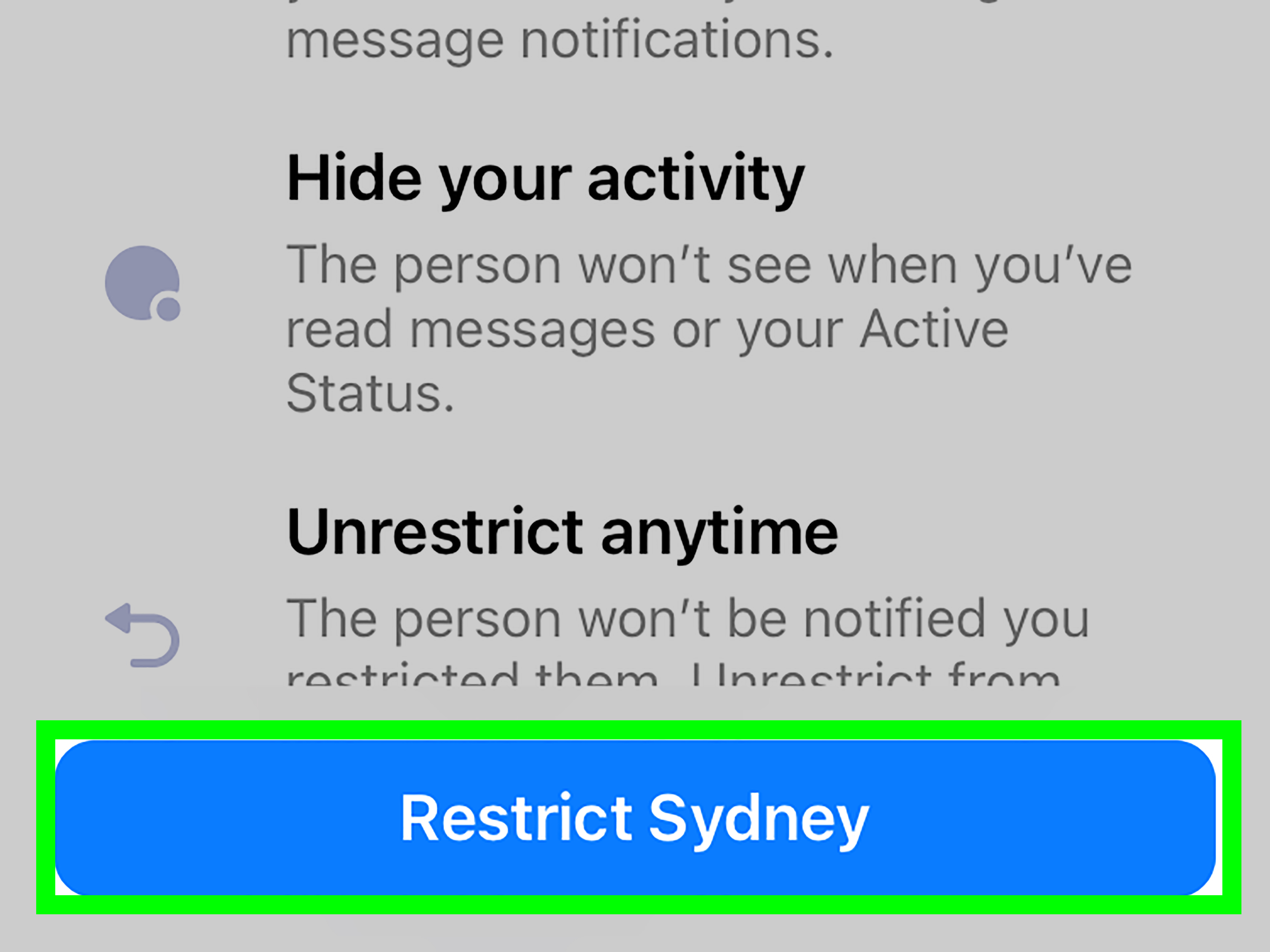
Blocking is best if you don’t want calls or messages from that person. If you want something less dramatic, try Restrict instead. Restricting is like saying, “I would prefer not to make this a whole thing, but I also don’t want you at the front of my inbox.”
Method 5: Remove the Person as a Facebook Friend
If the contact is appearing because they are still connected to you through Facebook, unfriending them can help reduce how visible they are across Meta’s ecosystem. This won’t always erase the Messenger history, but it can make future interactions less direct.
This step is especially useful if you deleted their phone number, removed the chat, and they still feel oddly present. At that point, the issue may be your Facebook relationship, not your iPhone contact list.
What to Do When Messenger Contacts Won’t Disappear
This is where most people get frustrated. You delete something. It looks gone. You breathe a sigh of relief. Then the next day, boom, the contact is back like they pay rent.
Here are the most common reasons that happens:
1. Contact syncing is still on
If Messenger or Facebook still has permission to upload contacts, the deleted names may be re-imported.
2. The contact belongs to another account
You may have iCloud, Gmail, Exchange, or another account all feeding contacts into your device.
3. You only deleted the chat
Deleting a conversation removes the thread, not the actual saved contact or Messenger profile.
4. The profile still exists in Facebook or Messenger
If the person is still a Facebook friend or has an active profile, you may still be able to search for them even after cleanup.
5. The contact is read-only from a provider app
Some contacts are managed by the source service, so you need to edit or remove them there first.
How to Clean Up Messenger Contacts the Smart Way
If you want the shortest possible path to a cleaner Messenger app, use this order:
- Turn off contact uploading in Messenger or Facebook.
- Delete uploaded contacts from Meta’s contact manager.
- Delete the contact from Apple Contacts if it still exists on your device.
- Remove or disable the account that keeps restoring the contact.
- Delete or archive the Messenger chat.
- Block or restrict the person if you want them out of sight and out of your life.
It sounds like a lot, but in practice it only takes a few minutes. Most stubborn contact issues come from skipping step one or forgetting that the contact is synced from somewhere else.
Privacy Tips for Messenger on iPhone and iPad
Let’s be honest: a lot of people don’t realize how much contact data social apps can collect until they suddenly see half their old address book popping up as suggestions. If you want fewer surprises, try these habits:
- Review which apps can access your contacts.
- Turn off contact upload unless you truly need it.
- Delete unused contact accounts from your device.
- Archive or delete old Messenger chats regularly.
- Use block or restrict features instead of keeping unwanted chats around.
A tidy Messenger inbox is nice. A tidy privacy setup is even nicer.
Final Thoughts
If you were searching for how to delete Messenger contacts on an iPhone or iPad, the most important thing to know is this: there isn’t usually one simple “delete contact” button inside Messenger for every situation. Instead, you need to match the fix to the source. Remove uploaded contacts if they came from sync. Delete the Apple contact if it lives in your address book. Delete the chat if it’s just clutter. Block or restrict the person if you want real distance.
Once you understand that, the whole process gets much less annoying. Well, less annoying than Messenger’s menu changes, anyway. That part may remain a character-building exercise.
Experiences and Real-Life Situations Related to Deleting Messenger Contacts on an iPhone or iPad
One of the most common experiences people have with Messenger contacts is realizing that the person they want gone is not actually saved in just one place. Maybe you delete the number from your iPhone and feel accomplished for about seven minutes, only to open Messenger later and see the same name floating around in suggestions or old chats. That usually leads to the classic thought: “Did I delete this, or did this app simply decide my choices were decorative?” If that sounds familiar, you are very much not alone.
Another common situation happens after changing jobs. Your phone is full of old coworkers, former clients, and people whose names trigger memories of meetings that should have been emails. You clean out your Contacts app, but Messenger still seems determined to preserve your corporate archaeology. In those cases, the issue is often contact syncing. Messenger or Facebook may have already uploaded your address book, so deleting the iPhone contact is only half the battle. You have to turn off syncing and remove the uploaded contacts too, otherwise the digital ghosts remain employed indefinitely.
Then there’s the relationship-cleanup scenario, and yes, this one deserves its own paragraph. Sometimes the goal is not technical tidiness. Sometimes the goal is emotional tidiness with excellent Wi-Fi. You may want to remove an ex, an old friend, or someone you no longer talk to. Deleting the chat can help if you just don’t want to see the conversation. Blocking is better if you do not want messages or calls. Deleting the Apple contact helps if their number still sits in your address book like a relic from a chapter you are done rereading. The key is choosing the level of removal that matches the level of “I’m over this.”
Shared family devices create another mess. An iPad used by multiple people can end up with a strange cocktail of contacts, synced accounts, and app permissions. One person logs into Facebook, another adds a Gmail account, and suddenly Messenger looks like it is hosting a reunion no one planned. In that case, cleaning up individual contacts may not solve much until you review which accounts are feeding contacts into the device. Once you trim the contact accounts and turn off uploads, the chaos usually settles down.
There is also the surprisingly common “why is this unreadable contact still here?” problem. Sometimes a contact appears as read-only because it comes from another service. That can make people think their iPhone is broken, when really the device is just reflecting information from a provider app or account. Once they find the source, everything starts making sense again. Not fun sense, but still sense.
In the end, most experiences around deleting Messenger contacts come down to one lesson: what looks like one contact is often connected to several systems at once. Once users realize that Messenger, Facebook, Apple Contacts, and synced accounts can all overlap, the cleanup process becomes much easier. Slightly annoying? Sure. Impossible? Not at all.