

So, your Android phone and Netflix are having a little disagreement. You tap “Install,” expecting movie-night magic, and instead Google Play says the app is not compatible with your device. Rude? A little. Common? Absolutely. If you are trying to figure out how to download older versions of Netflix on Android, the good news is that it can be done in some cases. The better news is that you can do it without turning your phone into a malware piñata.
This guide explains when an older Netflix APK makes sense, when it does not, how to install one safely, and what to try before you go hunting through version archives like a digital archaeologist with popcorn.
Why Would Anyone Need an Older Version of Netflix on Android?
The most common reason is compatibility. Android apps are updated constantly, and newer Netflix versions may require newer Android features, updated Google Play services, stronger security certification, or newer device hardware. If your phone or tablet is older, rooted, uncertified, running a custom ROM, or stuck on an outdated Android version, the newest Netflix app may not appear in Google Play at all.
Another reason is performance. Some users find that a newer app version runs slowly, crashes, drains battery, or refuses to load on older devices. In those cases, rolling back to a previous version can feel like giving an old phone a cup of coffee. It may not become a flagship device overnight, but it might stop wheezing every time you open the app.
There is also the “I just want it to work” reason, which is probably the most honest reason of all. Maybe your tablet lives on a kitchen counter and only plays Netflix while you cook. Maybe your backup phone is now your bedside streaming device. If the hardware still works, it makes sense that you want the app to work too.
Start With the Official Netflix App First
Before downloading an older Netflix APK, check the official route. Open the Google Play Store, search for Netflix, and try to install or update it there. On some Samsung devices, you may also be able to find Netflix through the Galaxy Store. On Amazon Fire tablets, Netflix may be available through Amazon’s app ecosystem.
This matters because official stores are safer, easier, and better at matching the correct app build to your device. They also handle updates automatically. If Netflix installs from an official app store, use that version. It is the cleanest path, the least dramatic path, and usually the path that does not require you to explain to a family member why the tablet now has three different “Download Manager Pro Ultra” apps installed.
When an Older Netflix APK Might Help
An older Netflix APK can help when your Android device cannot install the current version but still supports a previous version. APK stands for Android Package Kit, which is the file format Android uses to install apps outside a regular app store. Installing an APK manually is often called sideloading.
Older versions may be useful if:
- Your Android version is too old for the latest Netflix app.
- Google Play says “Your device isn’t compatible with this version.”
- The latest Netflix update crashes or freezes on your device.
- You are using an older tablet mainly for streaming.
- The app disappeared from the Play Store on your device.
However, an older Netflix app is not a magic wand. If Netflix no longer supports your Android version, your device lacks required DRM support, your device is uncertified, or your current Netflix plan is not supported by that older app version, installing an old APK may not solve the problem. In some cases, the app may install successfully but fail when you sign in, play video, or download titles for offline viewing.
Important Safety Warning Before Downloading Older Netflix APKs
Here is the part where we put on the responsible-adult hat. Downloading APK files from random websites is risky. A fake Netflix APK can look convincing, use the familiar red logo, and still contain malware, spyware, aggressive ads, or credential-stealing code. That is not streaming. That is a horror movie, and you are the plot.
Only download APK files from sources with a strong reputation for preserving original app signatures and scanning uploads. Avoid websites that promise “modded Netflix,” “free premium Netflix,” “unlocked Netflix,” or “no subscription Netflix.” Those are not older versions of Netflix. They are red flags wearing neon jackets.
A legitimate Netflix APK should still require your real Netflix account and subscription. If a site claims it can unlock Netflix without payment, leave immediately. Aside from being illegal or against terms of service, those files are frequently unsafe.
How to Download Older Versions of Netflix on Android Safely
Step 1: Check Your Android Version
Go to Settings > About phone or Settings > About tablet. Look for your Android version. Write it down. This matters because APK archives often list minimum Android requirements. If your device runs Android 6, for example, an APK requiring Android 8 or newer will not install. Trying over and over will not change physics, software requirements, or your tablet’s feelings.
Step 2: Check Whether Your Device Is Play Protect Certified
Open the Google Play Store, tap your profile icon, go to Settings > About, and check Play Protect certification. If your device is not certified, Netflix may not install or work properly even if you find an older APK. This is especially common on rooted devices, custom ROMs, imported devices without full Google certification, or devices with modified system software.
Step 3: Uninstall the Current Netflix App
If Netflix is already installed and you want to roll back, uninstall the current version first. Go to Settings > Apps > Netflix > Uninstall. If Netflix came preinstalled and cannot be fully removed, tap Disable or Uninstall updates if available.
This step is important because Android usually will not install an older version over a newer version. Think of it like trying to put yesterday’s sandwich on top of today’s sandwich and calling it dinner. Android is not impressed.
Step 4: Choose a Trusted APK Archive
Search for older Netflix versions from a reputable APK archive that clearly identifies the developer as Netflix, Inc., shows version numbers, lists upload dates, and checks app signatures. APKMirror is one commonly used archive because it displays version histories and says it verifies cryptographic signatures for uploaded apps. That does not make sideloading risk-free, but it is much safer than downloading from a mystery site with twelve blinking download buttons.
When choosing a file, look for:
- The developer name: Netflix, Inc.
- A clear version number and build number.
- The correct architecture, such as arm64-v8a, armeabi-v7a, or universal.
- The minimum Android version requirement.
- No words like mod, cracked, unlocked, patched, or premium.
Step 5: Pick the Right Netflix Version
Do not automatically choose the oldest version available. Start with a version only slightly older than the latest one. If that fails, move backward gradually. Newer versions usually contain security fixes, bug fixes, and compatibility improvements. The goal is not to travel back to the Stone Age of streaming. The goal is to find the newest version your device can actually run.
If your device is very old, you may need to test several versions. Download one APK at a time. Keep notes. If version 8.x installs but crashes, and version 7.x works, congratulations: you have become your own tiny IT department.
Step 6: Allow Installation From Unknown Sources
Android blocks app installs from outside official stores unless you grant permission. On newer Android versions, permission is usually granted per app. For example, if you download the APK through Chrome, Android may ask you to allow Chrome to install unknown apps.
Go to Settings > Apps > Special app access > Install unknown apps, choose the browser or file manager you used, and enable Allow from this source. On older Android versions, the setting may appear under Security > Unknown sources.
After installing Netflix, turn that permission off again. Leaving it enabled is like leaving your front door unlocked because you ordered pizza once.
Step 7: Install the APK
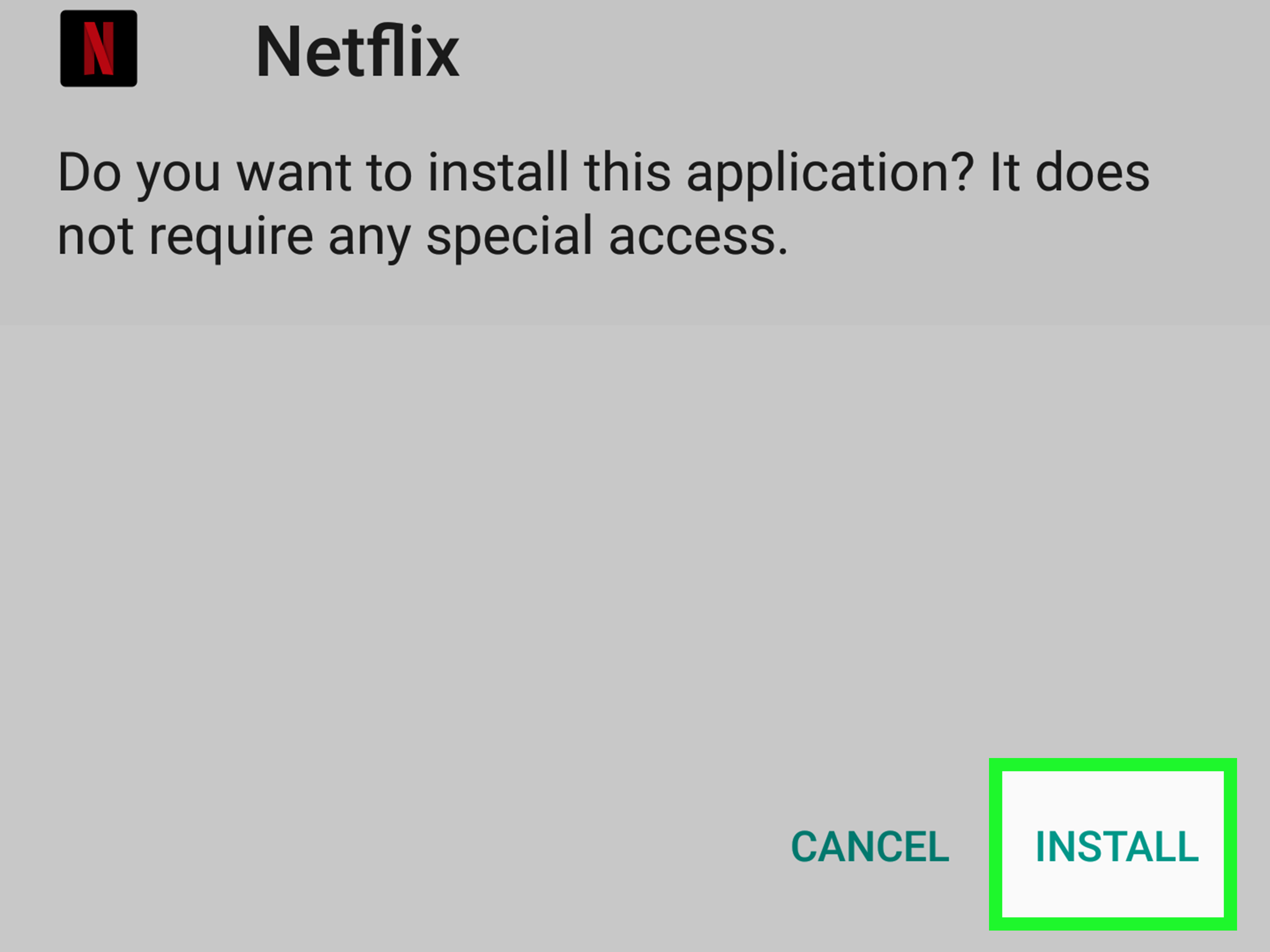
Open your Downloads folder or file manager, tap the Netflix APK, and follow the installation prompts. If Android warns that the file may be unsafe, stop and reconsider the source. If Google Play Protect blocks the app, do not casually ignore the warning unless you are absolutely sure the APK is legitimate and unmodified.
Once installed, open Netflix, sign in, and test playback. Do not judge success only by whether the app opens. Play an actual title for a few minutes. Test subtitles, downloads, profiles, and casting if you use them.
Common Problems and Fixes
“App Not Installed”
This usually means the APK is incompatible, corrupted, blocked by Android, or signed differently from the installed version. Uninstall any existing Netflix app first. Then download a different APK variant that matches your Android version and device architecture.
“There Was a Problem Parsing the Package”
A parse error usually means your Android version is too old for that APK, the download is incomplete, or the file is damaged. Download the file again or choose an older Netflix version with a lower minimum Android requirement.
Netflix Opens but Video Will Not Play
This may be related to DRM, device certification, the Netflix plan, or an unsupported Android version. Older apps may still install but fail during playback because streaming video depends on more than the app interface. Netflix uses device security systems to protect licensed content, and older or modified devices may not pass those checks.
The App Says the Plan Is Not Compatible
If Netflix displays a message saying your current plan is not compatible with an older version of the app, updating Android or using a supported device may be necessary. In that case, rolling back the app will not solve the issue. The fix is not “older APK harder.” The fix is a supported app-device-plan combination.
Should You Disable Auto-Updates?
If you successfully install an older Netflix version, Google Play may try to update it automatically. To prevent this, open Netflix in the Play Store if it appears there, tap the three-dot menu, and turn off auto-update for that app. You can also disable auto-updates globally, but that is usually overkill. Other apps still need security updates, and nobody wants a phone full of digital antiques.
Remember that using an older app long-term has trade-offs. You may miss security improvements, bug fixes, new Netflix features, interface changes, and support for newer playback systems. Treat an older Netflix APK as a practical workaround, not a permanent lifestyle brand.
Safer Alternatives to Installing an Older Netflix APK
Before you commit to sideloading, try these options:
- Update Android if your device has a system update available.
- Restart your phone or tablet and try the official Netflix app again.
- Clear the Google Play Store cache and Google Play services cache.
- Check Play Protect certification in the Play Store settings.
- Try installing Netflix from the Samsung Galaxy Store on supported Samsung devices.
- Use Netflix in a browser if your device supports browser playback.
- Use a newer streaming device, Chromecast, smart TV, or tablet.
Sometimes the cheapest fix is not forcing an old tablet to behave like a new one. A low-cost streaming stick or used newer tablet may be safer, smoother, and less annoying than repeatedly testing APK versions while muttering at your screen.
Best Practices for Staying Safe
If you decide to install an older Netflix APK, follow these rules:
- Use official app stores first.
- Download only from reputable APK archives.
- Avoid modified, cracked, or “premium unlocked” APKs.
- Keep Google Play Protect enabled.
- Check app permissions after installation.
- Turn off “install unknown apps” permission after installing.
- Do not enter your Netflix password into suspicious clones or pop-ups.
- Use a strong, unique Netflix password.
Also, be realistic. If an older APK asks for strange permissions unrelated to streaming, such as SMS access, accessibility control, contacts, or notification reading, do not install it. Netflix does not need to read your texts to recommend a baking show.
Is Downloading Older Netflix Versions Legal?
Downloading and installing an older version of the official Netflix app for your own device is different from downloading a modified or pirated app. The safer and more ethical approach is to use the official Netflix app whenever possible and sign in with a valid subscription. Avoid anything that claims to bypass payment, unlock premium features, remove account requirements, or provide free access to Netflix content.
The purpose of installing an older app should be compatibility, not piracy. That distinction matters for security, legality, and basic common sense.
Experience Notes: What It Is Really Like to Use Older Netflix Versions on Android
In real-world use, installing an older Netflix version can feel surprisingly satisfying at first. A device that was collecting dust suddenly becomes useful again. The app opens, your profile loads, the familiar Netflix sound plays, and you feel like you have outsmarted planned obsolescence with nothing but patience and a Downloads folder. It is a small victory, but small victories count, especially when they involve snacks.
That said, the experience is not always perfect. Older Netflix versions may have slower navigation, missing interface features, or limited support for downloads. Search may feel clunkier. The home screen may not refresh as quickly. Newer content categories, games, live events, or interface improvements may not appear the same way they do on a modern phone. If you are expecting the newest Netflix experience on a tablet from several Android generations ago, prepare your expectations gently. Give them a blanket. Maybe some tea.
Performance depends heavily on the device. On some older phones, a slightly older Netflix APK can reduce crashes because it uses fewer resources or matches the device’s system libraries better. On others, the app installs cleanly but playback stutters, subtitles lag, or offline downloads fail. This is why testing matters. Open a movie, play it for five to ten minutes, switch profiles, pause, resume, rotate the screen, and test Wi-Fi stability. A successful install is only step one. A watchable episode is the real test.
Battery life can also be unpredictable. Older apps on older devices may run warmer, especially during video playback. If the tablet gets hot, drains quickly, or shuts down during streaming, the app version may not be the only problem. Aging batteries, outdated processors, weak Wi-Fi chips, and limited RAM all play a role. Sometimes the “Netflix problem” is actually a “this tablet has survived three presidents and one kitchen spill” problem.
Security is the part users often underestimate. The temptation is to search quickly, tap the first download button, and hope for the best. Do not do that. APK sites often have ads that look like download buttons. Some pages may push unrelated installers. A careful user slows down, checks the developer name, reads version details, avoids suspicious labels, and scans the file through Android’s built-in protections. The boring approach is the safe approach, and boring is wonderful when your passwords are involved.
The best experience usually comes from choosing the newest older version that works, not the oldest version you can find. Think of it as stepping one rung down the ladder, not jumping into a basement. Start recent, test, then move backward only if necessary. Keep a note of the version that works so you do not have to repeat the whole treasure hunt later.
Finally, older Netflix APKs are most useful for secondary devices: a spare tablet, a travel phone, a kid’s media device, or a kitchen screen. For your main phone, the latest official version is still the better choice. It is more secure, better supported, and less likely to surprise you with login errors right when the villain is about to reveal the plan.
Conclusion
Learning how to download older versions of Netflix on Android can rescue an older phone or tablet from retirement, but it should be done carefully. Start with the official Netflix app from Google Play, the Samsung Galaxy Store, or another supported app store. If that fails because of compatibility, choose a reputable APK archive, verify that the file is from Netflix, Inc., select the newest compatible version, and keep Android security protections enabled.
An older Netflix APK can be a useful workaround, but it is not always the final answer. Device certification, Android version, DRM support, and Netflix plan compatibility can still block playback. Be patient, test carefully, and never download “modded” or “free premium” Netflix apps. The goal is simple: get Netflix working safely, not invite a suspicious APK to move into your phone and start redecorating.