

If you have ever stared at your screen and thought, “I just need the website link, why is technology suddenly acting like a raccoon in a trash can?” you are not alone. Finding the URL of a website sounds simple until you are on a phone, inside an app, dealing with a hidden address bar, or trying to copy a link that only seems to want to be mysterious. The good news is that it is usually easy once you know where to look.
This guide explains exactly how to find the URL of a website on desktop and mobile, how to copy it, how to reveal the full address when a browser hides part of it, and how to double-check that a link is the real deal before you click. Whether you are sharing a page with a friend, adding a source to an article, troubleshooting a login problem, or just trying to send your mom the correct recipe link instead of “the one with the blue picture,” this article has you covered.
What Is a URL, Exactly?
A URL stands for Uniform Resource Locator. In plain English, it is the full web address of a page, file, image, or other resource on the internet. It tells your browser where to go and what to load.
Here is a simple example:
https://www.example.com/blog/how-to-find-a-url
That address may look like one long string, but it is made of parts that each do a job.
The Main Parts of a URL
- https:// the protocol, which tells the browser how to connect
- www.example.com the domain name, or the main website name
- /blog/how-to-find-a-url the path, which points to the specific page
- ?source=email a query string, often used for tracking or search parameters
- #section2 a fragment, which jumps to a specific part of the page
A lot of people use the terms website address, link, web address, and URL interchangeably. That is fine in everyday life. But it helps to know that the domain name is just one part of the full URL. So example.com is not always the same as the entire address.
Why You Might Need to Find a Website URL
Knowing how to find a URL is surprisingly useful. You may need it to:
- Share a webpage with someone
- Cite a source in an article or report
- Bookmark a page for later
- Troubleshoot website problems
- Check whether a link looks suspicious
- Paste a page into email, chat, or social media
- Verify that you are on the correct website before logging in
In other words, finding a URL is not just a “computer nerd” skill. It is an everyday internet survival skill.
How to Find the URL of a Website on Desktop
On a desktop or laptop computer, the URL usually lives in the browser’s address bar at the top of the window. Depending on the browser, you may see the full address right away, or you may see only part of it until you click the bar.
Chrome on Desktop
- Open the webpage you want.
- Look at the address bar at the top of Chrome.
- Click once in the address bar.
- The full URL should appear.
- To copy it, press Ctrl + C on Windows or Command + C on Mac after selecting it.
You can also use Chrome’s share features if you want to send the page to another device, create a QR code, or share through another app.
Microsoft Edge on Desktop
- Open the page in Edge.
- Click the address bar.
- Select the URL if it is not already highlighted.
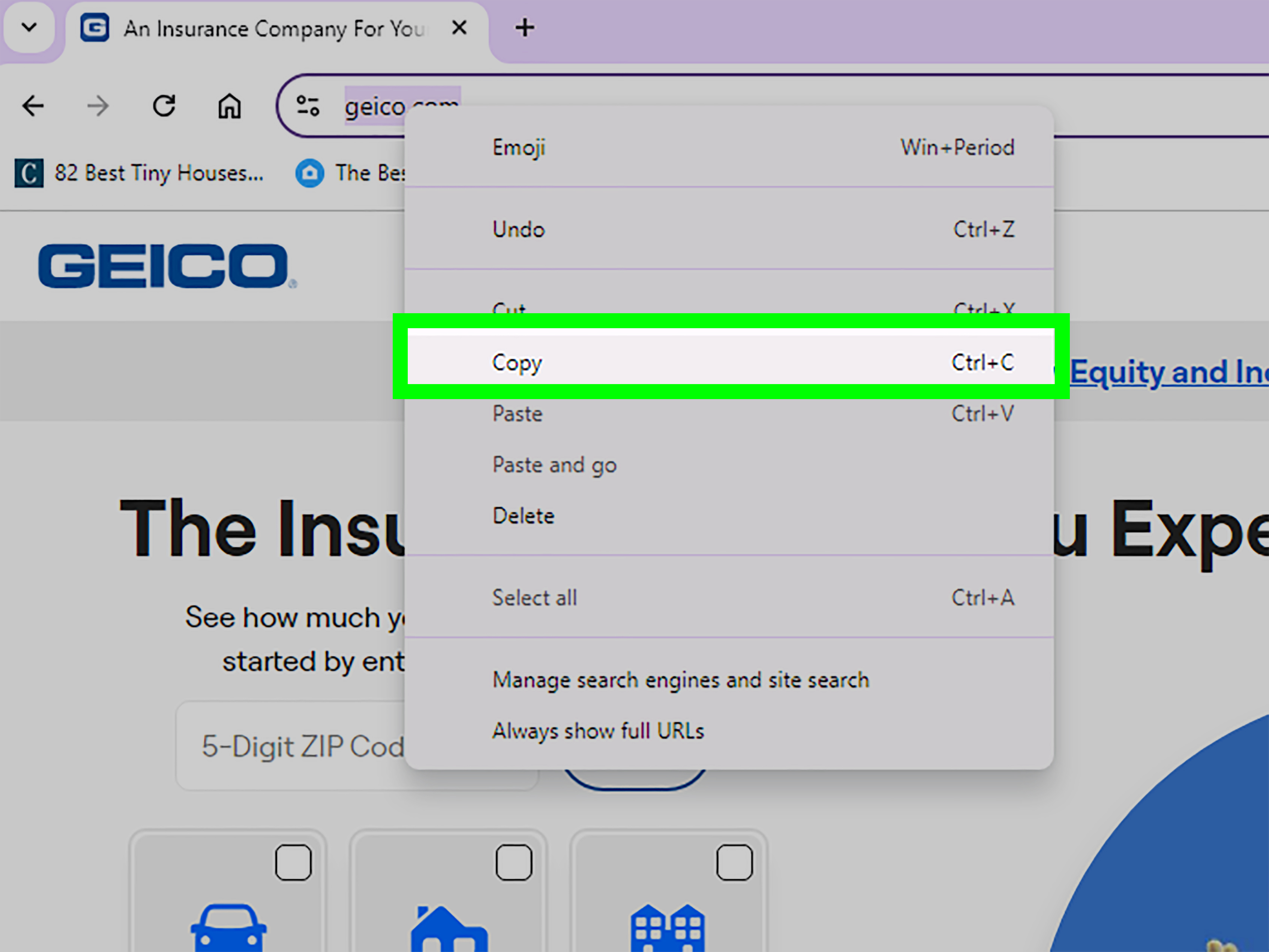
- Copy it with Ctrl + C or by right-clicking and choosing Copy.
One little Edge quirk: sometimes Edge pastes a page title as a hyperlink instead of showing the raw web address. Handy in documents, annoying when you specifically want the plain URL. If that happens, use a plain-text paste option so you get the full link itself.
Safari on Mac
Safari can be a bit classy and a bit sneaky. Sometimes it shows only the domain name instead of the full address. That is fine until you actually need the whole URL.
- Open the webpage in Safari.
- Click the Smart Search field at the top.
- The full URL should become visible.
- Copy it with Command + C.
If you want Safari to stop being coy, you can turn on the setting that shows full website addresses. You can also show the status bar so that when you hover over a link, Safari displays the full destination at the bottom of the window. That is especially helpful when checking links before clicking.
Firefox and Other Desktop Browsers
Most desktop browsers work in roughly the same way: the website URL appears in the address bar, and clicking that field reveals the full address. From there, you can select and copy it. If the address does not highlight automatically, press Ctrl + A or Command + A while your cursor is in the bar, then copy it.
How to Find the URL of a Website on iPhone and iPad
On iPhone and iPad, finding a URL is easy once you remember one important thing: the browser interface may hide itself while you scroll. In other words, the address bar is not gone. It is just playing hide-and-seek.
Safari on iPhone
- Open the webpage in Safari.
- Tap near the address bar or search field.
- The web address should appear.
- Tap the address to select it, then tap Copy.
If the toolbar is hidden, tap near the bottom or top of the screen to bring it back. You can also use Safari’s share options to send the page to Messages, Mail, Notes, or other apps.
Chrome on iPhone or iPad
- Open the page in Chrome.
- Tap the address bar.
- The full URL should be highlighted.
- Tap Copy.
Chrome also makes sharing easy from the address bar or the browser menu, which is useful if you want to send the link instead of manually pasting it.
Inside the Google App
If you are browsing through the Google app instead of a regular browser, you can still copy the page address. Open the search result, tap the menu for that page, and use the option to copy the URL. This is useful when you found a page through search and want the exact link without opening more menus than a confused tourist at a diner.
How to Find the URL of a Website on Android
Android phones are usually straightforward, especially in Chrome.
Chrome on Android
- Open the webpage in Chrome.
- Tap the address bar at the top.
- The URL will appear.
- Tap the copy icon or choose the share option.
Chrome on Android also lets you share the current page directly from the address bar or menu, which can save a step if your goal is just to send the link to someone.
Other Android Browsers
Most Android browsers follow the same pattern. Tap the address bar to reveal the full web address. If you do not immediately see copy options, tap and hold in the address field or open the browser menu and look for Copy link, Copy URL, or Share.
How to Find the URL of a Link Before You Click It
Sometimes you do not want the current page’s URL. You want to know where a link will take you before clicking it. Smart move.
On Desktop
Move your mouse pointer over the link without clicking. In many browsers, the destination URL will appear in the bottom corner of the browser window. In Safari on Mac, turning on the status bar makes this especially clear.
On Mobile
Press and hold the link. Most mobile browsers will show a preview menu with the destination address or at least the domain. This is one of the easiest ways to avoid opening a suspicious page by accident.
How to Tell Whether You Are Looking at the Full URL
Sometimes browsers shorten or simplify what you see. Here is how to know whether you are getting the real full address:
- Click or tap directly in the address bar
- Look for extra parts after the domain, such as folders or article names
- Check whether the URL begins with
https:// - Watch for added tracking text after a question mark, such as
?utm_source=... - On Safari for Mac, enable the setting to show the full website address
If all you see is something like nytimes.com, that may be only the domain. Clicking the address bar usually reveals the entire page URL.
Common Problems When Trying to Find a URL
The Address Bar Disappears on Mobile
This usually happens when you scroll down. Tap the screen near the top or bottom, and the browser controls should return.
The Link Copies as a Title Instead of a URL
This can happen in some apps and browsers, especially when they paste rich text. Use plain-text paste if you want the raw address.
You Are Inside an App Browser
Many apps open pages in a mini browser. Look for options like Open in Browser, Copy Link, or Share. Social media apps are famous for turning a simple URL hunt into a scavenger hunt.
You Only See a Shortened Link
If the URL starts with something like bit.ly or another short domain, it hides the final destination. Be cautious, especially if the source is unfamiliar.
Safety Tips When Checking a Website URL
Finding a URL is not just about sharing links. It is also a basic security habit.
- Check the domain carefully. Scam sites often use look-alike names with extra letters, swapped characters, or weird spellings.
- Look for HTTPS. A secure connection matters, though it does not guarantee the site itself is trustworthy.
- Preview links before clicking. Hover on desktop or long-press on mobile.
- Be careful with QR codes and shortened links. They can hide the destination.
- Avoid logging in through suspicious links. Type the known website address manually when in doubt.
If a URL looks even slightly off, trust your gut and double-check it. The internet is amazing, but it is also home to a shocking number of fake “urgent account alerts” that deserve an award for dramatic acting.
Best Practices for Website Owners and SEO Teams
If you publish content online, URLs matter for users and search engines. A good URL should be:
- Short enough to read comfortably
- Descriptive enough to tell users what the page is about
- Built with words instead of random strings when possible
- Organized logically within the site structure
- Easy to copy, paste, and share
For example, this is cleaner:
https://www.example.com/mobile-guide/find-website-url
Than this:
https://www.example.com/p=8394&cat=22&ref=kk29x
Clear URLs support a better user experience and can also make pages easier for search engines to understand.
Final Thoughts
Learning how to find the URL of a website is one of those small internet skills that pays off again and again. On desktop, the address bar is usually your best friend. On mobile, tapping the address field or using the share menu usually does the trick. And when a browser tries to simplify things for your “convenience,” remember that one click or tap often reveals the full address.
Once you get comfortable spotting, copying, and checking URLs, you will browse smarter, share links faster, and avoid a whole lot of accidental “Wait, why am I on this website?” moments. Which is really the modern version of personal growth.
Real-World Experiences: What People Often Run Into When Trying to Find a URL
One of the most common experiences people have is thinking the URL has somehow vanished. A student opens an article on an iPhone, scrolls for a while, then suddenly says, “The website address is gone.” It is not gone, of course. Safari or Chrome has simply hidden the toolbar to give more screen space. A quick tap on the screen brings it back, and suddenly the link reappears like it was never being dramatic in the first place.
Another very real scenario happens at work. Someone on a team chat says, “Send me the exact page, not just the homepage.” A coworker copies companysite.com, thinking that is enough, but the page they meant was actually three levels deep in the site. The result is five messages, two question marks, and one person replying, “No, the other page.” This is where clicking the address bar and copying the full URL saves the day. The tiny details after the domain matter more than people think.
Shoppers run into this too. They find a product page, want to share it, and accidentally copy a shortened app link, a tracking link, or a title instead of the real web address. Then the person receiving it opens something useless, expired, or wildly generic. It is like giving someone directions to “the store” instead of “the third aisle, left side, next to the cereal.” A clean, direct URL is much more helpful.
Parents and grandparents often have a different experience: they are careful, but not always sure what part of the address matters. They may look at a fake banking page and say, “It has the bank’s name in it, so it must be right.” But scam URLs often sneak a trusted name into a longer fake address. That is why checking the actual domain is so important. The key question is not whether the URL contains a familiar brand name somewhere. The key question is what the main domain really is.
Writers, editors, and SEO teams deal with another classic issue: copying messy URLs full of tracking parameters. You paste a link into a draft and it looks like a novel written by punctuation marks. In many cases, the page still works if you remove the tracking extras and keep the clean core URL. That makes the link easier to read, easier to share, and less likely to scare readers into thinking they just opened a secret government database.
There is also the app browser problem. You tap a link in a social media app, and suddenly you are inside a mini-browser with limited controls and a stubborn menu. The page loads, but finding the full URL feels like trying to open a pickle jar underwater. In those moments, the best move is usually to look for Open in Browser, Copy Link, or Share. Once you know those options exist, the frustration level drops fast.
The good news is that most of these experiences become much easier after a little practice. Once you understand where URLs live, how browsers reveal them, and how to verify them, you stop feeling like the internet is withholding basic information out of spite. You start moving through websites with more confidence, and honestly, that is a nice upgrade for such a tiny skill.