

If Windows had a catchphrase for this error, it would probably be: "Nice try, but not without grown-up permissions." The message "The requested operation requires elevation" usually appears when an app, installer, script, or command needs administrator-level approval, but Windows is only seeing a standard session. In plain English, your computer is asking for elevated privileges before it lets the action continue.
This issue shows up on both Windows 10 and Windows 11, and it often appears with Error 740, command prompt tasks, older installers, certain game launchers, repair utilities, or office tools that want deeper access than Windows is ready to hand over. The good news? In most cases, this is fixable without sacrificing your sanity, your files, or your keyboard.
In this guide, you’ll learn what the error means, why it happens, and the safest ways to fix it. We’ll start with quick wins, move into deeper troubleshooting, and finish with real-world experiences that show how this problem tends to play out on actual PCs.
What Does "The Requested Operation Requires Elevation" Mean?
This Windows message means the task you’re trying to run needs administrator privileges. Windows protects certain actions, such as installing software, editing protected folders, changing system settings, repairing system files, and running certain command-line tools. If you launch one of those tasks from a non-elevated session, Windows throws up the stop sign.
You may also see this as Error 740. That is the system-level code tied to the same problem. In many cases, Windows detects that the command or program needs a higher privilege level and tries to route it through User Account Control (UAC). If the account, session, policy, or app settings are not cooperating, the action fails instead of launching normally.
Why This Error Happens
There isn’t just one cause. The error often appears because one of these things is happening:
- You launched the app normally instead of choosing Run as administrator.
- Your Windows account is a standard user, not an administrator.
- The app is old, quirky, or badly behaved and expects elevated rights every time.
- You’re running a command in Command Prompt, PowerShell, or Windows Terminal without admin privileges.
- Windows system files are damaged, which can make elevation behave strangely.
- A background service, startup app, or compatibility setting is interfering.
- The device is managed by work or school policies, and Windows is refusing the action by design.
In other words, the error is less of a random crash and more of a permissions standoff. Windows is saying, "I know what you want to do. I’m just not convinced you should do it from this session."
Start With the Quickest Fixes
1. Run the App as Administrator
This is the first thing to try because it solves the issue surprisingly often. Right-click the app, installer, or shortcut, then select Run as administrator. If Windows asks for approval, allow it.
If you’re launching from Start, search for the app and choose Run as administrator from the results. On many systems, you can also highlight the result and press Ctrl + Shift + Enter to launch it with elevated rights. This works especially well for Command Prompt, PowerShell, Registry Editor, Device Manager, and older installers that refuse to behave like civilized modern software.
2. Open an Elevated Terminal for Command-Line Tasks
If the message appears while you’re using cmd, PowerShell, or Windows Terminal, the terminal itself probably isn’t elevated. Close it, reopen it as administrator, and run the command again.
On newer Windows 11 systems, there’s another option: sudo for Windows. If you’re on Windows 11 version 24H2 or later, you can enable sudo and run individual commands with elevation from a regular console session. That can make life easier if your error appears only for one command and not the whole terminal session.
3. Check Whether Your Account Is Actually an Administrator
This catches more people than you’d think. Plenty of users assume they have admin rights because they’re the only person using the PC. Windows does not always agree.
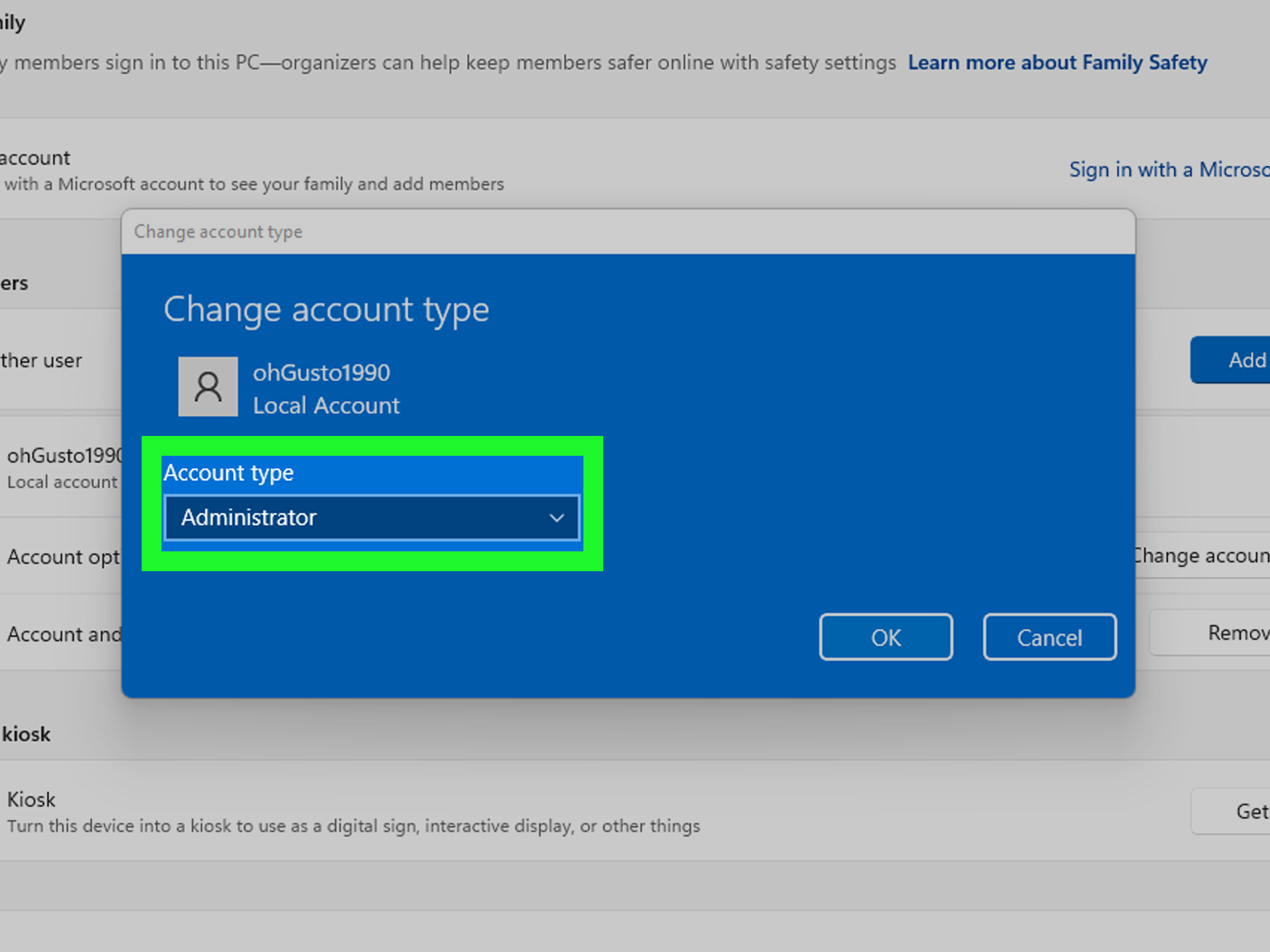
Go to Settings > Accounts and check your account type. If your account is set as a standard user, you’ll need an administrator account to promote it. If another admin exists on the PC, sign in with that account and change your account type. If this is a work laptop, contact IT instead of experimenting with policy changes that will only make your Monday worse.
Fixes for Stubborn Cases
4. Use the Program Compatibility Troubleshooter
Some older apps act like they still live in a previous era of Windows, back when software politely asked for nothing and then proceeded to break everything anyway. If the error is tied to an older app or a strange installer, use the Program Compatibility Troubleshooter.
Go to Settings > System > Troubleshoot > Other troubleshooters, then run the compatibility troubleshooter. This can help Windows apply settings that make the app behave better on your current version of Windows. It is especially useful when the error appears only with one specific program while everything else runs normally.
5. Review User Account Control Settings
User Account Control exists to prevent unauthorized changes to Windows. It is not there to annoy you personally, even if it sometimes feels like it woke up choosing hostility.
If your UAC settings were changed recently, reset them to a normal level instead of disabling them. Open Control Panel > System and Security > Change User Account Control settings. Choose a standard notification level rather than the most extreme or least secure option. Turning UAC off completely is usually not the smart fix. It may reduce prompts, but it also reduces protection, and it does not reliably solve deeper account or system issues.
6. Repair Corrupted Windows Files With DISM and SFC
If elevation errors started appearing out of nowhere across multiple apps, system file corruption could be involved. Windows includes two built-in repair tools that are worth running:
- Open Command Prompt as administrator.
- Run:
DISM.exe /Online /Cleanup-Image /RestoreHealth - After it finishes, run:
sfc /scannow
DISM repairs the Windows image used for servicing and recovery. SFC then scans protected system files and replaces damaged ones. If Windows repair tools feel like overkill, think of them as a deep cleaning for your operating system instead of a panic button.
7. Run CHKDSK if the System Feels Damaged
If your PC also has file system errors, crashes, or odd boot behavior, it can help to check the disk. Open an elevated command prompt and run:
chkdsk C: /f /r
You’ll usually be asked to schedule the scan for the next restart. Let it run uninterrupted. This step is not required for every elevation error, but it can help when the problem arrives alongside corruption, sudden shutdowns, or a generally haunted-PC vibe.
8. Perform a Clean Boot
If the error appears only after startup, or only when certain background tools are loaded, a clean boot can reveal whether another service or startup app is getting in the way.
Use msconfig to hide Microsoft services, disable non-Microsoft services, then disable startup apps in Task Manager. Restart and test again. If the error disappears, re-enable items gradually until you find the culprit. This is one of the best ways to catch overprotective utilities, broken launchers, or software that hooks too aggressively into Windows.
Recovery Options When the Error Won’t Let You Do Anything
9. Try Safe Mode
If normal Windows is too messy to troubleshoot, boot into Safe Mode. Safe Mode loads a stripped-down environment with fewer drivers and startup programs, which makes it easier to test whether the problem is tied to third-party software.
Once in Safe Mode, try running the app again or launching elevated tools. If a repair command works there but not in normal Windows, that’s a strong sign a background service or startup app is interfering.
10. Use System Restore
If the elevation error started after a recent update, app install, account change, or tweak you now regret with the intensity of a bad tattoo, System Restore can be a lifesaver.
Open System Restore from Control Panel or run rstrui.exe. Choose a restore point from before the issue began. System Restore rolls system files, registry settings, and installed programs back to an earlier state. It does not act like a time machine for everything, but it can reverse the kind of system changes that trigger permission chaos.
11. Use Windows Recovery Environment
If you cannot sign in properly or you cannot get elevated tools to open at all, use Windows Recovery Environment. From there, you can access advanced options such as Startup Settings, System Restore, Startup Repair, and uninstalling recent updates. This is the safer route when Windows is too unstable for normal troubleshooting.
What Not to Do
When people see a permissions error, they often sprint straight toward the dangerous stuff. Try not to.
- Do not disable UAC permanently just to silence the message.
- Do not download random "admin unlock" tools from sketchy corners of the internet.
- Do not force registry edits unless you understand exactly what they do.
- Do not assume your Microsoft account, work account, or Microsoft 365 role automatically makes you local Windows admin.
- Do not keep retrying the same broken installer ten times like Windows might suddenly become sentimental.
If this is a company-owned device, the most reliable fix may be to contact your IT team. On managed systems, the error can be the result of intentional policy restrictions, not a broken PC.
A Simple Troubleshooting Order That Usually Works
- Right-click the app and run it as administrator.
- Reopen Command Prompt, PowerShell, or Terminal as admin if the error appears there.
- Confirm your account type in Windows settings.
- Use the compatibility troubleshooter for older apps.
- Reset UAC to a normal notification level.
- Run DISM, then SFC.
- Run CHKDSK if system corruption seems likely.
- Perform a clean boot.
- Try Safe Mode.
- Use System Restore or Windows Recovery if the issue began recently and nothing else works.
Real-World Experiences With the Elevation Error
One of the most common experiences involves someone opening Command Prompt, typing a networking or repair command, and then getting smacked with the elevation error. They assume the command is wrong, spend twenty minutes fixing spelling, then realize the command was fine all along. The real problem was that Command Prompt opened normally instead of as administrator. That scenario is incredibly common because the window looks almost identical in both modes, but Windows definitely knows the difference.
Another classic case shows up after an account type change. A user tweaks account settings, signs back in, and suddenly every serious task starts asking for elevation. Apps that installed yesterday now refuse to cooperate. Settings panels ask for permission and then go nowhere. In these situations, the root cause is often simple: the account is no longer an administrator. It feels dramatic because the whole system seems broken, but the real issue is a permissions downgrade.
Older software causes a different flavor of pain. A game launcher, printer utility, scanner app, or niche business program may have worked beautifully three Windows versions ago and now throws the elevation error every time it starts. Users often think Windows itself is failing, but the app may simply be expecting older privilege behavior. Running it as administrator, using compatibility mode, or updating to a newer build of the app often fixes it faster than a full system repair.
Then there’s the work laptop experience, which deserves its own support group. You try to install a tool, update a driver, or run a script, and Windows responds with the equivalent of a locked office door. On personal devices, that usually points to local permissions. On a work PC, though, it may be completely intentional. The machine is managed, the admin rights are restricted, and Windows is enforcing policy exactly the way your IT department wanted. Frustrating? Absolutely. Broken? Not necessarily.
There are also cases where the elevation error is more like a symptom than the disease. A user starts noticing it after failed updates, random freezes, missing system tools, or strange startup behavior. In that situation, the problem may be file corruption or a damaged Windows image. That’s where DISM, SFC, CHKDSK, Safe Mode, and System Restore stop being "advanced" tools and start becoming practical ones.
The big lesson from real experiences is this: the error looks scary, but it usually points to a narrow class of problems. Most of the time, Windows is not collapsing. It is just enforcing a boundary. Once you identify whether the issue is the app, the account, the terminal session, or the system itself, the fix becomes much more straightforward.
Final Thoughts
If you’re trying to fix "The Requested Operation Requires Elevation", don’t treat it like a mysterious curse. Treat it like what it is: a permissions problem with a handful of usual suspects. Start with the easy stuff, especially Run as administrator and checking your account type. If that fails, move into compatibility settings, UAC review, DISM, SFC, clean boot, Safe Mode, and System Restore.
Most importantly, choose the fix that matches the cause. An old app needs a different solution than a damaged Windows image, and a work laptop needs a different solution than a home PC. Once you stop throwing random fixes at it and troubleshoot in order, this error becomes much less intimidating.