

Wireless headsets are wonderful until they are not. The battery dies during a boss fight. Bluetooth decides your laptop is emotionally unavailable. Your video call suddenly sounds like it is being broadcast from inside a cereal box. At that point, a simple cable can feel less like old technology and more like a rescue helicopter.
If you are wondering how to make your wireless headset wired, the good news is that many wireless headphones and gaming headsets already support wired use. The not-so-good news is that not every model can be converted safely or cheaply. Some need only a 3.5 mm cable. Others require a USB-C audio connection. A few can be modified with soldering, patience, and the kind of courage usually reserved for assembling flat-pack furniture without instructions.
This guide explains the realistic ways to use a wireless headset as a wired headset, how to choose the right cable, how to make the microphone work, and when to stop before your headphones become a tragic pile of plastic confetti.
Can You Really Turn a Wireless Headset Into a Wired One?
Yes, but the answer depends on the headset. There are three common situations:
1. Your headset already has a wired mode
This is the easiest scenario. Many over-ear Bluetooth headphones and wireless gaming headsets include a 3.5 mm audio jack, a 2.5 mm audio jack, or a USB-C port that supports audio. In that case, “making it wired” simply means connecting the correct cable and selecting the right audio device on your phone, computer, console, or tablet.
2. Your headset charges by USB-C but does not support USB audio
This is where people often get tricked. A USB-C port on a headset does not automatically mean it can play audio through USB-C. On many headphones, USB-C is only for charging or firmware updates. Plugging in a USB-C cable may charge the battery, but the sound will still come through Bluetooth, or not at all.
3. Your headset has no audio input at all
If the headset has no 3.5 mm port, no supported USB audio mode, and no detachable analog cable option, then a true wired conversion requires opening the headset and wiring directly into the speaker drivers. This is possible for experienced DIY repair hobbyists, but it is not beginner-friendly. It can void the warranty, damage the headset, kill the microphone, or create electrical problems if done poorly.
Why Make a Wireless Headset Wired?
There are several practical reasons to use a wireless headset with a cable:
- Lower latency: Wired audio is usually better for gaming, editing, music monitoring, and rhythm-based tasks.
- No battery panic: Some headsets can play audio through a cable even when the battery is low or dead.
- Better compatibility: A cable can work with airplane screens, older laptops, desktops, audio interfaces, game controllers, and portable music players.
- Fewer Bluetooth issues: No pairing drama, no random disconnects, and no mysterious “connected but no sound” nonsense.
- Cleaner voice calls: A wired headset mic can be more stable than Bluetooth hands-free mode, depending on your device and headset.
Check Your Headset Before Buying Anything
Before ordering a cable, inspect the headset like a tiny detective. Look around the earcups and check the manual or product page for these terms:
- 3.5 mm audio input
- 2.5 mm audio input
- AUX mode
- Analog mode
- Wired mode
- USB audio
- USB-C audio
- Passive operation
If your headset has a small round port, it is probably an analog audio input. Most devices use 3.5 mm, while some Bose-style designs use a smaller 2.5 mm plug on the headphone side and a 3.5 mm plug on the device side. If your headset has only a USB-C port, confirm that the model specifically supports USB audio. Do not assume. USB-C is a connector shape, not a promise from the audio gods.
Method 1: Use the Built-In 3.5 mm or 2.5 mm Wired Mode
This is the best method for most people. If your wireless headset has an analog audio jack, follow these steps.
Step 1: Get the correct cable
You may need one of these:
- 3.5 mm TRS cable: Usually supports stereo audio only.
- 3.5 mm TRRS cable: Supports stereo audio plus microphone on compatible devices.
- 2.5 mm to 3.5 mm cable: Common for some noise-canceling headphones.
- Brand-specific audio cable: Needed for certain headsets with unusual wiring or recessed ports.
For listening only, a basic stereo cable may be enough. For calls or gaming chat, you usually need a cable that supports microphone input. Look for “TRRS,” “headset cable,” “aux/mic cable,” or “audio cable with inline microphone.”
Step 2: Turn the headset off if required
Some wireless gaming headsets need to be powered off before they work in analog wired mode. Others automatically switch to wired mode as soon as the cable is plugged in. A few keep active noise cancellation or EQ features running only when powered on. Read the manual if the headset acts like it has been personally offended by your cable.
Step 3: Plug the cable firmly into the headset
Push the connector all the way in. Partial insertion is a surprisingly common cause of one-sided audio, low volume, missing bass, crackling, or a microphone that refuses to participate in society.
Step 4: Connect the other end to your device
Plug the cable into your laptop, desktop, phone adapter, tablet, console controller, monitor, audio interface, airplane screen, or music player. If your device has no headphone jack, use a compatible USB-C to 3.5 mm or Lightning to 3.5 mm adapter.
Step 5: Select the headset in audio settings
On Windows, go to Settings > System > Sound, then choose the correct output and input device. On macOS, open System Settings > Sound. In Zoom, Discord, Teams, OBS, or game settings, choose the wired headset or the correct microphone manually. Apps love choosing the wrong mic at the worst possible moment.
Method 2: Use USB-C Wired Audio
Some modern wireless headphones support digital audio through USB-C. This can be excellent because the cable sends digital audio directly to the headset’s internal electronics. In supported models, USB-C wired audio may offer low latency, stable playback, and strong sound quality.
However, remember the golden rule: charging through USB-C is not the same as playing audio through USB-C. If your headset manual says “USB audio,” “USB-C audio,” “lossless USB-C audio,” or “wired USB mode,” you are probably in luck. If it says only “USB-C charging,” your USB-C port is not an audio input.
How to set it up
- Use the cable recommended by the manufacturer.
- Connect the headset to your computer, phone, tablet, or console.
- Wait for the device to recognize it as an audio device.
- Select it as your output device.
- If the headset has a mic, select it as your input device.
If nothing appears in sound settings, try a different USB-C cable. Many USB-C cables are charge-only. You need a cable that supports data. Yes, this is annoying. No, the cable will not apologize.
Method 3: Use a 3.5 mm Adapter for Phones and Tablets
Many phones and tablets no longer have headphone jacks. If your headset supports 3.5 mm wired mode, you can still use it with the right adapter.
- USB-C devices: Use a USB-C to 3.5 mm headphone adapter.
- Lightning iPhones or iPads: Use a Lightning to 3.5 mm adapter.
- Game controllers: Plug directly into the controller’s 3.5 mm headset jack if available.
- Desktop PCs with two jacks: Use a headset splitter if you need both audio and microphone.
For microphone support, the adapter must support headset input, not just headphone output. Some cheap adapters are audio-only. They are fine for music, but for calls they are about as useful as a microphone made of bread.
Understanding TRS vs. TRRS: The Tiny Rings Matter
Look at the metal plug on your cable. The black bands divide it into sections.
- TRS: Tip, ring, sleeve. Usually two black bands. Supports left audio, right audio, and ground.
- TRRS: Tip, ring, ring, sleeve. Usually three black bands. Supports left audio, right audio, ground, and microphone.
If your headset audio works but the microphone does not, the cable or port may be the issue. A laptop with a single combo jack usually expects TRRS. A desktop with separate green and pink ports usually expects two separate TRS plugs, so you need a splitter: one plug for headphones and one for the microphone.
What About the Built-In Bluetooth Microphone?
When you plug in a wired cable, your headset’s built-in Bluetooth microphone may not work. Many wireless headsets disable Bluetooth features in analog mode. Some wired cables have their own inline microphone, and that becomes the mic instead. Other headsets support the boom mic over a TRRS analog cable, but only if the cable and device are compatible.
For gaming or calls, test the microphone before the important moment. Record a short voice memo, join a private test call, or use Windows microphone testing. Do not discover your mic is dead after delivering a brilliant strategy speech to total silence.
Method 4: Use a USB Sound Adapter on a PC
If your computer’s headphone jack is noisy, damaged, or split into separate mic and headphone ports, a small USB sound adapter can help. These adapters plug into USB-A or USB-C and provide a 3.5 mm headset jack. For a wireless headset used in wired mode, this can make setup easier and improve compatibility.
This is especially useful if:
- Your desktop has separate headphone and microphone jacks.
- Your laptop does not detect the headset mic.
- Your headphone jack crackles.
- You want a simple plug-and-play option for calls.
Choose an adapter that specifically supports TRRS headsets if you need the microphone.
Method 5: DIY Hardware Conversion for Headsets With No Wired Mode
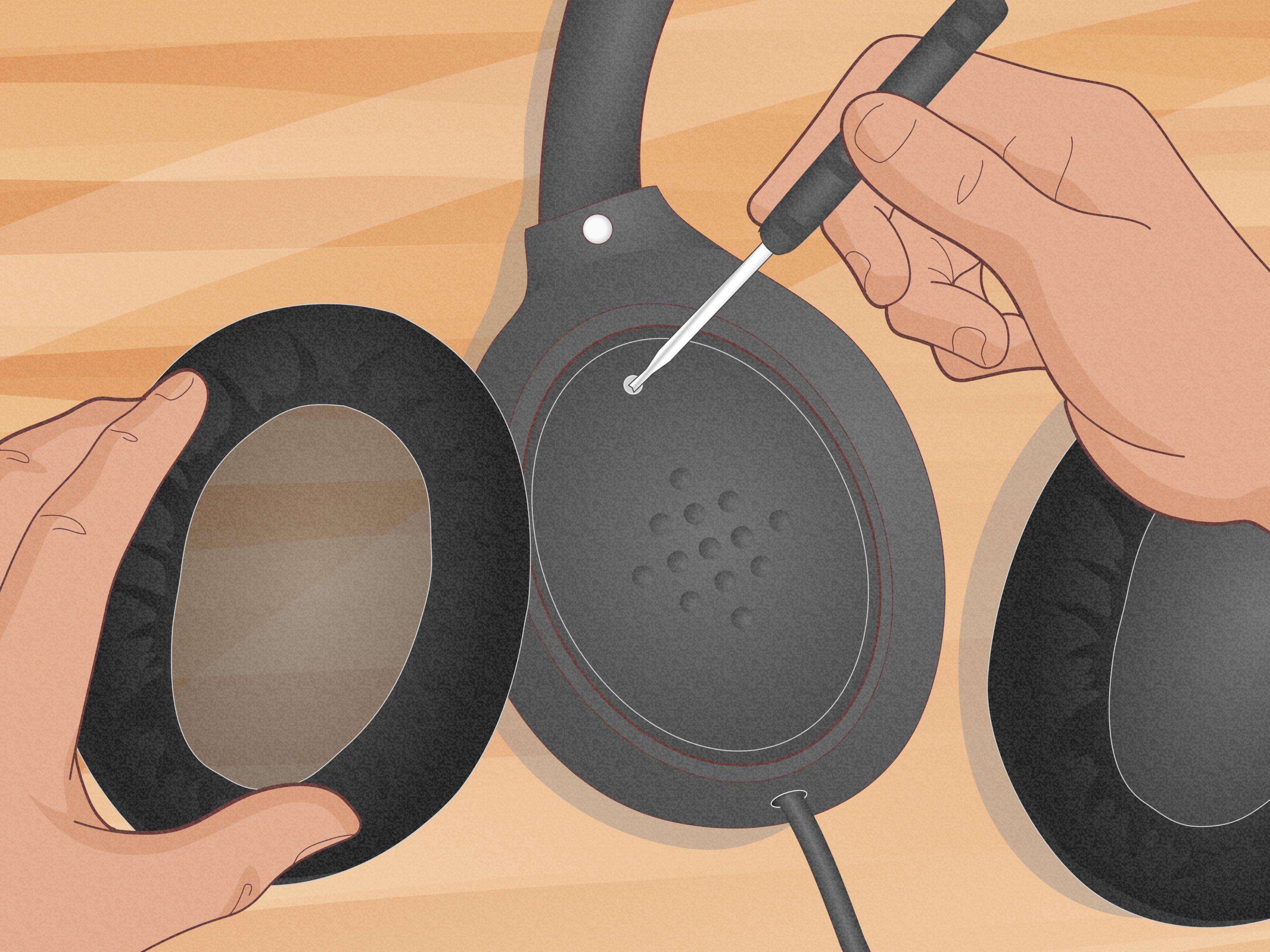
Now we enter the “measure twice, solder once, regret never” section. If your wireless headset has no wired input, a DIY wired conversion is possible only by opening the headset and wiring an audio cable or jack directly to the speaker drivers. This is not recommended for expensive, sealed, waterproof, or active noise-canceling headphones.
What you would need
- A small Phillips screwdriver or pry tools
- A soldering iron and solder
- Heat-shrink tubing or electrical tape
- A 3.5 mm panel-mount jack or sacrificial audio cable
- A multimeter
- Basic knowledge of left, right, and ground wiring
The basic idea
A simple headphone driver needs three audio connections: left signal, right signal, and ground. Inside a wireless headset, the speakers are connected to the headset’s internal amplifier board. A DIY mod bypasses or taps into those speaker connections and routes them to a wired jack or cable.
In theory, this sounds simple. In practice, modern wireless headsets may have tiny wires, ribbon cables, battery packs, microphones, ANC microphones, touch controls, and boards that were clearly designed by someone who owns tweezers for fun.
Important warnings
- Do not solder near a lithium battery unless you know what you are doing.
- Do not connect speaker wires to USB power pins.
- Do not assume wire colors are universal.
- Do not modify a headset that is still under warranty unless you are comfortable losing that warranty.
- Do not expect Bluetooth features, ANC, or the original mic to work after a simple passive conversion.
For most users, a DIY internal conversion is not worth it. If your headset lacks wired support, buying a wired headset is usually cheaper, safer, and far less likely to end with you whispering, “What have I done?”
Troubleshooting: Wired Mode Is Not Working
No sound at all
- Check that the cable is fully inserted on both ends.
- Try a different cable.
- Confirm the headset actually supports wired audio.
- Select the correct output device in your system settings.
- Increase volume on both the device and headset if controls still work in wired mode.
Sound only comes from one side
- Push the plug in until it clicks.
- Check for lint or debris in the jack.
- Try another audio source.
- Test another cable.
The microphone does not work
- Use a TRRS headset cable instead of a TRS audio cable.
- Use a splitter for desktops with separate mic and headphone ports.
- Check app microphone permissions.
- Select the correct input device in Windows, macOS, Discord, Zoom, Teams, or your game.
- Make sure the inline mute switch is not on.
The volume is too low
- Raise the volume on the source device.
- If the headset is powered off, onboard volume buttons may not work.
- Try powered mode if your headset supports active wired listening.
- Use a better adapter or headphone amp for high-impedance headphones.
Best Practical Setup Examples
For PC gaming
Use a 3.5 mm TRRS cable if your headset supports mic over analog. If your PC has separate audio and mic jacks, add a TRRS-to-dual-TRS splitter. Then set the headset as your output and microphone as your input in Windows and in your game launcher.
For console gaming
Plug the headset into the controller’s 3.5 mm jack if supported. This is common on Xbox and PlayStation controllers. Check the console’s audio settings and make sure chat audio is routed to the headset.
For music listening
A simple stereo cable is usually enough. If your headphones support passive operation, you may be able to listen with the headset powered off. If you want active noise cancellation or EQ, you may need to turn the headset on.
For video calls
Use a cable with microphone support or an inline mic. Test input and output before joining. If your computer keeps choosing the laptop microphone, manually select the headset mic in the meeting app.
Should You Use Wired Mode All the Time?
Wired mode is excellent when you need reliability, low latency, or battery backup. But it is not always better. Some wireless headsets sound best when powered on because their internal DSP, EQ, and noise cancellation are active. In passive wired mode, the sound can be quieter, flatter, or less polished. That does not mean the cable is bad; it means the headset was tuned around its electronics.
Use wireless mode for convenience. Use wired mode for serious gaming, recording, flights, low battery emergencies, and days when Bluetooth behaves like it needs a vacation.
Extra Experience: What I Learned From Making Wireless Headsets Wired
The first lesson is simple: the cable drawer lies. You may think you own the right cable because you have twelve black cables tangled together like electronic spaghetti. Then you discover that one is charge-only, one is stereo-only, one works only if held at a suspicious angle, and one belongs to a device you threw away in 2018. Label your cables. Future you will be grateful.
The second lesson is that “wired mode” is not the same on every headset. Some models become simple passive headphones when plugged in. Others still need battery power to sound their best. Some disable the buttons. Some keep noise cancellation. Some support the microphone. Some do not. This is why checking the manual matters. A headset can look perfectly normal from the outside while hiding a very specific personality inside.
For gaming, wired mode often feels immediately better. Footsteps line up more naturally. Dialogue sync feels tighter. You stop wondering whether the delay is your headset, your PC, your console, your router, your neighbor’s microwave, or Mercury in retrograde. A cable removes a lot of variables. It is not glamorous, but neither is losing because your audio arrived half a second late wearing tiny Bluetooth shoes.
For work calls, the biggest improvement is consistency. Bluetooth headsets can switch into a lower-quality hands-free profile when the microphone is active, depending on the device and operating system. A wired headset or inline mic can avoid some of that weirdness. The catch is compatibility. If the microphone does not appear, do not panic. Check whether you are using a TRRS cable, whether the app has microphone permission, and whether your computer needs a splitter or USB sound adapter.
For travel, a wired cable is still worth packing. Airplane entertainment systems, hotel TVs, gym machines, older laptops, portable recorders, and audio interfaces are often happier with a plain old headphone plug. A wireless headset with a backup cable is like a Swiss Army knife for audio. You may not need it every day, but when you do, it feels heroic.
The third lesson is to be careful with DIY conversions. Opening a headset can be satisfying, but it can also reveal fragile clips, glued parts, tiny screws, and a battery placed exactly where your soldering iron should never go. If the headset is cheap and already broken, experimenting can be educational. If it is expensive and still works, adding a cable internally may be a bad trade. A dedicated wired headset often costs less than one replacement earcup assembly.
My favorite practical setup is boring in the best way: a wireless headset that already includes a 3.5 mm wired mode, a short TRRS cable, a USB-C adapter, and a small splitter in the bag. That combination covers laptops, desktops, phones, tablets, controllers, and most emergency audio situations. It is not futuristic. It is not flashy. But it works, and working is a wildly underrated feature.
Conclusion
Learning how to make your wireless headset wired starts with one question: was the headset designed for wired audio? If yes, the solution is usually easy. Use the correct 3.5 mm, 2.5 mm, TRRS, or USB-C audio cable, plug it in firmly, and select the right input and output devices. If the headset does not support wired audio, a DIY conversion is possible but risky and rarely worth it for everyday users.
The smartest path is simple: check the manual, buy the correct cable, test the microphone, and keep a backup adapter handy. Wireless is convenient, but a good cable is still the quiet hero of reliable audio. It does not need pairing, charging, firmware updates, or emotional support. It just plugs in and gets to work.