

Some people decorate their desks with plants, tiny lamps, or a mug that says “World’s Okayest Employee.” Mac users, naturally, can decorate the entire desktop with a rotating slideshow of favorite photos, travel shots, artwork, family memories, or screenshots of design inspiration they swear they will organize someday.
The good news? Learning how to put a slideshow on a Mac’s desktop is surprisingly simple. You do not need a third-party app, a secret Terminal spell, or a cousin who “knows computers.” macOS already includes built-in wallpaper rotation tools that let you choose a folder or Photos album, turn on auto-rotation, and decide how often your desktop background changes.
This guide walks you through the process in four quick steps, explains the best image settings, covers common problems, and adds practical tips for making your Mac desktop slideshow look clean instead of chaotic. Whether you use a MacBook Air, MacBook Pro, iMac, Mac mini, Mac Studio, or an external monitor setup that looks like a NASA control desk, the workflow is mostly the same on modern versions of macOS.
What Is a Desktop Slideshow on Mac?
A desktop slideshow on Mac is an automatic wallpaper rotation. Instead of showing one static desktop picture forever, your Mac cycles through a selected group of images. These images can come from a Finder folder, an image file collection, or a Photos album. You can use vacation photos, nature wallpapers, brand assets, digital art, minimalist backgrounds, or a folder called “random stuff” if you enjoy living dangerously.
This is different from a Photos slideshow. A Photos slideshow plays inside the Photos app with themes, music, transitions, and presentation-style controls. A Mac desktop slideshow, on the other hand, changes the wallpaper behind your windows, icons, Dock, and menu bar. It is quiet, automatic, and always there in the background.
Before You Start: Prepare Your Wallpaper Photos
Before opening System Settings, take two minutes to prepare your images. This small step can save you from stretched faces, blurry landscapes, and one awkward vertical selfie becoming the background during a screen share. Your future self will applaud politely.
Choose High-Quality Images
For the best Mac desktop slideshow, use images that match or exceed your screen resolution. A MacBook display, iMac display, or external monitor can make low-resolution photos look soft or pixelated. Wide landscape images usually work best because most Mac displays are horizontal.
Create a Dedicated Folder
The easiest method is to create a folder in Finder named something like “Desktop Slideshow,” “Mac Wallpapers,” or “Please Don’t Use These in a Zoom Call.” Add only the photos you actually want to appear. This keeps your slideshow organized and prevents your Mac from pulling in random images from Downloads.
Use a Photos Album if You Prefer Apple Photos
If your favorite images are already inside the Photos app, you can create an album and select that album as your wallpaper source. This is useful when you sync photos through iCloud Photos or already maintain albums for family, travel, pets, events, or design inspiration.
How to Put a Slideshow on a Mac’s Desktop in 4 Quick Steps
The exact labels can vary slightly depending on your macOS version, but the modern path is simple: Apple menu, System Settings, Wallpaper, then choose a folder or album and enable rotation.
Step 1: Open Wallpaper Settings
Click the Apple menu in the top-left corner of your screen, then choose System Settings. In the sidebar, click Wallpaper. You may need to scroll a little because macOS loves hiding important settings just far enough away to make you question your eyesight.
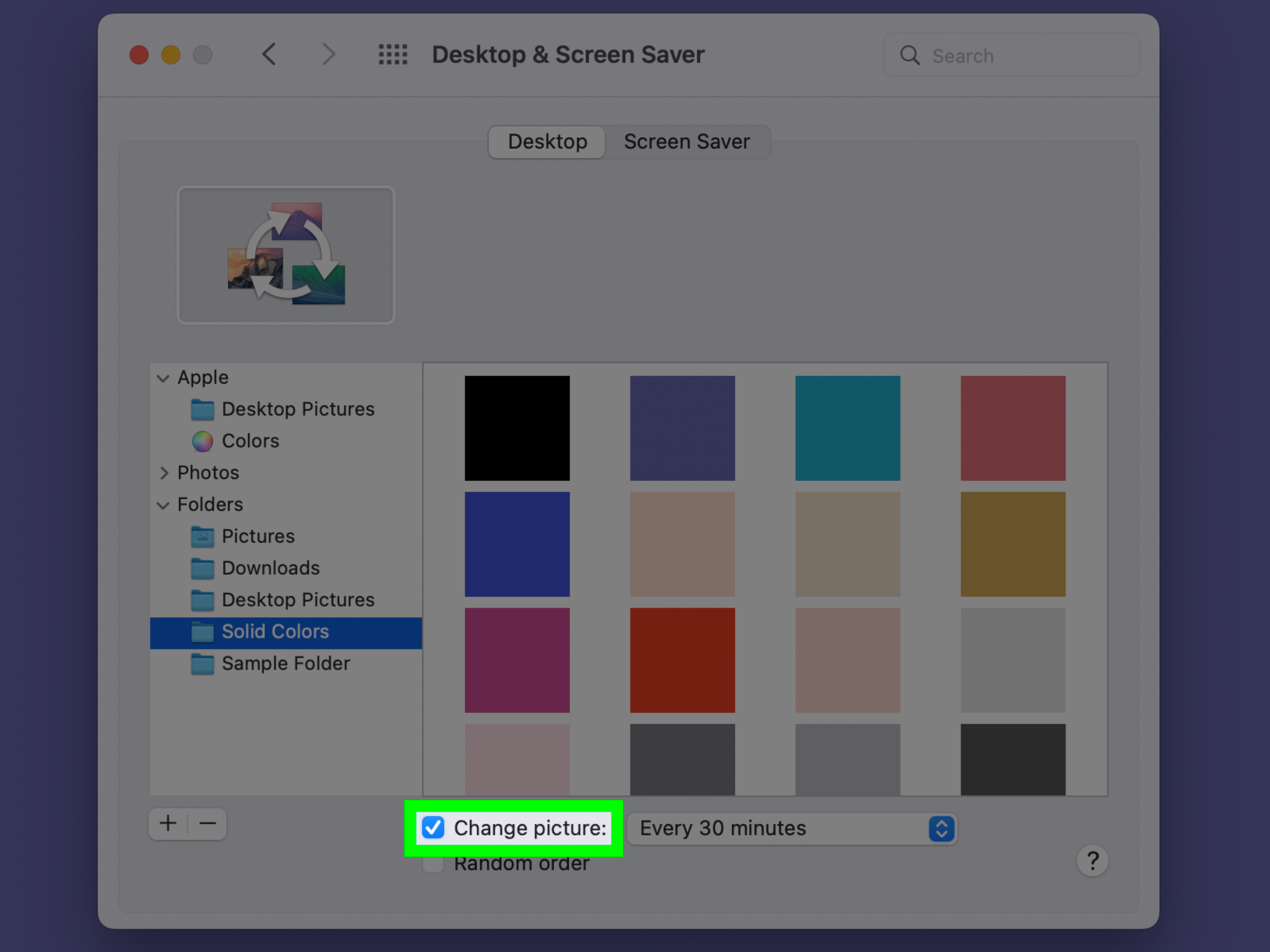
On older versions of macOS, such as Monterey and earlier, the path may be System Preferences > Desktop & Screen Saver. If you see “System Preferences” instead of “System Settings,” do not panic. Your Mac is not broken; it is simply using the older layout.
Step 2: Add a Folder or Photo Album
Scroll to the section for your own photos. On newer macOS versions, look for an option such as Add Photo, Choose Folder, Choose File, or Choose from Photos. Select the folder or Photos album that contains the images you want to rotate.
If you are using a Finder folder, select your prepared wallpaper folder and click Open. If you are using Photos, choose the album that contains your slideshow images. Once added, the folder or album should appear in the Wallpaper settings area.
Step 3: Select Auto-Rotate or Change Picture
After adding your folder or album, choose the option that lets your Mac rotate through the images. Depending on your macOS version, this may appear as Auto-Rotate, Shuffle, Randomly, or Change picture. Select the rotation option instead of choosing just one image.
This is the magic switch. Without it, your Mac may use only one picture from the folder, which is technically wallpaper but not a slideshow. That is like buying a whole box of donuts and licking only the receipt.
Step 4: Choose How Often the Slideshow Changes
Finally, set the timing. macOS may let you change the wallpaper every few minutes, hourly, daily, when logging in, or when waking from sleep. Pick a rhythm that fits how you use your Mac.
For a calm desktop, try changing the wallpaper every hour or every day. For a more lively setup, choose a shorter interval. If you work with many windows open, a fast-changing background may not matter much. If you often stare at a clean desktop while thinking, a slower rotation feels less distracting.
Best Settings for a Good-Looking Mac Desktop Slideshow
A Mac wallpaper slideshow is easy to set up, but a great-looking one depends on image choice and display fit. The goal is simple: make your desktop feel fresh without turning it into a visual garage sale.
Use Landscape Photos
Landscape photos usually fit Mac displays better than portrait photos. Portrait images may be cropped, centered with empty space, or zoomed in too aggressively. If you want to include vertical photos, place them in a separate folder and test how they look first.
Avoid Busy Images Behind Desktop Icons
If your desktop has many files, choose wallpapers with clean areas or soft backgrounds. Highly detailed images can make file names hard to read. A beautiful forest photo is lovely until your “Tax Documents” folder disappears into a pile of digital leaves.
Match the Mood to Your Work
For productivity, use calm backgrounds: mountains, gradients, architecture, minimal patterns, or soft abstract images. For creative work, try artwork, mood boards, photography, or color studies. For personal joy, pets are undefeated. No spreadsheet can fully defeat the morale boost of a dog wearing sunglasses.
Using a Photos Album vs. a Finder Folder
Both methods work well, but each has advantages. A Finder folder is simple, predictable, and easy to back up. You can drag images in or out whenever you want, and macOS reads the files directly from that folder.
A Photos album is better if your images already live in the Photos app. It is also convenient if you use iCloud Photos across devices. However, if your Photos library is still syncing or optimizing storage, some images may not appear immediately. In that case, exporting selected images to a Finder folder can make the slideshow more reliable.
How to Use Different Slideshows on Multiple Displays
If you use more than one monitor, macOS may let you apply wallpaper settings per display or across all Spaces and displays. In Wallpaper settings, look for options related to showing the same wallpaper on all Spaces or displays. This is helpful if you want one consistent slideshow everywhere.
For a more customized setup, you can assign different wallpaper sources to different desktops or Spaces. For example, your MacBook screen can rotate family photos while your external monitor uses clean abstract wallpapers. This is also a sneaky way to make your work display look professional while your personal display remains emotionally committed to cat photography.
Desktop Slideshow vs. Screen Saver: What’s the Difference?
A desktop slideshow changes your wallpaper while you use your Mac. A screen saver appears when your Mac is idle. They can use similar photos, but they are controlled differently. Wallpaper settings control the background image; Screen Saver settings control what appears after your Mac has been inactive for a set amount of time.
If you want your photos to appear only when you are away from the keyboard, set up a photo screen saver. If you want the photos behind your apps and desktop icons, set up a desktop slideshow. You can use both, but they are not the same feature.
Common Problems and Easy Fixes
The Wallpaper Is Not Changing
First, return to System Settings > Wallpaper and make sure the folder or album is selected as a rotating set, not as a single image. Then check the interval. If the wallpaper is set to change daily, it may be working perfectly while appearing stubbornly lazy.
Only a Few Photos Are Showing
Make sure the folder contains supported image files and that the images are stored locally. If you are using a Photos album, check whether the album has fully synced. For the most reliable result, export the photos to a Finder folder and select that folder in Wallpaper settings.
Images Look Cropped or Zoomed In
This usually happens when the image ratio does not match your display. Use wide images, preferably close to your screen’s aspect ratio. If macOS offers size or fit options, test them until the wallpaper looks natural.
The Desktop Looks Too Busy
Remove cluttered images from the folder. A good wallpaper should support your work, not start a tiny visual argument with every icon on the desktop.
Practical Example: A Clean Weekly Wallpaper Setup
Here is a simple setup that works well for most users. Create a folder called “Weekly Wallpapers” in your Pictures folder. Add 20 to 40 high-resolution landscape images. Open System Settings > Wallpaper, add that folder, turn on auto-rotation, and set the wallpaper to change every day.
This gives your Mac a fresh look throughout the week without becoming distracting. Every month, replace a few images in the folder. You will get a desktop that feels new without spending your life managing wallpaper like it is a second job.
Extra Tips for a Better Mac Wallpaper Slideshow
Keep your wallpaper folder small enough to manage. A folder with 30 excellent images is better than a folder with 3,000 chaotic ones. Delete blurry photos, duplicates, screenshots, and images with text that competes with desktop icons.
For a polished look, group wallpapers by theme. Create folders such as “Nature,” “Minimal,” “Travel,” “Dark Mode,” “Architecture,” or “Seasonal.” Then switch folders whenever your mood changes. This is cheaper than redecorating your office and significantly easier than moving furniture.
If you use Dark Mode, choose wallpapers that do not blast your eyes with bright white backgrounds at night. If your Mac changes appearance automatically, consider using darker images in the evening or Apple’s built-in Dynamic Wallpapers for a more seamless experience.
Real-World Experience: Making a Mac Desktop Slideshow That Actually Feels Good
The first time you set up a Mac desktop slideshow, the temptation is to add every nice picture you own. That sounds reasonable until your desktop rotates from a peaceful mountain lake to a blurry restaurant receipt, then to a group photo where everyone’s eyes are closed except one person who looks like they just saw a ghost. A good slideshow is not about quantity. It is about curation.
In practice, the best Mac wallpaper slideshow usually starts with a small folder. Think of it as a tiny gallery, not a storage unit. Pick images that make sense together. If you want a calm workday, use soft landscapes, neutral tones, quiet city scenes, or abstract designs. If you want a personal setup, use family photos, pet photos, vacation pictures, or hobby-related images. Just remember that your desktop is something you see many times a day. The image should make you feel focused, inspired, or happynot visually tackled.
Another useful lesson is to test the slideshow during real work, not just while admiring an empty desktop. A wallpaper that looks gorgeous by itself may become annoying behind desktop icons, Finder windows, and menu bar text. Bright images can make icons hard to read. Busy photos can make the desktop feel messy even when it is clean. Darker or softer images often work better because they stay in the background where wallpaper belongs.
Timing matters too. A slideshow that changes every five minutes sounds fun, but it can become distracting if you are writing, studying, coding, editing photos, or working on a presentation. Many users find that hourly or daily changes are more comfortable. Daily rotation gives you the pleasant surprise of a new desktop without making your Mac feel like it is trying to entertain itself during office hours.
For people with multiple displays, the experience gets even more interesting. A clean abstract slideshow on the main monitor can keep work focused, while a personal photo slideshow on the secondary display adds warmth. This setup is especially nice for home offices because it lets your workspace feel personal without becoming cluttered.
The biggest tip is simple: refresh the folder occasionally. Remove images you no longer like and add new ones from recent trips, projects, or seasons. Your Mac desktop slideshow should evolve with you. Think of it as a rotating window, not a digital junk drawer. When done well, it makes your Mac feel a little more alive every time you sit down, open the lid, and pretend you are not immediately checking email.
Conclusion
Putting a slideshow on a Mac’s desktop is one of the easiest ways to personalize your workspace. Open Wallpaper settings, add a folder or Photos album, turn on auto-rotation, and choose how often the pictures change. That is the whole recipeno extra software required.
For the best result, use high-quality landscape images, organize them in a dedicated folder, and choose a rotation speed that matches your workflow. A thoughtful desktop slideshow can make your Mac feel fresh, inspiring, and personal without slowing you down or turning your screen into a carnival ride.