

If you are trying to remove a Google account from Google Play, you are definitely not alone. Plenty of people go hunting through the Play Store, tap every profile icon in sight, and still end up staring at their phone like it owes them rent. The confusing part is that Google Play usually does not let you fully remove an account from inside the app itself. In most cases, you remove the Google account from your Android device settings, or you sign the device out remotely through your Google Account.
That sounds more dramatic than it really is. You are not smashing the big red self-destruct button. Removing an account from your device usually just disconnects that device from the account. It does not automatically delete the Google account forever. That difference matters a lot, especially if you still want to use Gmail, YouTube, Google Photos, or app purchases on another device.
In this guide, you will learn the easiest ways to remove a Google account connected to Google Play, what happens after you remove it, common mistakes to avoid, and what to do if the device is old, sold, broken, or no longer in your hands. We will also cover the difference between removing, signing out, switching accounts, and deleting an account, because Google loves giving four similar actions four very different consequences.
Why People Want to Remove a Google Account from Google Play
There are a bunch of normal reasons to do this, and none of them require a dramatic movie soundtrack. Maybe you signed into a friend’s phone and forgot to remove your account. Maybe you have a work account and a personal account fighting for default status like rival siblings in the back seat. Maybe you are selling an old phone, troubleshooting Play Store errors, or just tired of downloading apps with the wrong account.
Some users also want to clean up the device list tied to Google Play, especially when old phones still appear in their account history. Others are trying to stop syncing purchases, app recommendations, subscriptions, or saved payment methods to a device they no longer use.
Whatever the reason, the goal is usually one of these:
- Remove the Google account from the current Android device
- Sign the account out of another device remotely
- Switch to a different Google Play account
- Delete Gmail or the full Google account entirely
Those are not the same thing, so let’s untangle the mess before your thumbs go on a settings-menu expedition.
What “Remove from Google Play” Really Means
Here is the big truth: on Android, Google Play is tied to the Google accounts added to your device. So when most people say they want to remove a Google account from Google Play, what they really need to do is remove that Google account from the phone or tablet itself.
Once the account is removed from the device, it is also removed from Google Play on that device. The Play Store will no longer use it for downloads, updates, subscriptions, or purchase history on that device. That is the practical outcome most people want.
Removing an Account Is Not the Same as Deleting It
This is the part people get nervous about, and fair enough. Removing an account from your Android phone does not erase the entire Google account from existence. Your Gmail inbox, Photos library, Drive files, YouTube history, and purchases stay attached to that Google account unless you actually choose to delete the account itself.
Think of it like taking your key off one keychain. The key still exists. It is just not hanging out on that device anymore.
Removing an Account Is Not the Same as Hiding an Old Device
Google Play may still remember devices you previously used. If you are annoyed by old devices showing up in Play menus, that is a related but slightly different issue. You can reduce their visibility and remove account access from the device, but Google may still keep a history of previously used devices in your Play account record.
How to Remove a Google Account from Google Play on Android
This is the easiest and most common method. Again, the trick is to use your device settings, not the Play Store app itself.
Method 1: Remove the Google Account from Your Android Phone or Tablet
- Open the Settings app on your Android device.
- Tap Passwords & accounts, Users & accounts, Manage accounts, or a similar option. The wording varies by phone brand and Android version.
- Under the account list, tap the Google account you want to remove.
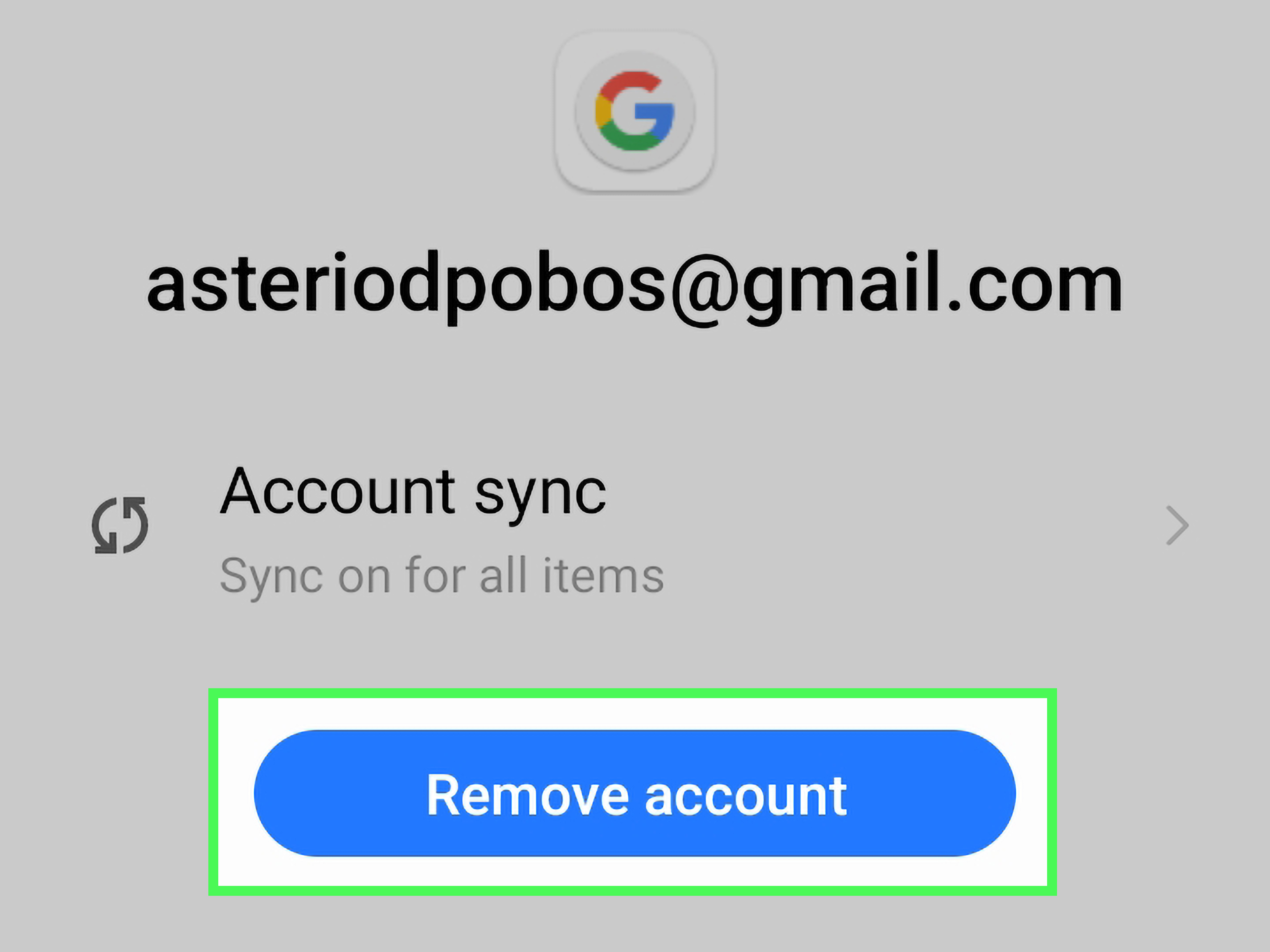
- Tap Remove account.
- Confirm again if prompted.
- If this is the only Google account on the device, you may need to enter your PIN, password, or pattern lock.
That is it. Once removed, the account is no longer active in Google Play on that device.
Example: Pixel vs. Samsung
On a Pixel phone, you will usually find the option under Settings > Passwords & accounts. On many Samsung Galaxy devices, it often appears under Settings > Accounts and backup > Manage accounts. Same idea, slightly different hallway in the settings maze.
What Happens After You Remove It?
After removal, the device will stop syncing that account’s Gmail, Calendar, Contacts, Google Play activity, and other connected Google app data. Apps bought with that account may no longer be available for updates or redownloads on that device unless the account is added again. If you used that account for app subscriptions, those subscriptions still exist, but managing them may require signing in with that account somewhere else.
How to Switch Accounts in Google Play Without Removing One
Sometimes you do not need to remove anything. You just need Google Play to stop acting like your side account is the main character.
- Open the Google Play Store.
- Tap your profile icon in the top-right corner.
- Tap the little arrow next to your account name, if visible.
- Select the account you want to use.
This switches the active Play Store profile, but it does not remove any account from the phone. It is useful when you use one account for work apps, another for games, and a third for that one random movie purchase from 2019 that still follows you around.
How to Remove a Google Account from a Device You No Longer Have
If the phone is lost, broken, sold, traded in, or currently living a second life in someone else’s pocket, you can still sign the account out remotely.
Method 2: Sign Out Remotely Through Your Google Account
- Go to your Google Account in a browser.
- Open the Security section.
- Find Your devices and select Manage all devices.
- Choose the device you no longer trust or use.
- Select Sign out.
- Confirm the sign-out action.
This is especially important if you sold or gave away the device and forgot to remove your account first. If you are preparing a device for sale before handing it over, remove the account before doing a factory reset. That helps prevent setup issues for the next owner and reduces security headaches for you.
How to Remove Old Devices from Google Play Visibility
Sometimes the real issue is not the account itself. It is the clutter. You open Google Play on the web, try to install an app, and see a list of old devices that reads like a smartphone graveyard.
Google Play may keep a history of previously used devices. You cannot always wipe that history completely, but you can often make old devices less visible and remove account access from them. If your goal is privacy and security, the most important step is removing the account from the device or remotely signing it out.
If your goal is just to stop seeing the device during app installs, visit Google Play on the web and review the device list settings tied to your account. Depending on the current interface, you may be able to rename devices or control whether they show in menus.
When You Should Delete Gmail or Delete the Whole Google Account Instead
Removing a Google account from a device is a local change. Deleting Gmail or deleting the whole Google account is a much bigger move.
Delete Gmail Only
You can remove Gmail from your Google Account without deleting the entire account. This is useful if you want to keep services like YouTube, Drive, or Google Play purchases but stop using that Gmail address.
Delete the Entire Google Account
This is the nuclear option. Deleting the whole Google account can remove access to Gmail, Drive, Photos, Contacts, Calendar, YouTube, and even digital purchases tied to that account. Do this only if you are absolutely sure and have backed up anything important.
If you only want the account off one phone, do not delete the entire account. That is like solving a squeaky door by removing the whole house.
Common Problems and Fixes
You Do Not See “Passwords & Accounts”
That is normal on some devices. Look for alternatives such as Users & accounts, Manage accounts, Accounts and backup, or Passwords, passkeys & autofill.
You Cannot Remove the Account
If the phone is managed by a school or employer, the account may be controlled by device policy. In that case, check whether it is a work profile or ask the administrator what is allowed.
You Removed the Wrong Account
Take a breath. You can usually add it back by going to Settings > Add account > Google and signing in again.
Google Play Is Still Acting Weird
If your goal was troubleshooting, removing and re-adding the account may help with stuck downloads or sync issues. You can also try clearing Play Store cache, checking your internet connection, and making sure Google Play Services is updated.
Best Practices Before You Remove an Account
- Make sure you know the account password before removing it
- Back up important contacts, photos, notes, and files
- Review subscriptions, purchases, and payment methods tied to that account
- Remove the account before selling or giving away the phone
- Double-check which account you are removing if multiple accounts are signed in
That last one deserves bold letters and maybe a tiny marching band. Plenty of people mean to remove an old secondary account and accidentally remove the main one they use for purchases, backups, and app licenses. Read the email address carefully before tapping anything permanent-looking.
Real-World Experiences and Practical Lessons
One of the most common real-world situations happens when someone upgrades to a new Android phone and hands the old one to a family member. On paper, this sounds simple: back up, reset, pass along the phone, smile, done. In reality, people often forget that the Google account should be removed before the factory reset process is complete. Then the next user turns on the device, hits setup, and suddenly the phone still expects the original owner’s account information. Cue confusion, frustration, and a lot of “Wait, why is it asking for my old password?” moments.
Another frequent scenario involves work and personal accounts. A user might add a company Google account to install one required app, then later leave the job and want the account gone. The Play Store may still switch between profiles, send recommendations based on the wrong account, or make app management more annoying than it needs to be. In those cases, removing the old account from the device cleans things up fast. It also reduces the chance of downloading paid apps or subscriptions under the wrong identity.
Parents run into this too. A child borrows a parent’s phone, signs into Google Play for a game or school app, and suddenly the device is juggling multiple accounts. Later, the parent notices the Play Store is using the child’s account, app purchases are attached to the wrong profile, and family settings look messy. The solution is usually not complicated, but it feels complicated when nobody remembers who signed in where. A quick review of accounts in Settings usually reveals the extra account, and removal takes less than a minute.
Then there is the classic “I sold my phone and forgot to sign out” panic. This is where remote device management becomes your best friend. Many people assume that once the phone is gone, they are stuck. They are not. Signing out remotely through the Google Account device page can cut off account access without needing the old phone in your hand. That is one of the most useful safety nets Google offers, especially for people who trade in devices often.
Troubleshooting stories are common too. Some users remove a Google account from Google Play because app downloads freeze, purchases fail, or syncing behaves strangely. It is not always the magical fix, but it can help when account data has gone sideways. Re-adding the account often refreshes authentication, updates sync permissions, and gives Google Play a clean slate to work with. It is the digital version of stepping out of the room, taking a deep breath, and coming back with better energy.
The biggest lesson from all these experiences is simple: know your goal before you tap anything. If you want to switch accounts, switch. If you want the device disconnected, remove the account from the device. If you want to protect yourself from an old or lost phone, sign out remotely. If you want to erase the account forever, only then should you consider deletion. Most problems come from using the biggest solution for a smaller problem.
In other words, removing a Google account from Google Play is usually easy. The tricky part is understanding which version of “remove” you actually need. Once that is clear, the process becomes far less intimidating and a lot less likely to turn your afternoon into an accidental tech support documentary.
Final Thoughts
If you want to remove a Google account from Google Play, the easiest path is usually through your Android device settings. Find the account, tap remove, confirm, and you are done. If the device is no longer with you, sign out remotely through your Google Account. If you just need to use a different Play profile, switch accounts instead of removing one. And if you are thinking about deleting Gmail or the full account, slow down and make sure that is truly what you want.
Google’s menus can sometimes feel like a scavenger hunt designed by a stressed-out wizard, but the actual process is usually quick once you know where to look. Remove the right account, keep the right data, and let Google Play stop being the surprise guest at every app install.