

Trying to read a menu, sign, package label, homework sheet, product manual, or mysterious airport notice in another language? Google Translate can help you scan text with your phone camera or upload an image from your computer. It is not quite a magic wand, but when the lighting is decent and the text is readable, it gets surprisingly close. And unlike that one friend who “took Spanish for two semesters,” it does not panic when asked to translate a restaurant menu.
This guide explains how to scan with Google Translate on Android, iPhone, and computer. You will learn how to translate live camera text, translate saved photos, upload images on desktop, copy translated text, download translated images, and avoid the common mistakes that make image translation look like it was assembled by a sleepy robot.
What Does “Scan With Google Translate” Mean?
When people say they want to “scan with Google Translate,” they usually mean one of three things. First, they want to point a phone camera at printed text and see the translation instantly. Second, they want to translate text from a saved image or screenshot. Third, they want to upload a picture on a computer and extract or translate the text inside it.
Google Translate supports all three situations, but the exact steps depend on your device. On Android and iPhone, the Translate app can use the camera for live translation or photo translation. On a computer, Google Translate works through the browser and lets you upload an image from your device. It does not work like a full document scanner, but it is excellent for signs, labels, screenshots, posters, receipts, menus, and other image-based text.
Before You Start: What You Need
For the smoothest experience, install or update the Google Translate app on your Android phone, iPhone, or iPad. You also need camera permission enabled, because even the most talented translation app cannot scan text through a locked camera permission wall. If you plan to translate saved screenshots or photos, allow the app to access your gallery or photos.
A strong internet connection helps, especially when you are using camera translation for languages you have not downloaded. Some offline camera translation is available when you download language packs in the app, but online mode is usually better for accuracy and speed. Think of offline mode as a helpful travel snack, not a five-star translation buffet.
How to Scan With Google Translate on Android
Android users can scan printed text directly in the Google Translate app. This is useful for menus, street signs, medicine labels, product packaging, travel notices, and anything else that makes you stare at foreign text like it personally challenged you.
Step 1: Open the Google Translate App
Open Google Translate on your Android phone or tablet. At the top or bottom of the screen, choose the language you want to translate from and the language you want to translate into. If you are not sure what the original language is, choose Detect language. This is especially useful when you are traveling and your brain has officially stopped recognizing alphabets.
Step 2: Tap the Camera Icon
On the app home screen, tap Camera. This opens the camera translation mode. Point your phone at the text you want to translate. Try to keep the words inside the frame, hold your phone steady, and avoid dramatic angles unless you are filming a spy movie.
Step 3: Scan the Text
Depending on your device and app version, Google Translate may translate text through the camera view or ask you to tap the shutter button to freeze the image. Tapping the shutter is helpful when the text is small, the lighting is not great, or your hand is shaking because you have had three coffees and no breakfast.
Step 4: Select Part of the Text
If you do not need the entire image translated, select a specific word, phrase, or paragraph. Tap a word and drag the selection handles to adjust the highlighted area. This is useful when a photo contains several blocks of text and you only care about one line, such as “boarding gate changed” or “contains peanuts.”
Step 5: Copy, Listen, Search, or Send the Text
After the text is translated, you can copy the translation, listen to it, search it, or send it back to the main Translate screen for more details. Copying is especially handy when translating screenshots, product instructions, or address information you want to paste into notes, messages, or search.
How to Translate a Saved Image on Android
If the text is already in a photo or screenshot, you do not need to point your camera at another screen like a confused detective. Open Google Translate, choose your languages, tap Camera, then tap All Images or the gallery option. Select the image from your phone, and Google Translate will scan the text inside it.
This method works well for screenshots of websites, app screens, labels, posters, and saved images from chats. For best results, crop the image so the text is large and clear. If the image includes lots of background clutter, tiny text, or fancy lettering, the translation may be less reliable.
How to Scan With Google Translate on iPhone or iPad
The iPhone and iPad process is similar, but the buttons may look slightly different. Apple users, do not worry. Nobody is asking you to abandon your ecosystem. We are just borrowing Google’s translation muscles for a minute.
Step 1: Open Google Translate
Open the Google Translate app on your iPhone or iPad. Choose the source language and target language. Use Detect language if you do not know the original language. For example, if you are looking at a snack package in another country and your only clue is a cartoon shrimp wearing sunglasses, language detection is your friend.
Step 2: Tap Camera
Under the text box, tap Camera. Point your device at the text. On iPhone, the translation may appear instantly as the camera recognizes the text. If you want to pause the view and study the translation more carefully, tap the shutter button.
Step 3: Translate a Photo From Your Gallery
To translate a saved image, tap Gallery inside the camera translation area. Choose the photo or screenshot you want to translate. The app will scan the image and display the translation. This is one of the easiest ways to translate screenshots from websites, messages, PDFs, or social media posts.
Step 4: Select Text and Use Translation Options
After scanning, you can select specific words or sections. Turn on Show original text if you want to compare the original and translated version. You can also copy the translation, listen to pronunciation, search the translated text, or send it to the main Translate area.
How to Scan With Google Translate on a Computer
On a computer, Google Translate does not use your webcam for live scanning the same way the mobile app uses a phone camera. Instead, you upload an image from your device. This is perfect for screenshots, downloaded pictures, scanned image files, product labels, manga panels, travel documents, or any image that contains text.
Step 1: Open Google Translate in Your Browser
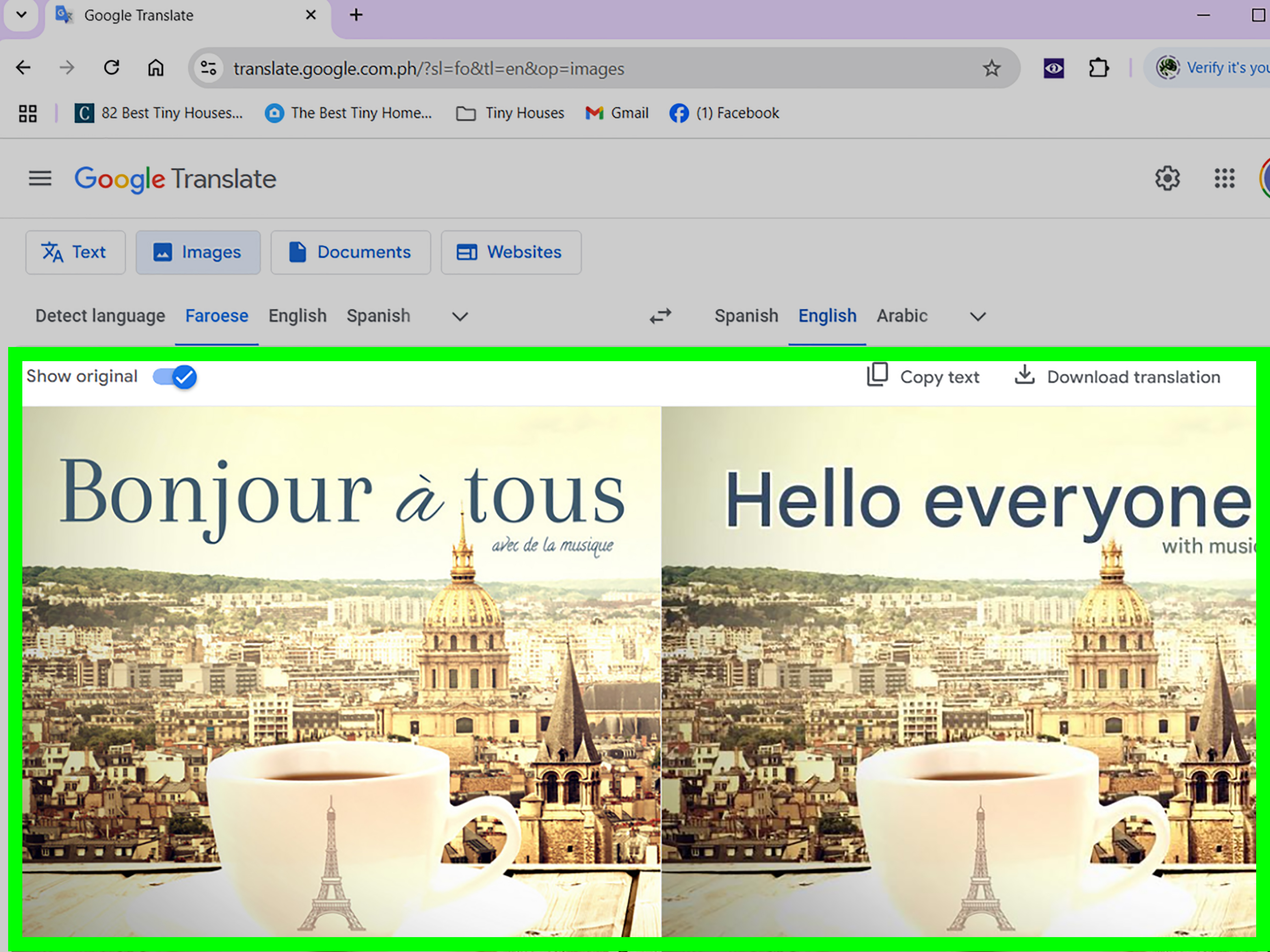
Go to Google Translate in your browser. At the top of the page, select the Images tab. This is the important part. If you stay on the regular text box, you will be staring at the screen wondering why your image is not magically translating itself. Computers are powerful, but they still appreciate clear instructions.
Step 2: Choose Your Languages
Select the language you want to translate from and the language you want to translate into. If you do not know the original language, choose Detect language. This is useful for screenshots or images collected online where the language is not obvious.
Step 3: Upload Your Image
Click Browse your computer, then choose the image file you want to translate. Google Translate will process the image and display translated text. You can compare the original with the translation, copy the translated text, or download the translated image.
Step 4: Use Show Original, Copy Text, or Download Translation
After the image is translated, you can use Show original to compare both versions. If you need the translated words for writing, studying, or messaging, click Copy text. If you want to keep the image with translated text, use Download translation.
Can Google Translate Scan PDFs?
This is where things get a little tricky. Google Translate has a document translation feature on desktop, and it can translate certain files such as PDFs and office documents. However, text inside scanned PDF images may not translate properly because it is treated like an image rather than editable text. In simple terms: if the PDF is a real text document, translation is more likely to work. If it is basically a photo of text wearing a PDF costume, results can be limited.
For scanned PDFs, a practical workaround is to take a screenshot of the specific page or section, then upload that image using the Images tab in Google Translate. On mobile, you can save the screenshot and translate it through the camera/gallery feature. It is not glamorous, but it works better than arguing with a PDF at 1 a.m.
Best Practices for Better Google Translate Scanning
Use Clear, Bright Images
Google Translate performs better when the text is sharp, well-lit, and easy to read. Blurry photos, shadows, glare, and tilted angles can confuse the app. If the image looks like it was taken during an earthquake, retake it.
Use Common Fonts When Possible
Printed signs, menus, labels, and standard documents usually translate better than stylized handwriting or decorative fonts. Fancy restaurant menus may look beautiful, but if the letters resemble vines climbing a castle wall, translation accuracy may drop.
Crop Out Unnecessary Background
If your image includes a lot of extra objects, crop it before translating. Focus on the text. This helps Google Translate recognize the correct words and reduces accidental translation of unrelated text in the background.
Check the Language Direction
Always confirm the “from” and “to” languages. A common mistake is translating from English to Spanish when you actually need Spanish to English. The result may still look official, but it will not help you order lunch.
Do Not Trust Important Translations Blindly
Google Translate is useful for everyday understanding, travel, quick reading, and casual communication. For legal, medical, financial, immigration, school, or official documents, have a qualified human review the translation. Machine translation is helpful, but it should not be the final judge when the stakes are high.
Common Problems and Quick Fixes
The Camera Button Is Missing
Update the Google Translate app. Also check whether camera permissions are enabled in your phone settings. If you are using a browser on desktop, remember that image translation is under the Images tab, not the regular text translation box.
The Translation Looks Wrong
Retake the photo in better light, crop the image, or manually select the text area. Also make sure the source language is correct. Automatic language detection is useful, but it is not perfect, especially with short phrases or mixed-language images.
The App Cannot Read Handwriting
Handwriting is harder for Google Translate than printed text. Neat handwriting may work, but messy notes can produce strange results. If the handwriting looks like a doctor wrote it while riding a roller coaster, the app may struggle.
Offline Camera Translation Is Not Working
Download the languages you need before going offline. Open the app while connected to the internet, go to the language picker, and download the relevant language packs. Offline translation is especially useful for travel, but it works best when prepared in advance.
Android vs. iPhone vs. Computer: Which Method Is Best?
For live signs, menus, and labels, Android and iPhone are the best choices because the camera mode is fast and convenient. You can point, scan, pause, and translate while standing in front of the text. For screenshots and saved photos, both mobile and desktop work well. For larger images, careful comparison, or downloading a translated image, the computer version is often more comfortable.
If you are traveling, use your phone. If you are working with saved screenshots or study materials, use whichever device has the clearest image. If you need to copy a lot of translated text, desktop may be easier because a full keyboard and bigger screen make editing less painful.
Real-World Experience: What It Is Actually Like to Scan With Google Translate
In real life, using Google Translate to scan text feels a bit like having a tiny language assistant in your pocket. It is not perfect, but it can rescue you from many everyday situations. The most satisfying use case is travel. You point your phone at a train station sign, a menu, or a washing machine panel in another country, and suddenly the mystery becomes understandable. Maybe not poetic, maybe not flawless, but understandable enough to avoid ordering something that still has a face.
The camera feature is especially useful for short, practical text. Menus, road signs, museum labels, store notices, ingredient lists, and package instructions usually work well when the photo is clear. The trick is to slow down. Many people wave the phone around and expect instant perfection. A better approach is to hold the phone steady, fill the frame with the text, and tap the shutter if the live view keeps moving. Freezing the image gives you time to read, select, copy, or compare the translation.
For students and language learners, scanning can be both helpful and dangerous. Helpful because you can quickly understand a word or sentence in context. Dangerous because it is tempting to translate everything without learning anything. A smart method is to scan the text, read the translation, then compare it with the original. Look for repeated words. Notice sentence structure. Save useful phrases. Used this way, Google Translate becomes a study assistant instead of a homework escape tunnel.
On desktop, image translation is excellent for screenshots. For example, if you are reading a foreign-language website where important text appears inside an image, take a screenshot and upload it through the Images tab. This is also helpful for product manuals, game screenshots, recipe images, and online posters. The computer version feels less spontaneous than the phone camera, but it gives you more control. You can crop the image first, upload a cleaner file, copy the translated text, and download the result.
The biggest lesson from using Google Translate scan features is that image quality matters more than people expect. A blurry photo can turn a simple sentence into nonsense. Small text, curved labels, shiny packaging, and decorative fonts can reduce accuracy. If the translation looks weird, do not immediately blame the language. Retake the photo, improve the lighting, crop the text, and try again. Translation apps are smart, but they are not mind readers with x-ray vision.
Another practical habit is to verify important details. If you are translating allergy warnings, medication instructions, legal notices, school documents, or official forms, use Google Translate only as a first step. It can help you understand the general meaning, but a human expert should review anything important. For casual situations, though, it is incredibly useful. It can help you find the right bus, understand a menu, read a label, or decode a sign without opening ten browser tabs and questioning your life choices.
Conclusion
Learning how to scan with Google Translate is simple once you know where the camera and image tools live. On Android, open the Translate app, tap Camera, and scan live text or choose an image from All Images. On iPhone or iPad, tap Camera, point at text, or choose a saved photo from Gallery. On a computer, open Google Translate in your browser, select Images, and upload a file from your device.
For the best results, use clear images, good lighting, common fonts, correct language settings, and a little common sense. Google Translate is excellent for quick understanding, travel, screenshots, and everyday reading. It is not a replacement for a professional translator when accuracy truly matters, but for daily life, it is one of the easiest ways to turn confusing text into something you can actually use.