

Chrome is fast, familiar, and usually one click away from whatever rabbit hole you are about to fall into. One minute you are checking the weather, and three searches later you are reading about how astronauts wash socks in space. That is the magic of the internet. The less magical part? Chrome can remember where you went, what you searched, and which pages you may want to reopen later.
If you are here to learn how to turn off browsing history on Chrome, the first thing to know is this: Chrome does not have one simple switch labeled “Stop saving all history forever” for normal browsing. A tiny dramatic violin may play in the background, but there is good news. You can still stop Chrome from saving browsing history during private sessions, clear existing history, reduce syncing across devices, and control what activity is saved to your Google Account.
This guide explains how to manage Chrome browsing history on desktop, Android, iPhone, and iPad. It also covers Incognito mode, Guest mode, Google Web & App Activity, Chrome sync, and practical privacy habits that keep your browser from acting like a nosy roommate with a perfect memory.
Can You Fully Turn Off Browsing History in Chrome?
In regular Chrome mode, browsing history is part of how the browser works. Chrome stores visited web addresses locally so you can find pages again, use autocomplete in the address bar, reopen tabs, and continue browsing across devices if sync is enabled. That convenience is nice when you want to return to a recipe. It is less nice when the recipe was “how to fix a haircut I gave myself at midnight.”
So, can you turn off Chrome browsing history completely? Not in the normal browser window with one permanent built-in setting. Instead, you have four realistic options:
- Use Incognito mode so Chrome does not save browsing history for that private session.
- Use Guest mode on desktop when sharing or borrowing a computer.
- Delete browsing history manually after regular browsing.
- Turn off or limit Google Account history syncing, especially Web & App Activity and Chrome history sync.
Think of it this way: regular Chrome is a notebook, Incognito is a sticky note you throw away, and Google Account activity settings are the filing cabinet in the next room. If you want cleaner privacy, you need to manage all three.
How to Stop Chrome from Saving History on Desktop
If you are using Chrome on Windows, Mac, Linux, or ChromeOS, the fastest way to prevent local browsing history from being saved is to browse in Incognito mode.
Method 1: Use Incognito Mode on Desktop
Incognito mode opens a separate private browsing session. When you close all Incognito windows, Chrome does not keep a record of the sites you visited in that session. It also removes temporary cookies and site data from that private session.
- Open Chrome on your computer.
- Click the three-dot menu in the top-right corner.
- Select New Incognito window.
- Browse normally in the dark Incognito window.
- When finished, close all Incognito windows.
You can also use a keyboard shortcut:
- Windows, Linux, or ChromeOS: Ctrl + Shift + N
- Mac: Command + Shift + N
Incognito is ideal for gift shopping, quick private searches, signing into a secondary account, or researching something you do not want appearing in your local Chrome history. However, Incognito does not make you invisible online. Websites, your employer or school network, your internet service provider, and some Google services may still be able to receive or infer activity information. In short: Incognito hides activity from your browser history, not from the entire planet.
Method 2: Use Guest Mode on Desktop
Guest mode is useful when someone else is using your computer or you are using a shared device. It creates a temporary browsing space where visited websites do not appear in the main Chrome profile’s history.
- Open Chrome on your computer.
- Click the profile icon in the top-right corner.
- Select Guest or Open Guest profile.
- Browse in the Guest window.
- Close the Guest window when finished.
When Guest mode closes, Chrome deletes browsing activity from that Guest session on the computer. It is especially handy for libraries, offices, family computers, and any situation where “just checking one thing” turns into twenty tabs and an emotional support spreadsheet.
Method 3: Delete Chrome Browsing History on Desktop
If you already used regular Chrome mode, you can still delete your browsing history afterward.
- Open Chrome.
- Click the three-dot menu in the top-right corner.
- Select Delete browsing data.
- Choose a time range, such as Last hour, Last 24 hours, or All time.
- Check Browsing history.
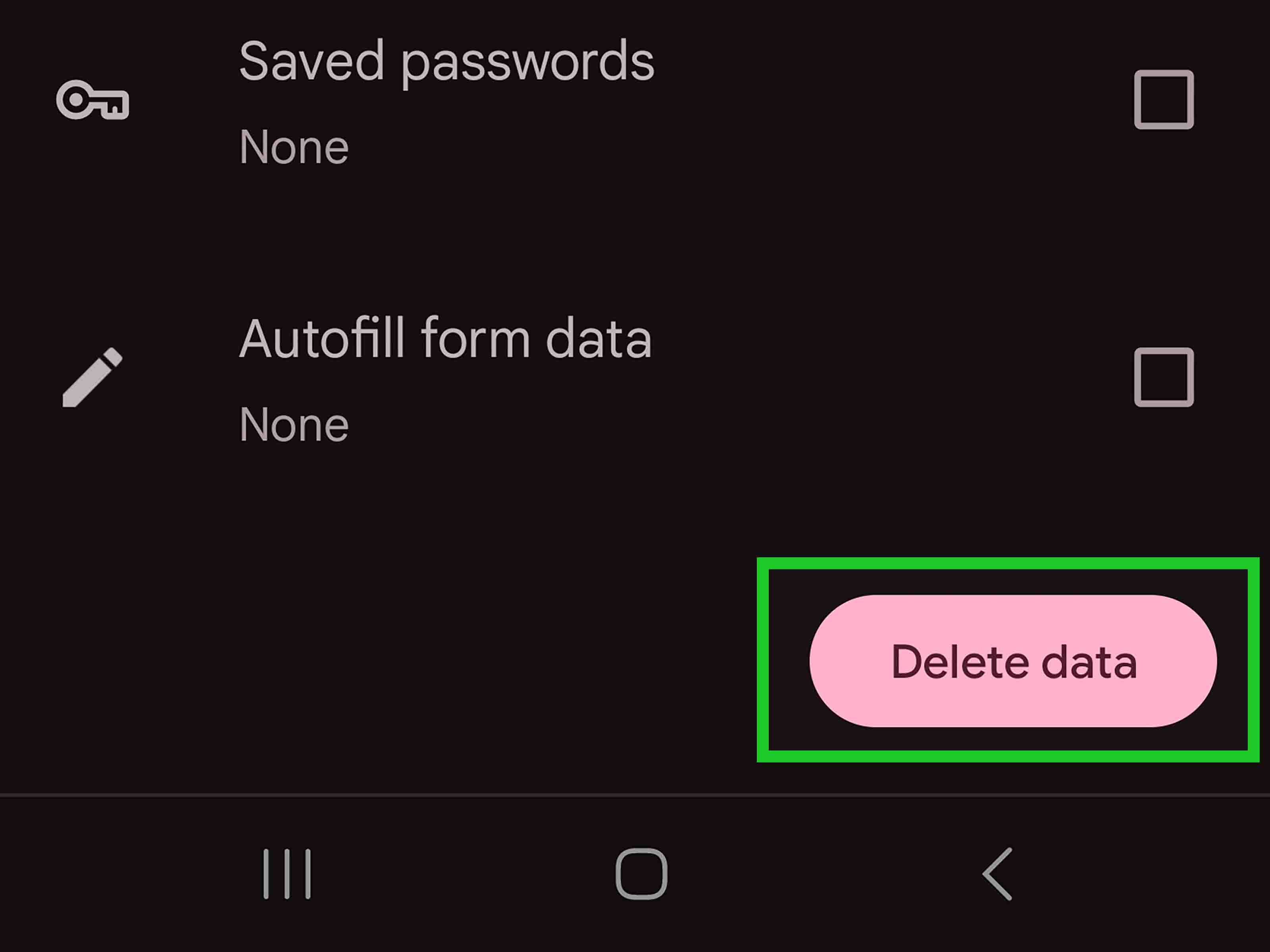
- Uncheck anything you do not want to remove, such as passwords or autofill data.
- Click Delete data.
For a more detailed cleanup, go to Settings > Privacy and security > Delete browsing data. You can choose whether to delete cookies, cached files, download history, passwords, autofill data, and site settings. Be careful with these options. Deleting cookies may sign you out of websites. Deleting saved passwords is the browser equivalent of throwing away your house keys and then asking the doormat for help.
How to Turn Off Browsing History on Chrome Mobile
Chrome mobile works a little differently depending on whether you use Android, iPhone, or iPad. The basic privacy tools are similar: Incognito mode for private browsing, manual deletion for existing history, and Google Account controls for synced activity.
How to Use Incognito Mode on Android
- Open the Chrome app on your Android phone or tablet.
- Tap the three-dot menu near the address bar.
- Tap New Incognito tab.
- Browse in the Incognito tab.
- Close all Incognito tabs when finished.
Chrome will not save the browsing history from that Incognito session to your local history. This is the best everyday option if your goal is to stop Chrome from recording a specific browsing session on your phone.
How to Delete Chrome History on Android
- Open Chrome on your Android device.
- Tap the three-dot menu.
- Tap Delete browsing data.
- Choose a time range. Select All time to remove everything available.
- Make sure Browsing history is selected.
- Uncheck categories you want to keep.
- Tap Delete data.
You can also remove individual history entries by opening History, finding the page, and tapping the remove icon. This is useful when you do not want to delete your entire browser memory just because one page was embarrassing, irrelevant, or named something deeply suspicious by a website with no sense of subtlety.
How to Use Incognito Mode on iPhone or iPad
- Open Chrome on your iPhone or iPad.
- Tap the three-dot menu.
- Choose New Incognito Tab.
- Browse privately in the Incognito tab.
- Close Incognito tabs when you are done.
On iPhone and iPad, Incognito mode works the same basic way: pages you visit privately do not appear in your Chrome history after the session ends.
How to Delete Chrome History on iPhone or iPad
- Open Chrome.
- Tap the three-dot menu.
- Tap Delete Browsing Data.
- Select a time range.
- Tap Browsing Data if you need to choose specific data types.
- Select Browsing History.
- Tap Confirm, then Delete Browsing Data.
For quick cleanups, this is usually enough. For deeper privacy, keep reading, because Chrome history and Google Account activity are related but not identical.
Turn Off Chrome History Sync Across Devices
If you are signed in to Chrome and syncing history, your browsing activity may appear across devices. That is convenient when you start reading an article on your laptop and finish it on your phone. It is less convenient when your phone politely suggests the weird troubleshooting page you opened on your work computer.
To reduce this, turn off history sync or Chrome sync entirely.
On Desktop
- Open Chrome.
- Click your profile icon or open Settings.
- Go to You and Google.
- Select Sync and Google services.
- Choose Manage what you sync.
- Select Customize sync.
- Turn off History or History and tabs, depending on your Chrome version.
On Mobile
- Open Chrome.
- Tap the three-dot menu.
- Tap Settings.
- Tap your Google Account name.
- Tap Sync.
- Turn off history-related sync options, or turn off sync completely.
Turning off sync does not automatically erase everything already saved. It mainly stops future syncing. If you want a full cleanup, delete local Chrome history and also manage your Google Account activity.
Turn Off Web & App Activity in Your Google Account
Chrome browser history and Google Account activity are not the same thing. Chrome history is stored by the browser. Web & App Activity is a Google Account setting that can save searches and activity from Google services and, when enabled with the right checkbox, Chrome history and activity from sites, apps, and devices that use Google services.
To turn it off:
- Go to your Google Account.
- Open Data & privacy.
- Find History settings.
- Select Web & App Activity.
- Choose Turn off.
- If available, choose Turn off and delete activity if you also want to remove past saved activity.
You may also see an option such as Include Chrome history and activity from sites, apps, and devices that use Google services. If you do not want Chrome-related activity saved to your Google Account, make sure this option is disabled.
What Incognito Mode Does and Does Not Hide
Incognito mode is helpful, but it is often misunderstood. It is not a cloak, a force field, or a digital invisibility potion brewed by privacy wizards. It simply limits what Chrome saves on your device after the Incognito session closes.
Incognito Mode Helps Hide:
- Pages visited from your local Chrome history
- Cookies from that private session after all Incognito windows close
- Site data from that private session
- Form entries from the private session
Incognito Mode Does Not Hide:
- Your activity from websites you visit
- Your activity from your school, employer, or network administrator
- Your activity from your internet service provider
- Files you download
- Bookmarks you create
- Activity inside accounts you sign into
Example: if you open Incognito mode and sign into a shopping website, that website can still know what you do inside your account. Chrome may not save the visit locally, but the site itself can still record account activity. Incognito is for local privacy, not full anonymity.
Best Privacy Setup for Chrome Users
If your goal is to keep Chrome from saving browsing history as much as possible, use this setup:
- Use Incognito mode for private sessions.
- Use Guest mode when sharing or borrowing a computer.
- Turn off Chrome history sync if you do not want activity appearing across devices.
- Turn off Web & App Activity if you do not want Google saving certain account activity.
- Delete browsing data regularly.
- Review cookies, site permissions, and ad privacy settings.
- Avoid signing into sensitive accounts on shared devices.
For stronger privacy, consider using privacy-focused search engines, browser extensions from reputable developers, or a trusted VPN. Just remember that every tool has limits. A VPN can hide activity from some networks, but the websites you log into can still know it is you. Privacy is not one button; it is a habit stack.
Common Problems and Quick Fixes
“I deleted Chrome history, but it still appears on another device.”
You may have Chrome sync turned on. Delete browsing history while signed into Chrome, then check sync settings on every device. Also review your Google Account activity controls.
“Chrome still suggests websites in the address bar.”
Address bar suggestions can come from bookmarks, search suggestions, synced data, or remaining browsing history. Delete history, clear cached data if needed, and check sync settings.
“Can I make Chrome always open in Incognito?”
On desktop, advanced users can create a shortcut that launches Chrome with Incognito mode. However, this does not change Chrome’s normal internal settings; it only changes how that shortcut opens the browser. On mobile, Chrome does not offer a universal built-in setting that forces every new session to be Incognito by default.
“Does deleting browsing history delete passwords?”
Only if you select saved passwords in the deletion menu. If you only choose browsing history, your saved passwords should remain. Always check the boxes carefully before tapping or clicking delete.
Practical Experiences: What Actually Works in Real Life
After helping people clean up Chrome history on phones, laptops, shared family computers, and work devices, one lesson becomes obvious: most people do not have a history problem; they have a “too many connected settings” problem. They delete history on their laptop and feel victorious, then open Chrome on their phone and see the same pages waiting there like tiny digital ghosts. That usually happens because sync is still active.
The easiest everyday workflow is to decide before browsing whether the session should be remembered. If it is normal research, regular Chrome is fine. If it is private, temporary, surprising, personal, or gift-related, open Incognito first. This tiny habit saves a lot of cleanup later. It is like putting a plate under toast before adding jam. You can skip it, but future you will be annoyed.
For families, Guest mode is underrated. If a child, parent, roommate, or friend needs to use your computer, Guest mode is cleaner than handing them your main Chrome profile. They do not need your bookmarks, saved passwords, autofill addresses, or chaotic collection of open tabs. More importantly, their browsing does not mix with yours. Guest mode is the polite fence between “please check your email” and “why is my browser now suggesting tractor parts?”
For students and office workers, Incognito mode is useful but not magical. If you are on a school or company network, private browsing may keep pages out of local Chrome history, but it does not necessarily hide activity from network systems. The same applies to public Wi-Fi. Use Incognito to protect local privacy, not to assume total invisibility.
Another real-world tip: do not delete everything unless you mean it. Many people rush into the delete menu, select every checkbox, and then wonder why websites forgot them, carts disappeared, and logins got fussy. If your goal is only to remove visited websites, choose browsing history first. Leave passwords, autofill, and site settings alone unless you are intentionally doing a deep reset.
On mobile, the fastest habit is using Chrome’s menu before sensitive searches. Tap the three dots, open a new Incognito tab, do the task, close the tab. That is simpler than deleting history later while standing in line at a coffee shop, squinting at checkboxes, and hoping you do not erase something important.
Finally, review your Google Account activity settings every few months. People change devices, sign into new accounts, reinstall apps, and forget which privacy options are active. A quick check of Web & App Activity and Chrome sync can prevent confusion. Privacy settings are not “set it once and retire on a beach” tools. They are more like smoke alarm batteries: boring, important, and worth checking before things get dramatic.
Conclusion
Learning how to turn off browsing history on Chrome is really about choosing the right privacy tool for the job. Chrome does not provide a single permanent switch that stops all normal browsing history from being saved, but you still have strong options. Use Incognito mode when you do not want Chrome to save a session locally. Use Guest mode on shared desktop computers. Delete browsing history when you need to clean up past activity. Turn off Chrome history sync and Web & App Activity when you want more control over what connects to your Google Account.
The best approach is simple: browse intentionally. Regular Chrome is convenient, Incognito is temporary, Guest mode is clean for shared computers, and account settings control the bigger Google ecosystem. Once you understand the difference, Chrome privacy becomes much less mysteriousand much less likely to surprise you with an autocomplete suggestion from three Tuesdays ago.