

If your Samsung TV has suddenly started talking every time you change the volume, scroll through menus, or open an app, do not panic. Your TV has not developed a personality overnight, and it is probably not judging your taste in reality shows. Most likely, the Voice Guide feature has been turned on.
Voice Guide is an accessibility feature built into Samsung Smart TVs. It reads on-screen text aloud, including menu names, channel information, volume levels, and settings options. For viewers who are blind or have low vision, this feature can be incredibly helpful. But when it is activated by accident, it can feel like your television has hired a very enthusiastic narrator who refuses to clock out.
The good news: you can turn off Voice Guide on a Samsung TV in just a few steps. In this guide, we will cover the two easiest methods: using the regular Settings menu and using the remote control shortcut. We will also explain what to do if your TV is still narrating after Voice Guide is turned off, because sometimes the culprit is actually Audio Description, not Voice Guide.
What Is Voice Guide on a Samsung TV?
Voice Guide is Samsung’s screen reader feature for Smart TVs. When enabled, it speaks menu items, settings, app names, and other on-screen information out loud. It is part of Samsung’s accessibility tools, designed to help people navigate the TV without relying only on visual cues.
For example, if you open the Settings menu, Voice Guide may say “Settings,” “General & Privacy,” “Accessibility,” or “Volume 15” as you move through options. This is normal behavior when the feature is turned on.
However, many people discover Voice Guide by accident. A child may press a remote button, a guest may hold the volume key too long, or you may simply be exploring menus and activate an accessibility shortcut. Suddenly, your relaxing movie night has a running commentary from the TV itself. Helpful? Sometimes. Surprising? Absolutely.
Voice Guide vs. Audio Description: Know the Difference
Before you start changing settings, it helps to understand the difference between Voice Guide and Audio Description. They sound similar, but they are not the same thing.
Voice Guide
Voice Guide reads TV menus, settings, volume changes, app names, and navigation options. If the TV talks when you move around the Samsung menu, Voice Guide is probably on.
Audio Description
Audio Description describes what is happening in a show or movie, such as scene changes, actions, expressions, or important visual details. If the voice only appears during certain programs, movies, or channels, Audio Description may be enabled instead.
This distinction matters because turning off Voice Guide will stop menu narration, but it may not stop a voice that describes scenes during a broadcast or streaming program. Later in this article, we will cover what to check if that happens.
How to Turn Off Voice Guide on a Samsung TV: 2 Easy Ways
Samsung TV menus can vary slightly depending on the model year, region, and software version. Newer TVs often use Settings > All Settings > General & Privacy > Accessibility, while some older models may show General > Accessibility or a similar layout. The steps below cover the most common Samsung Smart TV paths.
Method 1: Turn Off Voice Guide from the Settings Menu
This is the most reliable way to disable Voice Guide because it takes you directly to the feature’s main toggle. Use this method if you can still navigate your TV menus comfortably.
Step-by-Step Instructions
- Press the Home button on your Samsung TV remote.
- Go to Menu or Settings.
- Select All Settings if your TV shows that option.
- Choose General & Privacy.
- Select Accessibility.
- Open Voice Guide Settings.
- Select Voice Guide and switch it Off.
Once Voice Guide is off, your Samsung TV should stop reading menu items and volume changes aloud. You may still hear normal TV audio, app sounds, or program dialogue, but the extra narration from the TV interface should be gone.
What If Your Menu Looks Different?
On some Samsung TVs, the path may be slightly shorter. Try one of these menu paths if the first one does not match your screen:
- Home > Settings > General > Accessibility > Voice Guide Settings
- Menu > Settings > General & Privacy > Accessibility > Voice Guide Settings
- Settings > Accessibility > Voice Guide
The wording may shift a little, but the key terms to look for are Accessibility and Voice Guide. Think of Accessibility as the neighborhood and Voice Guide as the chatty house on the corner.
Method 2: Turn Off Voice Guide Using the Remote Shortcut
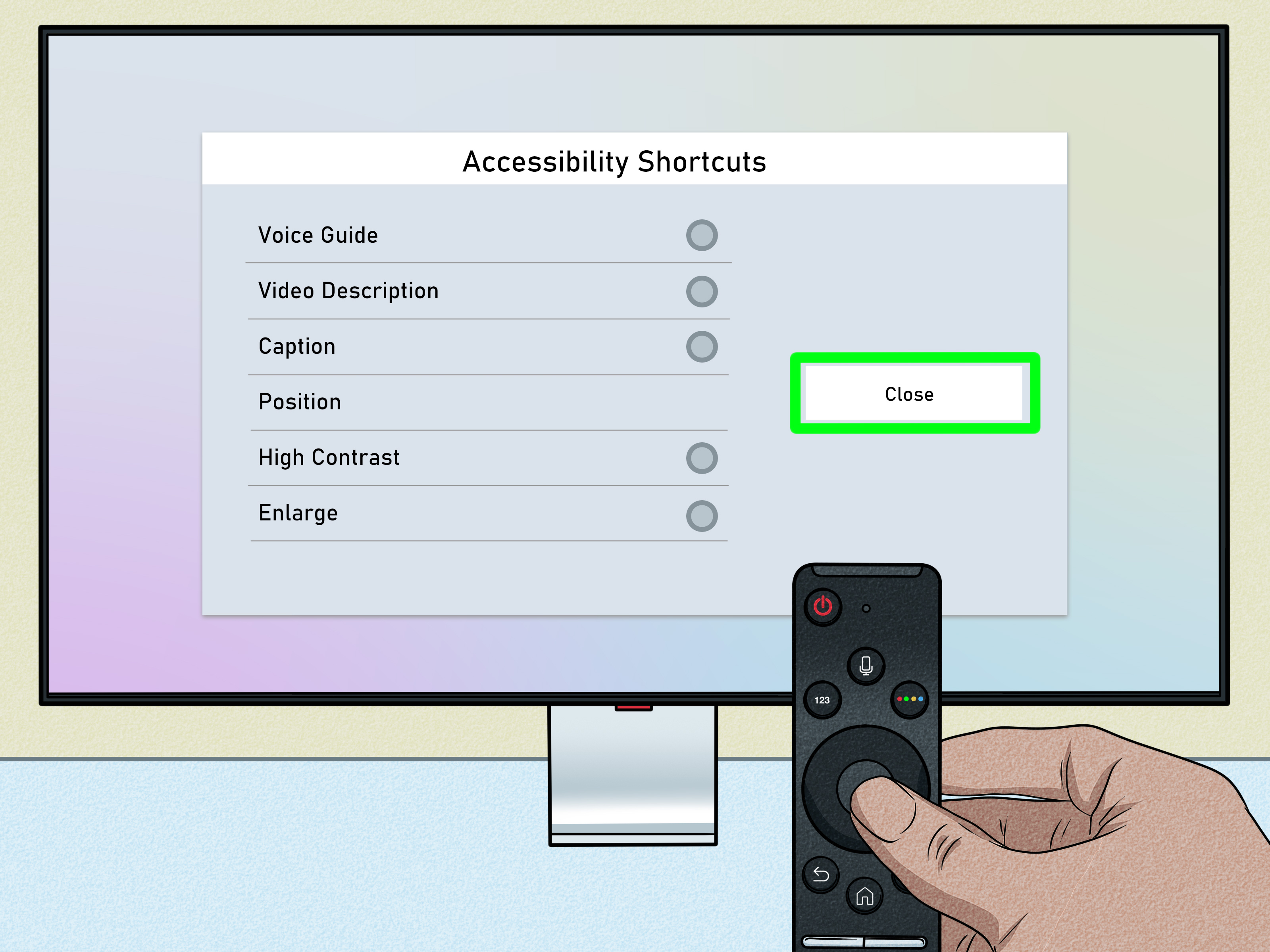
If the TV is talking too much and you want a faster fix, use the Accessibility Shortcut menu. This is often the quickest way to turn off Voice Guide on a Samsung Smart TV, especially if your remote is a newer Samsung Smart Remote.
Using the Volume Button Shortcut
- Pick up your Samsung Smart Remote.
- Press and hold the Volume button for about two seconds.
- The Accessibility Shortcuts menu should appear.
- Find Voice Guide.
- Switch Voice Guide to Off.
Using the Mute Button Shortcut
Some Samsung remotes use the Mute button for accessibility shortcuts. If your remote has a Mute button, try this:
- Press and hold the Mute button.
- Wait for the Accessibility Shortcuts menu to open.
- Select Voice Guide.
- Turn it Off.
This shortcut is especially useful because Voice Guide can be turned on accidentally the same way. If someone held the Volume or Mute button too long, they may have opened the Accessibility menu without realizing it. One long press later, the TV is narrating your entire evening.
What to Do If the Voice Still Will Not Turn Off
If you turned off Voice Guide and the TV still talks, do not throw the remote into the couch cushions and declare defeat. The issue may be another accessibility or audio feature. Here are the most common fixes.
Check Audio Description Settings
If the voice describes scenes during a TV show or movie, you may need to turn off Audio Description. This setting is separate from Voice Guide and may only activate on content that supports descriptive audio.
Try this path:
- Press Home on the remote.
- Go to Settings or All Settings.
- Select General & Privacy.
- Choose Accessibility.
- Open Audio Description Settings.
- Turn Audio Description off.
On some older models, you may need to check broadcast audio language settings. If you see an option such as English AD, switch it to regular English. The “AD” usually means Audio Description.
Check the Streaming App
Sometimes the narration is not coming from the Samsung TV settings at all. Streaming apps such as Netflix, Prime Video, Disney+, Hulu, Max, or YouTube may have their own audio track settings. If narration only happens in one app, open the app’s audio or subtitle menu while the video is playing and choose a standard audio track instead of one labeled Audio Description, Descriptive Audio, or AD.
Restart the TV
After changing accessibility settings, restart your TV if the voice continues. Hold the Power button on the remote until the TV turns off and back on, or unplug the TV for about 30 seconds and plug it back in. This can clear temporary glitches and force the TV to apply the new settings properly.
Update Your Samsung TV Software
If your settings menu behaves strangely or Voice Guide keeps turning back on, check for a software update. Go to:
Settings > Support > Software Update > Update Now
Keeping your Samsung TV updated can improve performance, fix bugs, and refresh system features. It will not magically stop family members from pressing every button on the remote, but it can help with software-related issues.
Why Did Voice Guide Turn On by Itself?
Voice Guide usually does not turn on completely by itself. In most cases, it is activated through a remote shortcut or a settings change. Common causes include:
- Someone held the Volume or Mute button too long.
- A child or guest explored the remote buttons.
- The TV was reset and accessibility settings changed.
- A software update refreshed menu options.
- An accessibility shortcut was selected by mistake.
The shortcut is useful for people who need quick access to accessibility features, but it can surprise users who do not know it exists. Once you understand the shortcut, the mystery becomes much less dramatic. Your TV is not haunted; it is just overly accessible.
Can You Adjust Voice Guide Instead of Turning It Off?
Yes. If someone in your home benefits from Voice Guide but finds it too loud, too fast, or too distracting, you may not need to disable it completely. Samsung TVs usually let you adjust Voice Guide settings such as:
- Voice Guide Volume: Controls how loud the narration sounds.
- Voice Guide Speed: Changes how quickly the voice speaks.
- Voice Guide Pitch: Adjusts the tone of the voice.
- Background TV Volume: Helps balance narration with regular TV audio on supported models.
To find these options, go to Settings > General & Privacy > Accessibility > Voice Guide Settings. From there, you can fine-tune the feature instead of switching it off entirely.
Quick Troubleshooting Table
| Problem | Likely Cause | Best Fix |
|---|---|---|
| TV reads menu items aloud | Voice Guide is on | Turn off Voice Guide in Accessibility settings |
| TV says volume numbers aloud | Voice Guide is on | Use the Volume or Mute shortcut to disable it |
| Voice describes movie scenes | Audio Description is on | Turn off Audio Description or choose a regular audio track |
| Narration happens only in one app | App audio track is set to descriptive audio | Change audio settings inside the streaming app |
| Voice Guide keeps coming back | Shortcut use, glitch, or software issue | Restart TV, update software, and check shortcut menu |
Tips to Prevent Voice Guide from Turning On Again
Once you turn off Voice Guide, a few simple habits can prevent the feature from making an unexpected comeback.
Learn the Shortcut
Remember that holding the Volume or Mute button can open Accessibility Shortcuts on many Samsung remotes. A quick press changes the volume. A long press may open a menu. That tiny difference is the reason many TVs suddenly start narrating.
Explain It to Other People at Home
If you share the TV, tell others what happened. You do not need a full family meeting with charts and snacks, but a quick “Don’t hold the volume button unless you want the TV to talk” can save everyone time.
Check Accessibility After a Reset
If you reset your Samsung TV, replace the remote, or set up a new device, check Accessibility settings afterward. It only takes a minute and helps avoid confusion later.
Real-World Experience: What It Feels Like When Voice Guide Suddenly Turns On
Here is a very common scenario: you sit down after a long day, grab the remote, and try to lower the volume before the opening theme song wakes up the entire neighborhood. Instead of quiet, your Samsung TV announces the volume level out loud. You press another button. It reads another menu item. You press Back. It says something else. At this point, the TV seems less like a screen and more like a very determined tour guide.
In many homes, Voice Guide gets activated by accident because the Samsung Smart Remote is simple, sleek, and slightly mysterious. It does not have a giant button labeled “Make TV Narrate Everything.” Instead, the accessibility shortcut is hidden behind a long press of the Volume or Mute button. That shortcut is smart design for people who rely on accessibility tools, but it can catch other users off guard.
The easiest real-world fix is to start with the shortcut method. Hold the Volume button for a couple of seconds and look for the Accessibility Shortcuts menu. If Voice Guide is checked or set to On, switch it Off. This is usually faster than digging through the full Settings menu, especially when the TV is currently reading every move you make. It is like asking the narrator to please leave the room using the narrator’s own microphone.
If the shortcut does not solve the problem, the Settings menu is the dependable backup. Go to Home, open Settings, choose All Settings, then General & Privacy, Accessibility, and Voice Guide Settings. The exact labels may vary, but the path usually follows that pattern. Once you have done it one time, it becomes much less intimidating.
One practical tip: do not rush through the menu. When Voice Guide is on, it may speak after each selection, which can make the TV feel slower than usual. Wait a second after pressing each button so you do not overshoot the setting. Many users accidentally jump past the correct option because they are trying to outpace the voice. The remote is not a video game controller; speed-running the Accessibility menu rarely ends well.
Another experience worth knowing: if the voice only happens during certain movies or shows, the problem is probably not Voice Guide. It may be Audio Description. This happens often with streaming services or broadcast channels that offer descriptive audio tracks. In that case, the voice may say things like “she walks into the room” or “the car pulls away.” That is not the TV reading menus; that is a special audio track. Open the audio settings for the program and choose the regular language track.
For families, the best long-term solution is simple awareness. Once everyone knows that holding the Volume or Mute button can open Accessibility Shortcuts, accidental activation becomes less common. If a child, guest, or grandparent uses the TV, show them the difference between pressing and holding the button. It takes ten seconds and may prevent ten minutes of confused button pressing later.
Voice Guide is not a bad feature. In fact, it is extremely useful for the people who need it. The frustration usually comes from not knowing why it turned on or where the off switch is hiding. Once you know the two easy methods, the feature becomes manageable rather than annoying. Your Samsung TV can go back to doing what it does best: showing movies, streaming shows, and quietly waiting for you to lose the remote again.
Conclusion
Turning off Voice Guide on a Samsung TV is usually quick and painless. The easiest method is to open Settings > All Settings > General & Privacy > Accessibility > Voice Guide Settings and switch Voice Guide off. The faster shortcut is to press and hold the Volume or Mute button, open Accessibility Shortcuts, and disable Voice Guide from there.
If your TV still talks after that, check Audio Description settings or the audio track inside your streaming app. Voice Guide controls menu narration, while Audio Description controls scene narration for supported content. Once you know the difference, fixing the problem becomes much easier.
So yes, your Samsung TV can stop narrating your every move. No exorcism required. Just a few clicks, one shortcut, and maybe a little forgiveness for the remote button that started the whole drama.