

Few iPhone problems feel as oddly personal as seeing “iMessage Waiting for Activation” sitting under your phone number like it has moved in, unpacked, and started paying rent. One minute you are ready to send crisp blue bubbles like a civilized member of the Apple ecosystem. The next, your iPhone is stuck in activation limbo, your messages may turn green, and everyone assumes you have either switched phones, lost signal, or joined a support group for people betrayed by technology.
The good news: this issue is usually fixable. The not-so-fun news: iMessage activation depends on several moving parts at once, including your Apple Account, phone number, carrier, SMS capability, internet connection, date and time settings, iOS version, and sometimes Apple’s own servers. If one little gear slips, iMessage can stare blankly at you with the emotional range of a toaster.
This guide walks you through 8 quick and easy fixes for iMessage waiting for activation, starting with the simplest steps and moving toward the stronger troubleshooting options. Whether you just bought a new iPhone, changed carriers, installed an eSIM, updated iOS, traveled internationally, or simply woke up to a rebellious Messages app, these solutions can help you get back to blue bubbles without sacrificing your afternoon.
What Does “iMessage Waiting for Activation” Mean?
When your iPhone says “Waiting for Activation” in iMessage settings, it means Apple is trying to connect your phone number or Apple Account to the iMessage service. This process normally happens quietly in the background. You turn on iMessage, your iPhone checks your network, verifies your phone number, contacts Apple’s servers, andboomblue bubble magic.
But if activation gets interrupted, delayed, or blocked, you may see messages such as:
- Waiting for activation
- Activation unsuccessful
- An error occurred during activation
- Could not sign in, please check your network connection
- iMessage signed out
In many cases, iMessage can still work through your Apple Account email while your phone number remains stuck. That is why some people notice their messages suddenly come from an email address instead of their usual number. It is not exactly a crisis, but it is awkwardlike showing up to a party wearing a name tag that says “probably you.”
Before You Start: Give Activation a Little Time
Apple notes that iMessage and FaceTime activation may take up to 24 hours. That does not mean you should stare at your iPhone for a full day like it owes you money. It simply means that if you just changed carriers, transferred a number, added an eSIM, updated iOS, or set up a new iPhone, the activation process may not be instant.
Still, you do not have to sit helplessly. Run through the fixes below. If everything looks correct and iMessage is still pending, leave your iPhone connected to Wi-Fi or cellular data and check again later. If the issue lasts longer than 24 hours, it is time to contact Apple Support or your wireless carrier.
Fix 1: Check Your Internet Connection
iMessage needs an active internet connection to activate and send messages. That connection can come from Wi-Fi or cellular data, but it has to be stable. If your iPhone is clinging to one bar of service in a basement, elevator, parking garage, or mysterious corner of your home where Wi-Fi goes to retire, activation may fail.
How to check your connection
- Open Safari and try loading a website.
- Turn Wi-Fi off and use cellular data, or switch from cellular data to Wi-Fi.
- Move closer to your router if you are using Wi-Fi.
- Turn Airplane Mode on for 10 seconds, then turn it off.
- Restart your router if other devices are also having connection problems.
A weak connection can cause iMessage to hang during activation. If your internet suddenly improves and iMessage activates, congratulations: your phone was not broken; it was just being dramatic about bandwidth.
Fix 2: Make Sure SMS Messaging Works
This is one of the most important details people miss. To activate iMessage with your phone number, your iPhone may need to send an SMS message in the background. Depending on your carrier and location, that SMS may be domestic or international. If your plan blocks SMS, your number transfer is not complete, your SIM or eSIM is not fully active, or your carrier account has restrictions, iMessage activation can fail.
Test regular texting first
Before blaming iMessage, test basic SMS:
- Open the Messages app.
- Send a regular text message to someone who does not use iMessage, or temporarily turn off iMessage and send a text.
- Ask someone to send you a standard SMS message.
If SMS does not work, iMessage activation probably will not work either. Contact your wireless carrier and ask whether your line can send and receive SMS, whether your number transfer is complete, and whether your SIM or eSIM is provisioned correctly.
This is especially common after switching carriers, porting a phone number, using a new eSIM, traveling internationally, or activating a new iPhone. Your iPhone may show signal bars, but the carrier side may still be finishing paperwork behind the digital curtain.
Fix 3: Turn iMessage Off and Back On
The classic “turn it off and on again” advice exists because, annoyingly, it works. Toggling iMessage forces your iPhone to restart the activation attempt. This can help after an iOS update, eSIM setup, carrier change, or random Messages app confusion.
How to restart iMessage activation
- Open Settings.
- Tap Messages.
- Turn iMessage off.
- Wait 30 seconds.
- Turn iMessage back on.
After toggling it back on, tap Send & Receive and check whether your phone number appears. If your number is there but still spinning, give it a few minutes. If only your Apple Account email appears, your phone number may not be activating through the carrier network yet.
For best results, also turn FaceTime off and back on because FaceTime and iMessage often activate through similar Apple services. Go to Settings > FaceTime, switch it off, wait, then switch it back on.
Fix 4: Restart Your iPhone
A restart clears temporary glitches, refreshes system processes, and gives your iPhone a chance to stop acting like a tiny glass rectangle with trust issues. It is simple, safe, and often effective.
How to restart most newer iPhones
- Press and hold the Side button and either Volume button.
- Drag the power slider to turn off your iPhone.
- Wait about 30 seconds.
- Press and hold the Side button again until the Apple logo appears.
After your iPhone restarts, return to Settings > Messages and check iMessage. If it still says waiting for activation, continue with the next fix.
Fix 5: Check Date, Time, and Time Zone Settings
This fix sounds suspiciously too simple, but incorrect date and time settings can interfere with Apple services. Secure connections rely on accurate time settings. If your iPhone thinks it is Tuesday in 2037 while Apple’s servers are living in the present, activation may not go smoothly.
How to set date and time automatically
- Open Settings.
- Tap General.
- Tap Date & Time.
- Turn on Set Automatically.
- Confirm that your time zone is correct.
This is especially useful if you recently traveled, changed regions, restored an iPhone from backup, or manually adjusted your clock. Your iPhone is smart, but it still needs to know what day it is. Frankly, same.
Fix 6: Sign Out of Your Apple Account and Sign Back In
If iMessage activates with your email but not your phone number, the problem may be carrier-related. But if iMessage refuses to activate at all, your Apple Account sign-in may need a refresh.
How to refresh your Apple Account for iMessage
- Open Settings.
- Tap Messages.
- Tap Send & Receive.
- Tap your Apple Account.
- Choose Sign Out.
- Restart your iPhone.
- Go back to Settings > Messages > Send & Receive.
- Sign in again.
Make sure you know your Apple Account password before signing out. If you use two-factor authentication, keep a trusted device or phone number nearby. The goal is a quick refresh, not an accidental side quest into account recovery.
Fix 7: Update iOS and Carrier Settings
Software updates can fix bugs that affect Messages, Apple Account sign-in, cellular connectivity, eSIM behavior, and network activation. Carrier settings updates can also improve how your iPhone connects to your wireless provider’s network.
Update iOS
- Open Settings.
- Tap General.
- Tap Software Update.
- If an update is available, tap Download and Install.
Check for carrier settings updates
- Connect your iPhone to Wi-Fi or cellular data.
- Open Settings.
- Tap General.
- Tap About.
- If a carrier update appears, follow the onscreen instructions.
If you recently inserted a new SIM, added an eSIM, changed carriers, or transferred your phone number, this step matters. Carrier settings help your iPhone communicate properly with the mobile network. Without the right settings, iMessage activation can get stuck at the front door, ringing the bell forever.
Fix 8: Reset Network Settings
If nothing else works, resetting network settings is a strong next step. It does not delete your photos, apps, messages, or personal files. However, it does erase saved Wi-Fi networks, Wi-Fi passwords, VPN settings, and some cellular preferences. In other words, your data stays safe, but your iPhone forgets every coffee shop Wi-Fi password it has ever emotionally bonded with.
How to reset network settings
- Open Settings.
- Tap General.
- Tap Transfer or Reset iPhone.
- Tap Reset.
- Choose Reset Network Settings.
- Enter your passcode if prompted.
- Confirm the reset.
Your iPhone will restart. Afterward, reconnect to Wi-Fi, turn iMessage on, and check activation again. This fix is helpful when the problem is caused by corrupted network settings, unstable cellular configuration, or stubborn connection behavior.
Extra Troubleshooting Tips If iMessage Still Will Not Activate
Check Apple System Status
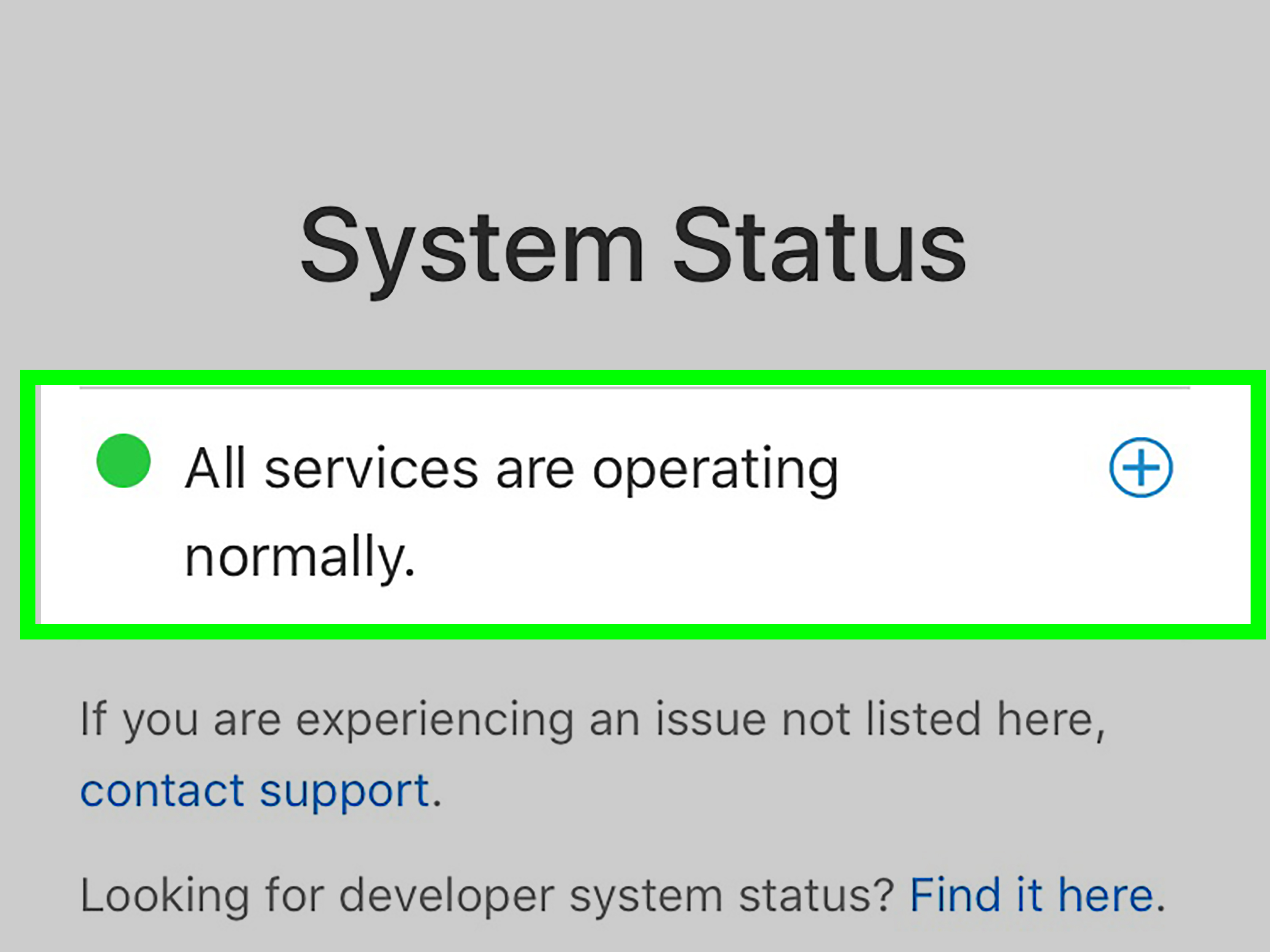
If Apple’s iMessage service is having an outage, your iPhone may not activate no matter how many times you poke the toggle. Check Apple’s System Status page and look for iMessage availability. If there is a service issue, the only real fix is patience, snacks, and possibly a tiny dramatic sigh.
Confirm your phone number in Settings
Go to Settings > Phone > My Number and make sure your number appears correctly. If the number is missing or wrong, contact your carrier. This can happen after SIM swaps, number transfers, or eSIM setup.
Look at Send & Receive
Open Settings > Messages > Send & Receive. Your phone number and Apple Account email should appear there. If your email works but your number does not, the issue is often tied to SMS activation, carrier provisioning, or phone number registration.
Contact your carrier
If you recently switched carriers or transferred your number, ask whether the port is fully complete. Also ask whether SMS is enabled, international SMS is allowed, and your SIM or eSIM is correctly activated. This one phone call can save hours of guessing.
Contact Apple Support
If iMessage still says waiting for activation after 24 hours and you have tried the fixes above, Apple Support can check account-side issues. This is especially useful if your Apple Account has recently changed passwords, security settings, trusted numbers, or region details.
Why iMessage Activation Fails in the First Place
iMessage activation can fail for several reasons. The most common include poor internet connection, disabled SMS, carrier delays, incorrect date and time settings, outdated iOS software, Apple Account sign-in problems, number transfer delays, or temporary Apple server issues.
New iPhones and eSIM setups can be particularly tricky. Your device may have cellular data, but your number may not be fully registered for every service yet. This is why you might be able to browse the web and make calls while iMessage still refuses to activate your phone number. It feels illogical, but mobile networks are basically giant invisible filing cabinets. Sometimes one drawer closes before another opens.
How to Know iMessage Is Activated
You will know iMessage is working when the “Waiting for Activation” message disappears and your phone number appears under Settings > Messages > Send & Receive. You can also test it by sending a message to another iPhone user. If the message bubble is blue, iMessage is active. If it is green, your iPhone is sending the message as SMS, RCS, or another carrier-based message type instead.
Do not panic if one message sends green right after activation. Test with a few iPhone contacts, confirm your internet connection, and make sure the recipient also has iMessage enabled. Sometimes the issue is not your phone at all. Shocking, yes, but occasionally technology chooses someone else as the problem.
Real-World Experiences: What Usually Works When iMessage Gets Stuck
In real life, iMessage waiting for activation rarely appears at a convenient time. It usually shows up right after someone buys a new iPhone, switches carriers, installs an eSIM, restores from backup, or updates iOS before leaving the house. The timing is almost theatrical. You are trying to message a friend, confirm a ride, send a photo, or prove that your new phone works, and suddenly your iPhone starts behaving like it needs a formal introduction to your own phone number.
One common experience is the “email-only iMessage” problem. The phone technically sends iMessages, but recipients see the sender as an Apple Account email instead of the user’s phone number. This often happens after carrier changes or eSIM activation. The quick fix is usually to go into Settings > Messages > Send & Receive, check whether the phone number appears, then toggle iMessage off and back on. If the number is missing, the carrier may still be activating the line or completing the number transfer.
Another familiar situation happens after traveling. Someone lands in a new country, changes SIMs, uses roaming, or connects to hotel Wi-Fi that has the personality of wet cardboard. iMessage then gets stuck because SMS is blocked, the network is unstable, or the phone’s time zone is wrong. In this case, setting date and time to automatic, connecting to reliable Wi-Fi, and confirming SMS access usually clears the issue. Travel is wonderful, but your iPhone may need a moment to understand that it is no longer in yesterday’s time zone.
For many users, the fastest fix is embarrassingly simple: restart the iPhone. That little reboot can clear activation attempts that got tangled in the background. It is not glamorous, but neither is unplugging a router, and that has saved civilization more times than we care to admit.
Carrier-related cases are the most frustrating because everything can look fine on the iPhone. You may have bars, data, and calling, yet iMessage still refuses to activate. In those cases, contacting the carrier and asking specifically about SMS provisioning, eSIM activation, number port completion, and carrier settings can help. Do not just say, “My iMessage is broken.” Say, “My iPhone number will not activate with iMessage. Can you confirm SMS and my SIM or eSIM provisioning are fully active?” That wording gets you closer to the right support path.
The final lesson from real-world troubleshooting is to avoid doing every fix repeatedly in a panic. Toggle iMessage once, restart once, check the basics, update settings, then give activation time to finish. Constantly switching settings on and off can make the process feel more chaotic. Treat it like making pancakes: flip too early and everything gets weird.
Conclusion
The iMessage Waiting for Activation error is annoying, but it is usually not permanent. Start with the basics: check your internet connection, make sure SMS works, toggle iMessage, restart your iPhone, and verify date and time settings. If that does not help, refresh your Apple Account sign-in, update iOS and carrier settings, or reset network settings.
If you recently changed carriers, transferred your number, or added an eSIM, give the process extra time and contact your carrier if SMS or phone number activation seems stuck. If the issue lasts more than 24 hours after you have tried the main fixes, Apple Support is the next smart stop.
Note: This guide is for general iPhone troubleshooting. Menu names may vary slightly depending on your iOS version, region, and carrier. Always back up important data before making major settings changes.