

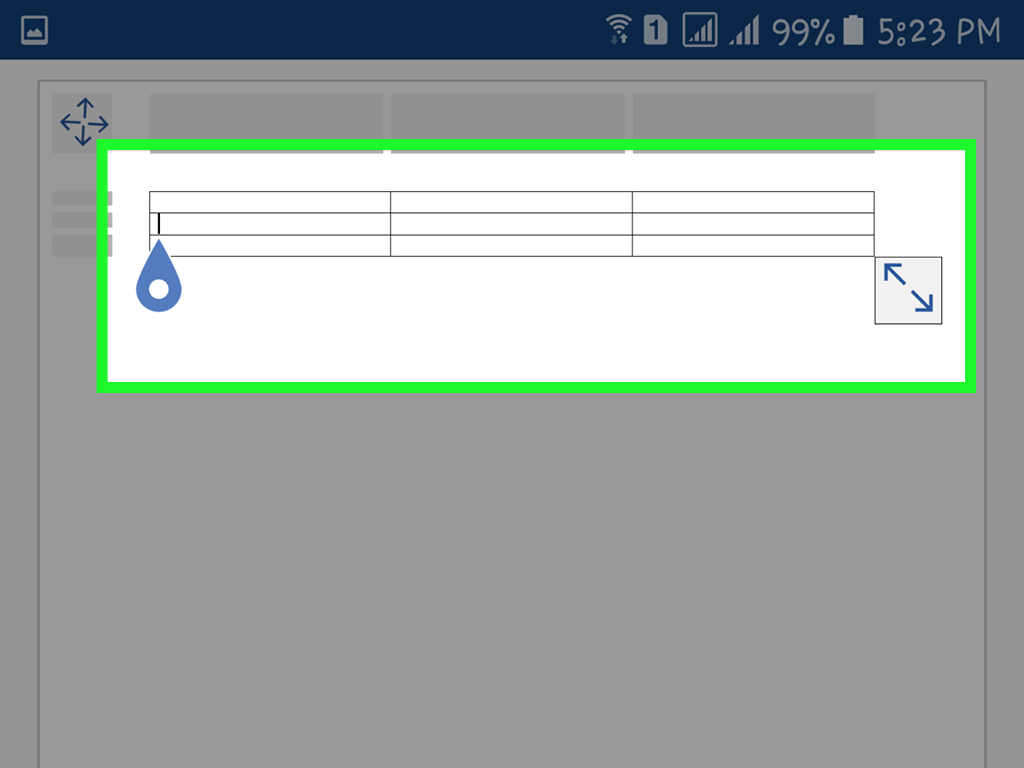
If you have ever tried to line up names, numbers, or a tiny schedule in Microsoft Word using the spacebar, first of all: we need to talk. Second: you are not alone. Plenty of people treat Word like a stubborn sheet of paper with opinions. But when you need neat rows and columns, a simple table is the fastest way to make your document look organized, readable, and far more professional.
Whether you are creating a class schedule, a price list, a meeting agenda, a contact chart, or a basic comparison table, Word gives you a few easy ways to do it. Some methods are lightning fast. Others give you more control. And one is handy when your table needs a custom look and your inner perfectionist refuses to sit quietly.
In this guide, you will learn three ways to create a simple table in Microsoft Word, when to use each method, and how to avoid the classic mistakes that make tables look like they were built during a power outage. We will also cover formatting tips, accessibility basics, and real-world experiences that can save you a lot of time.
Why Use a Table in Microsoft Word?
A table helps you present information in a structured way. Instead of stacking details in messy paragraphs, you can organize data into rows and columns that readers can scan quickly. That is especially useful for information like dates, product names, prices, task lists, names and phone numbers, or side-by-side comparisons.
A simple table in Word also makes your content easier to edit. Need to add a row? Done. Need to move a column? Possible. Need to make everything look less chaotic five minutes before sending the file to your boss or teacher? A table can absolutely help with that.
For many users, Word tables are also better than fake tables made with tabs and spaces. Those homemade layouts often shift when the font changes, the page margin changes, or someone opens the document on another device. In other words, they are drama magnets.
Before You Start: Know What “Simple” Really Means
When people search for how to create a simple table in Microsoft Word, they usually want a clean data table, not a complicated layout masterpiece with merged cells, diagonal borders, and enough shading to start an interior design debate.
A simple Word table usually has:
- A clear number of rows and columns
- A header row at the top
- Short, easy-to-read content in each cell
- Consistent spacing and alignment
- Minimal clutter
That matters because simple tables are easier to read, easier to edit, and usually better for accessibility too.
Method 1: Create a Table with the Grid Tool
Why this method is great
If you want the fastest possible way to insert a table in Word, this is the winner. The grid tool lets you choose the number of rows and columns visually. It is ideal for quick tasks like making a 3-by-4 table for a weekly plan or a 2-column chart for names and phone numbers.
How to do it
- Open your Word document.
- Place your cursor where you want the table to appear.
- Go to the Insert tab on the Ribbon.
- Click Table.
- Move your cursor across the grid to highlight the number of columns and rows you want.
- Click once to insert the table.
Example
Let’s say you want to create a tiny homework tracker. You might choose 3 columns and 5 rows:
- Column 1: Subject
- Column 2: Due Date
- Column 3: Status
That is it. Word instantly drops the table into your document and gives you a clean starting point.
Best use cases
- Quick tables
- Small schedules
- Lists and checklists
- Simple comparison charts
- Basic contact tables
Pros
- Very fast
- Easy for beginners
- No extra settings required
Cons
- Less precise if you want an exact large table size
- Not ideal when you need custom measurements right away
Method 2: Use the “Insert Table” Dialog Box
Why this method is useful
The grid method is fast, but the Insert Table dialog box gives you more control. This is the better choice when you know the exact number of rows and columns you need, or when you want to adjust how Word sizes the columns from the start.
How to do it
- Place your cursor where the table should go.
- Click the Insert tab.
- Select Table.
- Choose Insert Table from the dropdown menu.
- Type in the number of columns and rows.
- Choose an AutoFit option:
- Fixed column width for a set width
- AutoFit to contents so columns adjust to text
- AutoFit to window so the table fills the page width
- Click OK.
Example
Imagine you are building a product comparison table with 4 columns and 6 rows. Maybe you want columns for Product, Features, Price, and Notes. Instead of dragging around the grid and hoping you counted correctly, you can type the numbers directly and move on with your life in peace.
Best use cases
- Larger tables
- Professional documents
- Tables that need exact structure
- Reports and proposals
- Documents with multiple data points
Pros
- More precise than the grid
- Better for larger or more formal tables
- Lets you control column sizing early
Cons
- One extra step compared with the grid
- Slightly less beginner-friendly at first
Method 3: Draw a Table Manually
Why this method exists
Sometimes you do not want every row and column to be identical. Maybe you want one wider column for descriptions and two narrower columns for numbers. That is where Draw Table can help. It lets you sketch the outer border and then draw the row and column lines yourself.
This method gives you more visual freedom, but for a simple data table, it can be more than you really need. Think of it as using a chef’s knife to open a snack bag. Impressive? Maybe. Necessary? Not usually.
How to do it
- Click where you want the table to appear.
- Go to the Insert tab.
- Click Table.
- Select Draw Table.
- Your cursor changes to a pencil tool.
- Draw the outer border of the table.
- Draw vertical and horizontal lines inside the border to create columns and rows.
Example
Suppose you are making a simple invoice layout where the item description column should be much wider than the quantity and price columns. Drawing the table lets you create those custom proportions manually.
Best use cases
- Custom table layouts
- Forms
- Documents with uneven cell sizes
- Tables that need a more visual structure
Pros
- Flexible design
- Good for unusual layouts
- Lets you control cell sizes visually
Cons
- Slower than other methods
- Easier to make inconsistent tables
- Usually not the best option for very simple data tables
Which Method Should You Choose?
Here is the short answer:
- Use the grid tool when you want speed.
- Use Insert Table when you want precision.
- Use Draw Table when you want custom structure.
If you are making a standard school, work, or personal table, the first two methods will handle almost everything. Draw Table is helpful, but it is more of a special-occasion guest than a daily coworker.
How to Make Your Table Look Better
Once your table is inserted, Word gives you formatting tools under Table Design and Layout. This is where your plain little table can become a presentable, polished part of the document.
Simple formatting tips
- Add a header row: Label the top row clearly so readers know what each column means.
- Use bold text for headings: This improves readability instantly.
- Apply a table style: Word includes built-in styles that can add shading, borders, and banded rows.
- Adjust column width: Drag borders or use AutoFit so text is not squished.
- Align text carefully: Numbers often look better centered or right-aligned, while text usually works well left-aligned.
- Keep spacing clean: Avoid cramming too much into one cell.
If your table suddenly looks like a tiny prison made of black lines, reduce the borders, lighten the style, and let whitespace do some of the work.
A Bonus Trick: Convert Text to a Table
Even though this article focuses on three main ways to create a simple table in Microsoft Word, there is one extra trick worth knowing. If you already have text separated by tabs, commas, or paragraph marks, Word can convert that text into a table automatically.
This is especially useful when you copied data from an email, notes app, or another file and do not want to rebuild the whole thing by hand. It is one of those features people discover once and then tell everyone about like they uncovered buried treasure.
Accessibility and Usability Tips
If your document will be shared widely, posted online, or used in school or work settings, keep your table accessible and easy to read.
- Use tables for data, not for page layout tricks.
- Keep the structure simple.
- Use a clear header row.
- Avoid unnecessary merged or split cells in basic tables.
- If a table runs across pages, repeat the header row.
- Make sure the table still reads clearly when printed or viewed on another screen size.
A simple structure helps everyone, not just users with accessibility needs. Clear tables are easier to scan, easier to edit, and less likely to fall apart when shared.
Common Problems When Creating Tables in Word
The columns look uneven
Use the Layout tools to distribute columns evenly or drag the borders manually.
The text does not fit nicely
Try AutoFit to contents or widen the column. Sometimes the problem is not Word. Sometimes the problem is that someone typed an entire novel into one cell.
The table breaks awkwardly across pages
Check table properties and repeat the header row if needed. That makes multi-page tables much easier to follow.
The table looks too busy
Reduce borders, use a simpler style, and avoid unnecessary shading. Clean beats flashy in most documents.
Real-World Experiences with Creating Simple Tables in Microsoft Word
One of the most common experiences people have with Word tables is realizing they waited way too long to use one. Many users start by typing labels with spaces between them, trying to line everything up by hand. It looks fine for about twelve seconds. Then the font changes, one line wraps, and the whole setup collapses like a folding chair at a family barbecue. Once they switch to a real table, the difference feels almost ridiculous. Suddenly, the document looks cleaner, edits take less time, and moving content around stops being a full-body workout.
Students often run into this when creating class schedules, assignment trackers, or project charts. At first, the grid method feels like magic because it is so fast. Click Insert, drag across the grid, and boom: instant organization. For schoolwork, this is usually enough. A simple 3-column table with headings like Task, Due Date, and Status can turn messy notes into something readable in seconds. The experience teaches an important lesson: in Word, structure first, decoration second.
Office workers usually discover the value of the Insert Table dialog box when they need something more polished. Maybe it is a pricing chart for a proposal, a list of employee extensions, or a mini report with five exact columns. The dialog box feels a little more serious, but that is the point. It gives users more control from the start. Many people who create tables regularly end up preferring this method because it reduces guesswork. Instead of dragging across a tiny grid and hoping they selected the correct size, they can enter the exact row and column count and move on quickly.
Then there is the Draw Table experience, which is a very specific type of adventure. Some users love it because it lets them create custom layouts that the regular table tools cannot match as easily. Others try it once, make three crooked lines, and immediately back away like they touched a hot pan. For forms, invoices, or unusual layouts, Draw Table can be useful. But for a truly simple data table, many users eventually realize it is better as a specialty tool than a first choice.
Another common experience is the “why does my table suddenly look terrible?” moment. This usually happens after content is pasted from another source. Fonts change. Spacing gets weird. One row becomes much taller than the others. Borders appear darker than expected. The good news is that Word usually gives you a way back. Applying a clean table style, adjusting alignment, and resizing columns can rescue a messy table surprisingly fast. This is why experienced users often keep formatting simple at first and only add styling after the content is final.
People also learn quickly that header rows matter more than they expected. A table without headings might make sense when you first create it, but later it becomes a tiny mystery puzzle. Which number is the date? Which column is the price? Which status belongs to which person? Adding a bold header row solves that problem instantly. It is one of the smallest changes with the biggest impact.
There is also a practical lesson that comes from sharing documents. A table that looks fine on one screen may behave differently when printed, opened in another version of Word, or viewed online. Users who create simple, clean tables usually have fewer surprises. Users who build overly complicated layouts with merged cells and unusual spacing often end up doing emergency repairs later. In real life, simple usually wins.
And finally, perhaps the most relatable experience of all: once people get comfortable making tables in Microsoft Word, they start using them everywhere. Meeting notes, content calendars, budget lists, comparison charts, habit trackers, event plans, and even dinner rotations somehow end up in table form. It is not because tables are glamorous. It is because they work. They bring order to information, and in a world full of digital clutter, that feels strangely satisfying.
Final Thoughts
Learning 3 ways to create a simple table in Microsoft Word gives you more than just a technical skill. It gives you a faster, cleaner, and smarter way to organize information. The grid tool is great for speed. The Insert Table dialog gives you precision. Draw Table adds flexibility when you need a custom layout.
For most everyday documents, a simple table with clear headings and basic formatting is all you need. Keep it readable, keep it consistent, and resist the urge to turn a grocery list into a dramatic design project. Word will thank you. Your readers will too.