

Forgetting a birthday is one of those tiny modern disasters that can turn a perfectly normal Tuesday into an emergency cupcake run. Luckily, Google Calendar can help you keep track of birthdays without taping sticky notes to your laptop, refrigerator, dog, or forehead. Whether you want birthdays to appear automatically from Google Contacts or prefer creating birthday events manually, the process is simple once you know where to click.
In this guide, you will learn how to add birthdays to your Google Calendar using two easy methods: syncing birthdays from Google Contacts and manually creating birthday events in Google Calendar. We will also cover how to show, hide, edit, remove, color-code, and troubleshoot birthday entries so your calendar becomes a polite little social assistant instead of a digital jungle.
Why Add Birthdays to Google Calendar?
Google Calendar is more than a place for work calls, dentist appointments, and vague reminders like “deal with that thing.” It can also keep track of personal milestones, including birthdays, anniversaries, and other important dates. When birthdays are saved correctly, they appear as all-day calendar events and can repeat annually, which means you do the setup once and let Google handle the yearly memory jog.
This is especially useful if you use multiple devices. A birthday added through Google Contacts can appear across your Google Calendar experience when sync is enabled. A birthday created directly in the Google Calendar mobile app can also give you reminder notifications, helping you send a message before the “Happy belated!” shame spiral begins.
Quick Answer: The 2 Easy Methods
There are two practical ways to add birthdays to Google Calendar:
Method 1: Add birthdays through Google Contacts
This is the best method for people you already keep in your address book. Add the birthday to the person’s Google Contact record, and Google Calendar can display it in the Birthdays calendar.
Method 2: Create a birthday event directly in Google Calendar
This is ideal when you want a quick calendar entry, extra notifications, or a birthday for someone you do not want to save as a full contact. On Android and iPhone or iPad, Google Calendar supports birthday event creation from the app. On desktop, you can still create a normal all-day event and set it to repeat every year.
Method 1: Add Birthdays to Google Calendar Using Google Contacts
If you want the cleanest and most automatic system, start with Google Contacts. This method works beautifully for family, friends, coworkers, clients, classmates, and anyone else already living in your digital address book.
Step 1: Open Google Contacts
On a computer, go to Google Contacts while signed into your Google account. On Android, open the Contacts app. If you use an iPhone or iPad, you can still manage Google Contacts through a browser or the Google Contacts-connected account experience, depending on your setup.
Step 2: Choose the Contact
Search for the person whose birthday you want to add. Click or tap their contact card. If the person is under “Other contacts” or was saved automatically from Gmail, you may need to add them to your contacts first before editing all details.
Step 3: Edit the Contact
Select the edit option, usually shown as a pencil icon. Look for a birthday field, significant date field, or an option such as “Add birthday” or “Add significant date.” Google Contacts can store birthdays, anniversaries, and custom dates, so make sure the label is set to birthday if that is what you want to track.
Step 4: Enter the Birthday
Add the month, day, and year if you know it. If you do not know the birth year, you may still be able to enter the month and day depending on the interface. For many birthday reminders, the month and day are all you need. After entering the date, save the contact.
Step 5: Show the Birthdays Calendar
Open Google Calendar. On desktop, look at the left side under “My calendars” and make sure “Birthdays” is checked. On mobile, open the menu and make sure Birthdays is enabled. If the box is unchecked, birthdays may exist in your contacts but remain hidden from your calendar, which is the calendar equivalent of putting a gift in a closet and forgetting which closet.
Why This Method Works Well
Adding birthdays through Google Contacts keeps your information organized in one place. If you update the birthday in the contact record, Google Calendar can reflect that change. This is helpful when you are managing many birthdays or when you want birthdays connected to real people in your address book rather than scattered calendar events with mystery names like “Mike birthday” and no clue which Mike.
Method 2: Add Birthdays Directly in Google Calendar
The second method is perfect when you want more control or when the person does not need to become a full contact. Maybe it is your neighbor’s dog’s birthday. Maybe it is your favorite fictional detective’s birthday. No judgment. Calendars are personal places.
On Android
Open the Google Calendar app on your Android phone or tablet. Tap the create button, choose Event, then select the Birthday option at the top if it is available. Add the name and birth date, adjust notifications if needed, and save the event. Google Calendar birthday events may include default reminders, such as a notification before the birthday and on the day itself.
On iPhone or iPad
Open the Google Calendar app on your iPhone or iPad. Tap the create button, choose Event, then select Birthday. Enter the name and birth date, review the notification settings, and save. If your device shows birthdays from Apple Contacts as calendar events, remember that those device-based birthdays may not sync to Android devices or the web in the same way Google Contacts birthdays do.
On Desktop
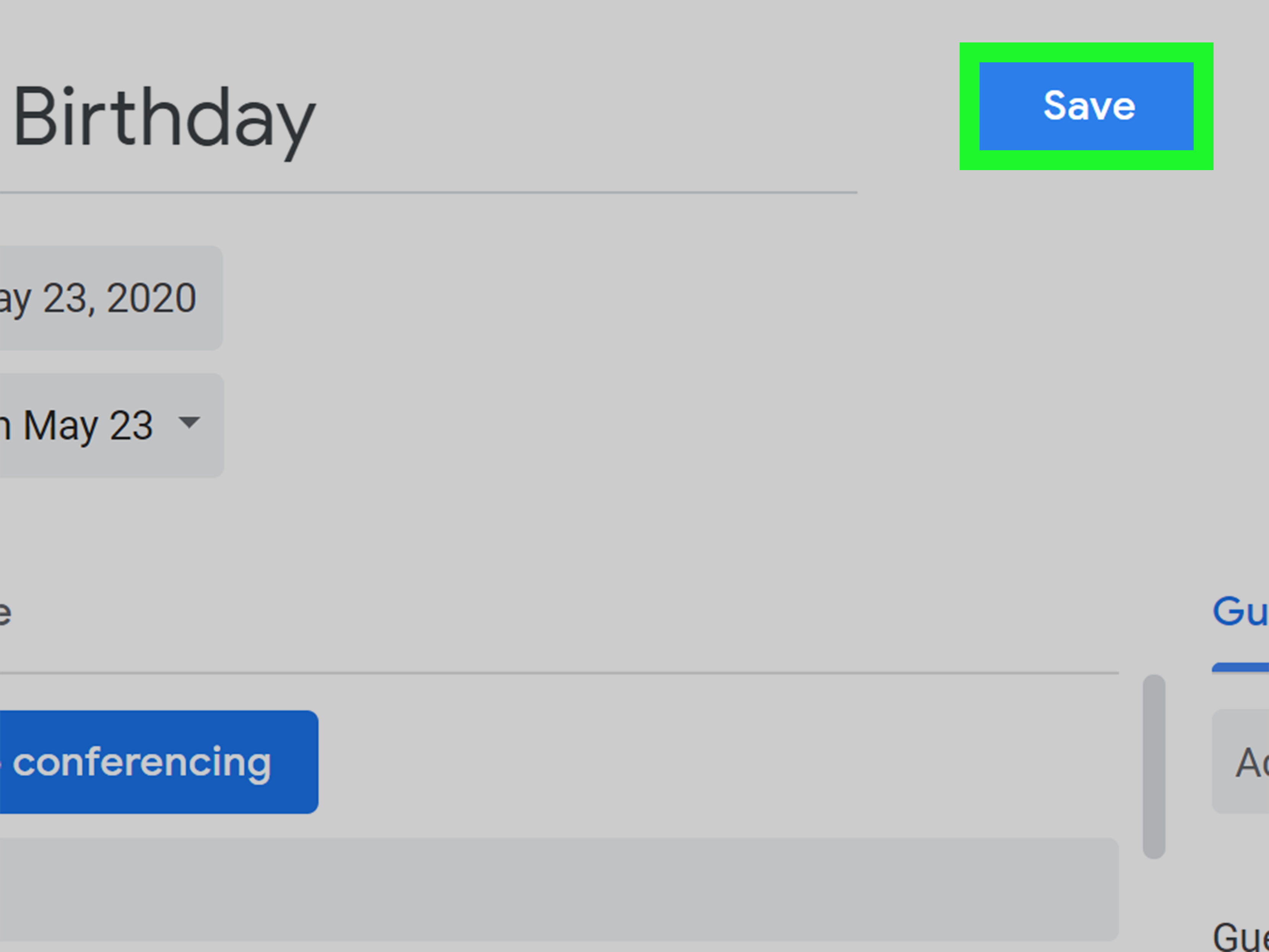
Desktop Google Calendar may not show the same dedicated birthday creation flow as the mobile apps. The reliable workaround is to create a normal event: click Create, enter the person’s name, make it an all-day event, choose the birthday date, and set the repeat option to yearly. Save it to the calendar you prefer. This gives you a recurring birthday reminder even if it is technically a standard calendar event rather than a special birthday event.
Best Naming Format for Manual Birthday Events
Use a clear title such as “Emma’s Birthday” or “Dad’s Birthday.” Avoid vague labels like “Birthday” unless you enjoy future detective work. If you want to be extra organized, add a note in the description, such as “Favorite cake: chocolate” or “Send card one week early.” Tiny details make future-you look thoughtful, which is the best kind of calendar magic.
Google Contacts vs. Manual Birthday Events: Which Should You Choose?
Use Google Contacts if the person is someone you communicate with regularly and want to keep in your address book. It is cleaner, easier to maintain, and works well for long-term organization. Use a manual calendar event if you want custom reminders, a birthday for someone not in your contacts, or an entry that belongs on a special calendar such as “Family,” “Work,” or “Gift Planning.”
For most people, the best setup is a combination. Store close friends, family, and coworkers in Google Contacts. Use manual repeating events for special cases, gift deadlines, party planning, or birthdays that need extra preparation. For example, you might keep your sister’s birthday in Google Contacts but also create a separate reminder two weeks earlier that says, “Order gift before shipping becomes a personality test.”
How to Hide Birthdays in Google Calendar
If your calendar suddenly looks like a confetti cannon exploded, you can hide birthdays without deleting them. On desktop, open Google Calendar, find “Birthdays” under “My calendars,” and uncheck it. On mobile, open the menu and tap the checkbox next to Birthdays. This hides the birthday layer from view, but it does not necessarily remove the birthday data from Google Contacts.
This is useful if you want a cleaner workweek view but still want birthday information saved. You can turn the birthday calendar back on anytime. Think of it as closing the curtains, not demolishing the house.
How to Change the Color of Birthday Events
Color-coding makes birthdays easier to spot. On desktop, hover over Birthdays under “My calendars,” open the options menu, and choose a new color. On Android or iPhone, open Google Calendar settings, tap Birthdays, and select a color. A cheerful color can help birthdays stand apart from meetings, bills, and other less-festive obligations.
How to Remove or Edit a Birthday
If a birthday is linked to Google Contacts, edit the person’s contact record to change the date. On mobile, Google Calendar may allow you to edit birthdays linked to Google Contacts, and those changes can apply back to Contacts. If you delete a birthday from Google Calendar, it may remove the calendar event without erasing the birthday stored in Contacts. For a permanent cleanup, check the contact record itself.
If you created a manual yearly event, open the event in Google Calendar and edit or delete it there. When editing a repeating event, Google Calendar may ask whether you want to change only that event, this and following events, or the entire series. For birthdays, you usually want the entire series unless you are correcting only one unusual occurrence.
How to Add Birthday Notifications
Birthday reminders are where Google Calendar becomes truly helpful. On mobile birthday events, you may see default notifications and options to add or remove reminders. For birthdays stored in Google Contacts, Google Contacts can also support reminders for significant dates, depending on device and account setup. You may be able to choose reminders such as the day of the event, two days before, seven days before, or fourteen days before.
If you are using a standard recurring event on desktop, add notifications just like you would for any other calendar event. A good setup is one reminder one week before the birthday and another reminder on the morning of the day. The first reminder gives you time to buy a gift or mail a card. The second reminder helps you send the message before bedtime when “I totally remembered” becomes less believable.
Troubleshooting: Why Are Birthdays Not Showing?
If birthdays are not appearing in Google Calendar, check these common issues:
The Birthdays calendar is hidden
Open Google Calendar and make sure the Birthdays calendar is checked. Hidden calendars still exist, but they do not appear in your main view.
The birthday was not saved in Google Contacts
Open the contact and confirm the birthday field is filled in correctly. If the person is only in “Other contacts,” add them to your saved contacts and then edit the date.
You are using the wrong Google account
If you have multiple Google accounts, birthdays may be connected to one account while your calendar view is showing another. Check the account listed in both Contacts and Calendar.
Sync from Contacts is turned off
In Google Calendar settings, check the Birthdays settings. If Sync from Contacts is turned off for an account, birthdays imported from Contacts may disappear from the calendar view while remaining stored in Contacts.
Your app needs a refresh
Close and reopen the app, check your internet connection, update Google Calendar, or wait a few minutes for sync to catch up. Technology is powerful, but occasionally it behaves like it needs a snack.
Privacy Tips for Birthday Calendars
Birthdays may feel harmless, but they are still personal information. Avoid storing sensitive details in public or shared calendars. If you create manual birthday events on a shared calendar, everyone with access may be able to see them. For private reminders, use your personal calendar or keep birthdays in Google Contacts.
Also remember that editing someone’s birthday in your Google Contacts changes only your private contact record. It does not change the person’s own Google profile. That distinction matters if you see profile-based information from someone else’s account.
Practical Examples
Example 1: Adding Your Mom’s Birthday
Open Google Contacts, search for your mom, edit her contact card, add her birthday, and save. Then open Google Calendar and make sure Birthdays is visible. Add a separate manual reminder two weeks earlier if you want time to order a gift. This is the “responsible adult” setup.
Example 2: Adding a Coworker’s Birthday
If you have the coworker saved in Contacts, add the birthday there. If you only need a reminder for the office celebration, create a manual all-day yearly event in your work calendar. Add a note like “Bring cupcakes” if you enjoy being the hero of the break room.
Example 3: Adding a Pet’s Birthday
You probably do not need a full contact card for your cat, although your cat may disagree. Create a manual yearly event called “Milo’s Birthday,” make it all day, repeat annually, and add a reminder. Then buy the cat a toy it will ignore in favor of the box.
Best Practices for Keeping Birthday Reminders Organized
Use consistent names, keep your contacts updated, and review your Birthdays calendar every few months. If you switch phones or add another Google account, confirm that birthday sync is still enabled. For important birthdays, add extra reminders ahead of time. A birthday reminder on the day itself is useful for sending a message, but not so useful for shipping a gift unless you own a teleportation machine.
For high-priority birthdays, consider adding details in the event description: gift ideas, favorite restaurants, clothing sizes, or notes from last year. Keep it tasteful and private. “Likes lemon cake” is helpful. “Still mad about 2018” is probably not calendar material.
Real-World Experience: What Actually Works Best
In everyday use, the easiest birthday system is the one that matches how you already manage people. If you are the kind of person who keeps Google Contacts clean, updated, and neatly labeled, Method 1 will feel natural. Add the birthday once, keep the Birthdays calendar visible, and let Google Calendar do the quiet background work. This approach is especially helpful for long-term relationships because birthdays stay tied to the person’s contact card. When you update a phone number, email address, or birthday, everything stays in one tidy profile.
However, real life is not always tidy. Many people have birthdays they want to remember without creating a full contact. Maybe it is a teacher, a neighbor, a teammate, a client’s child, or someone from a community group. In those cases, Method 2 is often faster. A manual birthday event gives you more control over the title, calendar, color, notes, and notifications. You can also add preparation reminders, such as “Buy card,” “Book restaurant,” or “Send flowers.” That kind of planning turns Google Calendar from a passive date keeper into a small personal assistant with excellent timing and no coffee breaks.
The biggest lesson from using birthday reminders over time is that one reminder is rarely enough for important people. A same-day alert is fine for a quick text, but it does not help much if you need to mail a gift, plan dinner, or coordinate with family. A seven-day reminder is the sweet spot for most birthdays. For very important birthdays, a fourteen-day reminder is even better. It gives you time to do something thoughtful instead of panic-buying a gift card while standing in line for lunch.
Another helpful habit is reviewing your calendar at the start of each month. Look ahead for birthdays, anniversaries, travel, school events, and holidays. This quick scan takes only a few minutes, but it prevents surprises. You can also use this moment to clean up duplicates. Duplicate birthdays often happen when a person exists in multiple accounts, when both Google Contacts and device contacts are visible, or when you created a manual event before later adding the person to Contacts.
Finally, do not underestimate the power of notes. A birthday reminder that says “Ava’s Birthday” is useful. A birthday reminder that says “Ava’s Birthday loves plants, hates surprise parties, send card early” is much better. The goal is not just to remember the date. The goal is to make the person feel remembered. Google Calendar cannot choose the perfect gift, write a warm message, or bake a cake without burning the edges. But it can give you enough warning to do those things yourself, which is really the whole point.
Conclusion
Adding birthdays to Google Calendar is simple once you choose the right method. Use Google Contacts when you want birthdays to sync neatly from your address book. Use manual birthday events when you want quick entries, custom notifications, or reminders for people who do not need full contact cards. Keep the Birthdays calendar visible, check your sync settings, add smart reminders, and use notes for gift ideas or planning details.
With a little setup, Google Calendar can help you avoid forgotten birthdays, last-minute scrambling, and the awkward “I was just about to text you” performance. Your future self will thank you. Your friends and family might too.
Note: Menu names and available birthday options may vary slightly by device, Google account type, app version, and region. For the most reliable setup, keep both Google Calendar and Google Contacts updated.