

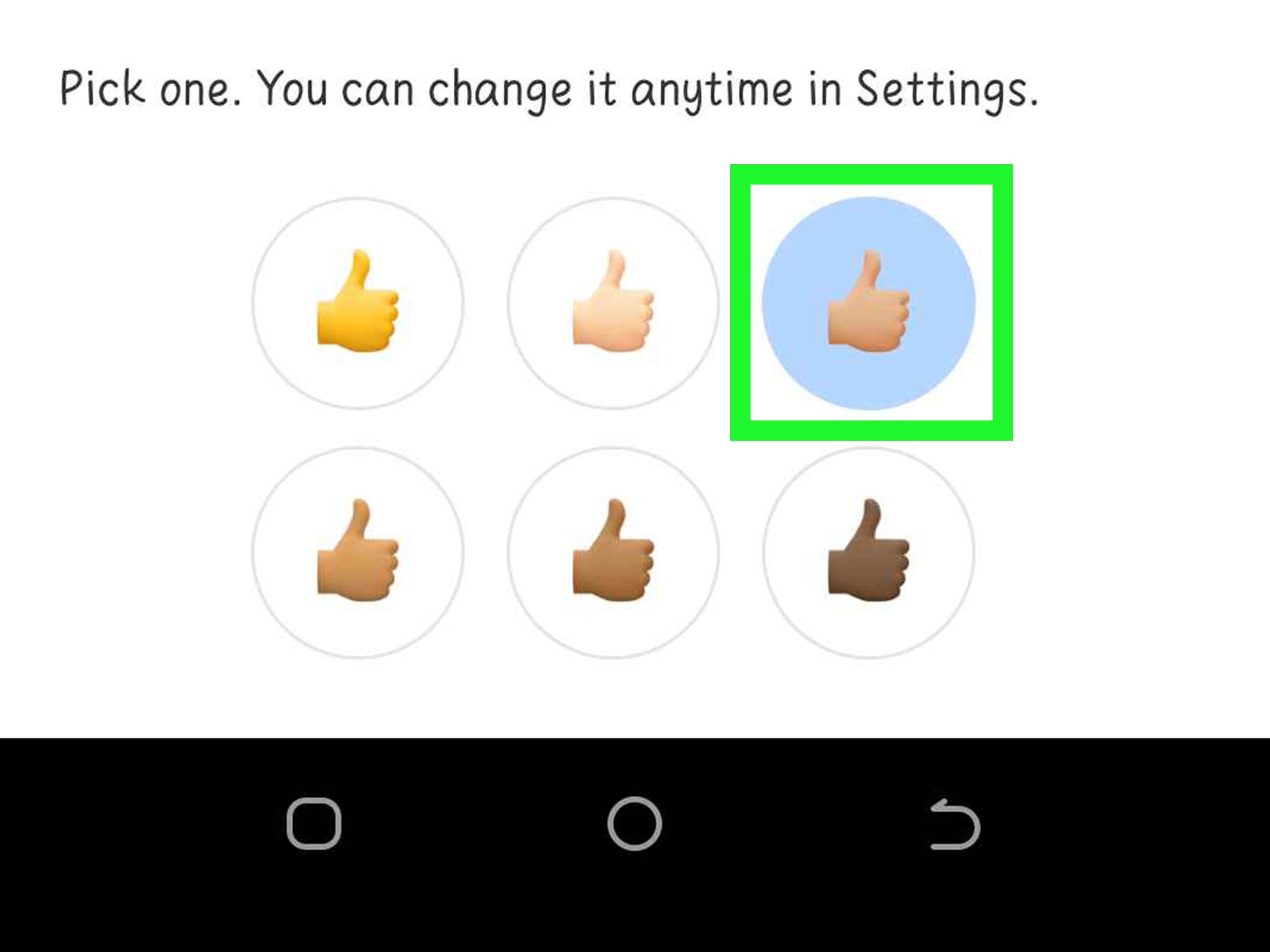
Emoji are supposed to make conversations faster, warmer, and a little less dependent on perfect punctuation. Yet a simple thumbs-up can become oddly complicated when the version on your screen does not look like the one you intended to send. The good news is that changing an emoji skin tone on Facebook Messenger usually takes only a long press. The slightly confusing news is that the control often belongs to your phone’s keyboard, not to Messenger itself.
This guide explains how to change emoji skin tone in Messenger on iPhone, Android, Windows, and Mac. It also clears up the difference between a typed emoji, a message reaction, a chat’s quick-reaction button, and a Messenger avatar. Those features all contain tiny pictures, but they are not controlled from the same menu. Because apparently one smiling digital face was not enough bureaucracy for modern life.
The Fastest Answer
Open a Messenger conversation, tap the message field, switch to the emoji keyboard, then touch and hold a supported person, hand, or body-part emoji. Choose the skin tone you want and send it. On many Android phones using Gboard, selecting a tone can also update the preferred tone for other compatible emoji. On iPhone, the keyboard typically remembers choices for frequently used variations, although behavior can vary by emoji and software version.
Standard yellow smiley faces usually cannot be recolored. Skin tone options are designed for compatible human emoji such as thumbs up, waving hand, raised hand, people, professions, and many gestures.
Why the Setting Can Be Confusing
Messenger has several emoji-related controls, and they do different jobs:
- Keyboard emoji: Emoji inserted into the message field. Their skin tone is usually controlled by the iPhone, Gboard, Samsung Keyboard, Windows, or macOS emoji picker.
- Message reactions: Small emoji attached to an existing message after you press and hold it. Messenger lets you customize the reaction set, but this is separate from the keyboard’s tone preference.
- Quick reaction: The large button beside the typing field, often a thumbs-up. It can be replaced with another emoji for that conversation.
- Messenger avatar: A personalized illustrated character with its own skin tone, hair, clothing, and facial features.
Older tutorials may describe a global “Emoji” or “Photos, media and emoji” skin-tone setting inside Messenger. App menus have changed repeatedly, and that old path may no longer appear. In current versions, the most reliable method for ordinary typed emoji is to use the keyboard’s variation menu.
How to Change Emoji Skin Tone on Messenger for iPhone
- Open the Messenger app.
- Open any individual or group conversation.
- Tap the text field so the keyboard appears.
- Tap the emoji face or globe key to open Apple’s emoji keyboard.
- Find a compatible emoji, such as 👍, 👋, 🙋, or 👩💻.
- Touch and hold the emoji until the skin-tone choices appear.
- Slide your finger to the preferred variation and release, or tap the variation shown in the pop-up.
- Tap Send.
If the Emoji Keyboard Is Missing on iPhone
Open Settings > General > Keyboard > Keyboards > Add New Keyboard, then select Emoji. Return to Messenger, tap the globe key, and try again. A missing emoji keyboard is not a Messenger crisis; it is simply iOS hiding the fun drawer.
Does iPhone Save the Selected Skin Tone?
iOS often surfaces your recently used variation in the Frequently Used section and may retain the last variation for a particular emoji. It does not always behave like a single universal skin-tone switch for every human emoji. If an emoji returns to yellow, long-press it again and select the desired version.
How to Change Emoji Skin Tone on Messenger for Android
The exact button layout depends on your keyboard. Most Android phones use Gboard or Samsung Keyboard, but the basic method is similar.
- Open Messenger and enter a conversation.
- Tap the message field.
- Tap the emoji icon on the keyboard.
- Find a person or hand emoji that supports skin tones.
- Press and hold the emoji.
- Choose the preferred skin-tone variation.
- Send the message.
Using Gboard
Google redesigned Gboard’s preference system so that changing the tone or gender presentation of one compatible emoji can apply that preference across many other compatible emoji. This makes it faster to set a general appearance without individually adjusting hundreds of icons. You can still long-press a specific emoji when you want a different variation for one message.
For example, choosing a medium skin tone for a waving hand may cause other supported people and gesture emoji to appear with the same tone. Results can differ by Gboard version, Android version, device manufacturer, and whether the emoji has multiple people or mixed-tone options.
Using Samsung Keyboard or Another Android Keyboard
Open the keyboard’s emoji panel and long-press the supported emoji. If no variations appear, confirm that you are pressing the emoji itself rather than tapping it quickly. Some manufacturer keyboards organize variations differently, and some older versions support fewer combinations. Updating the keyboard app and the phone’s operating system usually provides the broadest compatibility.
How to Change Emoji Skin Tone on Messenger on a Computer
On Messenger.com or Facebook’s desktop messaging interface, first try the emoji button beside the message field. If the picker offers a variation menu, click and hold or open the options for a supported human emoji. When the browser picker does not expose skin-tone choices, use the computer’s system emoji panel instead.
Windows
- Click inside the Messenger message field.
- Press Windows key + period (.) to open the Windows emoji panel.
- Search or browse for a compatible emoji.
- Open its skin-tone variations when available and select one.
- The emoji will be inserted into Messenger; press Enter or click Send.
Mac
- Click in the Messenger text field.
- Press Fn/Globe + E, or choose Edit > Emoji & Symbols.
- Find a human or hand emoji.
- Click and hold it to display skin-tone variations.
- Select the variation, then send the message.
The same emoji can look slightly different on an iPhone, Android phone, Windows PC, or Mac because each platform draws its own artwork. The underlying Unicode sequence still communicates the intended emoji and modifier when both systems support it.
How to Change a Messenger Reaction or Quick-Reaction Emoji
Changing a typed emoji’s skin tone does not automatically change the reaction buttons attached to messages. To customize reactions, press and hold a message, open the expanded reaction set, select Customize, then replace an emoji in the set. The wording and icons can vary slightly by device.
To change the large quick-reaction button for one chat, open the conversation information menu, choose Quick reaction, and select a new emoji. This change applies to that conversation and may be visible to other participants. It replaces the button; it does not create a global keyboard skin-tone preference.
Why Some Emoji Do Not Offer Skin-Tone Choices
Unicode defines five skin-tone modifiers: light, medium-light, medium, medium-dark, and dark. They work only with approved “emoji modifier bases.” In plain English, an emoji must be designed to accept a skin-tone modifier. Hands, people, professions, and many activities qualify. Objects, animals, food, flags, and most classic yellow faces do not.
That is why 👍 can become 👍🏿, but 😂 generally remains yellow. The yellow face is a stylized expression rather than a realistic human portrait. Multi-person emoji can also behave differently because newer systems may offer same-tone or mixed-tone combinations, while older devices may show fewer choices or separate symbols.
Troubleshooting: Skin-Tone Options Are Not Appearing
1. Make Sure the Emoji Supports Skin Tones
Test with a simple option such as 👍 or 👋. If the pop-up appears there, Messenger and the keyboard are working; the first emoji simply was not compatible.
2. Press and Hold Instead of Tapping
A quick tap inserts the default emoji immediately. Hold for a moment until the variation palette opens. On some keyboards, you must keep your finger down and slide to the desired choice.
3. Use the Keyboard Emoji Panel
Messenger may display stickers, GIFs, avatars, and its own reaction interface near the message box. Those are not always the same as the phone’s emoji keyboard. Tap the keyboard’s emoji or globe key and try from there.
4. Update Messenger and the Keyboard
Install updates for Messenger, Gboard, Samsung Keyboard, iOS, Android, Windows, or macOS. New emoji sequences depend on both software and font support. An old device may receive the character but display a blank box, separated symbols, or an unexpected fallback.
5. Restart the App
Close Messenger completely and reopen it. On Android, clearing the keyboard app’s cache can help when the variation menu stops appearing, but avoid clearing app data unless you understand that it may reset keyboard preferences and learned behavior.
6. Check Whether a Third-Party Keyboard Is Active
SwiftKey and other keyboards can have their own emoji menus and memory rules. Switch temporarily to Apple’s keyboard, Gboard, or the device’s default keyboard to determine whether the problem belongs to Messenger or the keyboard.
7. Expect Small Visual Differences
The recipient may see a slightly different illustration because platforms use different emoji artwork. A medium skin-tone modifier should remain a medium skin-tone modifier, but hair, shading, clothing, and facial details can vary.
Frequently Asked Questions
Can I Set One Skin Tone for Every Emoji in Messenger?
Messenger itself may not provide a universal setting for all typed emoji. Gboard can apply a preferred tone broadly across compatible emoji, while iPhone commonly remembers recent or individual variations. The behavior comes primarily from the active keyboard.
Can I Return to the Default Yellow Emoji?
Yes. Long-press the compatible emoji and choose the yellow or neutral default option. On Gboard, changing the overall preference back to yellow may update other compatible emoji as well.
Will My Choice Change What Other People Send?
No. Your keyboard preference controls what you insert. Other users choose their own emoji variations. Message reactions and per-chat quick reactions are separate Messenger features.
Can I Choose Different Tones for a Handshake or Couple?
On newer systems, some multi-person emoji offer mixed-tone combinations. Availability depends on the operating system, keyboard, Unicode support, and app rendering. Older devices may show fewer options.
Is an Avatar Skin Tone the Same Setting?
No. Messenger avatars have a separate editor. Open Messenger’s menu and settings, choose Avatar, then edit the character’s appearance. Changing the avatar does not automatically recolor normal Unicode emoji.
Real-World Experience: What Usually Happens After You Change It
In everyday use, the hardest part is rarely selecting a skin tone. The hard part is figuring out which layer of the app is currently in charge. A typical user opens Messenger, taps a smiling icon, and expects one unified emoji system. Instead, that icon may open stickers, Messenger suggestions, a device keyboard, or a reaction menu depending on where it was tapped. Once you recognize that typed emoji belong mostly to the keyboard, the process becomes much less mysterious.
On an iPhone, the experience is generally consistent: open the Apple emoji keyboard, hold a compatible person or hand, and select a variation. The choice often appears again in Frequently Used, which saves time for repeated favorites such as thumbs up, folded hands, or a waving hand. However, users sometimes assume one choice should recolor every person emoji. When another emoji remains yellow, they think the setting failed. Usually it did not; that particular variation simply needs its own selection.
Gboard can feel more efficient because a chosen preference may spread across compatible emoji. That is convenient when you want a consistent appearance, but it can also create a tiny surprise. You may change one waving hand and later notice that a doctor, runner, and person shrugging have followed along like an extremely organized emoji parade. Long-pressing an individual emoji still lets you make a situational choice when needed.
Desktop use is less predictable because the browser, operating system, and Messenger interface all participate. The most dependable workaround is to click the message field and use the system picker. On Windows, the Windows-key-plus-period shortcut is faster than hunting through browser menus. On Mac, the Character Viewer provides a similarly reliable route. People who regularly move between phone and desktop often find that their recent choices do not synchronize perfectly, so they may need to select the tone once on each device.
A useful habit is to test an unfamiliar emoji in a private conversation or in a message to yourself before using it in an important group chat. This lets you confirm how the tone, gender presentation, and profession appear after sending. It is a small precaution, but it can prevent an intended friendly gesture from arriving as a row of unsupported boxes or separated symbols.
Another common experience involves reactions. A user successfully sends 👍🏽 in the message field, then presses and holds a friend’s message and wonders why the reaction row still shows a different thumbs-up. Nothing is broken. The typed emoji and the reaction set are separate tools. Customize the Messenger reaction set when you want different reaction choices, and use the keyboard when you want a particular skin-toned emoji inside the message itself.
Finally, remember that emoji are personal and contextual. Some people consistently choose one tone as self-representation; others use yellow as a general-purpose symbol or switch depending on the conversation. Research on emoji use suggests that people are especially thoughtful about tone choices in private conversations and about avoiding assumptions when representing someone else. The most practical rule is simple: use the version that communicates your intent respectfully, and do not panic if the artwork looks slightly different on the recipient’s phone. Even digital hands have wardrobe changes across platforms.
Conclusion
To change the emoji skin tone on Facebook Messenger, open the device emoji keyboard and long-press a compatible person or hand emoji. Choose the variation you want, then send it. Use Messenger’s separate customization menus for reactions, quick reactions, and avatars. If the tone menu does not appear, test a supported emoji, update the keyboard and app, and confirm that you are using the keyboard’s emoji panel rather than stickers or GIFs.