

Connecting an iPad to a Windows PC should be easy. In theory, you plug it in, click a button, and suddenly your photos, backups, and files march neatly into place like tiny digital soldiers. In real life, your cable may only charge, your PC may act like it has never seen an Apple product before, and your iPad may respond with the classic “Trust This Computer?” pop quiz. Charming.
The good news is that connecting an iPad to a Windows computer is absolutely doable, and it is easier now when you use the right method for the job. Whether you want to transfer photos, back up your iPad, sync media, access files wirelessly, or just make your devices stop ignoring each other, this guide walks you through the cleanest path.
Below, you will learn exactly how to connect an iPad to a Windows PC in 9 practical steps, plus what to do when things go sideways, which they occasionally do because technology enjoys character development.
Why Connect an iPad to a Windows PC?
People connect an iPad to a Windows PC for a few common reasons. Some want to import photos and videos so their tablet stops giving off “storage almost full” energy. Others want a local backup on a PC, especially before an update or device reset. Some users need to sync content, while others simply want ongoing access to files through iCloud, Google Drive, or Dropbox.
It helps to know this upfront: not every type of connection does the same thing. A USB cable is usually best for the first connection, backups, device management, and photo imports. Wi-Fi syncing is convenient after the initial setup. Cloud tools are often the easiest option for ongoing file access. Bluetooth exists, but it is not the star player for full iPad-to-PC syncing. It is more of a supporting actor.
Before You Start
- A Windows 10 or Windows 11 PC
- Your iPad, unlocked and charged
- A data-capable USB or USB-C cable
- The Apple Devices app on Windows, or iTunes on older setups
- The latest available software updates on both devices
- The same Wi-Fi network if you want wireless syncing later
One small but important detail: some cables only charge. If your iPad charges but never appears on your PC, your cable may be the problem, not the iPad, not Windows, and not a cosmic curse.
How to Connect an iPad to a Windows PC: 9 Steps
Step 1: Decide What Kind of Connection You Actually Need
Before you plug in anything, decide what success looks like. Are you trying to back up the iPad? Transfer photos? Sync music or videos? Access documents on both devices? Share internet from the iPad to the PC? These goals use different tools.
If you want the most reliable first-time connection, use a cable. If you want convenience later, set up Wi-Fi syncing after the cable connection works. If your main goal is accessing files from both devices without plugging and unplugging all day, cloud syncing through iCloud for Windows, Google Drive, or Dropbox is often the smarter route.
Step 2: Install the Right Windows App
On many modern Windows PCs, the Apple Devices app is the main tool for managing an iPad. It handles backup, restore, updates, and syncing. If your computer does not use Apple Devices, iTunes may still be the fallback on older configurations.
Download and install the correct Apple app first. This is one of those boring setup steps that people skip and then later say things like, “My PC won’t recognize my iPad.” The app is not glamorous, but it does a lot of the heavy lifting.
Step 3: Use a Proper Cable and Plug the iPad In
Connect your iPad directly to the PC using a reliable USB or USB-C cable. If possible, plug it into the computer itself instead of a random hub that has survived three desks and a coffee spill. Direct connections are usually more stable.
If your PC has multiple ports, try another one if the first port does nothing. A faulty port can make a perfectly healthy iPad look invisible. Also, give Windows a few seconds. Sometimes it needs a brief dramatic pause before admitting a device exists.
Step 4: Unlock the iPad and Tap “Trust This Computer”
Once connected, unlock the iPad. If prompted, tap Trust and enter your passcode. This step matters because the PC cannot properly access the device if the iPad stays locked or if you tap Don’t Trust.
This is the moment where many connection attempts fail. People plug in the iPad, look at the PC, and forget the iPad is quietly waiting for permission. Meanwhile, Windows is sitting there like, “I would love to help, but your tablet has trust issues.”
Step 5: Open Apple Devices and Make Sure the iPad Appears
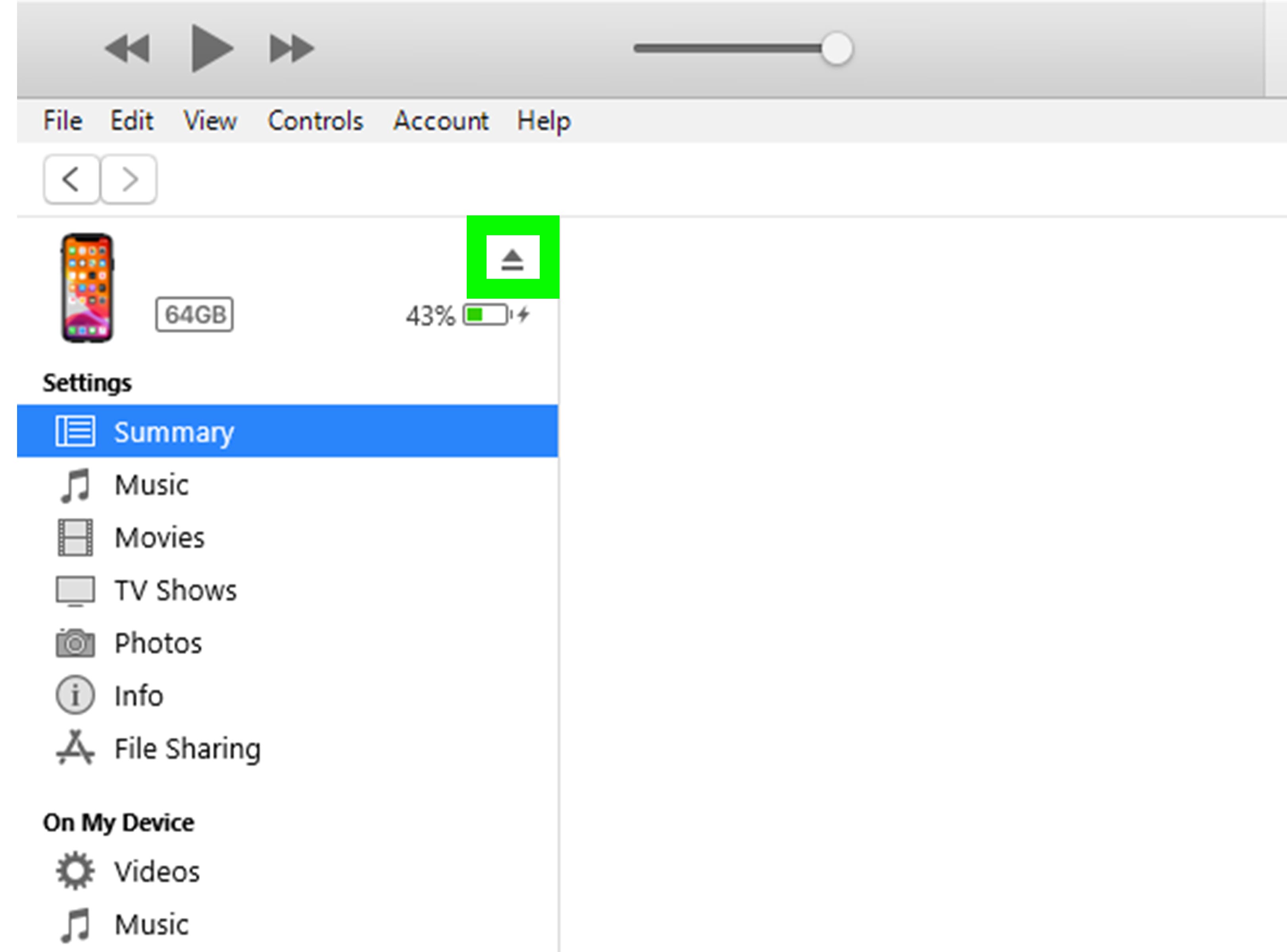
Launch the Apple Devices app on your PC. If the connection worked, your iPad should appear in the sidebar. Once it shows up, you can manage the device, review storage, create backups, sync selected content, or update and restore the device if needed.
If your iPad does not appear, do not panic yet. First check the cable, port, and trust prompt. Then restart both the PC and iPad if necessary. A reboot fixes an absurd number of problems in modern life, including some relationships with hardware.
Step 6: Choose What You Want to Do After the Connection Is Established
Now that the iPad and PC are speaking, choose the task that actually brought you here.
- Back up your iPad: Create a local backup on the Windows PC. This is useful before updates, troubleshooting, or moving to a new device.
- Encrypt the backup if needed: An encrypted backup can include more sensitive data and settings.
- Sync content: You can sync selected media and other supported content from the PC to the iPad.
- Update or restore: The Apple Devices app can help with software updates or a full restore when necessary.
This is an important distinction: “connected” does not always mean “file browser magic.” For many people, device management, backup, and photo import are the main wired benefits. If your goal is moving everyday documents back and forth, cloud storage is often easier than treating the iPad like a flash drive.
Step 7: Import Photos and Videos to Windows
If your goal is photo transfer, use the Windows Photos app or File Explorer after the iPad is connected, unlocked, and trusted. This is one of the most common reasons people connect an iPad to a PC in the first place.
Open the Photos app on Windows, choose the import option, and select your connected device. Then pick the photos and videos you want to bring over. This method is clean, fast, and ideal if your iPad camera roll is starting to look like a digital attic.
If you prefer manual control, File Explorer may let you browse the photo storage folders and copy items yourself. That can be handy when you want only a few files instead of a full import session.
Step 8: Set Up Wireless Access with iCloud for Windows or Wi-Fi Sync
If you do not want to live the cable life forever, set up a wireless method after the initial connection works.
Option 1: Wi-Fi syncing. After the first wired setup, you can enable Wi-Fi syncing in the Apple device settings on your PC. Once both devices are on the same network, the iPad can reconnect for syncing without a cable. This is convenient for people who regularly manage content on the same home or office network.
Option 2: iCloud for Windows. If your priority is access to photos, files, passwords, and bookmarks across devices, iCloud for Windows is a strong option. It is less about classic “sync my whole device” behavior and more about making your data available across ecosystems without the ritual of plugging in hardware every afternoon.
You can also use cloud services like Google Drive or Dropbox when the real goal is simple document access. For many users, that ends up being the smoothest workflow of all.
Step 9: Troubleshoot Common Connection Problems
If the iPad still will not connect to your Windows PC properly, run through this checklist:
- Try a different data cable
- Try another USB port
- Unlock the iPad and watch for the trust prompt
- Restart both devices
- Update Windows and iPadOS
- Update or reinstall the Apple Devices app or iTunes
- Disconnect other USB accessories that may be interfering
If you are attempting a Bluetooth-based connection, remember that Bluetooth is limited. It is useful for pairing and certain wireless functions, but it is not the best route for full backup or photo-import workflows. If what you really need is internet sharing, your iPad’s Personal Hotspot may be the better fit. If what you really need is file access, use cloud storage. If what you really need is a second screen, that is a different workflow and usually involves third-party software rather than standard iPad-to-PC syncing.
Which Connection Method Is Best?
| Method | Best For | Pros | Cons |
|---|---|---|---|
| USB / USB-C cable | First-time setup, backup, photo import, device management | Reliable, fast, direct | Needs the right cable and app |
| Wi-Fi sync | Convenient recurring syncing on the same network | No cable after setup | Must be enabled after initial wired connection |
| iCloud for Windows | Photos, files, passwords, bookmarks | Automatic, seamless cross-device access | Depends on cloud setup and storage |
| Google Drive / Dropbox | Documents and everyday file access | Simple, flexible, shareable | Internet-dependent for best results |
| Bluetooth / Hotspot | Pairing and internet sharing | Wireless convenience | Not ideal for full device syncing |
Common Mistakes to Avoid
- Using a charge-only cable and expecting file transfer
- Ignoring the trust prompt on the iPad
- Assuming Bluetooth will handle everything
- Trying to use the iPad exactly like a standard USB drive
- Skipping the Apple Devices app and wondering why Windows is confused
- Forgetting that cloud storage may be easier than forcing a cable workflow
Conclusion
Learning how to connect an iPad to a Windows PC is mostly about choosing the right tool for the right job. If you want a dependable first connection, use a proper cable, unlock the iPad, trust the computer, and manage the device through Apple Devices on Windows. If you want photo imports, use the Windows Photos app. If you want everyday file access without cable drama, iCloud for Windows or a cloud service like Google Drive or Dropbox often makes more sense.
So yes, your iPad and Windows PC can get along. They may not become best friends overnight, but with the right steps, they can absolutely stop acting like awkward strangers at a family reunion.
Real-World Experiences: What Connecting an iPad to a Windows PC Usually Feels Like
In real-world use, connecting an iPad to a Windows PC is rarely difficult for long, but it is often confusing for the first ten minutes. A lot of users expect the iPad to behave exactly like a USB flash drive. They plug it in, open File Explorer, and wait for a neat list of folders to appear like magic. Instead, they get a half-recognized device, a trust prompt on the iPad, and a deep suspicion that one of the two devices is being passive-aggressive.
A very common experience is the “nothing is happening” moment. The cable is plugged in, the iPad is charging, and Windows is giving absolutely no sign of life. In many cases, the issue is wonderfully unglamorous: the cable supports charging but not data transfer. Swapping in a better cable suddenly makes the entire setup work, which is both satisfying and mildly insulting.
Another typical scenario happens with photos. Someone wants to move vacation pictures from an iPad to a Windows laptop before storage runs out. They connect the device, forget to unlock it, and then spend five minutes checking drivers, ports, and settings while the iPad is patiently waiting for a passcode and a tap on Trust. Once that step is done, the Windows Photos app usually behaves much better, and the whole process becomes surprisingly simple.
Students and creative users often have a different experience. They are not just moving photos; they are moving PDFs, class notes, artwork, video clips, or design exports. For them, wired connection is useful for setup and backup, but day-to-day work is often easier through iCloud Drive, Google Drive, or Dropbox. That is usually the moment when users realize the best answer is not always “plug it in.” Sometimes the better answer is “sync smarter.”
There is also the user who really means, “I want my iPad to work like an extra screen for my Windows PC.” That is a totally fair goal, but it is a different category. Standard device syncing will not magically turn the iPad into a second monitor. People usually discover this halfway through the process and then pivot to third-party apps designed for display extension or remote access. It is not failure. It is just a plot twist.
Then there is the hotspot crowd: travelers, remote workers, or anyone stuck in a place with terrible Wi-Fi and big opinions about it. For them, connecting the iPad to a Windows PC may mean using the iPad as an internet source. That can be useful, especially on the road, but it still helps to understand that hotspot sharing, file syncing, photo imports, and local backups are four different jobs wearing the same “connect my iPad” label.
The most successful users tend to do one thing really well: they match the method to the goal. Cable for backup. Photos app for imports. iCloud for ongoing access. Cloud drives for documents. Hotspot for internet. Once that clicks, the process feels far less mysterious and far more manageable. And that, in the world of Windows-and-iPad cooperation, counts as a small technological miracle.