

If YouTube search has ever made you feel like you asked for a fresh tutorial and got a dusty relic from 2017, welcome. You are among friends. The good news is that YouTube gives you several ways to refine search results by date, popularity, type, duration, and other filters. The slightly annoying news is that the platform keeps tweaking the menu names just enough to make older tutorials age like unrefrigerated potato salad.
This guide explains exactly how to filter YouTube search results by date, views, and more in plain American English, without the robotic fluff. We’ll cover desktop, mobile, current menu changes, the limits of YouTube’s built-in filters, and a few real-world tricks that make search much more useful. If you’re trying to find the newest upload, the most popular explainer, a long-form documentary, a Short, or a video with captions, this is the map.
Why YouTube Search Filters Matter
By default, YouTube tries to show what it thinks is most relevant. That sounds helpful until you search for something time-sensitive like “iPhone battery fix,” “NBA trade reaction,” or “tax filing update,” and YouTube cheerfully serves a mix of new videos, old videos, huge channels, random reaction clips, and one guy filming in what appears to be a basement lit by regret.
That is where filters come in. They help you narrow results so you can find:
- The newest videos on a fast-moving topic
- The most popular videos for a search query
- Only Shorts or only long-form videos
- Short, medium, or longer videos by duration
- Videos with captions, live content, HD, 4K, and other features
- Channels, playlists, movies, or standard videos instead of a messy mix
How to Filter YouTube Search Results on Desktop
Step 1: Run your search
Go to YouTube, enter your keyword, and press Enter. Start broad enough to see useful results, but not so broad that you summon the entire internet. “Beginner guitar lesson” is better than “guitar.” “Excel pivot table tutorial” is better than “Excel.”
Step 2: Click the Filter button
Once the results page appears, click Filter near the top of the results page. This opens the advanced filter menu.
Step 3: Choose the filter that matches your goal
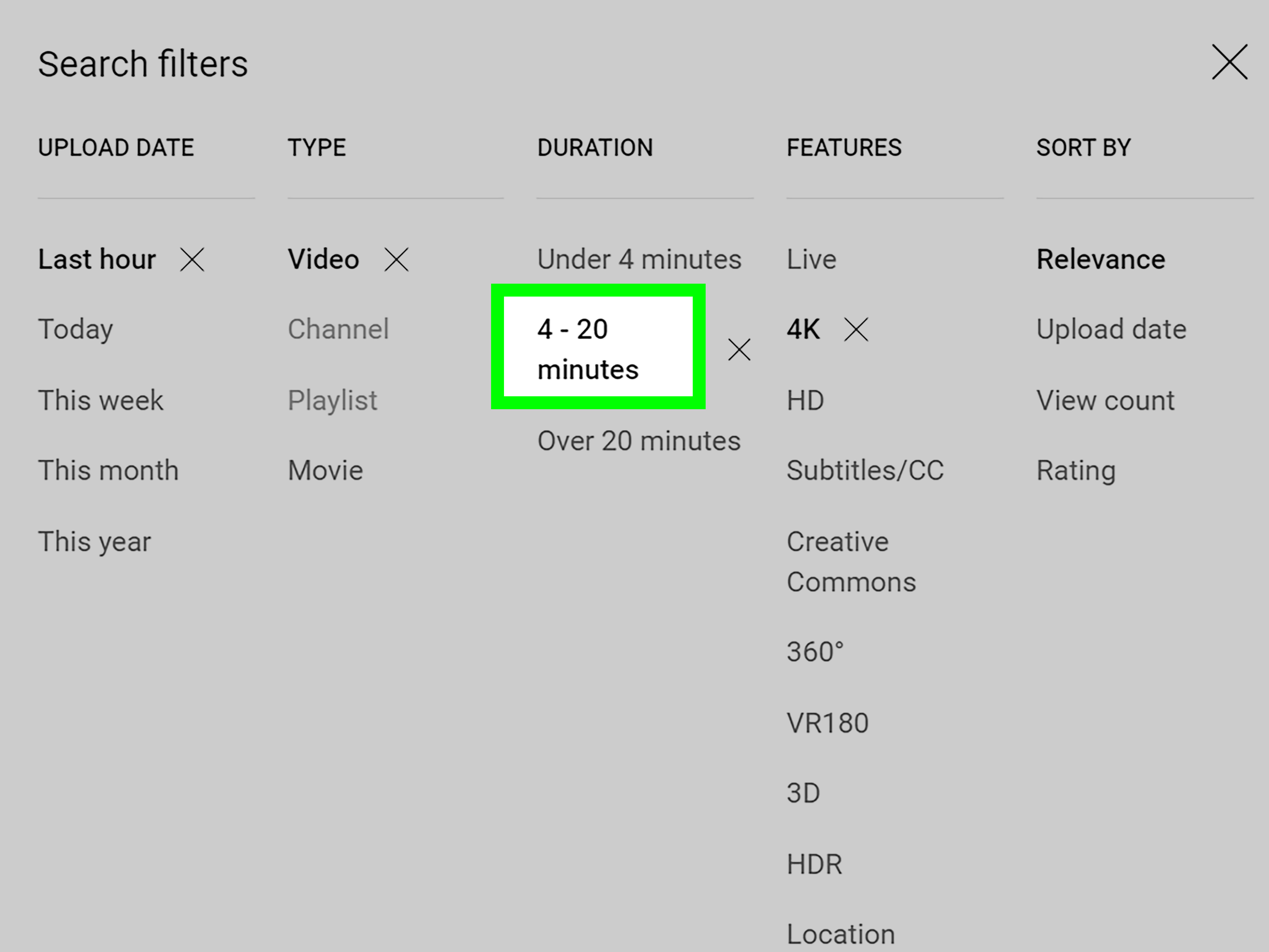
YouTube’s filter options can vary slightly by device and rollout, but on desktop you’ll generally see ways to narrow by result type, upload date, duration, features, and a sorting-style menu. In newer versions, YouTube has also updated some names, so the menu may look a little different from older screenshots floating around online.
How to Filter YouTube Search Results on Mobile
On the YouTube app
Search for your topic, then tap the Filter option when results appear. On mobile, you can refine by options such as upload date, type, duration, and captions. On some devices and rollouts, this experience is still evolving, so do not panic if your screen looks slightly different from someone else’s. YouTube loves a staggered rollout almost as much as the internet loves arguing about it.
On the mobile website
If you use m.youtube.com in a browser, filtering is a bit more limited. You can still filter by upload date and category, but the full app usually gives you a better search experience.
How to Filter YouTube by Date
This is the filter most people want, especially when searching for news, updates, tutorials, product reviews, sports highlights, or anything else where recency actually matters.
What the date filter usually includes
In the current YouTube search experience, the upload-date filter is generally bucketed into options like:
- Today
- This week
- This month
- This year
Older tutorials may mention Last hour, but that option has been removed from YouTube’s newer search-filter update. So if you keep hunting for it and can’t find it, you are not losing your mind. You are just reading a tutorial from another era.
Best ways to use the date filter
Use Today when you want breaking coverage, same-day reactions, or live event clips. Use This week for fast-moving but not necessarily minute-by-minute topics. Use This month when you want something current but don’t need it to be hot off the digital press.
For example:
- Search “YouTube monetization changes” and filter by This month
- Search “Windows update problem” and filter by This week
- Search “Oscars reaction” and filter by Today
Important limitation
YouTube’s standard interface does not work like a full calendar tool. You get preset upload-date buckets, not a clean start-and-end date picker. So if you need videos published between two exact dates, the regular YouTube interface is not ideal. That is one reason developers and advanced users sometimes turn to the YouTube Data API or external research workflows for precise date-range searches.
How to Filter YouTube by Views
This is where things get interesting. For years, many users relied on View count to surface the most watched results for a topic. In YouTube’s newer filter rollout, that option is being renamed to Popularity.
View count vs. Popularity
If your interface still shows View count, that is the older naming. If it shows Popularity, that is the newer version. The practical goal is similar: surface videos that are strong performers for your query. However, the newer popularity logic is not just raw views. YouTube says it also considers other relevance signals, such as watch time, for that specific search.
Translation: the biggest number does not automatically win. YouTube is trying to show the most popular relevant result, not just the loudest title with a zillion clicks from four years ago.
When to use this filter
Use view-based or popularity-based filtering when you want the strongest, most-watched, most broadly useful video for a topic. This works well for:
- Beginner tutorials
- Music videos
- Movie trailers
- Product explainers
- Big-topic educational videos
Example: If you search “how to use ChatGPT” and apply the popularity-style filter, you will usually surface broader, better-performing explainers rather than tiny channels with 19 views and a thumbnail that looks like it lost a fight with Microsoft Paint.
How to Filter by Type
The Type or Result Type filter helps you choose what kind of content you want to see. Depending on the current interface, options may include:
- Videos
- Shorts
- Channels
- Playlists
- Movies
Why this matters
This filter is wildly underrated. Sometimes your search is fine, but the result format is wrong. If you search “meal prep,” are you looking for a 30-second Short, a full tutorial, a playlist, or a channel worth subscribing to? YouTube cannot read your mind, no matter how aggressively modern platforms try.
The newer search update makes this even more useful because Shorts can now be filtered more clearly. That is a big improvement if you are tired of searching for an in-depth tutorial and getting a confetti cannon of vertical snippets instead.
How to Filter by Duration
Duration filters are the easiest way to separate snackable videos from deep dives. In current discussions of the updated search menu, YouTube has been described as using ranges such as Under 3 minutes and 3–20 minutes, replacing older labels some users remember from past layouts.
When duration helps most
- Use shorter durations when you want a quick fix or summary
- Use mid-length videos for tutorials and explainers
- Skip short clips when you want a serious breakdown, lecture, or full review
For example, if you search “resume tips” and only have five minutes before a meeting, filtering for shorter videos can save you from opening a 47-minute masterclass narrated by someone who begins every sentence with “So basically.”
How to Filter by Features
The Features section is where YouTube gets more practical. Depending on the platform and rollout, feature filters may include things like:
- Live
- Subtitles/CC
- HD
- 4K
- HDR
- Creative Commons
Use cases that actually matter
If you need accessible content, filter for Subtitles/CC. If you are looking for broadcast-quality footage, try HD or 4K. If you want a livestream or event replay environment, Live is your friend.
This is especially useful for students, journalists, editors, and researchers who are not just browsing for fun but actually need usable material with specific qualities.
Why YouTube Date Filtering Sometimes Feels Wrong
Here is the awkward truth: applying a date-related filter does not always make YouTube feel perfectly chronological. That is because YouTube search is not a simple filing cabinet. It ranks results based on relevance and engagement signals for the query, not just timestamp alone.
Also, newly uploaded or updated videos may take time to fully appear in search. So if you are looking for a brand-new upload and cannot find it instantly, that delay may be the issue rather than your keyword choice.
Smart Tips to Get Better YouTube Search Results
1. Start with a precise keyword
Good filters cannot rescue a vague query. “Budget mirrorless camera review 2026” works better than “camera.”
2. Use the type filter early
If Shorts are cluttering your results, filter to Videos. If you want quick clips, do the reverse.
3. Pair date with type
Searching for current news? Use Today or This week plus a result-type filter. That combination is usually much cleaner than using date alone.
4. Pair popularity with duration
If you want the strongest mainstream explainer, combine popularity-style sorting with a medium or longer duration.
5. Search by exact video ID when needed
If you know the specific video and YouTube search is acting like a moody librarian, searching by the exact video ID can help.
6. Use channel pages when you already trust the creator
If you know the creator you want, go directly to the channel and browse the Videos tab. On many channel pages, you can sort by popularity or date added instead of wrestling with the broader search results.
What YouTube Still Does Not Do Well
Let’s be honest. YouTube search is useful, but it is not a precision instrument. The built-in filters still have a few annoying gaps:
- No true calendar-style exact-date search in the standard interface
- No perfect chronological guarantee for every search scenario
- Interface labels can differ by rollout and device
- Old tutorials become outdated very quickly
If you need exact date ranges, advanced boolean logic, or programmatic filtering, the YouTube Data API is where things get far more precise. That is the grown-up toolset. The standard interface is more like a helpful cousin: good intentions, mixed follow-through.
Conclusion
If you want better YouTube search results, the answer is not usually “search harder.” It is “filter smarter.” The date filter helps you find recent uploads. The old view-count style filter, now shifting toward popularity, helps surface stronger performers. Type keeps Shorts, channels, playlists, and regular videos from crashing into one another. Duration saves time. Features help you find content that is actually usable.
Once you start combining these filters with sharper keywords, YouTube gets dramatically easier to use. You stop wandering through random results and start finding what you meant to find in the first place, which is honestly a lovely change of pace for the internet.
Real-World Experiences Using YouTube Filters
In practical day-to-day use, YouTube filters become most valuable when your search has a job to do. That sounds obvious, but it matters. Casual browsing rarely needs filters because the homepage, recommendations, and autoplay are already designed to keep you watching until time becomes an abstract concept. Search is different. Search is where you usually have intent. You need an answer, an update, an example, a tutorial, a reaction, a comparison, or proof that someone else had the exact same problem you have.
One of the most common experiences is searching for tech help. Say your laptop is suddenly making a noise that sounds like a tiny helicopter trying to escape. If you search broadly, you may get old explainers, vague clickbait, or videos for a different model. But if you search your exact issue and then filter by This year or This month, the quality of results often improves immediately. You get more current fixes, fresher comments, and fewer dead-end tutorials based on outdated menus.
The same thing happens with software tutorials. A search for “Photoshop background removal” can bring up years of content, much of it still useful. But software changes, and buttons migrate around the interface like they are paying rent by the month. Filtering by recent date buckets helps you avoid learning a workflow that no longer matches the current app. It is one of the easiest ways to reduce frustration before it starts.
Popularity-style filtering is helpful in a different way. When you are learning a broad skill like Excel formulas, public speaking, guitar chords, or basic investing concepts, the most popular videos often rise for a reason. They are clearer, better structured, and easier for a general audience to follow. This does not mean the biggest channel is always the best teacher, but it does mean popularity is often a decent shortcut when you want a strong starting point instead of a scavenger hunt.
Type filtering also makes a huge difference now that Shorts and long-form videos regularly collide in search. If you want a quick visual answer, Shorts can be brilliant. If you want a full explanation, they can feel like someone threw confetti at your question and called it education. Tapping Videos instead of accepting a mixed result page is one of the simplest improvements you can make.
Even entertainment searches benefit from filters. Searching for a movie trailer, a live performance, or postgame analysis gets much cleaner when you narrow by type, duration, and date. Instead of getting a mashup of clips, reactions, fancams, and reposts, you can get much closer to the thing you actually wanted. In other words, filters do not make YouTube perfect, but they do make it much less chaotic. And on today’s internet, “less chaotic” is basically luxury.