

If your iPhone can stream movies, join video calls, order dinner, and remind you that your screen time is “a bit much,” it can absolutely handle printing too. The trick is knowing how your printer talks to your phone. Sometimes it happens through Apple’s built-in AirPrint feature. Other times, you need your printer brand’s app, Wi-Fi Direct, or a model-specific cloud option.
The good news is that wireless printing from an iPhone is usually much easier than people expect. The bad news is that printers occasionally behave like they were designed by mildly offended raccoons. One day they are ready to print in seconds. The next day they act as if your phone is a complete stranger. This guide breaks down both sides of the story: how to print wirelessly from an iPhone with AirPrint, and how to do it without AirPrint when your printer is older, pickier, or just feeling dramatic.
By the end, you’ll know how to print photos, PDFs, web pages, emails, labels, and documents from your iPhone without turning your kitchen table into a help desk.
What Wireless Printing from an iPhone Actually Means
Wireless printing simply means your iPhone sends a print job to a printer without a cable connecting the two. In most homes, this happens over Wi-Fi. Your iPhone and printer are either on the same wireless network, or they connect directly to each other through a feature like Wi-Fi Direct or Wireless Direct.
There are two main ways this works:
1. AirPrint
AirPrint is Apple’s built-in printing technology. If your printer supports it, you do not need to install printer drivers on your iPhone. You open the file, tap the Share button or menu, choose Print, select the printer, adjust a few options, and send the job. That is the dream scenario. It is quick, clean, and blessedly low on nonsense.
2. Non-AirPrint methods
If your printer does not support AirPrint, you still have options. Many major printer brands offer iPhone apps that let you print over your local network. Some printers also let your iPhone connect directly to the printer without a router. Others support special cloud or email-based printing features. In plain English: no AirPrint does not automatically mean no wireless printing.
How to Print from an iPhone with AirPrint
If your printer supports AirPrint, this is the easiest route by far.
Step 1: Make sure the printer is ready
Turn on the printer, load paper, and confirm it is connected to Wi-Fi. For AirPrint to work smoothly, your iPhone and printer generally need to be on the same Wi-Fi network. If the printer supports AirPrint but is not actually on the network, your iPhone will not magically sense its emotional availability.
Step 2: Open what you want to print
You can print from many apps on the iPhone, including Mail, Photos, Safari, Files, and plenty of third-party apps. Open the photo, document, webpage, receipt, boarding pass, or PDF you want to print.
Step 3: Find the print option
Tap the Share icon or the app’s menu button. Scroll until you see Print. In some apps, the command is tucked under an actions menu instead of the main Share sheet. If you do not see a print option at all, the app may not support printing.
Step 4: Select your printer
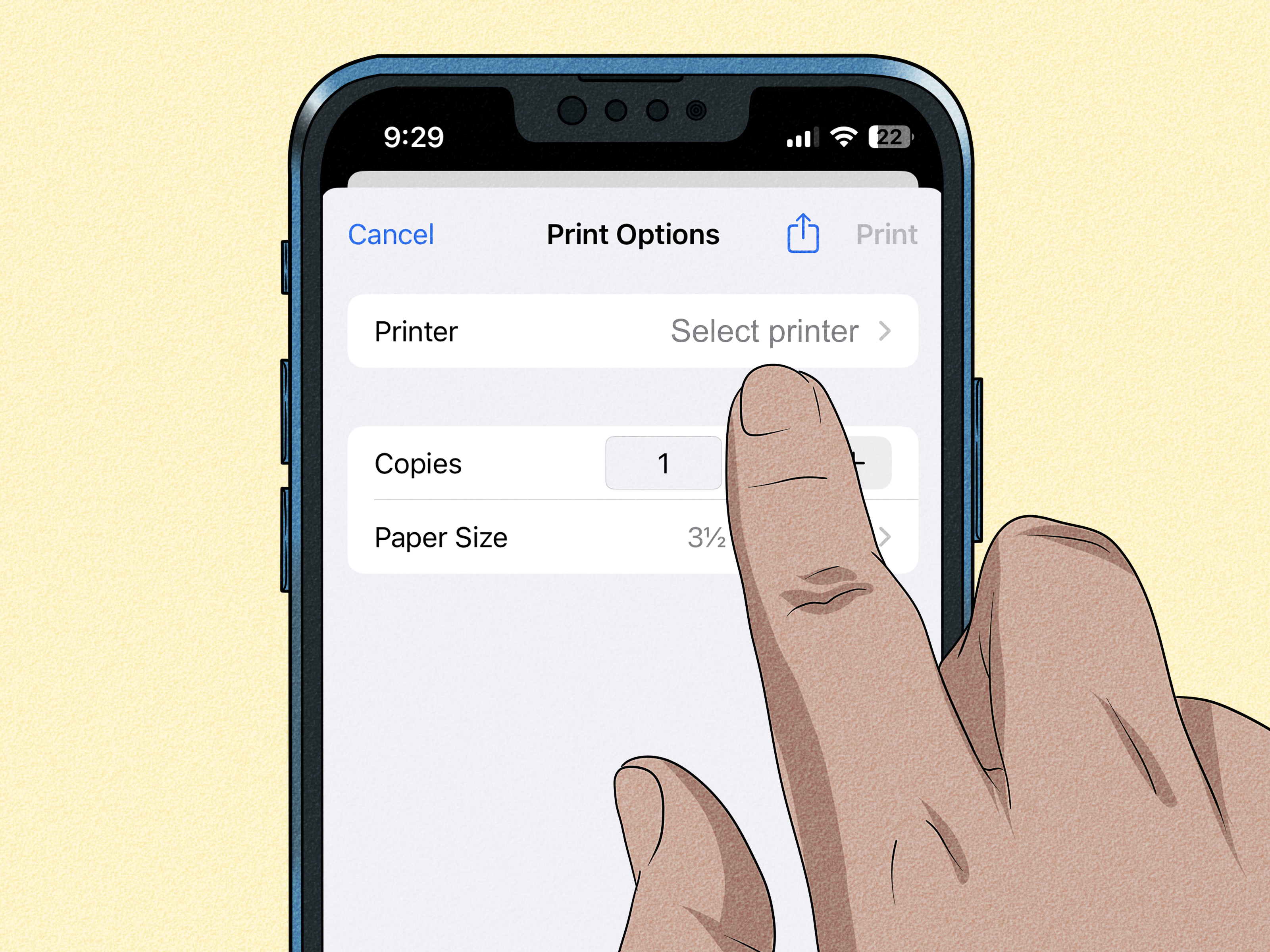
Tap No Printer Selected or Select Printer, then choose your AirPrint printer from the list.
Step 5: Set your print options
Choose the number of copies and any available settings, such as page range, paper size, color or black-and-white, and double-sided printing if your printer supports it.
Step 6: Tap Print
That’s it. Your iPhone sends the job, and your printer gets to work.
AirPrint is ideal for people who want printing to feel invisible. It does not require extra setup on the iPhone side, and it works well for everyday jobs like school forms, directions, invoices, recipes, or that one PDF you absolutely forgot to print until three minutes before leaving the house.
What to Do If AirPrint Is Not Working
When AirPrint fails, the problem is usually not “your iPhone can’t print.” It is usually one of the following:
Your printer and iPhone are on different networks
This is the most common issue. If the printer is on one Wi-Fi network and your iPhone is on another, they may not see each other. Check Wi-Fi on the iPhone, then confirm the printer is connected to the same network.
The printer is offline or sleepy
Some printers go into a deep nap and wake up slower than a college student after finals week. Wake the printer, check that it shows a wireless connection, and try again.
The printer does not actually support AirPrint
Not every wireless printer is an AirPrint printer. “Wireless” only means it can connect without a cable. It does not guarantee Apple’s built-in print support. If AirPrint never appears, check the printer’s specs or use the manufacturer’s app instead.
AirPrint needs a simple reset
Restart the printer, restart your iPhone, and if needed restart the router. That boring advice remains wildly effective.
Firmware or setup issues are getting in the way
Some brands recommend updating printer firmware, confirming AirPrint is enabled in the printer’s settings, or reconnecting the printer to Wi-Fi. If your printer keeps vanishing, the issue is often in the printer’s network setup rather than in the iPhone.
How to Print from an iPhone Without AirPrint
If your printer does not support AirPrint, you still have several solid ways to print wirelessly. The best method depends on your printer brand and model.
Option 1: Use your printer brand’s iPhone app
This is usually the best non-AirPrint solution. Major printer companies offer free iPhone apps that let you discover the printer, connect over Wi-Fi, and print files, photos, web pages, and sometimes cloud documents.
Popular examples include:
- HP app / HP Smart workflow: good for setup, document printing, and mobile management.
- Canon PRINT: useful for printing documents, photos, and cloud content from compatible Canon printers.
- Epson iPrint: supports nearby printing, remote options on supported models, and cloud file access.
- Brother Mobile Connect or Brother iPrint&Scan: useful for printing and scanning over Wi-Fi or Wi-Fi Direct on supported devices.
- Lexmark Print or the Lexmark app: helpful for printing documents and images from iOS.
- Xerox Easy Assist and related Xerox mobile tools: helpful for setup and, on supported devices, print workflows.
In most cases, the process looks like this:
- Download the printer maker’s iPhone app from the App Store.
- Connect the printer to your Wi-Fi network.
- Open the app and let it search for the printer.
- Select the file or photo you want to print.
- Adjust options, then tap Print.
This method is especially helpful if your printer is wireless but not AirPrint-capable, or if you want more printer controls than the standard iPhone print menu provides.
Option 2: Use Wi-Fi Direct or Wireless Direct
Some printers let your iPhone connect directly to the printer without going through your home router. This is often called Wi-Fi Direct or Wireless Direct. Think of it as your printer briefly becoming its own tiny Wi-Fi hotspot.
This is useful when:
- you do not want to join the printer to your regular home network,
- your Wi-Fi is acting flaky,
- you are printing on the go, or
- you want a direct one-to-one connection.
Here’s the usual flow:
- Turn on Wi-Fi Direct or Wireless Direct on the printer.
- On your iPhone, open Settings > Wi-Fi.
- Select the printer’s direct network name.
- Enter the password shown on the printer or its info page.
- Open the printer brand’s app or, on some supported models, use AirPrint after the connection is established.
Canon, Epson, HP, and Brother all support some form of direct wireless printing on compatible models. If your printer supports it, this can be a lifesaver when the normal network route refuses to cooperate.
Option 3: Use cloud or email-based printing on supported printers
Some printers support printing from cloud services or remote email-based workflows. For example, certain Epson printers can use Epson Email Print for remote printing, and Canon’s app can work with cloud-connected content on supported devices. This option is handy when the file lives in cloud storage or when you are away from the printer but still need something waiting in the tray when you get home.
The catch is simple: cloud and remote options vary a lot by brand and model. Always check what your specific printer supports before counting on this method for anything urgent, like tax paperwork, a return label, or a school permission slip due in twelve minutes.
What You Can Print from an iPhone
Most people assume printing from an iPhone is just for photos. Not even close. An iPhone can handle a surprising range of jobs:
- PDF documents from the Files app
- email messages and attachments
- web pages from Safari
- photos from the Photos app
- Word, Excel, and PowerPoint files through compatible printer apps
- shipping labels, tickets, receipts, forms, and checklists
That said, printing is only as tidy as the original file. A beautiful PDF usually prints beautifully. A weird screenshot of a weird webpage may print like it lost a bet.
Best Tips for Better Wireless Printing from an iPhone
Use PDF when possible
If layout matters, PDF is your friend. It keeps fonts, spacing, and page breaks more predictable than printing directly from some apps or websites.
Check page scaling for labels and forms
Shipping labels, coupons, and official forms can go sideways if the document scales oddly. Always preview before printing.
Keep printer apps installed
Even if AirPrint works, a manufacturer app can rescue you when AirPrint does not. It is a good backup plan and sometimes offers options AirPrint does not show.
Keep the printer on the same network you actually use
This sounds obvious until the printer is quietly connected to an old network name from two routers ago. If your phone sees the printer one day and not the next, check the network first.
Update the printer once in a while
Printer firmware updates are not thrilling, but they can improve wireless stability, compatibility, and feature support. Think of them as flossing for office equipment: not glamorous, but often helpful.
How to Choose a Printer That Plays Nicely with iPhone Printing
If you are shopping for a new printer and iPhone compatibility matters, make your life easier by looking for these features:
- AirPrint support for the simplest iPhone printing experience
- dual-band Wi-Fi or stable wireless networking
- Wi-Fi Direct for direct printer-to-phone connections
- a solid iPhone app from the manufacturer
- good document handling if you print PDFs, forms, or labels often
AirPrint support is still one of the easiest features to look for because it removes friction. Major brands like HP, Canon, Epson, Brother, Lexmark, and Xerox all offer models that can work well with iPhones, but the exact experience depends on the model, not just the logo on the front.
Real-World Experiences Printing Wirelessly from an iPhone
Here’s the part most how-to guides skip: the real experience of printing from an iPhone is often a mix of “wow, that was easy” and “why is this machine pretending I do not exist?” The first time many people use AirPrint, it feels almost suspiciously simple. You open a photo, tap Share, choose Print, and suddenly the printer whirs to life like it had been waiting all day for a purpose. That moment creates unrealistic optimism, which is a classic printer trap.
In everyday life, the easiest jobs are usually the ones you expect: a recipe from Safari, a PDF from Files, a boarding pass from email, or a school form from a parent app. These tend to work best because the formatting is already neat and the files are straightforward. Photos also print well from an iPhone, especially if the printer app gives you controls for paper type and size. You tap a few buttons, and done. It feels modern, efficient, and almost like printers have finally decided to join civilization.
Then there are the more chaotic moments. A user tries to print a return label while standing next to the printer, only to get “No AirPrint Printers Found.” The printer is on, the Wi-Fi symbol is glowing, and yet the iPhone acts like the printer is located in another dimension. Usually, the fix is annoyingly simple: reconnect the printer to the same network, restart both devices, or switch off the guest Wi-Fi on the phone. But in the moment, it absolutely feels personal.
People who do not have AirPrint often assume they are out of luck, but that is not really how it plays out. Many discover that the printer brand’s app works just fine, and sometimes even better. A Canon user may find document printing through Canon PRINT more flexible for certain files. An Epson owner might like the cloud access inside Epson iPrint. A Brother user may appreciate being able to print over Wi-Fi Direct when the regular network is unavailable. In real use, these apps are less glamorous than AirPrint, but they are often the backup plan that saves the day.
One especially common experience is printing something urgent from an iPhone because there is no time to open a laptop. A permission slip needs a signature before school. A shipping label has to go out before the carrier arrives. A medical form needs to be brought to an appointment. In those moments, wireless printing from an iPhone stops being a convenience feature and starts feeling like a tiny domestic superpower.
The biggest lesson from real-world use is simple: once your printer is set up correctly, iPhone printing can be wonderfully easy. The hard part is usually the initial setup and network consistency, not the actual act of printing. So if you spend ten minutes getting the printer connected properly today, you may save yourself ten future episodes of muttering, tapping, restarting, and bargaining with a machine that prints tax forms but somehow cannot communicate basic feelings.
Conclusion
Wireless printing from an iPhone is no longer some niche trick for people who enjoy reading printer manuals for fun. With AirPrint, the process is built right into iOS and works beautifully when the printer supports it and both devices share the same network. Without AirPrint, printer-brand apps, Wi-Fi Direct, and model-specific cloud tools can still get the job done with very little drama.
The smartest move is to treat AirPrint as your first choice and the manufacturer’s app as your safety net. Between those two options, most iPhone users can print everyday documents, photos, forms, labels, and emails without touching a laptop. In other words, your iPhone is already carrying enough responsibility. It may as well handle printing too.