

Sending a video with Gmail sounds like it should be as easy as attaching a photo of your lunch. Click, attach, send, done. Then reality walks in wearing steel-toe boots: the video is too large, Gmail turns it into a Google Drive link, your recipient says they “can’t open it,” and suddenly your 40-second birthday clip feels like a Hollywood distribution problem.
The good news is that sending videos through Gmail is simple once you know the rules. Gmail can handle small videos as regular attachments, while larger videos are best sent through Google Drive. The trick is choosing the right method before you hit Send. This guide explains exactly how to send a video with Gmail on a computer, Android phone, iPhone, or iPad, plus how to fix common problems like file size limits, access errors, slow uploads, and privacy concerns.
Whether you are sharing a school project, a family clip, a product demo, a client walkthrough, or a “you had to be there” moment, this step-by-step Gmail video guide will help you send it cleanly, safely, and without making your recipient wrestle with technology before coffee.
Can You Send a Video with Gmail?
Yes, you can send a video with Gmail. There are two main ways to do it:
- Attach the video directly if the file is small enough.
- Send the video as a Google Drive link if the file is too large for a normal Gmail attachment.
For personal Gmail accounts, the attachment limit is 25 MB. That limit applies to the total size of attachments in one email, not just one individual file. If your video is bigger than the limit, Gmail typically uploads it to Google Drive and inserts a Drive link into the email instead. This is not a bug. It is Gmail politely saying, “Nice video, but I’m not carrying that in my backpack.”
Videos are often much larger than photos or documents because they contain moving images, audio, resolution data, frame rate information, and sometimes high-quality recording settings such as 4K. A short clip recorded on a modern phone can easily pass 25 MB, especially if it was filmed in HD or 4K. That is why Google Drive is usually the best option for longer videos.
Before You Send: Check the Video File Size
Before attaching a video to Gmail, check how large the file is. This one tiny step can save you from upload failures, delivery problems, and that awkward moment when you send an email that contains everything except the actual video.
How to Check Video Size on Windows
Right-click the video file, choose Properties, and look for the file size. If it is under 25 MB, you can usually attach it directly. If it is larger, use Google Drive or compress the video first.
How to Check Video Size on Mac
Click the video file, press Command + I, and view the size in the information window. You can also use Finder’s column or list view to see file sizes quickly.
How to Check Video Size on iPhone or Android
On many phones, you can open the video in the Photos, Gallery, or Files app and view details or information. If the video is several minutes long, recorded in high resolution, or looks suspiciously cinematic, assume it may be too large for a direct Gmail attachment.
Method 1: Send a Small Video as a Gmail Attachment
If your video is 25 MB or smaller, sending it as a regular Gmail attachment is the fastest method. This works best for short clips, compressed videos, low-resolution recordings, and small MP4 files.
Step-by-Step: Send a Video Attachment on a Computer
- Open Gmail in your browser.
- Click Compose.
- Enter the recipient’s email address.
- Add a clear subject line, such as “Project Video” or “Family Trip Clip.”
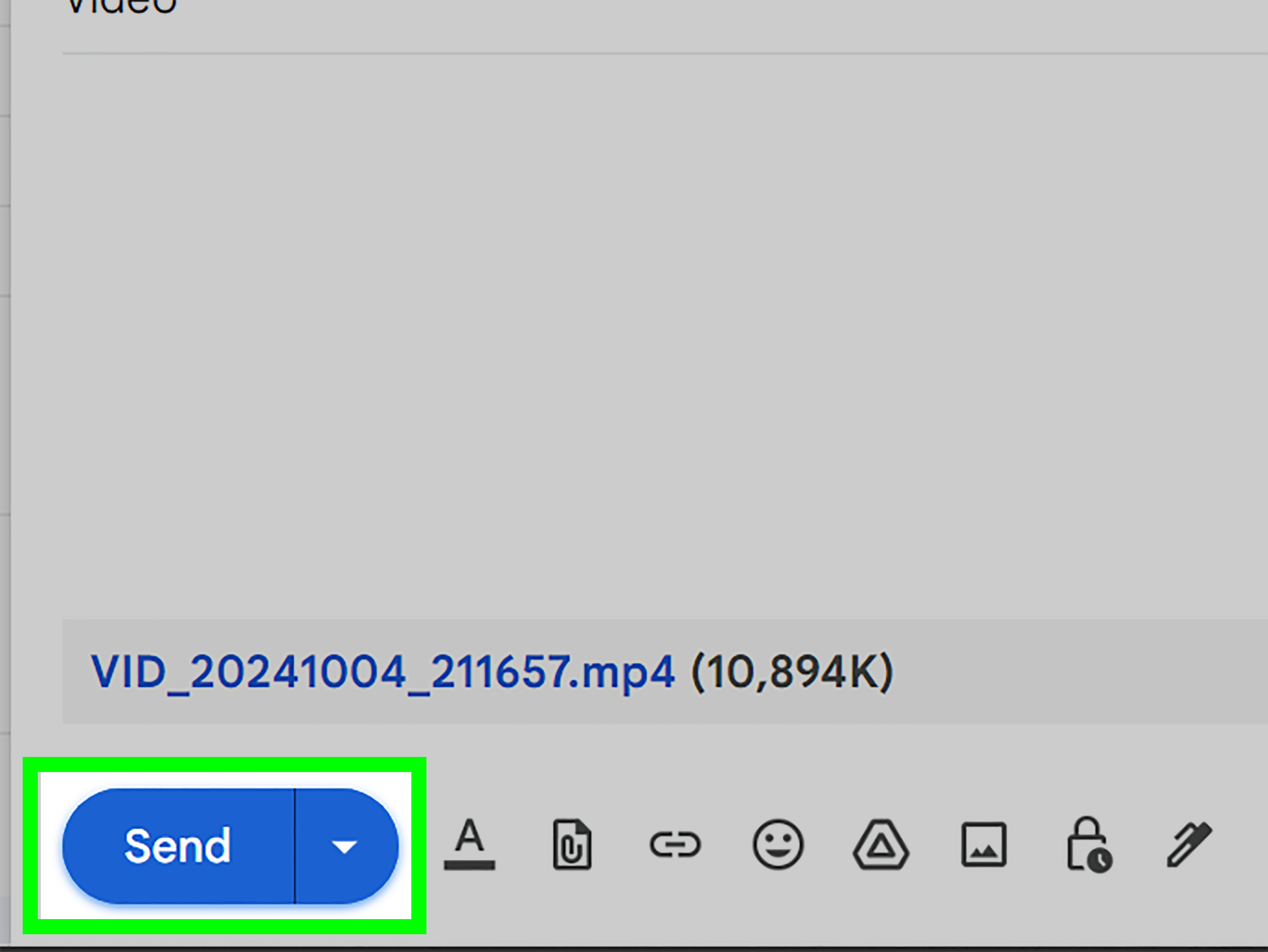
- Click the paperclip attachment icon at the bottom of the compose window.
- Select your video file from your computer.
- Wait for the video to upload completely.
- Write a short message explaining what the video is.
- Click Send.
Do not close the Gmail tab while the file is uploading. If your internet connection is slow, give the upload a moment to finish. Gmail will show progress while the attachment uploads. Think of it as boarding an airplane: your video needs to be fully seated before takeoff.
Step-by-Step: Send a Video Attachment from the Gmail App
- Open the Gmail app on your phone or tablet.
- Tap Compose.
- Add the recipient, subject, and message.
- Tap the attachment icon.
- Choose your video from Photos, Gallery, Files, or another available location.
- Wait for the upload to finish.
- Tap Send.
On mobile, the exact wording may vary depending on your device, operating system, and Gmail app version. The basic idea is always the same: compose the message, attach the video, wait for upload, then send.
Method 2: Send a Large Video with Gmail Using Google Drive
For videos larger than 25 MB, Google Drive is the most practical Gmail-friendly option. Instead of forcing the video into the email itself, you upload the video to Drive and send a link through Gmail. The recipient clicks the link and watches or downloads the video, depending on your sharing settings.
This method is ideal for long videos, HD clips, 4K recordings, class presentations, work demos, screen recordings, event footage, or anything that makes Gmail say, “Absolutely not, please use the freight elevator.”
Step-by-Step: Send a Large Video from Gmail on a Computer
- Open Gmail and click Compose.
- Add the recipient’s email address and your subject line.
- Click the Google Drive icon at the bottom of the compose window.
- Select the video from your Google Drive, or upload it if it is not there yet.
- Choose whether to insert it as a Drive link.
- Click Insert.
- Write a helpful message telling the recipient what the video contains.
- Click Send.
If your recipient does not have access to the video, Gmail may prompt you to adjust sharing permissions before sending. This is extremely useful. It prevents the classic “I sent you the file” followed by “I requested access” followed by “I am now spiritually tired” email chain.
Step-by-Step: Upload a Video to Google Drive First
- Go to Google Drive.
- Click New.
- Select File upload.
- Choose your video file.
- Wait until the upload is complete.
- Right-click the uploaded video and choose Share.
- Set access permissions for the recipient.
- Copy the link or insert it directly through Gmail.
Uploading to Drive first gives you more control. You can rename the file, organize it in a folder, double-check permissions, and make sure the upload finished before sending the email.
Understanding Google Drive Sharing Permissions
When you send a video through Google Drive, permissions matter. The video may be uploaded perfectly, the email may look perfect, and your message may be written with the elegance of a tiny Shakespeare. But if permissions are wrong, your recipient may still be locked out.
Restricted Access
Restricted access means only specific people you choose can open the video. This is best for private videos, work files, school assignments, client material, or anything that should not wander around the internet wearing sunglasses.
Anyone with the Link
This setting allows anyone who has the link to open the file. It is convenient for casual sharing, but use it carefully. If the link is forwarded, others may be able to view the video too.
Viewer, Commenter, or Editor
For videos, Viewer is usually the right permission. It lets the recipient watch the video without changing the file. Commenter may be useful for feedback. Editor is rarely necessary unless you truly want someone to manage or modify the file.
How to Send a Video from iPhone Using Gmail
To send a video from iPhone with Gmail, open the Gmail app, compose a message, tap the attachment icon, and select the video from your Photos or Files app. If the file is small, it can be attached directly. If it is large, upload it to Google Drive and send the link.
If the video is too big, try trimming it in the Photos app. Open the video, tap Edit, adjust the start and end points, then save the shorter version. A trimmed clip often sends faster and is easier for the recipient to watch. Nobody complains when a video gets to the point. Well, almost nobody.
How to Send a Video from Android Using Gmail
On Android, open Gmail, tap Compose, tap the attachment icon, and choose your video from Files, Photos, Gallery, or Drive. For larger videos, open Google Drive, upload the video, then share it through Gmail as a link.
Android users can also upload directly from the Google Drive app. Tap the plus button, choose Upload, select the video, and wait for it to finish. Once uploaded, share the video link in Gmail and make sure the recipient has permission to view it.
How to Make a Video Small Enough to Email
If you really want to attach a video directly instead of using Drive, you may need to reduce the file size. There are several practical ways to do this.
Trim the Video
Cut out unnecessary parts at the beginning or end. This is often the easiest and cleanest solution. A 90-second video can sometimes become a 20-second video without losing the important moment. Your recipient may even thank you silently.
Lower the Resolution
A 4K video looks beautiful, but it can be enormous. If the recipient only needs to watch it on a phone or laptop, 720p or 1080p is usually enough. Lower resolution means a smaller file and faster sending.
Compress the Video
You can use video editing software or a trusted compression tool to reduce file size. Windows users can zip files, though video files are often already compressed, so zipping may not always shrink them dramatically. For better results, export the video at a lower bitrate or resolution using a video editor.
Use MP4 When Possible
MP4 is widely supported and usually efficient for sharing. If your video is in a less common format, converting it to MP4 may make playback easier for the recipient.
Common Gmail Video Problems and How to Fix Them
Problem: The Video Is Too Large
Fix: Upload the video to Google Drive and send it as a link. This is the most reliable solution for large videos.
Problem: The Recipient Requests Access
Fix: Open the video in Google Drive, click Share, and add the recipient’s email address. You can also change general access to “Anyone with the link” if appropriate.
Problem: Upload Is Taking Forever
Fix: Check your internet connection, switch to Wi-Fi, reduce the video size, or upload through Google Drive first. Large videos need patience, bandwidth, and occasionally a snack.
Problem: Gmail Blocks the File
Fix: Gmail blocks certain file types for security reasons, especially files that may contain harmful software. Standard video formats such as MP4 are usually fine, but avoid sending suspicious zipped files, executable files, or anything that looks like it escaped from a cybersecurity training video.
Problem: The Video Will Not Play
Fix: Ask the recipient to download the file or open it in a compatible player. You can also convert the video to MP4 and resend it through Drive.
Best Practices for Sending Videos with Gmail
- Use a clear file name: “Product-Demo-May-2026.mp4” is better than “VID_984739_final_FINAL2.mp4.”
- Write a helpful message: Tell the recipient what the video is and whether action is needed.
- Check permissions: For Drive links, make sure the recipient can open the video before sending.
- Use Viewer access: Most recipients only need to watch the video, not edit it.
- Compress or trim when needed: Smaller videos upload faster and are easier to view.
- Avoid sending sensitive videos publicly: Use restricted access for private or business content.
- Keep storage in mind: Gmail, Google Drive, and Google Photos share Google account storage, so full storage can affect uploads and email activity.
Gmail Video Sending Examples
Example 1: Sending a Short Class Presentation
Your video is 18 MB. You can attach it directly in Gmail using the paperclip icon. Add a subject like “History Presentation Video” and send it normally.
Example 2: Sending a 300 MB Wedding Clip
Upload the video to Google Drive, set sharing to “Anyone with the link” or add specific family members, then email the Drive link. Direct attachment will not work for a file this large.
Example 3: Sending a Client Product Demo
Upload the video to Drive and share it only with the client’s email address. Use Viewer permission, include a short explanation, and mention the video length so they know what to expect.
Is Google Drive Better Than a Gmail Attachment?
For most videos, yes. Direct Gmail attachments are fine for small clips, but Google Drive is better for larger files, better playback control, and easier permission management. Drive also avoids stuffing the recipient’s inbox with a giant file. Instead, they receive a clean link they can open when ready.
Direct attachments are best when the video is tiny and simple. Google Drive links are best when the video is large, important, private, or needs to be shared with multiple people. In other words, use attachments for quick clips and Drive for anything that looks like it had a production budget.
Conclusion
Learning how to send a video with Gmail is mostly about understanding file size and choosing the right sending method. If the video is under Gmail’s attachment limit, attach it directly. If it is larger, upload it to Google Drive and send a shareable link. Always check permissions, use clear file names, and consider trimming or compressing the video when speed matters.
The simplest rule is this: small video, attach it; large video, Drive it. Once you remember that, Gmail video sharing becomes much less mysterious and much more useful. No panic, no failed uploads, no “can you resend that?” drama. Just your video arriving where it needs to go, like a responsible digital adult.
Real-World Experience: What Actually Works When Sending Videos with Gmail
In real life, the best way to send a video with Gmail depends less on the button you click and more on the situation. For example, if you are sending a 12-second clip of your dog performing what can generously be called “one-third of a trick,” attaching it directly is usually fine. The file is likely small, the message is casual, and nobody needs a carefully managed permission system to witness a dog refusing to roll over.
But work and school videos are different. A screen recording for a client, a video assignment for a teacher, or a product walkthrough for a team member should usually go through Google Drive. This gives you more control and looks more professional. You can name the file clearly, set Viewer access, and avoid sending a massive attachment that clogs someone’s inbox. A Drive link also makes it easier to update the file later if you notice a mistake. Instead of sending five versions named “final,” “final-new,” and “actual-final-please-use-this,” you can replace or manage the file in Drive and keep the email thread cleaner.
One common mistake is forgetting to test the link. Before sending an important video, open the Drive sharing settings and confirm the recipient has access. If the content is private, add their exact email address. If the video is casual and meant for a group, “Anyone with the link can view” may be more convenient. The right choice depends on the sensitivity of the content. A family vacation clip can be shared more freely than a confidential client presentation.
Another practical lesson: shorter videos get watched more often. If your recipient only needs the key moment, trim the clip before sending. People are more likely to watch a 45-second explanation than a seven-minute wandering tour through your desktop, your Downloads folder, and your accidental mouse circles. Trimming also reduces file size, speeds up uploads, and makes you look organized.
Internet speed matters too. If a video upload seems stuck, it may not be Gmail’s fault. Large videos need a stable connection. Switching to Wi-Fi, keeping the browser tab open, and uploading to Drive first can make the process smoother. On mobile, it is smart to avoid uploading huge videos on weak cellular service unless you enjoy watching progress bars develop character arcs.
Finally, always include a short message with your video. Write what the video is, why you are sending it, and what the recipient should do next. For example: “Hi Maria, here is the two-minute demo video for the homepage issue. Please watch the section around 1:10 where the menu disappears.” That kind of context saves time and prevents confusion. Gmail can deliver the video, but your message delivers the meaning.
After sending enough videos through Gmail, the pattern becomes obvious: check the size, choose attachment or Drive, confirm access, and explain the content. Do those four things and your video has a much better chance of arriving smoothly, opening correctly, and not becoming the start of a 14-email troubleshooting saga.