

If Microsoft Word had a personality, it would absolutely be the friend who says, “I can help,” and then hides the button you need in a completely different tab. Double spacing is a perfect example. It sounds simple. It is simple. And yet, the first time many people try it, they end up with a document that looks either too tight, too airy, or like it was formatted by a sleep-deprived raccoon.
The good news is that learning how to double space in Word is not hard once you know where to look. Better yet, there is more than one way to do it, depending on whether you want to change just a few paragraphs, an entire document, or a very specific formatting setup. In this guide, you will learn 3 ways to double space in Word, when to use each one, how to fix common spacing mistakes, and how to keep your document looking polished instead of accidentally dramatic.
Whether you are formatting an essay, revising a manuscript, cleaning up a report, or just trying to make a page breathe a little, this walkthrough will help you get there without clicking random buttons and hoping for the best.
What Double Spacing in Word Actually Means
Double spacing means there is a full blank line’s worth of space between each line of text. In practice, it makes a document easier to read, edit, mark up, and review. Teachers often request it for essays. Editors like it because it leaves room for comments. Writers use it because dense pages can feel like a wall of alphabet soup.
One important detail: double spacing is not the same as adding extra paragraph spacing. Word also controls the amount of space before and after paragraphs, so a document can look “extra double-spaced” even when the line spacing itself is correct. That is why understanding the settings matters. Otherwise, your document may look like it is trying out for a role as a luxury parking lot.
Why People Use Double Spacing
Before jumping into the steps, it helps to know why double spacing exists in the first place. It is not just academic tradition. It serves a real purpose.
- Better readability: Text feels less cramped and easier to scan.
- Room for editing: Reviewers, instructors, and collaborators have visual space for comments.
- Cleaner drafting: Longer documents are less tiring to review when the lines are not packed together.
- Formatting requirements: Some schools, publishers, and organizations still request double-spaced documents.
That said, not every document should be double spaced. Resumes, business letters, and many professional documents usually look better with tighter spacing and cleaner paragraph breaks. Use double spacing when it improves the document’s purpose, not just because a formatting goblin whispered “more white space” in your ear.
Method 1: Double Space Selected Text from the Home Tab
This is the easiest and fastest method when you want to double space only part of a document. If you are editing a section of text, working on a few paragraphs, or fixing formatting in a specific area, the Home tab is your best friend.
How to Do It
- Open your Word document.
- Select the text you want to change. If you want to change everything, press Ctrl + A on Windows or Command + A on Mac.
- Go to the Home tab.
- Find the Line and Paragraph Spacing button in the Paragraph group.
- Click it, then choose 2.0.
That is it. Word will apply double spacing to the selected text. This method is perfect when you need quick results and do not want to dig through deeper settings menus like an archaeologist of office software.
When to Use This Method
Use the Home tab method when:
- You want to format only a portion of the document.
- You need the quickest visual fix.
- You are revising text that was pasted in from somewhere else.
- You are working on a draft and need instant readability.
Best Tip for This Method
If the text still looks too spread out after choosing 2.0, check whether Word also added space after paragraphs. That setting can make double spacing look more dramatic than intended. More on that in the troubleshooting section below.
Method 2: Double Space the Entire Document from the Design Tab
If you want the whole document to follow a consistent spacing style, the Design tab is the cleaner route. Instead of manually selecting everything, you can apply a paragraph spacing preset across the entire document in one move.
How to Do It
- Open your document in Word.
- Click the Design tab.
- Select Paragraph Spacing.
- Choose Double.
This method is ideal for full-document formatting, especially if you are starting a paper from scratch or need to change the overall look of a long file without manually highlighting everything.
Why This Method Is Useful
The Design tab approach helps keep formatting consistent. Instead of adjusting one block at a time, you are essentially telling Word, “Please make this whole document breathe.” And Word, surprisingly, listens.
This is especially handy for:
- Academic essays
- Manuscripts and drafts
- Reports that need a uniform style
- Documents you expect to print and mark up
One Thing to Watch
If the document already uses custom styles, those styles may affect the result. In other words, Word is helpful, but it is also a little opinionated. If the spacing still looks odd, use the Paragraph dialog for finer control.
Method 3: Use the Paragraph Dialog for Exact Control
This is the best method when you want precision. If the Home tab feels too basic and the Design tab feels too broad, the Paragraph dialog lets you fine-tune line spacing and paragraph spacing like a formatting adult.
How to Do It
- Select the text you want to format, or select the full document.
- Go to the Home tab.
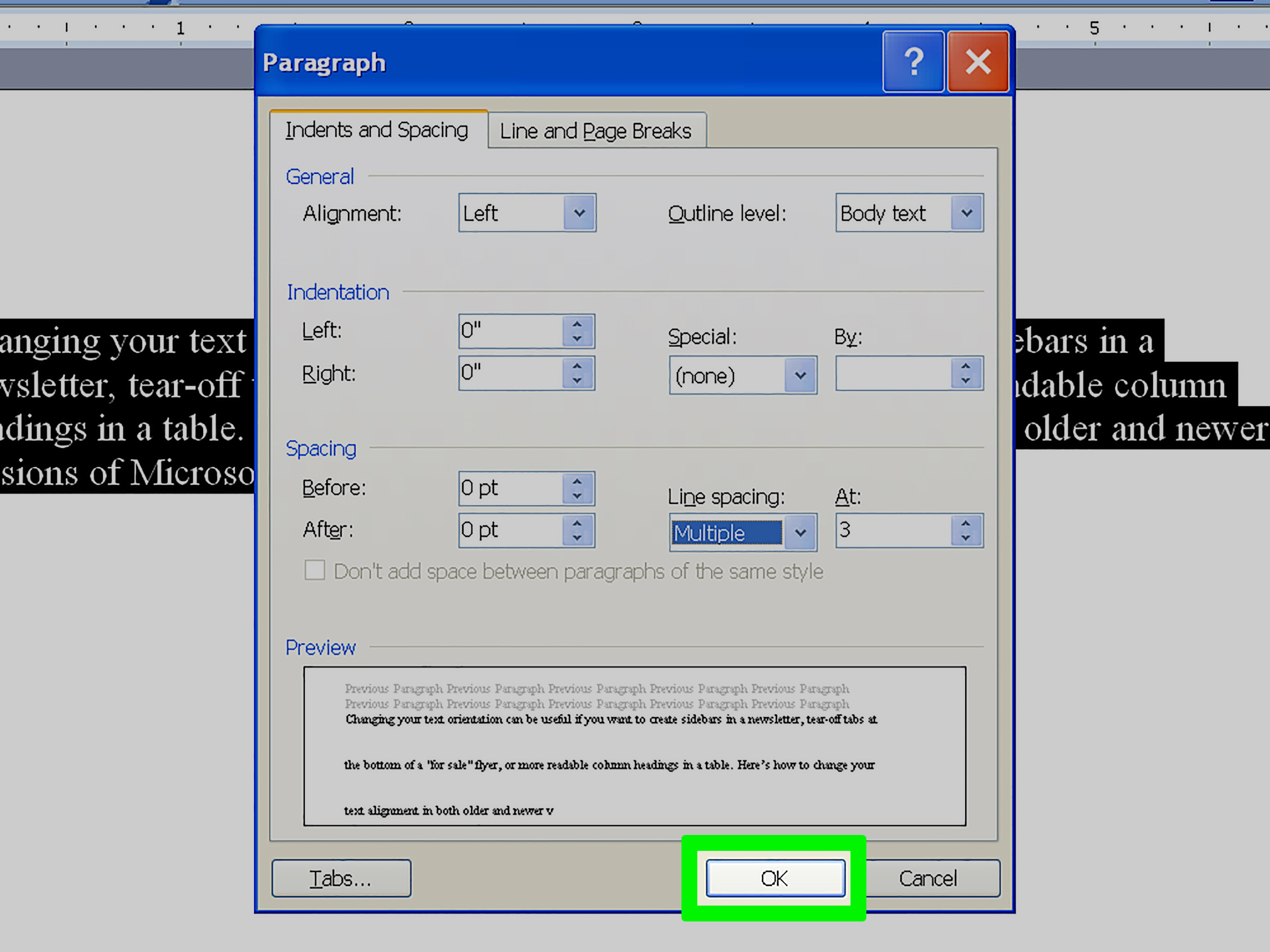
- In the Paragraph group, click the small dialog launcher arrow in the corner.
- In the Indents and Spacing tab, find the Spacing section.
- Set Line spacing to Double.
- Adjust Before and After paragraph spacing if needed.
- Click OK.
This is where you go when the formatting needs to be right, not just close enough for government work. It is also the easiest way to solve the classic problem of a document that looks too loose because it has both double line spacing and extra space after every paragraph.
Why This Method Matters
The Paragraph dialog gives you control over:
- Exact line spacing
- Spacing before paragraphs
- Spacing after paragraphs
- Consistency across sections
If you are formatting a formal paper, this is often the smartest method because it lets you create a truly clean double-spaced document rather than a document that merely looks sort of spaced out.
Bonus Shortcut: The Fastest Keyboard Move
If you love keyboard shortcuts, Word has a gift for you. Press Ctrl + 2 on Windows to apply double spacing to the current paragraph or selected paragraphs. On Mac, the equivalent shortcut is typically Command + 2.
This shortcut is wonderfully efficient when you are actively drafting and do not want to interrupt your typing flow. It is not one of the three main methods in this article because it is really a shortcut version of changing paragraph formatting, but it deserves honorable mention. Think of it as the espresso shot of Word formatting: small, fast, and suspiciously powerful.
Common Problems When Double Spacing in Word
If your document still looks weird after applying double spacing, you are not alone. Here are the most common reasons.
1. Extra Paragraph Spacing Is Turned On
Word often uses space after paragraphs by default. That can make a properly double-spaced document look too loose. Open the Paragraph dialog and check the Before and After values. If you want a traditional double-spaced look, set them to 0 pt.
2. You Pressed Enter More Than Once
Many people add blank lines by pressing Enter twice. That creates manual spacing, not proper line spacing. It is one of the most common formatting mistakes in Word. Use the actual spacing tools instead of building a staircase out of return keys.
3. Styles Are Overriding Your Formatting
If the document uses heading styles, templates, or imported formatting, those settings can override manual changes. In that case, updating the paragraph settings or adjusting the style itself may be necessary.
4. Pasted Text Brought Weird Formatting With It
Text copied from websites, PDFs, or emails often carries hidden formatting. If one section refuses to cooperate, try clearing formatting first or reapplying the spacing after pasting.
Double Spacing vs. Single Spacing vs. 1.5 Spacing
Not every project needs the same line spacing, so here is a practical breakdown:
- Single spacing: Better for resumes, business letters, and compact professional documents.
- 1.15 spacing: Common in Word by default and good for everyday writing.
- 1.5 spacing: A nice middle ground when single feels cramped and double feels too airy.
- Double spacing: Best for drafts, academic papers, edited documents, and writing that needs review space.
The right choice depends on the document’s goal. If readability and annotation matter, double spacing shines. If space efficiency matters more, choose something tighter.
When You Should Use Double Spacing in Word
Double spacing works especially well in these situations:
- School essays and research papers
- Draft manuscripts and creative writing submissions
- Documents under review by editors or instructors
- Printed drafts that need handwritten notes
You may want to avoid double spacing for:
- Resumes
- Cover letters
- Business letters
- Short internal memos
- Documents where space is limited
In short, use double spacing when you want clarity and room to edit, not when you are trying to squeeze an entire life story onto one page.
Quick Example: How a Student Might Use Each Method
Imagine a college student finishing a history paper the night before it is due. First, they write the draft in Word’s default spacing because that is what appears automatically. Then they realize the professor wants double spacing.
If only the body paragraphs need changing, the student can highlight the text and use the Home tab. If the entire paper, including headings and bibliography, needs to follow the same spacing style, the Design tab is faster. If the professor is picky and wants no extra paragraph spacing, the Paragraph dialog is the best tool because it allows exact control.
Same goal, different method. That is why knowing all three approaches is useful.
Best Practices for Clean Formatting
- Use Word’s spacing tools instead of pressing Enter multiple times.
- Check paragraph spacing before assuming line spacing is wrong.
- Apply formatting consistently across the document.
- Preview the document before printing or submitting it.
- When in doubt, use the Paragraph dialog for precise control.
Formatting is one of those things people ignore until it goes wrong. Then suddenly it becomes the main character. A cleanly spaced document looks more professional, feels easier to read, and saves you from awkward last-minute fixes.
Conclusion
Learning 3 ways to double space in Word gives you flexibility instead of frustration. The Home tab is best for quick changes to selected text. The Design tab is ideal for document-wide spacing. The Paragraph dialog gives you exact control when formatting needs to be precise. Add the keyboard shortcut as a bonus, and suddenly you look like the person in the room who actually knows what Word is doing.
The real trick is not just turning on double spacing. It is understanding how line spacing and paragraph spacing work together. Once you know that, Word becomes much less mysterious and far less likely to send your document into formatting chaos. So the next time your page looks too cramped or too floaty, you will know exactly which tool to use and why.
Real-World Experiences Related to “3 Ways to Double Space in Word”
One of the most common real-world experiences with double spacing in Word happens in school. A student finishes an essay, glances at the assignment sheet, and realizes the professor wants the paper double spaced. Panic arrives immediately, usually followed by random clicking. Some students highlight everything and use the Home tab, which works beautifully. Others press Enter after every line, which absolutely does not. That moment teaches an important lesson: proper formatting tools save time, while manual fixes create chaos that later has to be cleaned up.
Another common experience shows up in office work. Someone is reviewing a long report and wants more room to add comments before sending it to a manager or client. Double spacing makes the draft much easier to read and annotate, especially when several people need to look at it. In that situation, the Design tab is often the most useful choice because it changes the look of the whole document at once. People usually love this method because it feels efficient and controlled, like they finally found the “make this presentable” button Word had been hiding.
Writers and editors also run into spacing issues constantly. A novelist may want a manuscript double spaced for easier editing, but after applying 2.0 spacing, the pages still look strangely loose. The culprit is often extra space after paragraphs. This is where the Paragraph dialog becomes the hero of the story. Once the writer sets the line spacing to Double and adjusts paragraph spacing before and after, the document suddenly looks correct. It is a small change, but it can make a huge difference in professional presentation.
People who copy and paste text from websites often have a different kind of experience. They paste content into Word, apply double spacing, and then discover that one paragraph is behaving badly, another looks compressed, and a third seems to be living by its own laws of physics. Hidden formatting is usually the reason. In those moments, users learn that double spacing is not always just about choosing 2.0. Sometimes it is about clearing messy formatting first, then applying the spacing method that fits the document.
There is also the classic experience of learning the keyboard shortcut and suddenly feeling unstoppable. Once someone discovers Ctrl + 2, they tend to use it with the energy of a person who just found a secret passage in a familiar building. It is fast, satisfying, and great for active drafting. Small moments like that are why formatting confidence matters. When you understand Word’s spacing tools, you stop fighting the software and start using it on purpose. That is the difference between a document that looks accidental and one that looks polished, readable, and ready to submit.