

Connecting OneDrive to the Files app on your iPhone is one of those tiny tech chores that sounds more complicated than it is. In reality, it is less “engineering degree required” and more “tap three things and feel unusually productive.” Once OneDrive is connected, your Microsoft cloud files can appear right alongside iCloud Drive, On My iPhone, downloads, PDFs, photos, work documents, school assignments, and that mysterious file named “final_final_REALLY_final.pdf.”
This easy guide walks you through how to connect OneDrive to the Files app on iPhone, how to use it after setup, what to do if OneDrive is not showing in Files, and how to keep your files organized without turning your phone into a digital junk drawer. Whether you use OneDrive for work, school, family photos, scanned receipts, or Microsoft 365 documents, this setup can make your iPhone feel much more like a real file manager.
What Happens When You Connect OneDrive to the Files App?
The Files app is Apple’s built-in file manager for iPhone and iPad. It lets you browse local files, iCloud Drive files, external storage, downloads, and supported third-party cloud services. OneDrive is one of those supported cloud services. When you add OneDrive to Files, it becomes a selectable location inside the Browse tab.
That means you can open the Files app, tap Browse, choose OneDrive, and access your cloud folders without jumping back and forth between multiple apps. You still need the OneDrive app installed and signed in, but the Files app becomes your central command center. Think of it as the front desk of a hotel: OneDrive still owns the room, but Files hands you the key.
Before You Start: What You Need
Before connecting OneDrive to Files on iPhone, make sure you have three things ready:
- An iPhone with the Files app installed
- The Microsoft OneDrive app from the App Store
- A Microsoft account, work account, or school account signed in to OneDrive
If you deleted the Files app from your Home Screen, do not panic. Swipe down on your iPhone Home Screen and search for “Files.” If it appears, open it. If the app was removed, you can download it again from the App Store. The Files app is where you will turn on OneDrive as a location.
You also need to open the OneDrive app at least once and sign in. This matters because Files cannot magically connect to a cloud account that has not been set up yet. Your iPhone is smart, but it is not a mind reader. Not yet, anyway.
How to Connect OneDrive to Files App on iPhone
Follow these steps to add OneDrive to the Files app:
Step 1: Install the OneDrive App
Open the App Store and search for “Microsoft OneDrive.” Download the app, then open it. Sign in with your Microsoft account, work account, or school account. Once you can see your OneDrive files in the OneDrive app, you are ready for the next step.
Step 2: Open the Files App
Open the Files app on your iPhone. At the bottom of the screen, tap Browse. If you are already inside a folder, you may need to tap Browse more than once until you reach the main Browse screen.
Step 3: Tap the More Button
In the Browse screen, look for the three-dot More button near the top of the screen. Tap it, then choose Edit. This opens the list of available file locations.
Step 4: Turn On OneDrive
Find OneDrive in the list of locations and turn on the switch beside it. Then tap Done. OneDrive should now appear as a location in the Files app.
Step 5: Open OneDrive from Files
Back in the Browse tab, tap OneDrive. You should now see your OneDrive folders and files. Congratulations: your iPhone just became a little more organized, and somewhere a productivity coach felt a disturbance in the Force.
How to Use OneDrive Inside the Files App
Once OneDrive is connected, you can use it much like other Files locations. You can browse folders, open documents, preview PDFs, move files, rename items, and save compatible files into OneDrive from other apps.
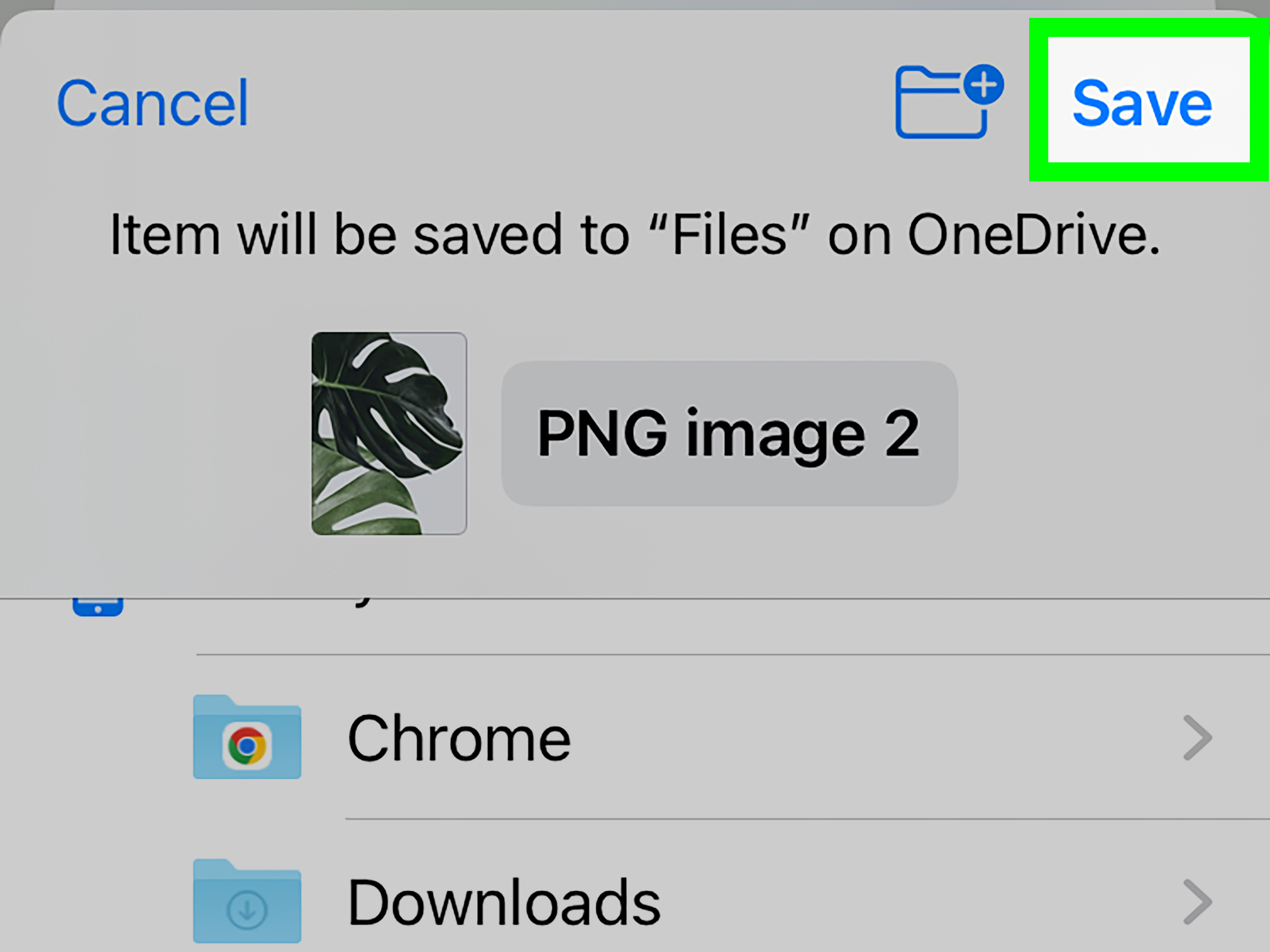
For example, if someone emails you a PDF, you can tap the share button, choose Save to Files, select OneDrive, pick a folder, and save it there. This is much cleaner than leaving important attachments buried in your inbox like archaeological artifacts.
You can also move files between locations. For instance, you might move a document from On My iPhone to OneDrive so it is available on your computer later. To do that, touch and hold the file, tap Move, choose OneDrive, select a folder, and confirm the move.
Why OneDrive May Not Show in the Files App
If OneDrive is not showing in the Files app, the most common reason is simple: the OneDrive app is not installed, not opened, or not signed in. Files needs the OneDrive app to act as the bridge between your iPhone and Microsoft’s cloud storage.
Try these quick fixes:
- Open the OneDrive app and confirm you are signed in.
- Update OneDrive from the App Store.
- Update iOS if a system update is available.
- Force close the Files app and reopen it.
- Go back to Files > Browse > More > Edit and check whether OneDrive is switched on.
- Restart your iPhone if OneDrive still does not appear.
If the problem continues, sign out of OneDrive and sign back in. You can also reset OneDrive from its settings if syncing is acting strange. As a last resort, uninstall and reinstall the OneDrive app. Yes, the classic “turn it off and on again” survives because it keeps working, like a stubborn little tech folk remedy.
How to Save Files from iPhone to OneDrive
There are two main ways to save files to OneDrive on iPhone: through the Files app or through the OneDrive app itself.
Save Through the Files App
When you are viewing a document, image, PDF, or attachment in another app, tap the share icon and choose Save to Files. Then select OneDrive as the destination. Pick the folder where you want the file to live and tap Save.
Upload Through the OneDrive App
You can also open the OneDrive app and use the add button to upload a file or photo, create a folder, take a photo, or scan a document. This is useful when you want the full OneDrive experience, especially for photo backup, scanning, folder creation, and sharing.
Can You Edit OneDrive Files from the Files App?
Yes, but the experience depends on the file type and the app you use to open it. PDFs may open in a preview or markup view. Word, Excel, and PowerPoint files often work best with the Microsoft 365 mobile apps installed. If you tap a Word document in Files, your iPhone may open it in Word if the app is available.
For serious editing, use the dedicated Microsoft apps. Files is excellent for finding, moving, saving, and previewing documents. The Microsoft apps are better for formatting, collaboration, comments, and avoiding that special kind of panic that happens when a table in Word suddenly decides to become modern art.
How to Move Files Between iCloud Drive and OneDrive
One of the best reasons to connect OneDrive to the Files app is that you can move documents between cloud services from one place. For example, you can move a PDF from iCloud Drive to OneDrive if you want to access it later on a Windows PC.
Open Files, find the file, touch and hold it, and tap Move. Then choose OneDrive as the destination and select the folder where you want to store it. You can also use Copy if you want to keep the original file in iCloud Drive and place a duplicate in OneDrive.
This is especially helpful for people who use an iPhone personally but a Windows computer professionally. Apple and Microsoft may not always sit at the same lunch table, but the Files app gives them a polite way to pass documents back and forth.
Tips for Organizing OneDrive in the Files App
A connected OneDrive is only useful if you can find things later. Otherwise, it becomes a cloud-based attic. Use a simple folder structure that matches how you actually work.
Create Clear Folder Names
Use names like “Taxes 2026,” “Work Contracts,” “School Notes,” “Receipts,” “Travel Documents,” and “Family Photos.” Avoid vague folder names like “Stuff,” “Important,” or “New Folder 12.” Those names feel harmless now, but in six months they will betray you.
Keep Work and Personal Files Separate
If you use OneDrive for both personal and work files, keep separate top-level folders. For work or school OneDrive accounts, your organization may have rules about sharing, syncing, and storage. Do not mix personal vacation photos with company documents unless you enjoy awkward IT conversations.
Use the OneDrive App for Sharing
The Files app is great for access, but the OneDrive app is often better for sharing links, setting permissions, scanning documents, managing offline folders, and adjusting account settings. Use Files for convenience and OneDrive for deeper control.
Common Problems and Easy Fixes
Problem: OneDrive Says Content Unavailable
This can happen when the app has trouble loading a folder, the network connection is weak, or OneDrive needs a refresh. Open the OneDrive app directly to see whether the same folder loads there. If it works in OneDrive but not in Files, force close Files and try again.
Problem: Files Do Not Upload
Check your internet connection first. Then open the OneDrive app and confirm the file appears there. If uploads are stuck, update OneDrive, reset the app from OneDrive settings, or reinstall it if needed.
Problem: Photos Are Not Uploading to OneDrive
If you use Camera Upload in OneDrive, make sure it is turned on in the OneDrive app. Also check whether your iPhone uses optimized iCloud photos. Some optimized photos may need to download fully before OneDrive can upload them.
Problem: You Cannot Find a Downloaded File
Open Files and check the Downloads folder, iCloud Drive, On My iPhone, and OneDrive. If the file came from Safari, it may be in Downloads. If it came from an email or another app, it may still be inside that app unless you saved it to Files.
Is Connecting OneDrive to Files App Safe?
Yes, as long as you use good account security. OneDrive is tied to your Microsoft account, so protect that account with a strong password and two-factor authentication. If you use OneDrive for work or school, your organization may also apply security policies.
On your iPhone, use Face ID, Touch ID, or a strong passcode. If your phone is unlocked, your Files app may allow access to cloud locations that are already signed in. In plain English: your phone lock matters. Treat it like the front door to your digital house, not like a decorative suggestion.
When Should You Use OneDrive Instead of iCloud Drive?
Use OneDrive if you work with Microsoft 365 files, Windows PCs, shared business folders, school accounts, or family members who already use Microsoft services. Use iCloud Drive if your life is mostly Apple devices and Apple apps.
The good news is that you do not have to choose only one. Many iPhone users keep iCloud Drive for Apple-related files and OneDrive for work, Microsoft Office documents, PDFs, and cross-platform sharing. The Files app makes this hybrid setup much easier.
500-Word Experience Section: Real-World Lessons from Connecting OneDrive to Files on iPhone
In real everyday use, connecting OneDrive to the Files app on iPhone feels like a small change that quietly removes a lot of friction. The biggest benefit is not that OneDrive suddenly becomes more powerful. The OneDrive app is already powerful. The real benefit is that your iPhone stops making you remember where every file came from. Instead of thinking, “Was that PDF in Mail, Downloads, iCloud Drive, or OneDrive?” you can start with Files and search from one familiar place.
One common experience is saving email attachments. Before connecting OneDrive, many users download an attachment, forget where it went, download it again, and eventually create a tiny civilization of duplicate PDFs. After setup, the process is cleaner: open the attachment, tap Share, choose Save to Files, select OneDrive, and place it in the correct folder. It is not glamorous, but neither is flossing, and both save you from future pain.
Another useful experience appears when switching between iPhone and Windows. Suppose you receive a signed form on your iPhone while away from your computer. You can save it to OneDrive through Files, then open your laptop later and find it waiting in the right folder. No cable. No emailing yourself. No messaging yourself a file with the subject line “IMPORTANT USE THIS ONE,” then losing it anyway. This is where OneDrive and Files work beautifully together.
The setup also helps with scanning and storing documents. The OneDrive app includes scanning features, but once documents are saved in OneDrive, the Files app gives you another easy way to locate and move them. For receipts, IDs, school forms, medical documents, travel reservations, and home paperwork, this can turn your iPhone into a surprisingly useful mini filing cabinet. A filing cabinet that fits in your pocket and occasionally distracts you with dog videos, but still.
There are a few practical lessons, though. First, do not expect the Files app to replace the OneDrive app completely. Files is excellent for browsing and saving, but OneDrive is better for account settings, sharing links, camera upload, scanning, offline access, and troubleshooting. Second, keep the OneDrive app updated. If Files starts acting odd, the issue is often solved by updating OneDrive, opening it directly, or signing in again. Third, keep your folders simple. A cloud drive with 47 nested folders is not organization; it is a maze with Wi-Fi.
The best experience comes from using each app for what it does well. Use Files as your central browser. Use OneDrive as your cloud storage engine. Use Microsoft Word, Excel, and PowerPoint for serious document editing. Once that rhythm clicks, your iPhone becomes much better at handling real work. You can save documents where they belong, find them faster, and move between Apple and Microsoft tools without feeling like you are negotiating a peace treaty between two tech kingdoms.
Conclusion
Connecting OneDrive to the Files app on iPhone is a simple setup that can make a big difference in how you manage documents, downloads, photos, PDFs, and Microsoft 365 files. Install OneDrive, sign in, open Files, go to Browse, tap More, choose Edit, and turn on OneDrive. From there, you can browse your cloud folders, save files from other apps, move documents between locations, and keep your digital life a little less chaotic.
If OneDrive does not appear, start with the basics: update the app, confirm you are signed in, restart Files, and check the location toggle. For deeper issues, reset or reinstall OneDrive. Once everything is connected, use clear folders, separate work and personal files, and rely on the OneDrive app when you need advanced sharing, scanning, or sync settings.
In short, the Files app and OneDrive make a practical team. Files gives you convenience. OneDrive gives you cloud access. Together, they help your iPhone behave less like a cluttered pocket computer and more like a tidy digital workspace. Your future self, desperately searching for that one PDF before a meeting, will thank you.